The Tableau Next Sales Leaderboard dashboard template provides a comprehensive overview
of your sales pipeline with key metrics and visualizations. It highlights sales wins and
emphasizes which opportunities sales reps want to priortize. The dashboard is designed for sales
teams, delivering real-time insights.
Tableau Unmetered Platform Analyst or Tableau Next Platform Analyst permission set
To install semantic models in Data 360:
Data Cloud Architect permission set
To install and view Sales Insights:
Sales Insights user permission
This template requires:
Customer 360 Data Model installed in Data 360
Sales Insights data kit installed in Data 360
Sales DMOs: Account, Lead, Opportunity, Opportunity History, Opportunity Stage, Task,
Contact Point Address, Calendar Event, User, Business Period, Forecasting Fact, and Forecasting Item.
This template is designed to work with the Sales Insights DMOs, mapping your sales data into
valuable metrics.
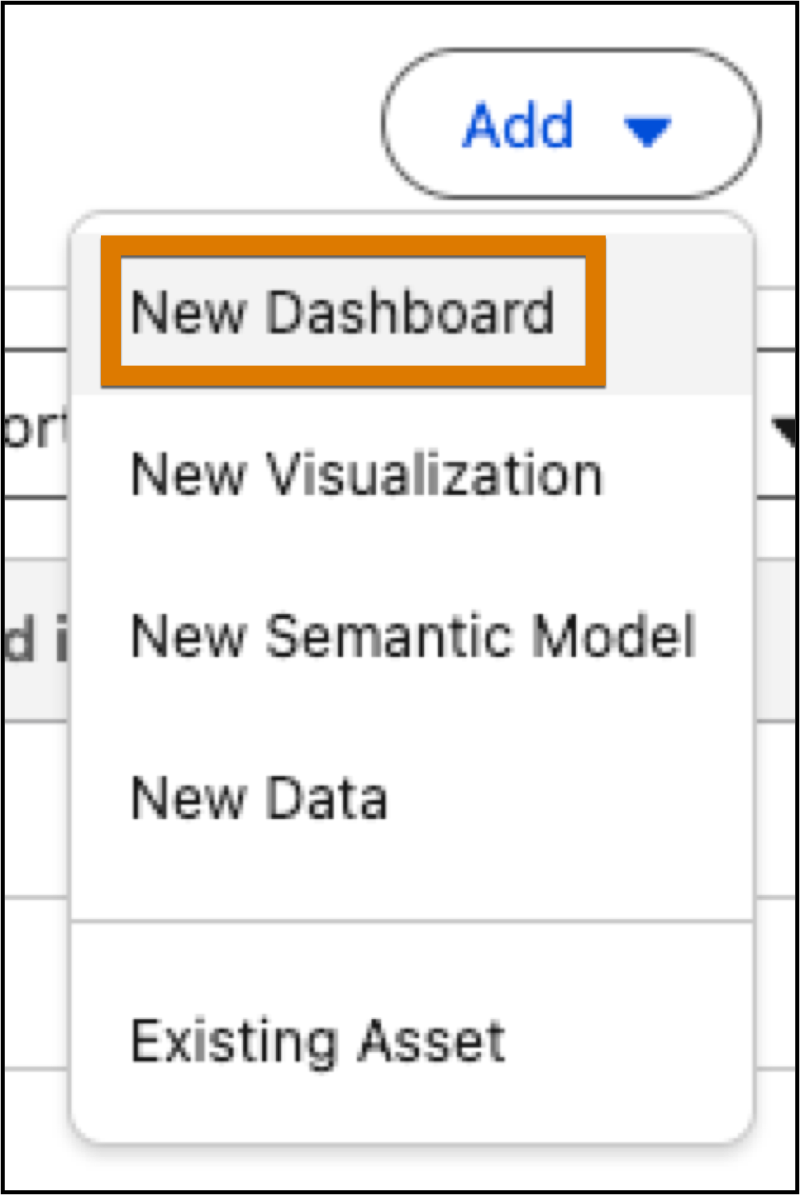
From a workspace, click Add and select New
Dashboard.
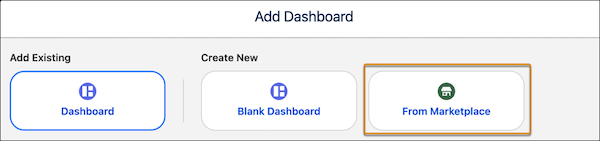
To view dashboard templates, select From Marketplace.
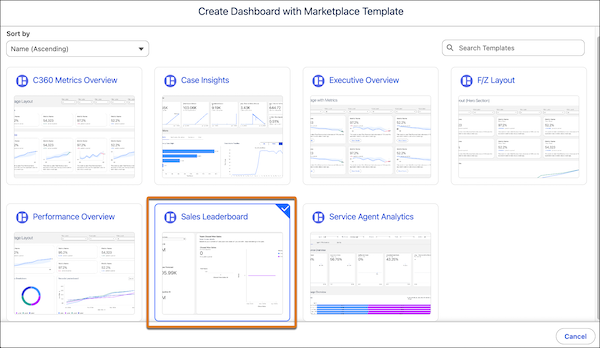
In the Marketplace, select the Sales Leaderboard template tile, and click
Next.
View the template details and click Next.
Select the data space for the semantic model.
Click Create Dashboard to start the installation process.
The template checks your org to make sure that all prerequisites and permissions are set up correctly to install the dashboard. If the template
validation is successful, the installation process begins. If it fails, you’re provided with a list of errors to resolve.
Did this article solve your issue?
Let us know so we can improve!
Loading
Salesforce Help | Article
Cookie Consent Manager
General Information
Required Cookies
Functional Cookies
Advertising Cookies
General Information
We use three kinds of cookies on our websites: required, functional, and advertising. You can choose whether functional and advertising cookies apply. Click on the different cookie categories to find out more about each category and to change the default settings.
Privacy Statement
Required Cookies
Always Active
Required cookies are necessary for basic website functionality. Some examples include: session cookies needed to transmit the website, authentication cookies, and security cookies.
Functional Cookies
Functional cookies enhance functions, performance, and services on the website. Some examples include: cookies used to analyze site traffic, cookies used for market research, and cookies used to display advertising that is not directed to a particular individual.
Advertising Cookies
Advertising cookies track activity across websites in order to understand a viewer’s interests, and direct them specific marketing. Some examples include: cookies used for remarketing, or interest-based advertising.