
You are here:
Use Q&A Calibration to Improve Accuracy in Concierge (Beta)
When Q&A Calibration is enabled in Tableau Next, analysts and data experts can test and verify questions and answers for Concierge based on the selected analytics agent and its associated semantic model. Through evaluating questions to determine if questions are accurate (verified) or inaccurate, analysts can provide valuable input that your analytics agents can use to respond consistently and accurately to semantically similar questions.
Required Editions
| View supported editions. |
| User Permissions Needed | |
|---|---|
| To use Q&A Calibration: | Tableau Next Platform Analyst permission set Tableau Next Analyst permission set Edit permission for the relevant semantic model |

Semantic definitions are integral to the accuracy of the analytics agent. Every organization knows its data, its semantic model, and its business preferences. The input your experts can provide through Q&A Calibration helps to calibrate and tune your semantic definitions to fit the context of your organization.
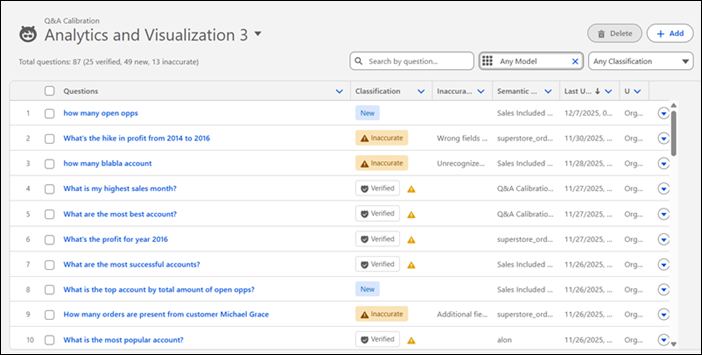
Verified questions are saved in a repository with the related semantic model. When a user asks a question in Concierge, the agent considers questions from the agent's semantic model question bank and grounds the answer with relevant context. When your users ask similar questions, the agent can respond consistently with verified answers.
Because Q&A Calibration uses Concierge, you will need to confirm that Agentforce for Analytics and Concierge: Analytics Q&A are enabled in Tableau Next settings. If you don't see these settings, to get started with using the Analytics and Visualization Agentforce template, contact your Salesforce representative.
- In Tableau Next, click Q&A Calibration.
- In the Agent search field, click and select an agent or enter the name of an agent and select the agent from the list.
- In the question bank page, click Add.
- Select a semantic model, and then enter a question in the Concierge pane. The question is added to the question bank list as New. You can also view the semantic query that is generated from the question.
- Click a question in the list to open a preview in Concierge and prompt the analytics agent to analyze the question.
-
For Classification, select Verified or
Inaccurate.
- For Verified, click Mark as Verified to confirm. By selecting Verified, you are coaching the analytics agent and Concierge with positive examples to train the agent for consistency and accuracy. This saves the classification and opens the Calibration Suggestion pane with For suggestions on how you can calibrate the answer. If a user asks the same or a similar question, that answer will be suggested as part of the utterance to the agent.
- For Innacurate, select a classification reason. Enter the answer you expected, and
then click Save & Suggest Calibration.
This saves the classification and opens the Calibration Suggestion pane with For suggestions on how you can calibrate the answer.
For each suggestion you want to explore, click Calibrate. Tableau Next will provide options for making adjustments in the semantic model.
If you select Calibrate, you'll need editing permission to access and edit the relevant semantic model. -
For Inaccurate responses, it's helpful to provide context about why the answer was
inaccurate. The following options are possible:
-
Unrecognized term in question
-
Additional fields need to be included in the answer
-
Wrong fields were used
-
Calculation not supported
-
Wrong calculation used
The Calibration Suggestion panel provides information on how to address the issue. For example, it might suggest you create a new business preference, select a new field, or update a calculation. When you click Calibrate in this panel, the recommended page opens.After you save your changes, click the Home button to return to the Q&A Calibration page.
Each time you make adjustments for a calibration, retest the question to assess the resulting response. You can view the semantic query that is generated from the question. You may want to calibrate a question multiple times to get the response you expect.
Click Retest to test the question again after calibration and evaluate if the change affected the answer.
-
A yellow warning icon next to a question name indicates that you verified the question previously, but the semantic model has changed since that time. You can retest the question to validate it again.
As you save and calibrate questions, ask the questions again using Concierge in Q&A Calibration.
You can manage the list of questions at any time by sorting, filtering, deleting, or adding questions.
