
You are here:
Troubleshoot Your Intelligent Apps
You can see the logs and state of an Intelligent App, cancel running installations, and troubleshoot problems.
To access the logs for your Intelligent App, click the app name and go to the Monitoring tab. The app logs provide details for each installation and task associated with the app. Use this information to troubleshoot why an installation or task wasn’t successful or when an installation was canceled. You can also cancel a running task from the Monitoring tab.
- From Setup, select your app instance and click Monitoring.
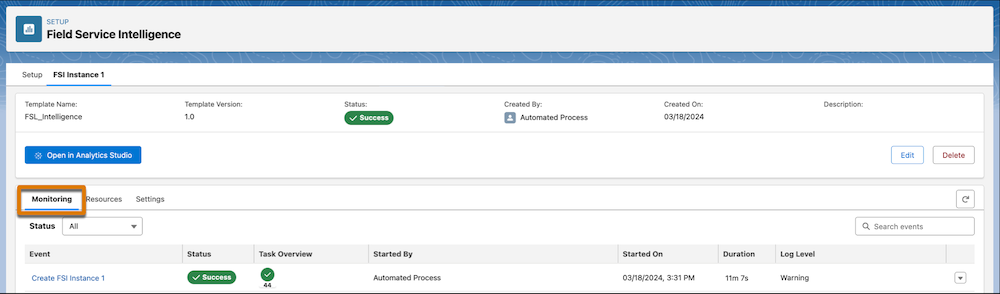
- Search for a particular event by entering the event value in the Search box.
- View the status of the event, and the progress of individual tasks from the Event field.
- To manage the event, select an action from the menu accessible from the dropdown list
icon
 . For example, you can delete the request.
 - To see all the tasks associated with the event, click the event name. This action displays all the tasks and their status.
- Review the tasks.You can see details for each task, such as whether the task was skipped, successful, or failed. You can also see the task type; such as
RecipeExecute, the phase; such asvalidateorexecute, and error messages associated with the task to help you troubleshoot.If log entries are available, you can click the task to see the entries. The log entries provide granular detail for each installation and each task. The logs are helpful for troubleshooting why an installation or task wasn’t successful or when an installation was canceled.
 Important Log detail level is dependent on the log level selected at app creation. If there are logged events that are equal to or more severe than the selected log level, logs are available for viewing.
For more information on how to use this page for troubleshooting, see the Use the App Install History Page in the Analytics Templates Developer Guide.
