
Add an API Client in B2C Commerce
Account administrators can use Account Manager to create API clients. To access the Salesforce Commerce API (SCAPI) or Open Commerce API (OCAPI), you must use an API client. Append the API client ID to the URLs that you use to access these APIs. An API client is also required to use the On-Demand Sandbox API.
Required Editions
| Available in: B2C Commerce |
You can’t use the same client ID for both the B2C Commerce API (SCAPI) and OCAPI. Each API framework requires its own client ID. An API Client ID that's meant for OCAPI must not have the role "Salesforce Commerce API" assigned to it.
- Log into Account Manager.
-
Click API Client.
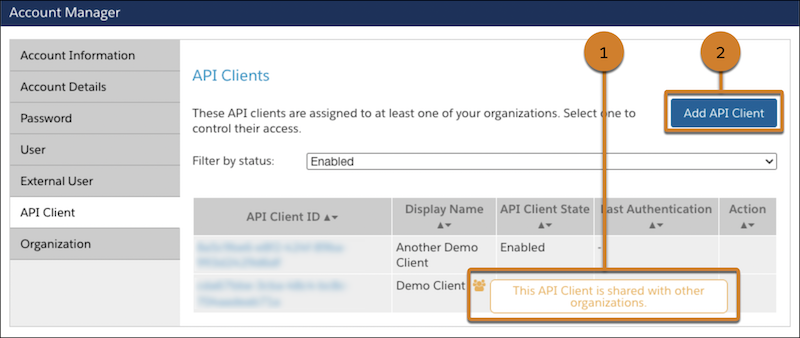
The API Clients page opens, showing a list of API clients. For each client, the page shows the API client ID, the display name, and the status. If an API client is shared across multiple organizations, the display name has an indicator icon (1). Warnings are also shown for shared API clients on the API Client Detail page and when saving changes. Account Manager recommends limiting API clients to one organization. For more information, see Security Updates for Account Manager API Clients Assigned to Multiple Organizations for B2C Commerce.
-
Click Add API Client (2) to open the Add API Client page.
- In the Display Name field, enter the display name of the client.
-
In the Password field, enter the password.
Minimum password requirements:
- Must include at least 12 characters. (You can configure the number of required characters on the organization level. The number must always be equal to or greater than 12).
- Must include three out of four: numbers, symbols, lower case, upper case.
- Can't include part of your name, username, or UUID.
-
In the Confirm Password field, reenter the password.
The Access Control section indicates the status of the API client.
-
In the Client Authentication Type section, select an authentication type.
- Confidential: Suitable for applications that run on servers or platforms capable of securely storing a client secret.
- Public: Suitable for environments where a secret cannot be hidden, such as single-page web apps or native mobile and desktop applications. Uses Proof Key for Code Exchange (PKCE) to exchange OAuth tokens securely. For public API clients, you cannot assign a role, set a password, or use a JWT public key.
-
In the Organizations section, click
Add.
The Assign Organizations page opens.
-
In the Assign Organizations page, do the following:
- Search for organizations.
- To add the API client to an organization, select the organization’s checkbox (each API client must belong to one or more organizations).
- Click Add.
-
(Optional) To assign roles to the API client, in the Roles
section, click Add.
- Assigning Account Manager Roles: Search for and select roles such as Account Administrator or API Administrator.
- Assigning the Salesforce Commerce API Role: To allow the API client to access the Salesforce Commerce API (SCAPI), search for and select the Salesforce Commerce API role. Select the filter icon to specify the required role scope. In the Add Instance Filters tab, select an organization. Enter and select the names of the instances for access. Click Add.
- (Optional) To use a JSON Web Token (JWT) to authenticate the API client instead of using a password, provide a Client JWT Bearer Public Key in the JWT field. Input a PEM-formatted certificate or a Base64-encoded RSA public key, with or without headers. The system checks for correct formatting and valid cryptographic material. To use Access Token format, add a JWT.
-
(Optional) To access B2C Commerce resources using OAuth2 with an API client,
provide values in the OpenID Connect section.
The JWT access token format is required. UUID is not supported.
-
Click Save.
Account Manager creates the API client.
Additional Resources
