
Create a Zone in B2C Commerce
The CDN configuration is organized around zones. A zone represents a root or apex domain (for example, example.com). A hostname is a subdomain of a specific zone (for example, www.example.com).
Required Editions
| Available in: B2C Commerce |
Salesforce B2C Commerce examines the hostname alias files for all your development, staging, and production instances across all your realms. B2C Commerce then aggregates this information and derives the names of zones from the hostname entries in your alias files.

For example, if the hostname alias file for your Production instance contains an entry for www.example.com, B2C Commerce creates the zone shop.com.
After you create a zone, you can’t delete it in the user interface. To remove a zone, contact Salesforce Support.
Register a domain name with your DNS provider before you create a zone. For example, you register the domain www.example.com before creating the zone example.com.
It can take up to 24 hours for B2C Commerce to create and verify a proxy zone.
-
In Business Manager, click App Launcher
 , and then select Administration | Sites | Embedded CDN Settings.
-
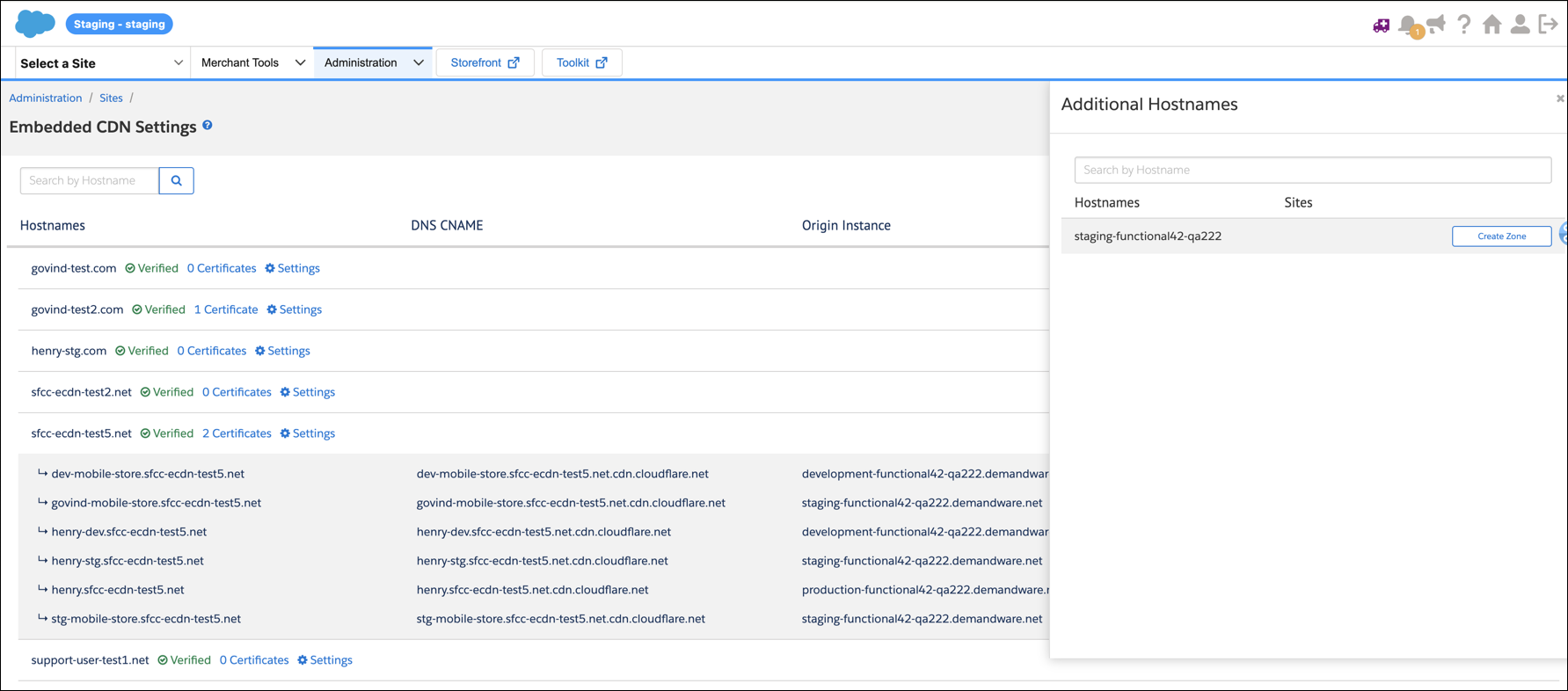
Click Add Hostnames.
The Embedded CDN Settings page shows your Default Zone and any existing hostnames.
-
For each hostname in the list that you want to add, click
Create Zone.
B2C Commerce automatically adds hostnames after you create and configure the zone and set the zone status to verified.
-
If you’re creating a new zone, then refresh the status of the individual zone
with the Refresh Status link while zone creation is in progress.
To check the status of hostname validation, click Verify Configuration.
This verification can take up to 24 hours.
Note Next, add a SSL certification to the eCDN zone. See Add an SSL Certificate to an eCDN Zone and Configure DNS Mapping.
-
After the zone is verified and the certificate is active, update your DNS CNAME to
point your vanity hostname directly to the eCDN hostname.
Don't point the CNAME to
dx.commercecloud.salesforce.com. Point it directly to the eCDN zone hostname. -
To manage security rules, web application firewall (WAF), analytics, host header override rules, and Page Shield
policies for the zone, click Configure Zones and select the zone
from the dropdown.
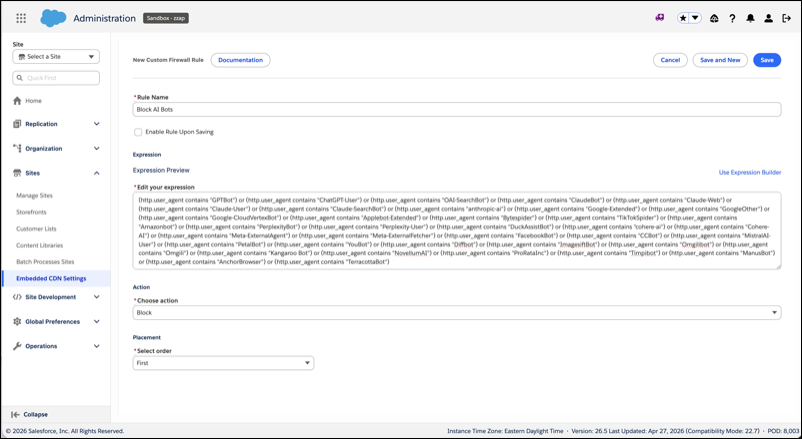
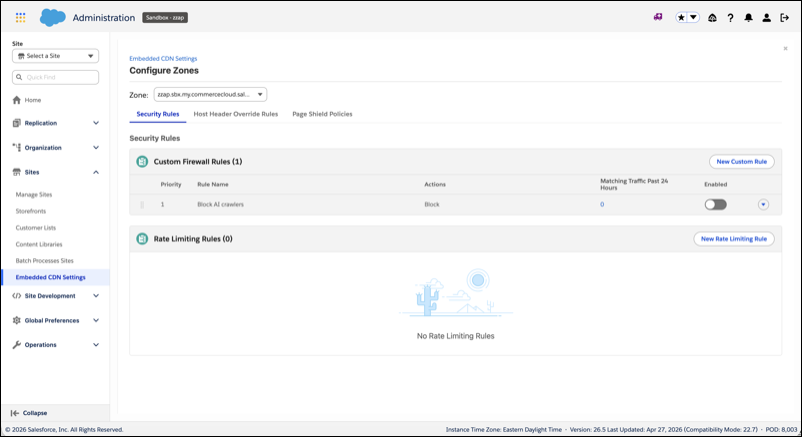
 Important Unlike standard production instances, On-Demand Sandboxes (ODS) zones — including dev and production ODS — don't have a default Block All firewall rule. Salesforce recommends adding at least one custom rule after zone creation. As a starting point, add a rule to block AI crawlers to prevent unwanted automated traffic on your sandbox.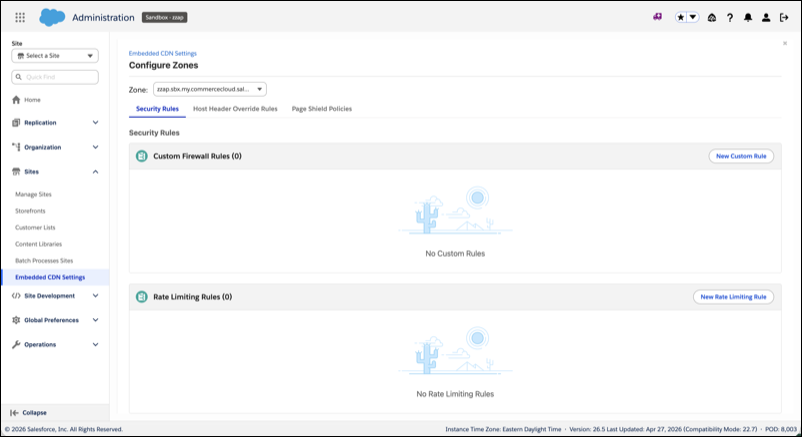
Watch a demo: Create a Proxy Zone and Add a Hostname
ODS Vanity Domain Migration
If you use vanity hostnames on ODS (CNAMEd to
dx.commercecloud.salesforce.com), follow the applicable scenario below
before the 26.7 rollout.
Prerequisites (before you begin):
- Register your domain name with your DNS provider before creating a zone. For
example,
www.example.commust be registered before creating zoneexample.com. - Confirm that your ODS realm is provisioned for eCDN. In Business Manager, verify that Embedded CDN Settings shows your realm as Provisioning with Default Zone.
- Make sure that your vanity hostname is listed in the hostname alias file for your instance (development, staging, or production). B2C Commerce derives zone names from these alias files.
Scenario 1 — Vanity hostnames with ingress Transport Layer Security (TLS) termination (26.5 pilot customers only):
Full self-service vanity hostname support for ODS is targeted for the 26.7 release. For 26.5 pilot customers, an interim manual path is available. Contact Salesforce Support to coordinate eCDN team involvement.
Scenario 2 — Vanity hostname CNAMEd to dx.commercecloud.salesforce.com (no ODS cert):
Salesforce hasn't finalized the inventory and migration path for hostnames in this state. Verify that your vanity hostname has an existing Let’s Encrypt certificate via ODS Infrastructure. If it does not (Scenario 3), this migration path is not available — contact Salesforce Support for guidance.
Important caveats:
- eCDN settings are per-instance. Manage dev, staging, and production instances independently. Create and verify zones for each instance type separately.
- Zone deletion requires Salesforce Support. Zones can’t be deleted via the UI once created.
- Zone creation can take up to 24 hours to verify.
- Your ODS realm must be eCDN-enabled before zone creation succeeds. If you see
CDN-API default-domain/hostnames call failedin the Storefront Fast Setup job, your realm hasn’t been provisioned yet. Contact Salesforce Support.
