
You are here:
Set Up Data 360 for B2C Commerce
To set up Data 360 for B2C Commerce, you need Data 360 and CommerceIntelligenceB2CE licenses.
Which Salesforce Commerce Product Do I Have?

Important Data 360 for B2C Commerce setup takes place in your Salesforce org,
not Business Manager.
-
At the top of the page, click
 , and then select Setup.
- In the Quick Find box, find and select Commerce Setup Assistant.
-
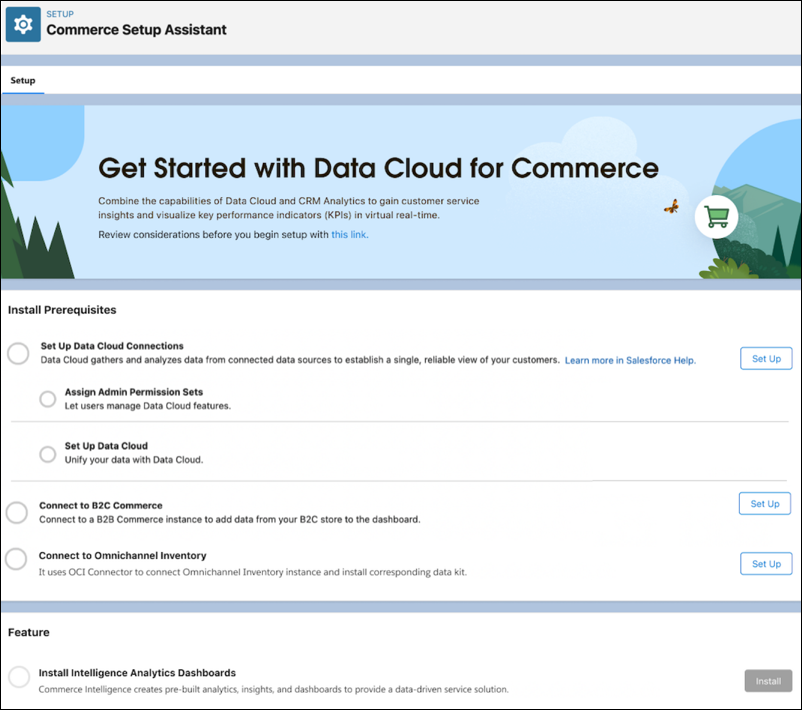
On the Set Up Data 360 for Commerce tile, click Get
Started.
-
Next to the Set Up Data 360 Connections step, click Set
Up.
If you have an Enterprise or Unlimited edition, this step begins automatically. Click Complete Setup to finish the process.
You’re assigned the Data 360 Admin and Einstein Analytics Admin permission sets, so you can create data streams and access all the Data 360 for Commerce features. Setup also configures Data 360 in your org. -
Connect B2C Commerce with Data 360.
- Next to the Connect to B2C Commerce step, click Set Up.
- Link B2C Commerce with Data 360. See Set Up a B2C Commerce Connection.
-
Deploy the data streams for B2C Commerce.
- From the App Launcher, find and open Data Cloud.
- On the Data Streams tab, click New.
- Select the B2C Commerce connected data source, and click Next.
-
Select your connected Commerce instance.
If there’s only one Salesforce org connected to Data 360, it’s selected by default.
- Select Bundles, select the Order bundle, and then click Next.
-
Select the default data space, and click Next.
The installed objects and fields are displayed. Don’t remove the data objects, fields, or mappings because Data 360 for Commerce relies on the standard installation to populate the dashboards correctly.
-
Click Deploy.
The Data Streams tab shows the progress. When the data streams show an Active status, you’re ready to continue.
-
To return to the Commerce Setup Assistant, at the top of the page, click and select Setup. In the Quick Find box, find and select
Commerce Setup Assistant.
-
(Optional) To add inventory data to the dashboards, click Set Up
for Connect to Omnichannel Inventory. This option is listed only if you have Omnichannel
Inventory provisioned.
This step imports your Omnichannel Inventory data into Data 360 and creates the necessary data streams and relationships between data model objects.Connecting inventory data to your existing Intelligence Analytics setup overrides customizations to your dashboards. You can reapply the customizations after completing the setup.
-
Next to the Install Intelligence Analytics step, click
Install.
The installation takes several minutes. To view the updated statuses, refresh the page. When the installation is complete, click View Intelligence Analytics to access the Intelligence Analytics dashboards.
To access Intelligence Analytics dashboards from Business Manager in B2C Commerce, select site. Select Merchant Tools Analytics, and click Commerce Intelligence.
Did this article solve your issue?
Let us know so we can improve!
