
Loading
Feature degradation | Gmail Email delivery failureRead More
Get Started with B2C Commerce
Table of Contents
Select Filters

          No results
          No results
          Here are some search tips

          Check the spelling of your keywords.
          Use more general search terms.
          Select fewer filters to broaden your search.

          Search all of Salesforce Help
          Explicit Search Rank and Search Placement

          Explicit Search Rank and Search Placement

          B2C Commerce Explicit Search Rank and Placement allow you to promote a group of products and indicate the relevance of a particular product within a category.

          How Search Rank and Search Placement inherit

          For a given product the search rank and search placement, since the use the same logic, are determined using the following look-up order:

          1. Product attribute
            1. If the product is a simple product and has its own search placement value, that value is used.
            2. If the product is a variation product and has its own search placement value, that value is used.
            3. If the product is a variation product and its base product has a search placement value, the variation product inherits the base product's search placement value and is used.
          2. Category attribute

            If no product attribute exists, the logic falls back to the product's categories.

            1. All category assignments of the product are determined. If the product is a variation product, it picks up assignments for its base product.
            2. For each assignment, the search rank is determined using the deepest category that has a value (child categories can overwrite the value) on the path to the assignment.

          If the product has multiple assignments, it therefore has multiple search placements.

          At search time, the values for all these assignments are evaluated and the best one is used. The best value is always the one that leads to the highest placement. So, the highest value applies if a sorting rule with a descending order is used. For search and rank placement, always use a descending order.

          For example, assume the following category tree with the given search placement values:
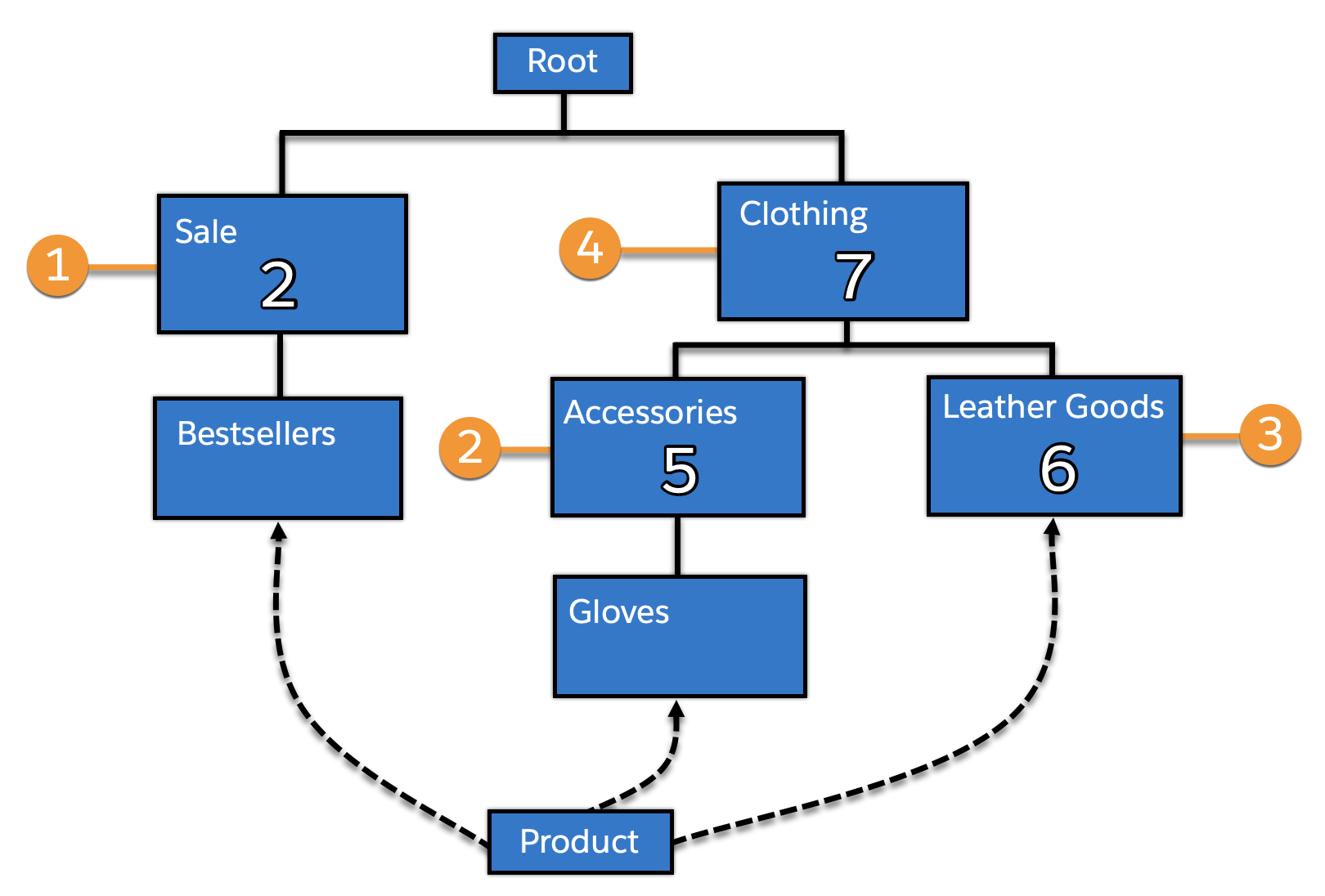
          Search Ranking

          If a product is assigned in the categories bestsellers, gloves, and leather goods, and does not have its own search placement, it picks up the values:

          • 2 for its assignment in bestsellers (1)–inherited from sale.
          • 5 for its assignment in gloves (2)–inherited from accessories.
          • 6 for its assignment in leather goods (3) –overwriting the 7 inherited from clothing (4).

          If the product search is done in the context of a specific category, only the assignments and values below that category are found:

          • a search in bestsellers finds the assignment in bestsellers and use value 2.
          • a search in sale finds the assignment in bestsellers and use value 2.
          • a search in gloves finds the assignment in gloves and use value 5.
          • a search in leather goods finds the assignment in leather goods and use value 6.
          • a search in accessories finds the assignment in gloves value 5.
          • a search in clothing finds the assignments in gloves and leather goods and use values 5 and 6.

          A search in root finds the assignments in bestsellers, gloves, and leather goods, and use values 2, 5, and 6. Any search with no category refinement is executed on root, so this is the default behavior for all unrefined keyword searches.

          Out of the identified values, the best value is chosen. For search rank and search placement, the order should always be descending, so a search in root results in a placement value of 6 for the product (which is the highest value out of 2, 5, and 6).

          Use Explicit Search Rank

          If search rank values exist in your external catalog data, they can be set through the catalog import feed. Even if you intend to manually assign values, it's recommended that you assign a default value to all new products in your catalog import feeds. If you don't set a value, the value is set to zero and appears after any products explicitly ranked one (Low).

          Required Editions

          Available in: B2C Commerce

          You set the explicit search rank to promote a group of products. For example, if you wanted to phase out seasonal products, give them all a search rank that can change over time. Use other ranking techniques, such as availability to sort items within search rank. Explicitly set the search rank for a product to one of three values: three (High), two (Medium), one (Low).

          1. Select site | Merchant Tools | Products and Catalogs | Catalogs | catalog .
          2. Set the Search Rank attribute value for the category or product.
            1. Click Edit to the right of the category you want to edit.
            2. Click the Category Attributes tab.
              All products in this category receive this value, unless you select a different value for a subcategory or the product itself.
            1. To set it for the product, select site | Merchant Tools | Products and Catalogs | Products | product . Click the General tab.
          3. Set the Search Rank attribute value for the category.
          4. Select one of the following values:
            • NONE- This is the default value.
            • 3 (High)
            • 2 (Medium)
            • 1 (Low)
          5. Include the Search Rank product attribute in a sorting rule. Search Rank is selected as a product attribute in sorting rules, even though the values can be defined at a category level.
            To change the number or meaning of these values, select Administration | Site Development | System Object Types | Product - Attribute Definitions, finding the searchRank attribute, and editing the values.
          Note
          Note Add search rank to a dynamic attribute, but the value resolves to zero.

          Use Explicit Search Placement

          If search placement values exist in your external catalog data, they can be set through the catalog import feed. Even if you intend to manually assign values, it's recommended that you assign a default value to all new products in your catalog import feeds. If you don't set a value, the value is set to zero and appears after any one (NLA Products).

          Required Editions

          Available in: B2C Commerce

          Explicit search placement is used to indicate the relevance of a particular product within a category. For example, if you had a "Ski Clothing" category, you might want Jackets and Ski Boots to be featured products that appear first in the search results and hats and gloves to be accessories that appear at the end of the search results. If you set the value for the category, it's inherited by the product, unless a value is set specifically for the product.

          1. Select site | Merchant Tools | Products and Catalogs | Catalogs | catalog .
          2. Set the Search Placement attribute value for the category or product.
            1. Click Edit to the right of the category you want to edit.
            2. Click the Category Attributes tab.
              All products in this category receive this value, unless you select a different value for a subcategory or the product itself.
            3. To set it for the product, select site | Merchant Tools | Products and Catalogs | Products | product | General tab.
          3. Select one of the following values:
            • NONE - This is the default value.
            • 8 (Top Featured Product)
            • 7 (Featured Product)
            • 6 (Product)
            • 5 (Secondary Product)
            • 4 (Featured Accessory)
            • 3 (Accessory)
            • 2 (Spare Part)
            • 1 (NLA Product)
          4. Include the Search Placement product attribute in a sorting rule. Search Placement is selected as a product attribute in sorting rules, even though the values can be defined at a category-level.

          To change the number or meaning of the search placement attribute values, select Administration | Site Development | System Object Types | Product | Attribute Definitions, finding the searchPlacement attribute, and editing the values.

          Note
          Note Add search rank to a dynamic attribute, but the value resolve to zero.
           
          Loading
          Salesforce Help | Article