
You are here:
Organize Page Designer Pages in Folders
Assign Page Designer pages to one or more content library folders. This topic applies to B2C Commerce.
- If you’re assigning several pages to a folder, it can be more efficient to upload them in bulk. See Bulk Upload Pages to Folders.
- To create a folder, in Business Manager, click App Launcher, and then select . See Create a Library Folder in B2C Commerce.
-
Assign one or more Page Designer pages to a folder.
- In Business Manager, click App Launcher, and then select .
-
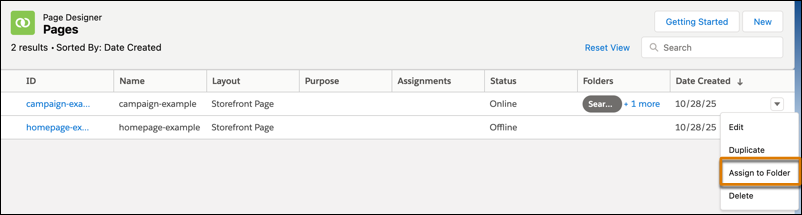
On the Page Designer page that you want to assign to a folder, select
Assign to Folder.
-
Assign the Page Designer page to one or more folders, and select
Next.
If you assign the page to multiple folders, select one folder as the default. Depending on how youʼve customized your folders, the default folder can determine which folder the system uses for store navigation, such as the breadcrumbs or the folder presented to the shopper as part of the search results.
- Save your changes.
Configure SEO URLs for Page Designer pages in content folders. See Create Catalog and Content URLs.
Did this article solve your issue?
Let us know so we can improve!
