
You are here:
Pricing and Price Books in B2C Commerce
Price books are the way you define prices for products. A price book contains price definitions for a group of products, based on a currency. Each product in the price book can have multiple price tables in which you define prices for varying quantities. This topic applies to B2C Commerce.
Price books are defined for an entire organization rather than a specific storefront site. For a price book to be effective in the storefront, assign it to a site. You can assign one or more price books to a storefront, and you can assign a price book to one or more storefronts in an organization.
It’s recommended to have a set of fixed price books with fixed price book names, and use the merge or replace mode to update the price books. We don’t recommend deleting and re-creating price books in a regular cadence.

Scenario 1: Volume Pricing with Price Tables
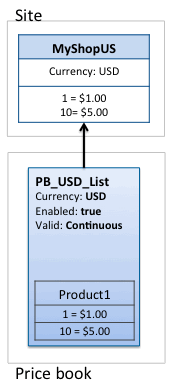
Price Tables
Each price table defines prices for that product. Each product must have a price defined for a quantity of one (1) in some price book that is active for the site. Computed prices are computed from this price. If there’s no price for a quantity of one, B2C Commerce returns NA. A price table can also be volume-based so that lower prices apply for higher quantities.
You can create multiple price tables for a given SKU in a price book. Each price table defines prices for that product. If there’s no price for a quantity of one, B2C Commerce returns NA. A price table can also be volume-based so that lower prices apply for higher quantities. A product can define multiple price tables within a price book as long as they each have a different valid period.
Each price table must have a unique start date, where null (an empty field) is a valid start date representing a continuous price. At any given time, at most one price table for a given SKU is active within a price book. A price table is active if the current time falls within its start and end dates, and its start date is the most current of all tables with this property.
Automatic Cleanup of Expired Price Tables
B2C Commerce automatically deletes expired price tables. This reduces how many obsolete prices are stored in price books for merchants who are heavy users of price activation dates. A job runs nightly to remove the following:
- Price tables that have an expiration date at least 2 weeks in the past
- Price tables that are permanently obsolete (as of 2 weeks ago) because other price tables with more recent starts dates are active
All price books in B2C Commerce are processed automatically.
This behavior can't be disabled. Price tables are selected based on the Valid
Period field.
You can also configure global settings to delete price tables that
don't have an associated product ID, based on the lastModified field. See Configuring Retention
Settings.
Scenario 2: Sale Pricing with Multiple Price Books
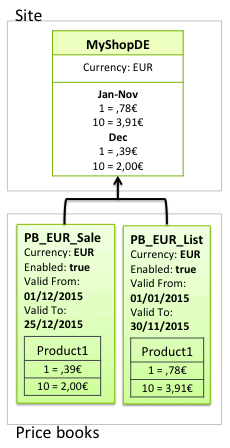
Valid Periods
By default, a price book is always valid and the valid period is shown as
Continuous. However, you can specify that price books are only valid
for a specific period, such as a sale. However, only one price book can be active at a
time. If two price books are assigned to a site, with overlapping valid periods, the
price book whose Valid From date is the most recent is active. If a
continuous price book and a price book with a specific valid period are assigned to a
site, and if the date is within the valid period of the specific price book it’s active.
Otherwise the continuous price book is active.
Scenario 3: Multicurrency Storefronts
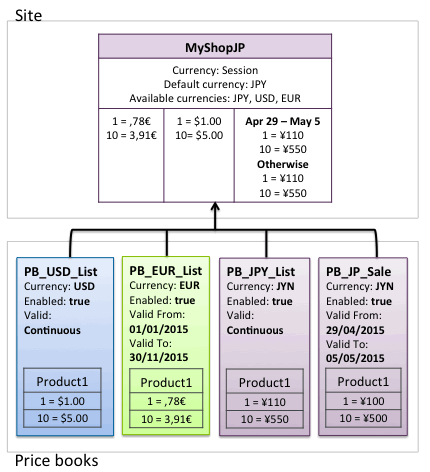
If a price can't be found in a specific Currency
In SiteGenesis, if a product doesn't have a price in the currently active price book, the price shows as N/A. The product can't be bought.
If a currency is available but there’s no associated price book
In SiteGenesis, if the customer selects a currency that doesn't have a valid price book, all prices show as N/A.
Scenario 4: Assigning Multiple Price Books to Multiple Storefronts
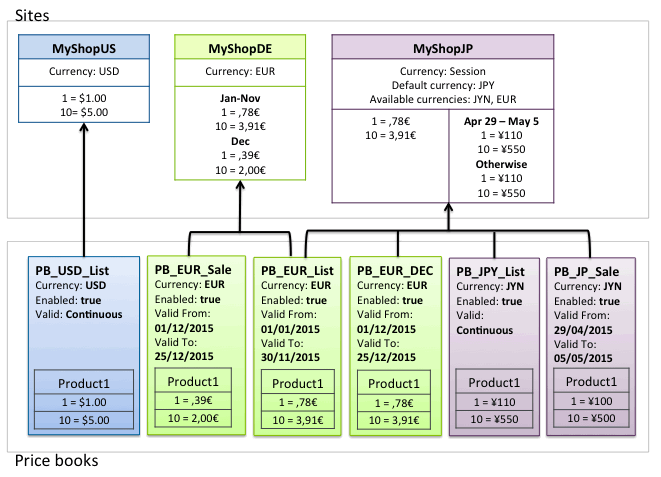
Price lookup considers only price books of the session currency and ignores all other assigned price books. The relationship between price books and sites is N to N. If you have a read-only price book and an editable price book with the same currency, assigned to the same site, the editable price book takes precedence. To use read-only price books, contact your Salesforce admin to enable the High Scale Price Books feature.
You must assign a price book to a site.
Scenario 5: Prices Based on Other Prices
You can set up a relationship with price books. You can indicate a Based On price book for any given price book. The child price book inherits all its prices from the Based On price book, but can override them. The system recognizes only two levels, a price book and the one upon which it's based. This relationship becomes relevant during price lookup.
You can nest price books to any level, but only one level (up) is considered during the lookup process.
Assigning a Parent Price Book
When creating price books, you can use the Based On setting on the Price Books page General tab. This setting specifies a more inclusive price book from which a new price book can inherit price specifications. The price book you’re defining inherits all prices of the Based On price book. You can nest price books as deep as you want; specifying Based On for many levels. However, during price lookup, B2C Commerce only navigates to the next level up.
For example, you have a product price book defined as List Prices. This price book contains all the retail prices for all products on the site. You also want offer seasonal sale prices for winter clothing accessories. You create a second price book Winter Accessory Sale. Instead of specifying prices for all products all over again, you specify only the sale prices for only those products you want to put on sale. You then base the Winter Accessory Sale price book on the List Prices price book. During price lookup, any prices needed that aren’t in the Winter Accessory Sale price book are looked for in the List Prices price book. Because you’ve defined a relationship between the two price books, only the Winter Accessory Sale price book must be active.
Currency (Using the $ Symbol)
B2C Commerce uses the "$" for the United States dollar (USD). For other currencies, the "$" symbol is prefixed with letters based on common convention. For example, A$ is used for the Australian dollar.
Product Price Indexing
The prices of each product assigned to a site are incorporated into the search indexes of that site. More specifically, the prices are incorporated into the product index of the site. Discount and percentage prices aren’t included in the indexes. During storefront product searches, it's these indexed prices that are consulted instead of the price book prices stored in the database. All prices of a product are indexed throughout all price books of an organization. All price books are considered regardless of whether they’re assigned to a site or whether they’re time-constrained (valid-from / valid-to limitations). At query time, the system determines the currently applicable price books and retrieves the indexed prices for each product hit by the search. It ignores the prices associated with inapplicable price books.
See Search Overview for information on dynamic price book selections, guided search, and product set search results.
Option Prices
Product options and prices defined for option values impact the calculation of the effective sales price of a product. Based on the configuration of options by the storefront user, the sales price is higher or lower than the actual product price.
You can define a price for each product option. By default, this price is the one added to the product price if the storefront shopper selects the value. However, you can define one option value as included in product price. If this value is defined, all prices of all option values are relative to the price of the included option.
Price Per Unit
You can calculate a product’s price per unit (PPU) by adding unit quantity and unit measurement (such as kilograms or meters) to your XML or on Business Manager. Be sure to provide both, or the attribute will return the product price. The PPU is then calculated using the supplied information and is returned in the API. To expose this information to a shopper, a developer must customize your site’s code to add it to a product design or list page as an attribute.
