
Run Queries in the Search Index Query Testing Tool
You can enter a search phrase to run a query in the Search Index Query Testing tool to learn how each processor handles the phrase, the relevance score, and how the score is derived. The search index execution plan viewer enables you to trigger the guided search parser with a phrase.
Required Editions
| Available in: B2C Commerce |
You can narrow your search to a specific search phrase, category ID, price range, sorting rule, and to show orderable products only.
- In Business Manager, click App Launcher, and then select Merchant Tools | Site | Search | Search Index Query Testing.
-
On the Search Index Query Testing page, specify these options.
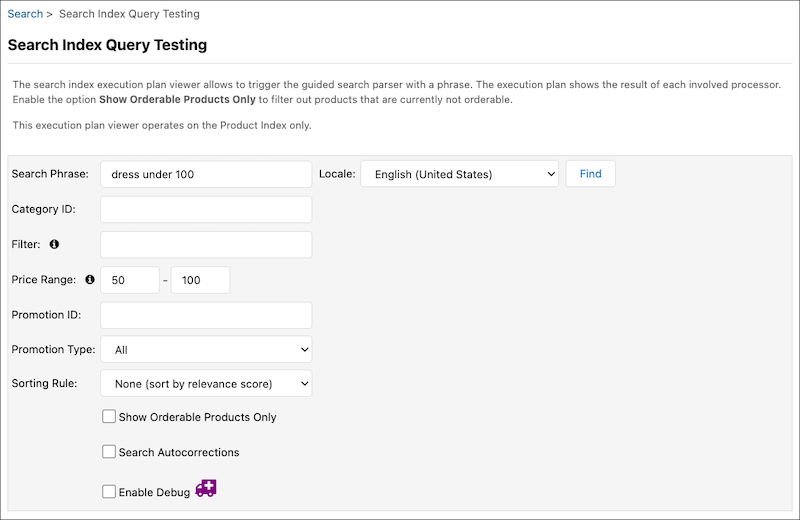
- To filter the search by product attributes, enter a search phrase (for example, “flowered dresses”).
- To filter the search by price attributes, enter a search phrase (for example, “dresses under $100”).
- To search within the context of a specific category, enter a Category ID(for example, “womens-clothing-dresses”).
- To add refinement or bucket display name to the search results, enter a Filter(for example, “refinementColor=Blue&size=M|XL”).
- To search within the context of a specific price range, enter a minimum and/or maximum Price Range(for example, “100–150”).
- To search within the context of a specific promotion, enter a Promotion ID (for example, “%offproductOptions”).
- To search in the context of a promotion, select a Promotion Type (for example, “Bonus”).
- Select a sorting rule to search in the context of that rule (for example, “best-matches”).
- To see Einstein Search results, enter a Personalization Cookie. This cookie is the value taken from a storefront session that identifies the user for search personalization. This field is available only when Einstein Search Suggestions is enabled. See Einstein Search Recommendations in the Search Index Query Testing Tool.
- To filter out products that aren’t orderable, select Show Orderable Products Only.
- To have misspelled or incomplete words modified by the suggestions processor, select Search Autocorrections.
- Click Find.
-
Results show by time for each processor (ms) and with the entered phrase. For
example, when the user enters flowered dresses, the results appear as
flowered, dresses, flower, and dress, depending on the
processor.
The results are for the product index only.
View the search results by each processor.
- Phrase processor: Splits the user input into phrases, detects negative terms, and detects the price attribute (if mentioned in the query).
- Cleansing processor: Removes invalid characters such as ! ( ) : [ ] { } + ~ ^ ? from the user input.
- Product number processor: Identifies and expands product numbers.
- Suggestion processor: Performs automatic correction (spell checking) and term completion, and identifies and corrects brand names. If Einstein Search Recommendations is enabled, search query correction is using Einstein AI.
- Compound word processor: Identifies and expands compound words based on configured compound word rules.
- Common phrase processor: Identifies known common phrases and marks them to be searched as phrases instead of individual terms.
- Synonym/Hypernym processor: Identifies and injects synonyms and hypernyms for the phrases.
- Post processor: Removes or escapes invalid or special characters.
- Stopword processor: Removes all defined stop words from the phrases.
- Stemming exception processor: Excludes defined terms from the default stemming and uses a custom stem.
- Stemming processor: Performs linguistic analysis and stemming of the query terms.
- Query encoding: Translates the phrases into a boolean expression.
Results are color-coded to provide more visibility into the changes made during search processing.
- Phrases with a yellow background were modified by the processor.
- Phrases with a red strike-through were removed by the processor.
- Red phrases are negative phrases.
- Products containing these words are excluded from the results.
- Bold phrases aren’t stemmed by the stemming processor.
- Green phrases are product numbers.
- Phrases in quotes aren’t split into individual words.
- Phrases in italics are synonyms.
- A product is found if it matches either the original word or any synonym.
-
View the Search Results by Relevance Score section.
When searching on black skirt, for example, the results are:
- Total Hits: 14
- Deepest Common Category: Storefront Catalog - EN
- Did you Mean: black skirt (if Search Autocorrection is enabled)
The first line of the results is:
- Score: 0.99
- Product ID: 25696873
- Product Name: Pencil Skirt
- Brand: (empty)
- Type: Base Product
-
Hover over the score information icon for an individual product to see its
relevance statistics, for example:
0.076210484 = (MATCH) weight(content-text@L:default:black in 406), product of:
0.119570985 = queryWeight(content-text@L:default:black), product of:
2.5494642 = idf(docFreq=882, maxDocs=4158)
0.046900436 = queryNorm
0.63736606 = (MATCH) fieldWeight(content-text@L:default:black in 406), product of:
1.0 = tf(termFreq(content-text@L:default:black)=1)
2.5494642 = idf(docFreq=882, maxDocs=4158)
0.25 = fieldNorm(field=content-text@L:default, doc=406)
-
Hover over the details information icon to see details on the product, for
example:
Categories
- New Arrivals > Womens
- Womens > Clothing > Bottoms
Represented Products
- 701644339012
- 701644338961
- 701644338978
- 701644338992
- 701644338985
- 701644339005
- 701644338954
- Click the view icon to see the product in the storefront.
Einstein Search Recommendations in the Search Index Query Testing Tool
Occasionally, Einstein search results aren’t displayed within the Search Index Query Testing tool because of a cookie issue.
While browsing the storefront, the cqcid cookie is set. The system
uses this cookie to identify the user and suggest search phrases appropriate to
them.
Since cookies are domain-specific, the query testing tool can’t parse the cookie if
the storefront domain differs from the Business Manager domain. These domains
always differ on production environments because the storefront has a domain such
as www.yourcompany.com, whereas Business Manager has a domain
such as production-realm-customer.demandware.net.
Development and Staging environment domains can be identical, so the cookie works
for the query testing tool in those environments.
To see Einstein Search Suggestions, make sure that you first execute a few searches in the storefront. If Einstein Search Suggestions still arenʼt displaying in the search index query testing tool, the cookie ID is likely missing.
If the domains aren’t identical in Business Manager and in the storefront, you can explicitly pass the cookie value in the search index query testing tool by copying it into the Personalization Cookie field. This field is only available when Einstein Search Suggestions is enabled.
To find the cookie in the storefront, you can use the B2C Commerce Recommendation Validator plug-in, as it lists the ID as "Cookie ID" under the Recommendations tag.
Alternatively, you can use your browser's developer tools or any cookie management
plug-in to identify the value of the cookie cgcid.

cqcid cookie is available in the Business Manager domain,
you can enter a different ID to override it.