
You are here:
Product Search Model Window in the Search Information Tool in B2C Commerce
The Product Search Model window shows basic information about how the search model
handled the search query. This window appears only if your site implements the
isobject ISML tag appropriately. This topic applies to B2C
Commerce.
For information about implementing the isobject, see Enable the Search Information Tool for Storefront Toolkit in B2C Commerce.
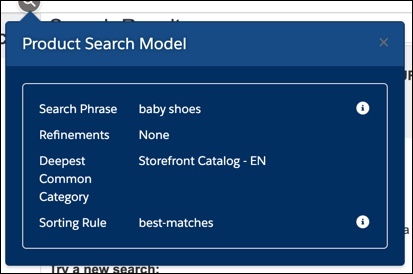
Search Phrase: Search phrase entered into the search box in the storefront. Click the information icon to display the Phrase Processing Steps window.
Refinements: Attribute and selected attribute values used to refine the current search.
Deepest Common Category: Category path that uses localized names of the deepest common category of a search result. If the deepest common category is the root category of the catalog, the localized name of the catalog appears instead of the category path to the deepest common category.
Sorting Rule: Sorting rule in use for this search. Click the information icon to display the Sorting Rule Configuration window.
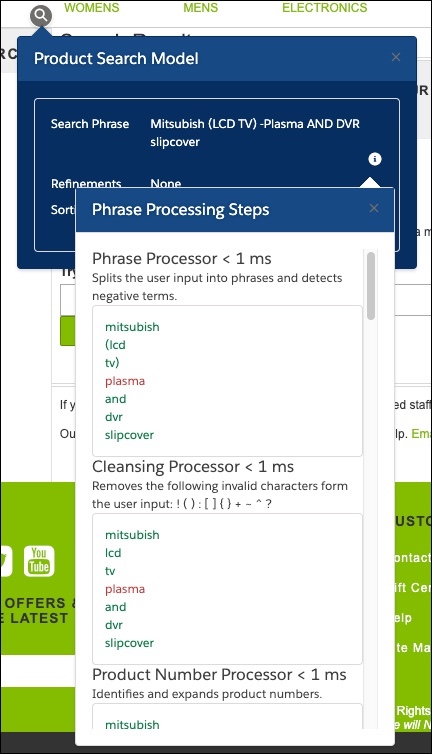
Phrase Processing Steps Window
Click the information icon next to the Search Phrase field on the Product Search Model window to see the Phrase Processing Steps window.
The Phrase Processing steps window uses the following conventions:
- Terms in green: Valid search terms
- Terms in red: Negative search terms that exclude items from the search results.
- Terms in parentheses: Synonyms or hypernyms that are treated as separate search terms.
- Terms enclosed by quotation marks: If quotation marks appear in the phrase processor, the terms are part of the original user-entered search query and aren’t semantically meaningful. If quotation marks appear after the common phrase processor, the terms are a common phrase and must be found together.
Sorting Rule Configuration Window
Click the information icon next to the Sorting Rule field on the Product Search Model window to see the Sorting Rule Configuration window. Any sorting rules based on attributes list both the attribute name and ID. In this example, the best-matches rule for the search result listed in the Search Query window has five sorting rules: Category Position, Search Placement Descending, Search Rank, Text Relevance, and Explicit Sortings.
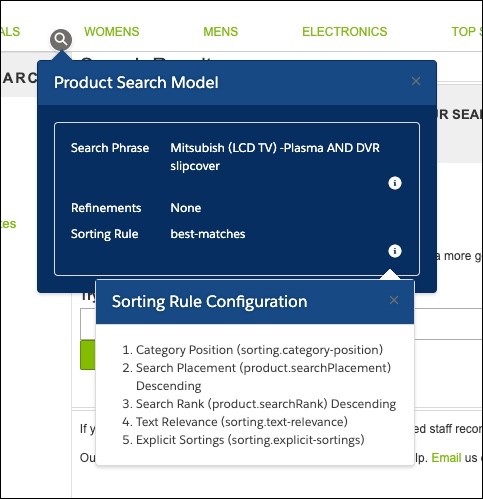
Rules apply from top to bottom, and the later rules determine the position of items that have identical values for earlier rules. For example, if there are two items with no category position and identical search placement values, the search rank value determines the position. If the search rank value is also identical, the text relevance determines the position.
