
Test Promotions Using the Promotions Tracing Tool in B2C Commerce
Use the promotions tracing tool to test promotions before publishing them to the storefront. You can see which promotions are applicable for a particular cart. If a promotion isn’t applied to a cart, see the reasons why.
Required Editions
| Available in: B2C Commerce |
Because the Storefront Toolkit is available only in staging and development environments, you can’t test promotions in production environments. The tracing tool works only for evaluating the cart. It doesn’t work for Product Detail or Product List pages.
-
Make sure you enable the promotions you want to test and assign them to
active campaigns.
For example, you have a promotion that discounts an order by 20 percent for a purchase of at least $200 in men’s clothing.
- Launch the storefront.
- Add products to the cart and then navigate to the cart.
-
Enable promotion tracing:
-
Click the Preview Settings Tool icon.
 .
.
-
Select Enable Promotion Tracing and enter a
Promotion Trace ID.
Use the Promotion Trace ID to track promotion log messages in the Request Log.
-
Click Preview.
Log messages are saved to the Request Log. Messages indicate the promotions applied to the cart and those evaluated but not applied.
-
Click the Preview Settings Tool icon.
-
To open the Request Log, click the Request Log icon.

-
Search the Request Log for the Promotion Trace ID.
In an environment with many promotions, the entire Request Log sometimes isn’t visible in the Request Log window. We recommend that you copy the log to a text editor and search for the Promotion Trace ID there.For example, if you entered TraceTest for the Promotion Test ID, search for TraceTest.
-
To convert the results to a readable format, copy the block containing the
promotion test information to any JSON parser.
Promotions are reported as follows:
- applicablePromotions: Promotions that a shopper is eligible for based on the context and products in the cart, for example, time, customer group assignment, or source code entry.
- qualifiedPromotions: Promotions that a shopper is eligible for based on the qualifying products in the cart before the promotions are processed through the ranking and exclusivity algorithm.
- appliedPromotions: Promotions applied to the cart after the promotions are processed through the ranking and exclusivity algorithm.
For example, opening this log message in a JSON parser makes it clear that the 20 percent off order promotion wasn’t applied because the $200 threshold wasn’t met.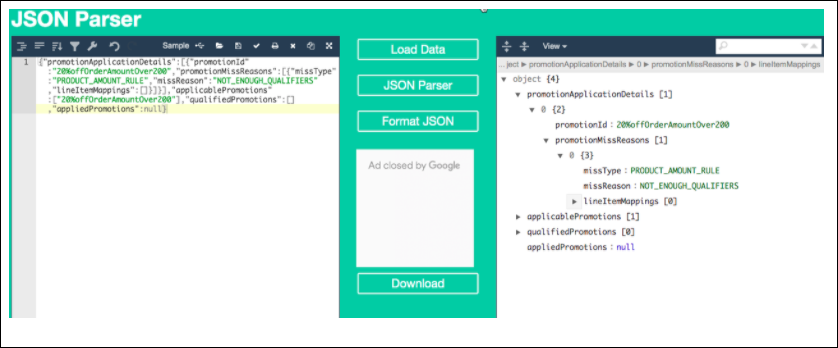
If conditions are met for the promotion, the log message displayed in the JSON parser indicates that the discount was applied.
Did this article solve your issue?
Let us know so we can improve!
