You are here:
Create and Manage Dynamic Pages More Efficiently
Dynamic pages are typically implemented as Product List or Product Detail pages for which the content changes based on which category or product is rendered. With this version, you can create and manage these pages more efficiently.
What: When you open a dynamic Product List page, a category is now preselected in the preview settings and rendered in the page. Typically, the first category assigned to the page is selected. Previously, you had to go to the preview settings and select a category. If no category is assigned to the page, or if a page uses product as its dynamic attribute, you must configure a setting in preview.
For Product List pages, or other dynamic pages for which the dynamic attribute is category, you can specify when components appear on a page based on the category rendered. For example, you can specify that one component appear on the page when the men’s clothing category is rendered and a different component appear for women’s clothing. To configure component visibility, the merchant selects Targeting in the component dropdown and then chooses one or more categories. If the merchant selects multiple categories, the component is visible whenever any of the categories are rendered.
The list of Page Designer pages in the visual editor includes two new columns for dynamic pages that indicate the purpose of the page and the categories assigned to the page.

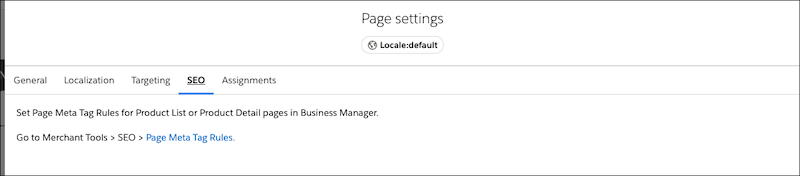
When you click the SEO tab in the Page Settings window for a dynamic Product List or Product Detail page, a link to the Page Meta Tag Rules feature in Business Manager is displayed. Use the Page Meta Tag Rules to specify which HTML meta tags are rendered with the page.