
You are here:
Create Configurable Products with Dynamic Attributes in a B2B Store
Create products that buyers can customize based on specific attributes, such as size, color, material, or technical specifications. Unlike product variations, dynamic attributes update pricing dynamically as buyers make their selections without requiring separate SKUs for every combination.
Required Editions
Set up Product Configurator before creating configurable products. For details, see Set Up Product Configurator for B2B Stores.
| View supported editions. |
Create a Configurable Product in Revenue Cloud
To offer configurable products, create products and configure dynamic attributes in Revenue Cloud.
- From the App Launcher, find and select Product Catalog Management.
- Add dynamic attributes to your product by following the instructions in Configure Product Attributes.
- To include or exclude specific picklist values for product attributes of the data type picklist, use Include or Exclude Picklist Values. For details, see Include or Exclude Picklist Values in a Product Attribute.
Assign Category, Entitlement Policy, and Pricing to a Configurable Product
To make your configurable products discoverable by buyers, assign the product to a category and assign entitlement policies. Define pricing.
- From the App Launcher, find and select Commerce.
- In the navigation sidebar, select a store from the Store dropdown.
- Select Merchandising | Products.
- In the Product Workspace, select the product that you want to configure.
- Open the global product record using the link at the bottom of the Edit Product page.
-
Assign categories.
- On the Related tab, in the Categories section, click Assign.
- Select the category, and save your changes.
-
Assign one or more entitlement policies.
- On the Related tab, in the Commerce Entitlement Policies section, click Assign.
- Select the policy, and save your changes.
-
Add pricing.
- On the Related tab, in the Price Books section, click New.
- For Price Book, select your store’s standard price book.
- Enter a list price.
- (Optional) Select a currency.
- Save your changes.
- Make sure that the product is active so buyers can view it in your store.
Assign Attribute-Based Pricing to a Configurable Product
To calculate a product's price based on its associated attributes, use the Attribute-Based Price element.

-
Set up pricing rules that automatically adjust prices and offer discounts based on a
product's price-impacting attributes by creating attribute-based adjustment records. For
details, see Attribute-Based Discounts.
Note Pricing adjustments apply only to transactions that occur within the effective date range defined in the Price Adjustment Schedule. Transactions outside this range don't reflect these adjustments.
-
After configuring the attribute-based adjustments and discounts, refresh the decision
tables.
- From the App Launcher, find and select Lookup Tables.
- In the list of decision tables, click Attribute Discount Entries.
- Refresh the decision table.
Create a Constant for a Attribute-Based Adjustment Variables
To adjust the product price based on buyer configurations, complete this step. This is a one-time setup for attribute-based adjustments.
- From App Launcher, find and select Pricing Procedures.
- Click the Commerce pricing procedure for your org.
-
On the Pricing Procedure builder canvas, click
 .
.
- On the Resource Manager panel, click Add Resource.
-
In the Add New Resource page, specify these details.
- Resource Type: Constant
- Resource Name: AttributePASIdConstant
- Data Type: Text
-
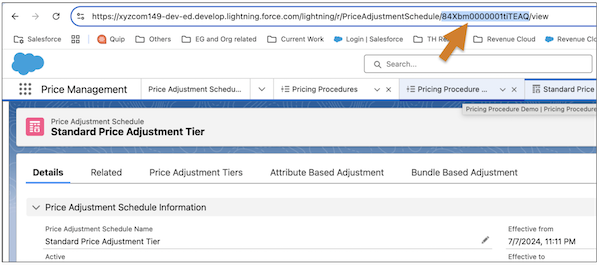
Default Value: Enter the Price Adjustment Schedule ID of the attribute-based adjustment.
You can locate the value of your variable by going to the associated record. For example, to locate a price adjustment schedule ID, from App Launcher, find and select From App Launcher, find and select Price Adjustment Schedules. Open the price adjustment schedule record page. The price adjustment schedule ID is shown in the browser’s URL.
- Save your changes.
