
You are here:
Enable Advanced Pricing Elements for Commerce in Your B2B Store
Configure Advanced Pricing for Commerce in your B2B store to create customized pricing procedures and automate complex price calculations. Which steps you follow depend on whether your org has an active pricing recipe.
Required Editions
See Also
If You Don’t Have an Active Pricing Recipe
The pricing recipe, decision tables, and pricing procedure template are automatically enabled if your org isn’t already running an active pricing recipe. This scenario applies when you’re setting up advanced pricing for the first time and aren’t using any other Salesforce products with Revenue Cloud.
If You Have an Active Pricing Recipe
If you have other Salesforce products that use Revenue Cloud, then you already have an active pricing recipe in your org. In this case, the Commerce default pricing procedure isn’t automatically enabled. You can either merge the pricing elements from the Commerce default pricing recipe with your existing pricing recipe or create a pricing recipe containing all the pricing elements from your existing pricing recipe and the Commerce default pricing recipe.
-
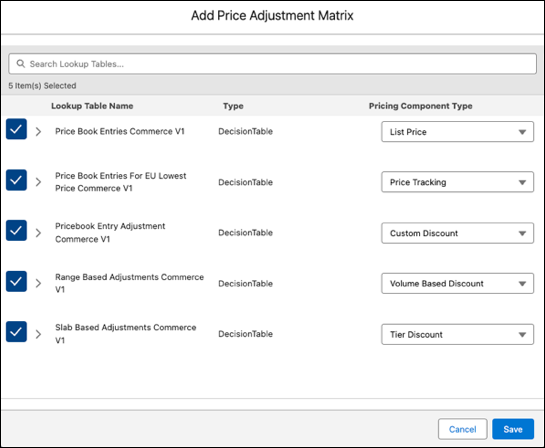
Modify price adjustment matrices.
Map each decision table to the pricing components where it'll be used. For a list of Commerce decision tables and the pricing component type they should be mapped to, see Advanced Pricing for Commerce Powered by Revenue Cloud.
-
Activate the new pricing recipe.
This step is required only if your new recipe isn’t active in your org. If you merged the Commerce recipe with the active recipe, then you can skip this step.
-
Configure a Commerce pricing procedure that your store uses to calculate prices. Depending
on your current setup, either clone the default template or create a new version of your
existing procedure.
- If you don’t have a Commerce pricing procedure:
- From the App Launcher, find and select Expression Set Templates.
- Select Commerce Default Pricing Procedure.
-
If your org supports multiple currencies, under Pricing Setting, map the Currency field
with the
CurrencyIsoCodecontext tag. -
Save the template as a new pricing procedure.
Assign a rank, and then activate the mark the pricing procedure as active. Salesforce recommends that you don't change the default name of the pricing procedure.
- If you already have a Commerce pricing procedure:
- From the App Launcher, find and select Pricing Procedures.
- Select your existing pricing procedure.
- Click Save As and select New Pricing Procedure Version.
- Enter a new version number and save.
-
If your org supports multiple currencies, under Pricing Setting, map the Currency field
with the
CurrencyIsoCodecontext tag. - In Expression Set Properties, assign a rank, and then activate the pricing. Salesforce recommends that you don't change the default name of the pricing procedure.
-
Verify that your new pricing procedure is active in the org and in your store.
-
From the App Launcher, find and select Pricing Procedures.
The new pricing recipe is displayed.
- In your store, go to Website Design, and then click Experience Builder. Go to the Product page and refresh it to verify that the correct price is displayed.
-
From the App Launcher, find and select Pricing Procedures.
