
Loading
Ongoing maintenance for Salesforce HelpRead More
Feature degradation | Gmail Email delivery failureRead More
Salesforce B2B Commerce
Table of Contents
Select Filters

          No results
          No results
          Here are some search tips

          Check the spelling of your keywords.
          Use more general search terms.
          Select fewer filters to broaden your search.

          Search all of Salesforce Help
          Purchase Quantity Rules for a B2B Store

          Purchase Quantity Rules for a B2B Store

          A purchase quantity rule defines the minimum and maximum amounts of a product that a customer can buy and the number of products that are added with each increase. You can assign one purchase quantity rule to each simple product and product variation. In the rule, the minimum and maximum quantities must be multiples of the increment. For example, minimum 3, maximum 300, increment 3. You can define quantity amounts as whole numbers or as fractions up to four decimal places.
          Required Editions

          View supported editions.

          Which Salesforce Commerce Product Do I Have?

          Assign a purchase quantity rule only to the product that it applies to. For example, let’s say you sell two kinds of espresso machines. One is for businesses to put in visitor areas and staff kitchens. Customers can buy as many as they like in any increment, so a quantity rule isn’t needed.

          The other machine is industrial and sold to commercial customers, like coffee shop chains. For this machine, you receive a volume discount from your distributor. To pass that savings to buyers, you can establish a minimum purchase rule and an increment rule to keep the volume within your distributor’s parameters. For example, you can have a five-machine minimum, with a required increment of five with each addition. So your customer can buy 5, 10, 15 machines, and so on.

          You can also control the maximum number for purchase. For instance, you want to ensure that you have enough stock to satisfy all your customers. Or, you want to keep a ceiling on shipping costs. So you limit the number of machines per customer to prevent anyone from cornering the market or to stay under your shipping ceiling.

          You can set purchase quantity rules in a few places.

          • Enable quantity rules through the Object Manager.
          • Define values for your rules and assign rules to simple products and product variations in the Product Workspace.
          • Add display text for quantity rules using the Quantity Selector properties in Experience Builder components.

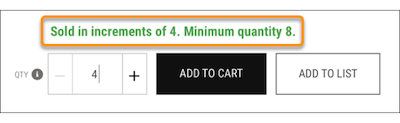
          Quantity rule display text above the quantity selector

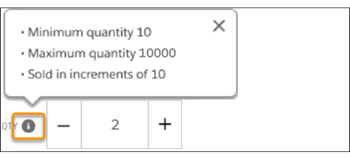
          The rule text that you specify appears when buyers click the information icon on the quantity selector.

          Quantity selector information icon

          Cart Items, Product Detail Purchase Options, Quantity Selector, and Results Layout are components that have properties related to quantity rules. Use the properties to enter display text for the quantity rule and to show or hide quantity rules in the store. The components also show the minimum, increment, and maximum in whole numbers and fractional quantities. You can view or edit the quantity field with up to two decimal places only on the Order pages. Any other pages that reference these quantity fields also reflect only two decimal places.

          If your store uses custom code for checkout operations like creating and editing cart items, make sure that your code performs validation on purchase quantity rules.

           
          Loading
          Salesforce Help | Article