You can add a URL slug directly on a Product or Category record, or bulk update
Products and Categories with a CSV file import. To use URL slugs, first configure languages and
localizations for your store. You can only add one URL slug for each language. When you enable
URL slugs, default URLs for product and category pages are updated. For example, product pages
use the base URL /product/:urlName.
Click at the top of the page, and then select Setup.
In the Quick Find box, enter Digital Experiences, and then
select All Sites.
For an active LWR site, click Workspaces. URL slugs aren't
available for stores created with the Aura template.
From the Experience Workspace, go to Administration | Preferences and select Use SEO-friendly URLs on this site.
Publish your site to apply changes. You can't disable this setting after enabling
it.
To bulk import slugs for Products, upload a CSV file including the column name
Slug [language code]. Use a language code that’s active in your
org, site, and store. For example Slug en_US. For more information,
see CSV File Format for Importing Commerce
Data.
You can also add a URL slug directly on a Product or Category record. In the navigation
sidebar, select Products or Categories.
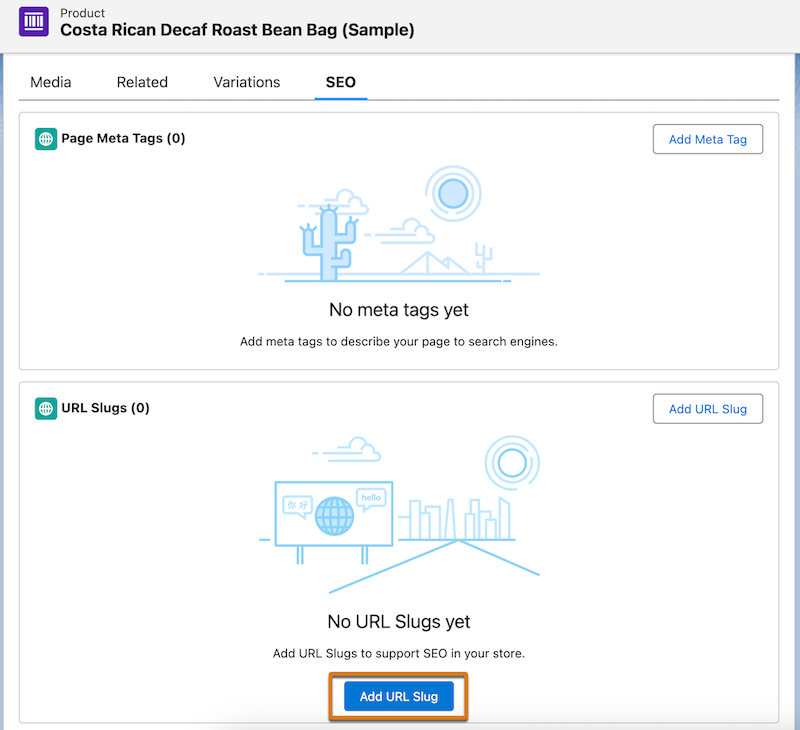
Select a product or category. On the SEO tab, click Add URL
Slug.
We use three kinds of cookies on our websites: required, functional, and advertising. You can choose whether functional and advertising cookies apply. Click on the different cookie categories to find out more about each category and to change the default settings.
Privacy Statement
Required Cookies
Always Active
Required cookies are necessary for basic website functionality. Some examples include: session cookies needed to transmit the website, authentication cookies, and security cookies.
Functional Cookies
Functional cookies enhance functions, performance, and services on the website. Some examples include: cookies used to analyze site traffic, cookies used for market research, and cookies used to display advertising that is not directed to a particular individual.
Advertising Cookies
Advertising cookies track activity across websites in order to understand a viewer’s interests, and direct them specific marketing. Some examples include: cookies used for remarketing, or interest-based advertising.