
Loading
Salesforce B2B Commerce
Table of Contents
Select Filters

          No results
          No results
          Here are some search tips

          Check the spelling of your keywords.
          Use more general search terms.
          Select fewer filters to broaden your search.

          Search all of Salesforce Help
          What Is the Manual Salesforce Tax Solution?

          What Is the Manual Salesforce Tax Solution?

          The manual Salesforce tax solution is a built-in service that calculates taxes for B2B stores that use gross taxation—taxes are included in the product price. The manual Salesforce tax solution supports tax percentage calculations at the country, state, and province level. For most situations, we recommend that you use managed checkout, which uses Salesforce Tax by default. The manual solution is appropriate if you have a simple gross tax situation. In any case, consult with a tax expert when setting up taxes for your store.
          Required Editions

          View supported editions.

          Which Salesforce Commerce Product Do I Have?

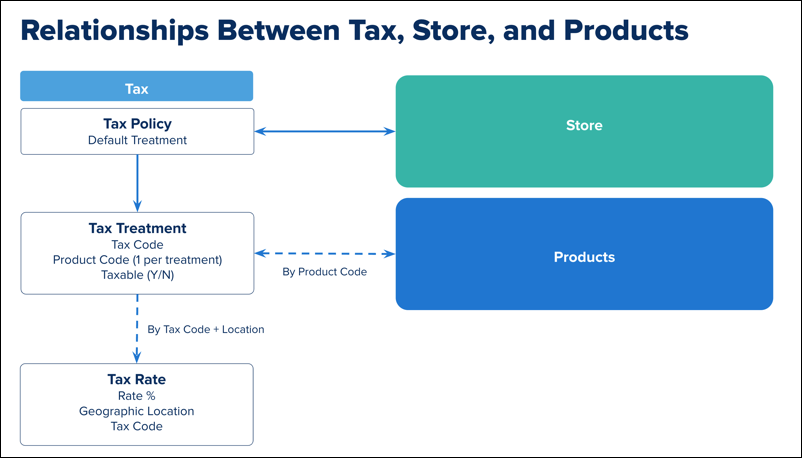
          A tax rate specifies the percentage at which a product is taxed and the country, state, and province where that rate applies. A tax treatment maps the tax rate to products. A tax policy collects all the tax treatments for a specific store.

          Block diagram showing how tax entities are related.
          Note
          Note The manual Salesforce Tax solution supports only Gross tax.

          For example, you want all adult clothing sold in the United Kingdom (UK) taxed at the full 20% VAT rate. Because children’s clothing is exempt from VAT in the UK, you want to tax children’s clothing at 0%.

          1. Assign all adult clothing to the product code Adult-Clothing.
          2. Assign all children’s clothing to the product code Child-Clothing.
          3. Configure a tax rate with UK, a 20% rate, and a tax code such as VAT.
          4. Configure a tax rate with UK, a 0% rate, and a tax code such as No_Tax.
          5. Create a tax treatment that maps the product code Adult-Clothing to the 20% tax rate using the tax code VAT.
          6. Create another tax treatment that maps the product code Child-Clothing to the 0% tax rate using the tax code No_Tax.
          7. Assign both tax treatments to the tax policy for the store.

          When an adult clothing product is shipped to the UK, the 20% tax rate is applied. When a child clothing product is shipped to the UK, the 0% tax rate is applied.

          You can configure a default tax treatment for a store. Use the default tax treatment to simplify the configuration. For example, you want all products in a country to be taxed at the same rate.

          1. Assign the same product code to all products, for example, All.
          2. Create a tax rate for each country. Assign all tax rates to the same tax code, for example All_Tax, and whatever rate you want to use for the country.
          3. Create a tax treatment that uses the same tax code that all the tax rates are assigned.
          4. Assign the tax treatment as the default tax policy for the store.

          The default tax treatment is applied to all products, with the tax rate determined by the ship-to-country.

           
          Loading
          Salesforce Help | Article