Loading
Salesforce B2B Commerce
Table of Contents
Select Filters

          No results
          No results
          Here are some search tips

          Check the spelling of your keywords.
          Use more general search terms.
          Select fewer filters to broaden your search.

          Search all of Salesforce Help
          Enable Person Accounts for Commerce

          Enable Person Accounts for Commerce

          Person accounts are required for D2C stores, which use them to represent shoppers who visit the store and purchase products. Person accounts are optional for B2B stores, which typically use business accounts that include multiple buyers. You can either set up person accounts through the automated process from the Commerce Setup Assistant setup page or manually. This topic describes the steps to use to enable person accounts manually, without using Commerce Setup Assistant.
          Required Editions

          View supported editions.

          Which Salesforce Commerce Product Do I Have?

          If you’re configuring your Salesforce org by using Commerce Setup Assistant for the first time or reconfiguring, setting up person accounts is a simple and automated task. To set up person accounts from the Commerce Setup Assistant, see Automate Person Accounts for Guest Access.

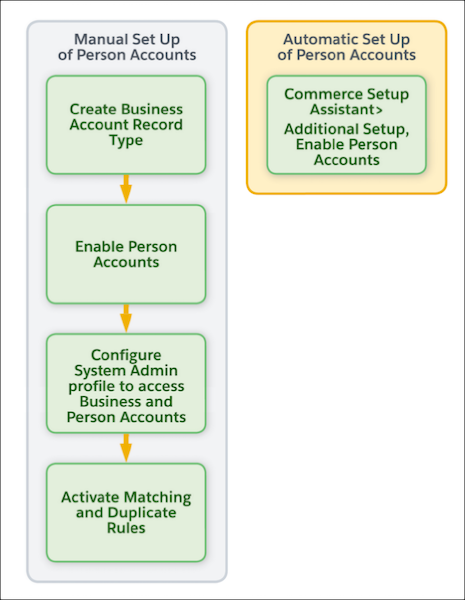
          Here's a quick look at what is the difference between manual and automatic set up of person accounts.

          Person Accounts Manual Vs Automatic Set Up

          In some cases, when you add D2C Commerce to an existing B2B and Salesforce Order Management implementation, Person Accounts is already enabled. If so, skip these steps.

          Important
          Important After Person Accounts is enabled, it can’t be disabled. We recommend that you create a sandbox to preview how Person Accounts affect your Salesforce org.
          1. Create the Business Account record type.
            1. Click Setup at the top of the page, and then select Setup.
            2. In the Quick Find box, enter Object Manager, and then select Account.
            3. Click Record Types.
            4. Click New.
            5. For Record Type Label, enter a name (for example, Business Account).
              You don’t have to use Business Account as the name. However, keep in mind that this record type is used for businesses, not shoppers. After you create a Business Account, you can associate it with multiple contacts (individual employees working for the business).
            6. Click Next.
            7. Select a page layout, and click Save.
          2. Enable Person Accounts.
            1. Click Setup at the top of the page, and then select Setup.
            2. In the Quick Find box, enter Person Accounts and then select Person Accounts.
            3. Go through the steps listed on the Setup page.
            4. Turn on Person Accounts.
          3. Verify that Person Accounts are enabled.
            1. Click Setup at the top of the page, and then select Setup.
            2. In the Quick Find box, enter Object Manager, and then select Person Account.
            3. Click Record Types.
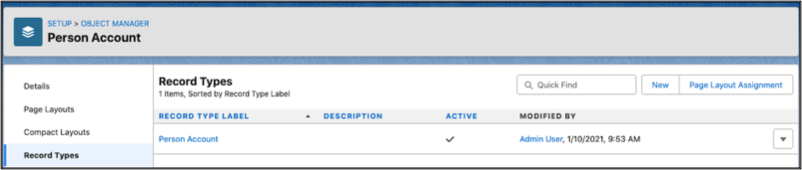
            4. Verify that the Person Account record type is listed.
              Person Account page showing person account record type.
              If you don’t see the Person Account record type, contact Salesforce Support.
          4. Configure the System Administrator profile.
            The System Administrator profile requires access to the Business Account record type and the Person Account record type.
            1. From Setup, in the Quick Find box, enter Profiles, and then select Profiles.
            2. Click System Administrator.
            3. Scroll down to Record Type Settings, and read the text next to Accounts.
            4. Click Edit.
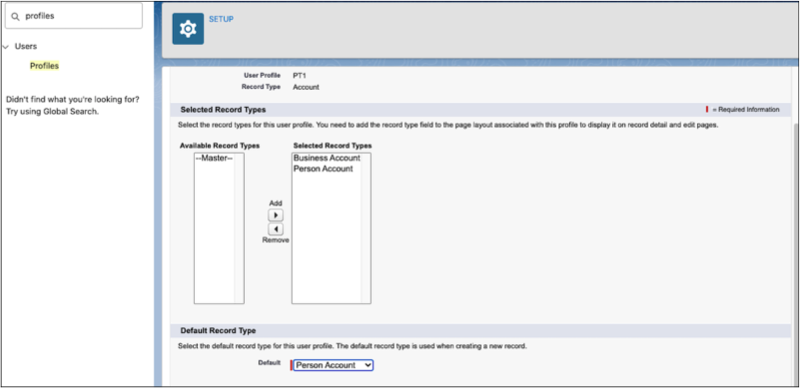
            5. Make sure that Business Account and Person Account are in the Selected Record Types list on the right.
            6. Under Default Record Type, select Person Account as the default.
              Record types for system admin.
            7. Click Save.
          5. To identify and match duplicate person accounts, activate the standard person account matching and duplicate rules. If you’re using Commerce Setup Assistant to enable person accounts, the standard person account matching and duplicate rules are automatically activated.
           
          Loading
          Salesforce Help | Article