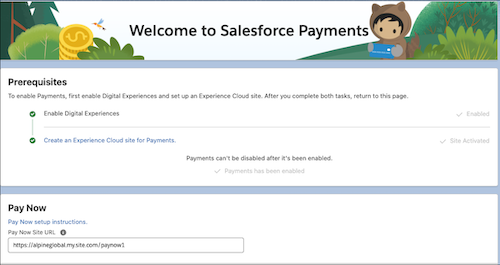
The Pay Now store's URL is one of the Payments settings. After you set up Pay Now,
this URL is linked to the active store. If you have trouble generating payment links, verify
that the correct URL is specified in the settings.
Important If you have more than one Pay Now store, the Pay Now Site URL on the
Payments page must be for the store in use. Otherwise, you can't generate payment links.
At the top of the page, click and select Setup.
In the Quick Find box, search and select Payments.
In the Pay Now section, make sure that the Pay Now site URL is for the active store. If
you are unsure, check the site settings.
From Setup, in the Quick Find box, enter and select Digital
Experience.
Select All Sites, and copy the URL for the active Pay Now
site.
If you change the domain of the Pay Now site, update the URL.
Click Save.
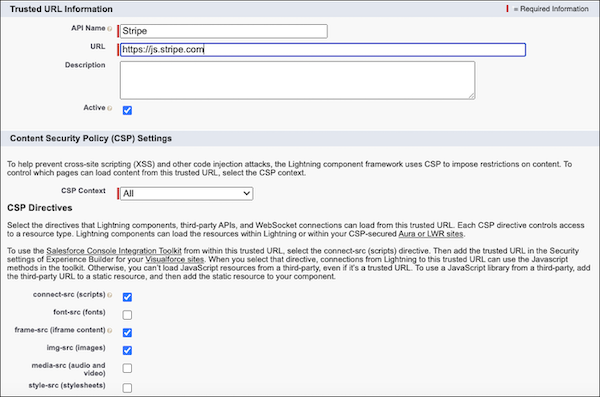
Return to the Quick Find box and enter Trusted URLs.
Verify that https://js.stripe.com is in the Trusted URL list. If it’s
not in the list, add it using Stripe as the API name.
Under CSP Directives, select frame-src (iframe content).
We use three kinds of cookies on our websites: required, functional, and advertising. You can choose whether functional and advertising cookies apply. Click on the different cookie categories to find out more about each category and to change the default settings.
Privacy Statement
Required Cookies
Always Active
Required cookies are necessary for basic website functionality. Some examples include: session cookies needed to transmit the website, authentication cookies, and security cookies.
Functional Cookies
Functional cookies enhance functions, performance, and services on the website. Some examples include: cookies used to analyze site traffic, cookies used for market research, and cookies used to display advertising that is not directed to a particular individual.
Advertising Cookies
Advertising cookies track activity across websites in order to understand a viewer’s interests, and direct them specific marketing. Some examples include: cookies used for remarketing, or interest-based advertising.