
You are here:
Set Up Merchant-Initiated ACH and Credit Card Transactions
Configure the Merchant-Submitted Payment component in native payments to securely process ACH and credit card transactions in B2B and D2C Commerce stores on behalf of your customer. Collect and save the payment details from your customer over the phone, via email, or in writing for future transactions.
Enable MOTO for merchant-initiated payments on your gateway merchant account.
- In the App Launcher, find and select Account.
- Select an account (business or person) to add the component.
-
Click
 at the top of the page, and then select Edit Page.
- In the Lightning App Builder, click Add Tab.
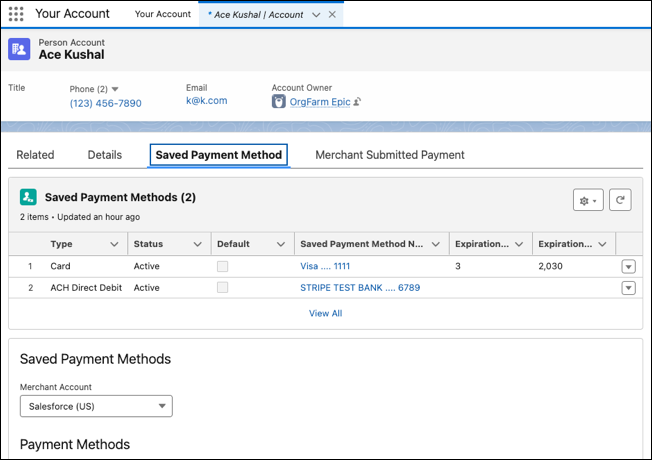
- From the components list, drag the Saved Payment Methods component to the tab.
- In the Lightning App Builder, click Add Tab.
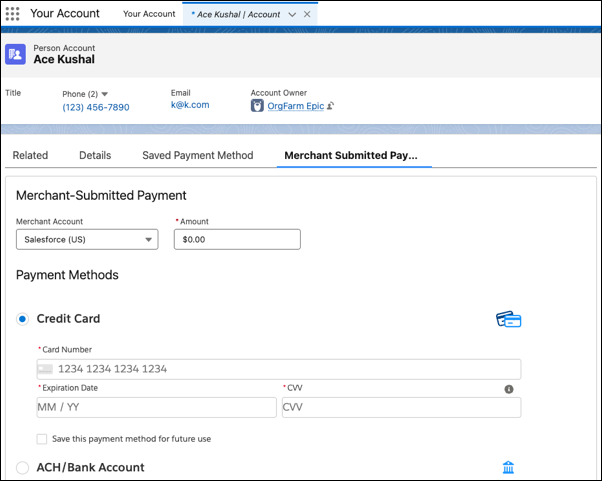
- From the components list, drag the Merchant-Submitted Payment component to the tab.
- (Optional) To view all saved payment methods at a glance, add a related list to Saved Payment Methods. Additionally, you can add consent mandate text for ACH transactions through Stripe in both components.
- Save your changes. To add these components for all your store accounts, click Activation.
- Add and save payment methods.
-
Save a payment for future use and make a payment.
- Click Merchant-Submitted Payments.
- Select the merchant account to which you want to save the payment method or make a payment transaction.
- Add the payment details. You can save the payment method for future use.
-
Enter the amount you want to charge and complete the payment. You can check the status of
your payments in the Payment Workspace.
Did this article solve your issue?
Let us know so we can improve!
