You are here:
Set Up Processing of Synchrony Credit Card Purchases using Adyen
The POS app, in combination with an Adyen terminal, supports the recognition of Synchrony cards and enables financing transactions. During checkout, when a customer chooses to pay with their Synchrony PLCC and the card is presented, the store associate can process the payment. If the order total meets a set threshold, the store associate can offer financing, which requires the customer to sign an electronic disclosure and financing contract. The threshold, electronic disclosure, and financing contract terms are customizable in the CMS.
- Modern POS App Build: 10.7.1 or greater
- Platform Support: iPhone & iPad
- Offline Support: No
See Also
Enable Card Acquisition
Enable the card acquisition flow for the POS app and terminal, and configure financing rules.
- In CMS, go to .
- Expand Advanced.
-
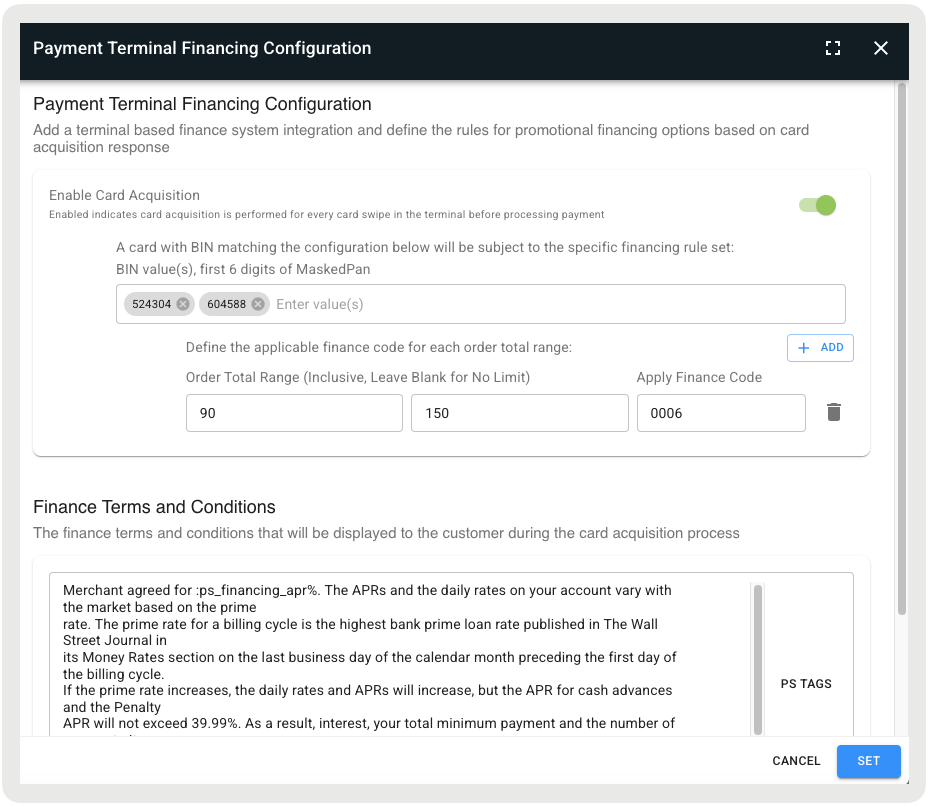
Click the pencil icon next to Payment Terminal Financing Configuration (cardAcquisitionSettings). A modal will open, allowing you to define the rules for promotional financing options based on the card acquisition response.
 Tip This setting is also accessible in .
 - Toggle "Enable Card Acquisition" to activate the card acquisition for each card swipe or insertion before payment.
- Under Financing Rules, specify whether to use "Synchrony via Adyen Terminal" for cards with a PAN matching a specified BIN range (e.g., the issuing bank's range for Synchrony cards). If no BIN range is specified, the POS app will accept all types of Synchrony cards.
-
Under Set Order Rules for Applicable Finance Code, specify the finance code to use for each order total range. This code is passed to the terminal for pre-authorization of Synchrony financing and determines the APR for the applicable finance option.
 Important At least one order total rule must be set. Without it, the POS app won't present a financing option, as the finance code is required based on the order total.
 -
Under Finance Terms and Conditions, enter the terms and conditions that'll be displayed to the customer during the card acquisition process.
Tip The PS Tag :ps_financing_apr can be used to populate the APR value retrieved from Synchrony.
Add Finance as Additional Payment Method
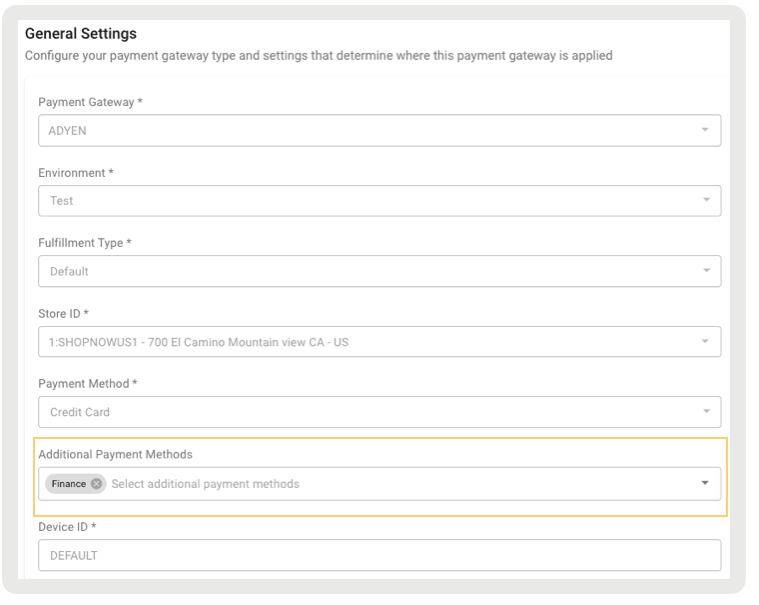
Add finance as an additional payment method in the Adyen payment gateway.
- In CMS, go to .
- Edit an Adyen configuration.
- Under , select "Finance."
-
Save your changes.
Map Finance Codes
Finance codes (e.g., 0006) can be mapped to specific payment plans (e.g., 6 months deferred interest financing).
- In CMS, go to .
- Expand Advanced.
-
Under Payment Plan/Type Codes For Finance Tender (financePaymentTypeCodes), enter a list of comma-separated payment plan/type codes for finance tender.

Configure Reward Lookup SPI
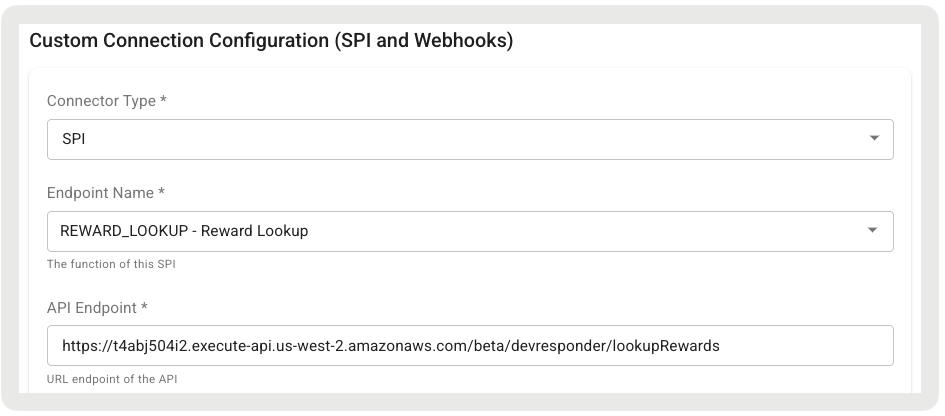
Lookup the available rewards for a customer that can be applied as a tender.
- In CMS, go to Custom Connectors.
- Click Create.
- Under Connector Type, select "SPI".
- Under Endpoint Name, select "REWARD_LOOKUP".
-
Configure the rest of the required fields by referring to the API/SPI Spec.
Configure Financing Account Lookup Deep Link
Launch the account lookup flow via terminal when the customer's card is not present.
- In CMS, edit your Cart Options layout.
- Using the deep link picker, go to Cart Options.
- Select and add "Financing Account Lookup".
Configure Finance Layouts
Set up layouts for electronic disclosures and terms/conditions.
-
In CMS, go to .
-
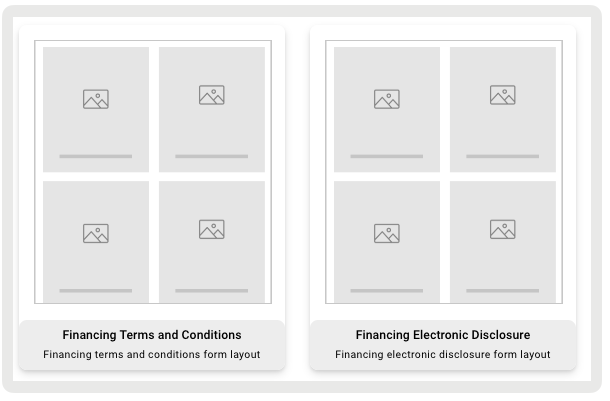
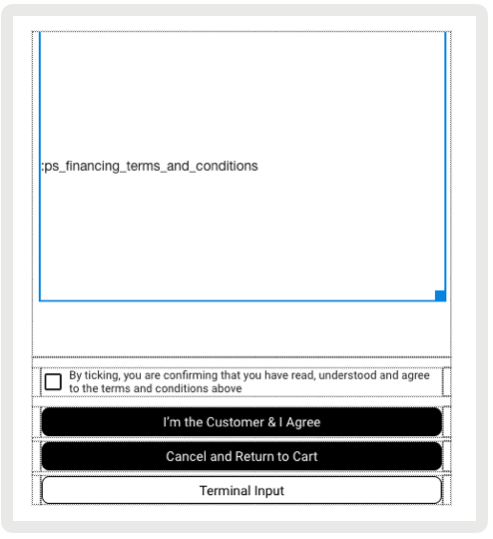
Select the "Financing Terms and Conditions" layout to configure the layout for terms and conditions. After configuring the layout, map it to your app configuration using the setting "Electronic Contract Layouts (ElectronicContractLayouts)".
Tip Use the PS Tag :ps_financing_terms_and_conditions to automatically pull and show the financing terms and conditions in the POS app. This lets you manage the terms in just one place. When you add the tag to the layout, it will retrieve the full terms with the correct promo details set under Finance Terms and Conditions.
-
Select the "Financing Electronic Disclosure" layout to configure the layout for electronic disclosures. After configuring the layout, map it to your app configuration using "Finance Electronic Disclosure (financeElectronicDisclosureLayoutId)".
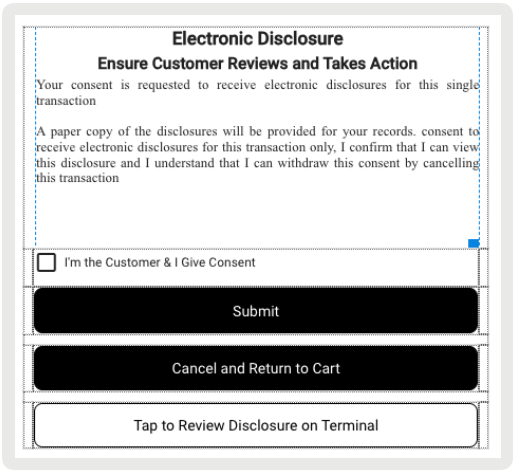
The below Button Actions can be added to the above layouts to allow the customer to either accept or decline finance agreements:
- Accept Finance Agreement: Customer agrees and accepts finance agreements
- Decline Finance Agreement: Customer declines finance agreements and returns the user to the cart
POS Behavior
On the cart screen, if the order total falls within the order total range range, the card acquisition flow will be triggered when the user selects to checkout with a credit card. If it does not, then the card acquisition flow will be processed with the full payment. For every credit card transaction, the POS will make a card acquisition request to Adyen, which returns information about the card. The POS uses this information to identify whether it is a Synchrony card (PLCC) or a normal (non-Synchrony) credit card based on the BIN range.
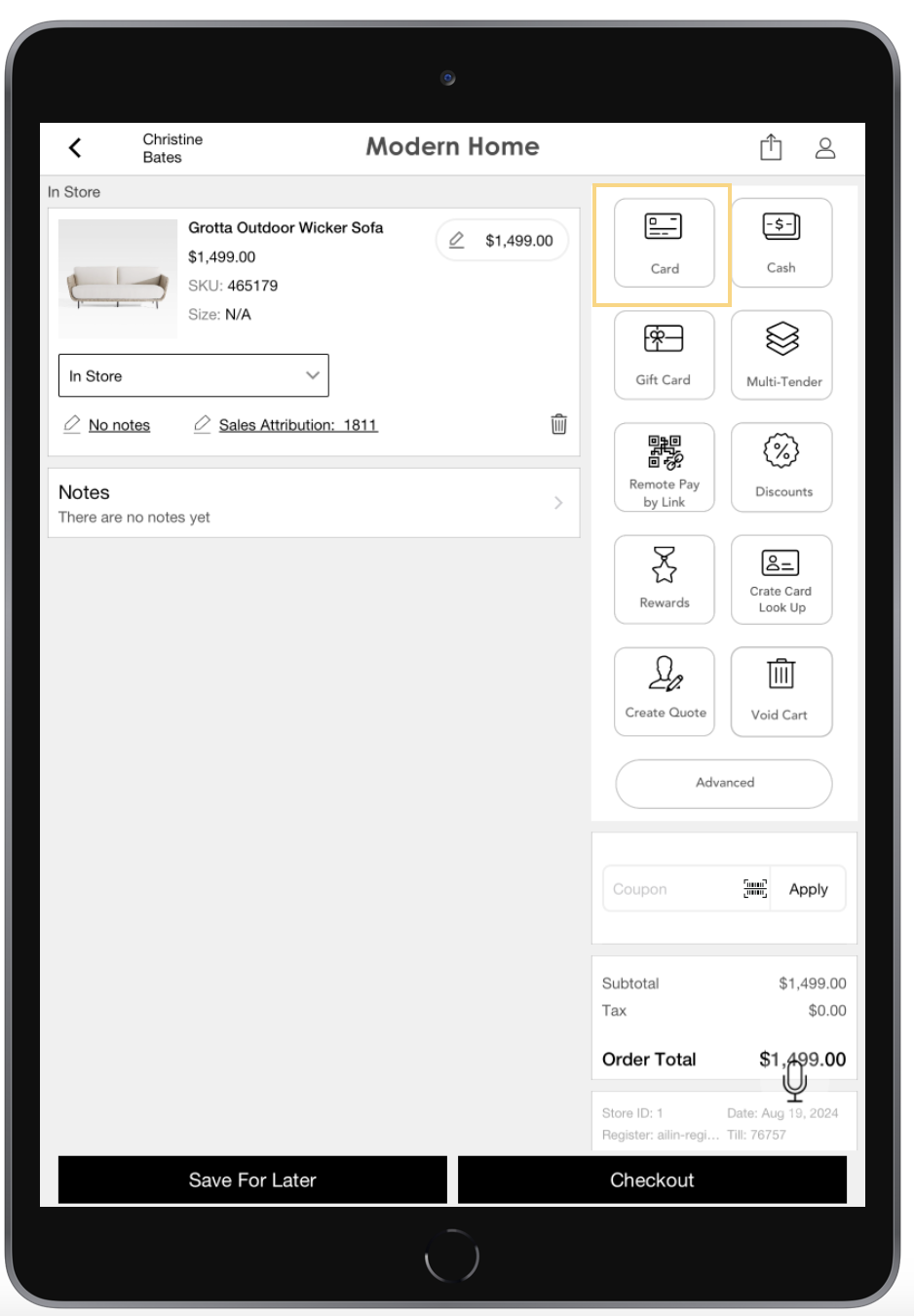
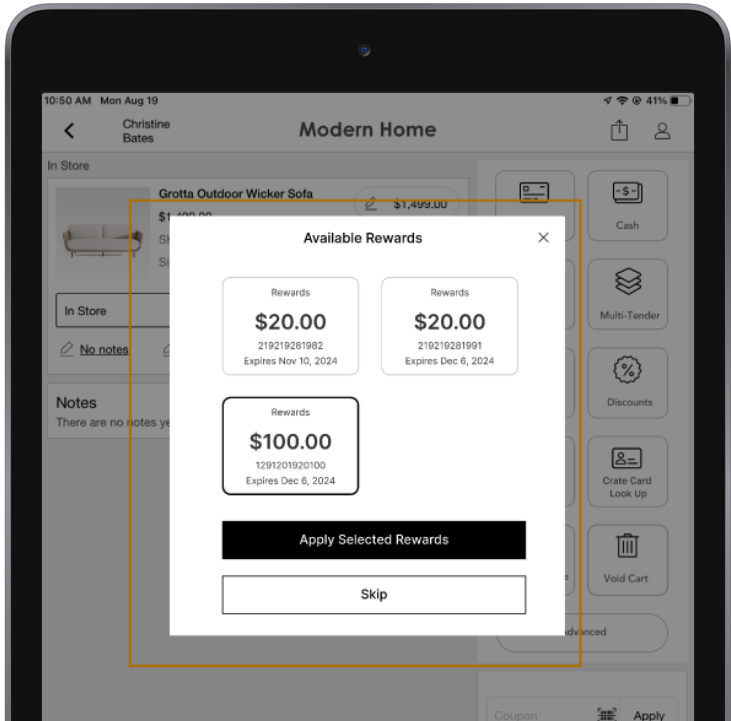
If the Reward Lookup SPI is configured and the customer has eligible rewards, the below modal will display. You can select a reward to apply to the order. If the customer's card is not available for an account lookup, the store associate can tap the Financing Account Lookup deep link. This will prompt the customer to follow instructions on the terminal for account lookups. The customer will enter their full 9-digit social security number (SSN) into the terminal and accept.
If an account is found, Adyen will respond with a token that the POS can use to process the transaction. The POS will then display a success message with the customer’s full name, which the associate can use to verify the shopper’s identity. The associate will be prompted on the POS to confirm that the name on the account matches the form of ID presented by the shopper. Once the associate confirms the verification, they’ll proceed to the rewards lookup step in the financing flow and view the shopper’s available rewards.
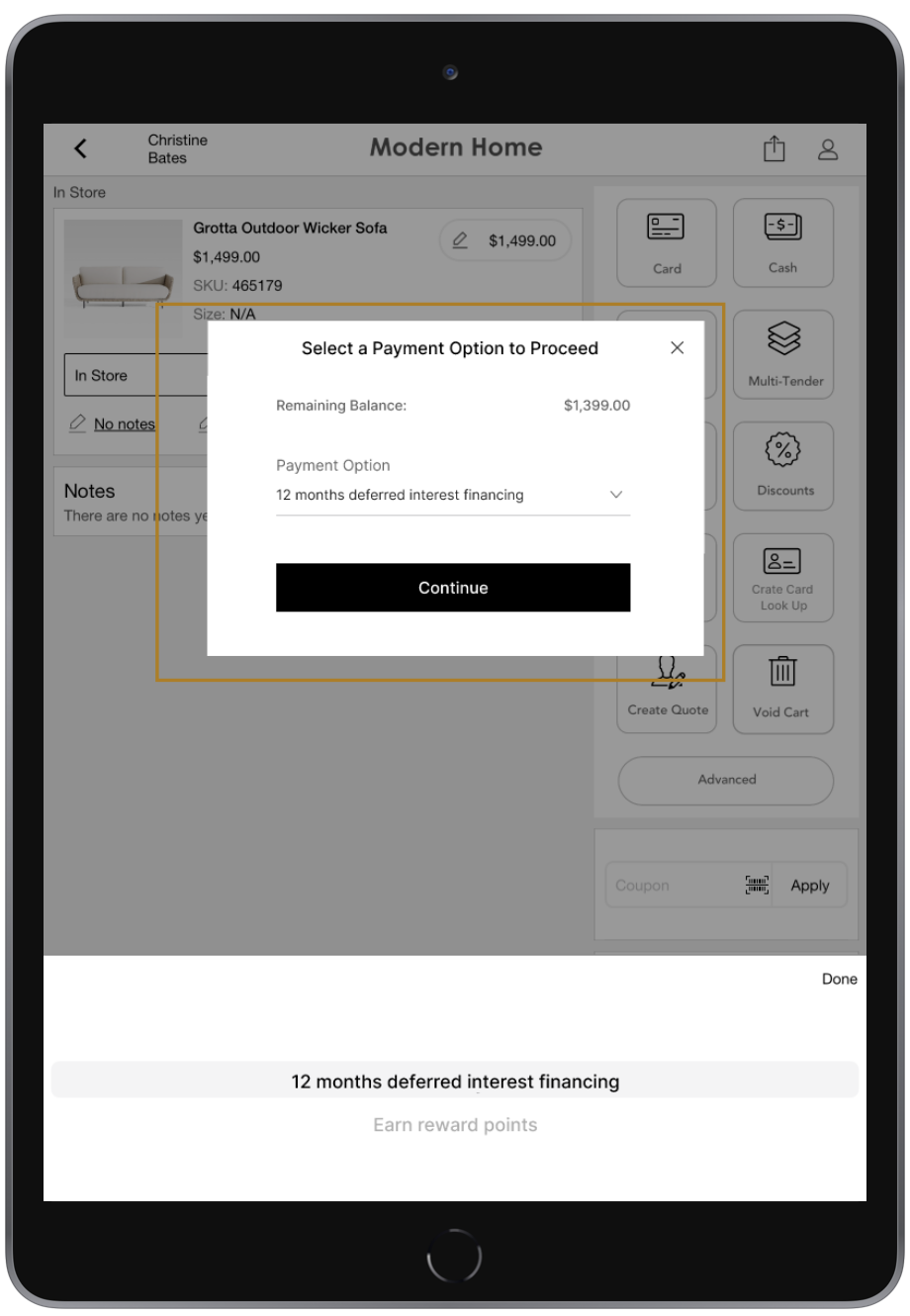
On the next modal, you'll be able to select a finance option or opt to earn rewards. If rewards is selected, this will complete the order as a credit card transaction. If financing is selected, the POS will do a pre-authorization via Adyen for financing. Note, clicking the X button on the modal will cancel the card acquisition flow.
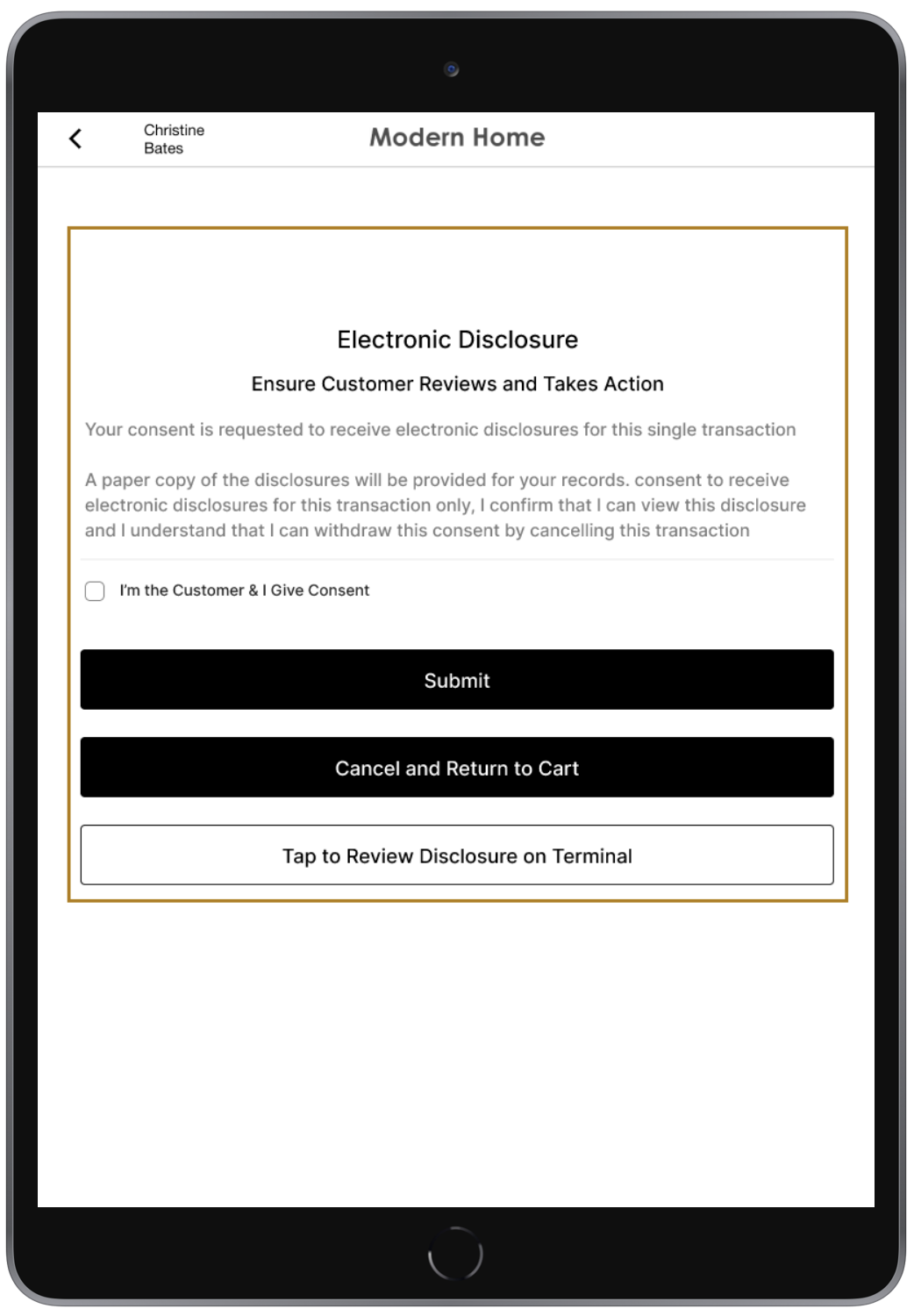
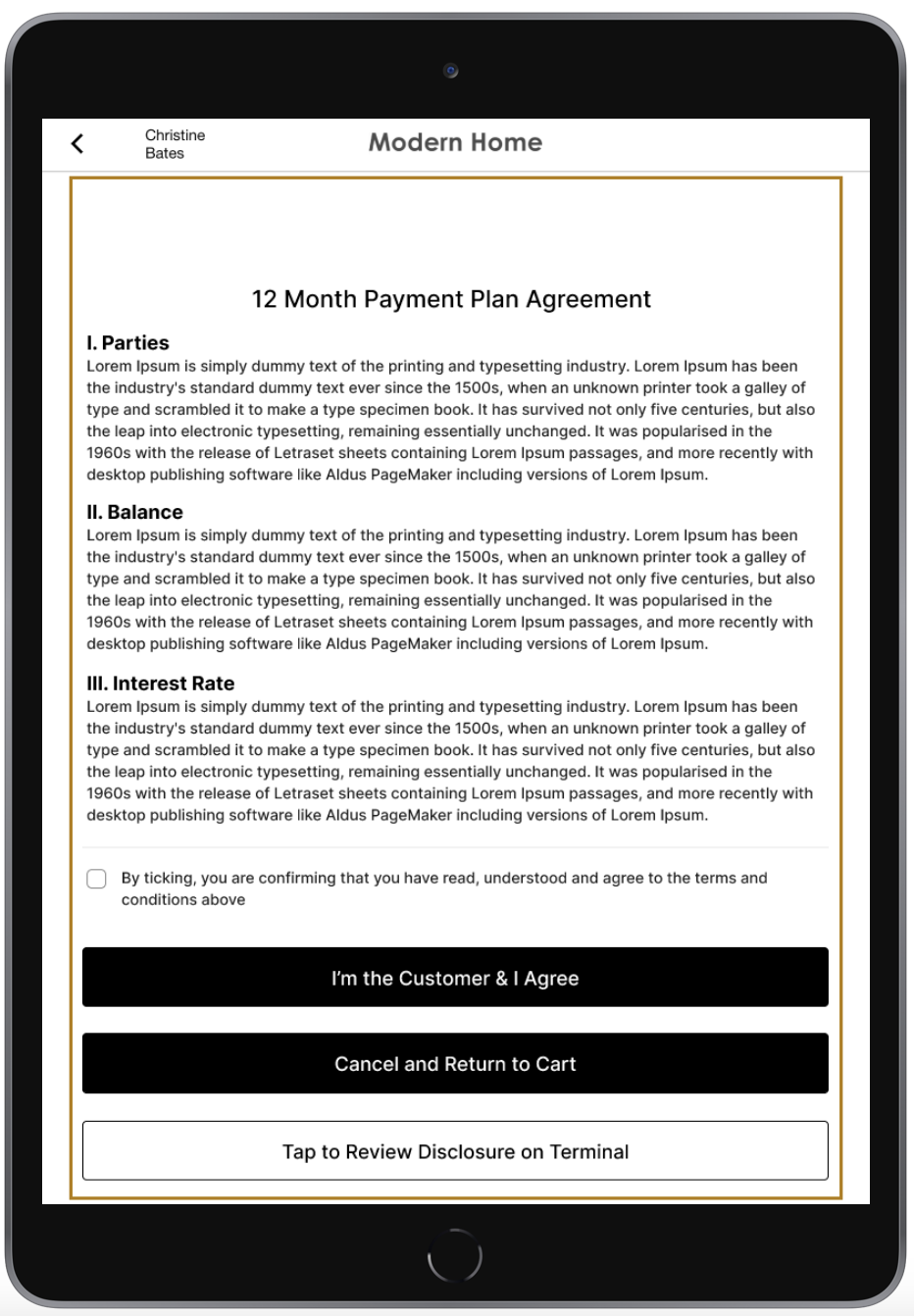
When the customer selects a financing option, the POS will prompt the customer for consent to receive electronic disclosures. Customers can choose to review the disclosure on the terminal.

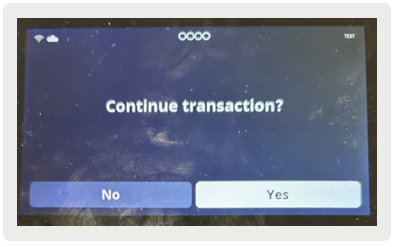
Once consent is given, the customer can review the full disclosure on either the app or the terminal. After reviewing and agreeing to the disclosure, payment will be sent for authorization, and the checkout process will be completed.
Reporting
Discover the reporting is available on these transactions.
Electronic Journal
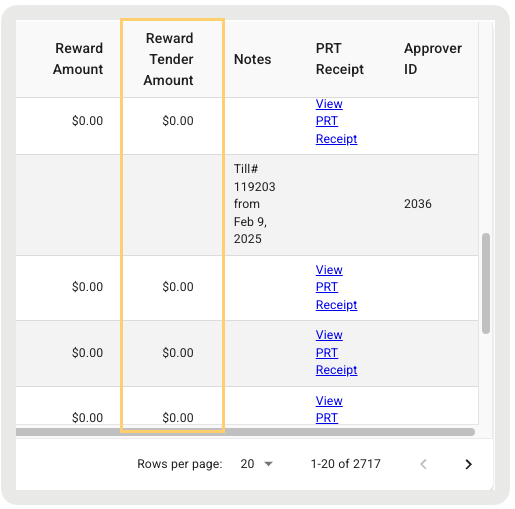
If the customer selects a reward to apply to their order, the total amount will be listed in the Electronic Journal under the Column "Reward Tender Amount".
Successful Orders
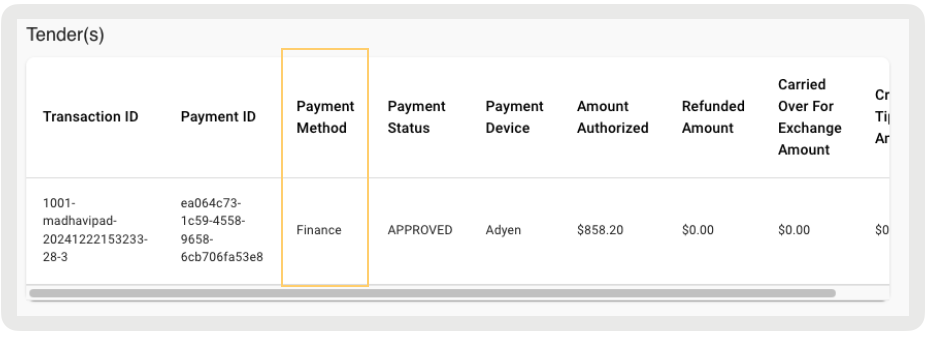
Orders completed via the card acquisition flow will display "Finance" as the payment method in the order details.
TLogs
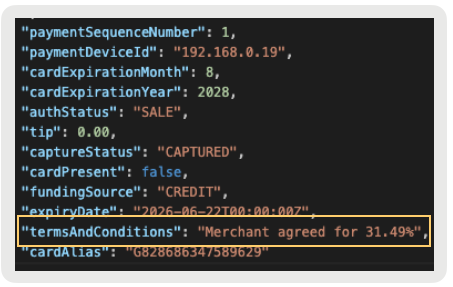
If the customer agrees to the terms and conditions, this agreement, along with the APR rate, will be logged in the TLogs under "termsAndConditions".