
You are here:
Payment Error Handling
An order failure with unknown payment statuses is critical. Point of Sale made enhancements addressing this issue by adding additional parameters and descriptive order statuses in the CMS reporting. Additionally, there is the abort option in the app's user interface to mark the payment status as unknown in case of communication failures between the app and the terminal. This enables you to verify and reconcile the transaction later depending on the order status in the CMS failed order report.
Set Payment Timeouts
Control the timeout duration for terminal requests so the POS app waits for a payment gateway response. You can also set the duration for API requests so the system waits for a response from the payment status check API. Setting the request duration ensures efficient communication and prevents delays during transactions. Configure the duration to optimize performance and maintain a smooth user experience.
- Modern POS App Build: 8.1.1 or above
- Platform Support: iPhone & iPad
- Offline Support: Limited
- A configured payment gateway
Set Payment Request Timeout
Set the duration of the terminal requests to control how long the POS app will wait for a response from the payment gateway before timing out. The default duration is set to 150 seconds, and it's recommended not to use extremely low values to avoid potential issues.
- Go to .
- Edit a configuration.
- Set Terminal Request Timeout Interval In Seconds to your desired value.
- Save your changes.
Set Payment Status Verification Request Timeout
Set the duration of the API requests to control how long the system will wait for a response from the payment status check API. Negative values are not allowed, and the recommended default value is 5 seconds.
- Go to .
- Edit a configuration.
- Set Payment Status Check API Timeout In Seconds to your desired value.
- Save your changes.
Failed Orders Corrective Action
Get details of how to identify various failed order scenarios and address their corrective actions in Point of Sale.
| Failure Type | Likely User Scenario / Probable Cause |
Corrective Actions |
Successful Orders without Payments Order number is available in the terminal console but not in CMS success/failed order reports |
Not an expected scenario | This is not an expected behavior for the POS app. If this is experienced, contact Salesforce Customer Support. |
Orders having Aborted payments Order with payment status UNKNOWN (before 8.1.1) and ABORTED (from 8.1.1) in CMS Failed Order report |
|
Merchant should manually refund customers directly from the Payment Gateway tied to each individual order. |
Orders having Auto-Reverted payments Order is listed in the payment reversal CMS report |
|
No action needed |
Orders Pending Payments Order is listed in Failed Order report with UNKNOWN (before 8.1.1) and FAILED (from 8.1.1) order status and PENDING payment status |
|
|
Orders having Cancelled Payment Order is listed in Failed Order report with FAILED order status and CANCELED payment status. |
|
No action needed |
Orders having Declined Payment Order is listed in Failed Order report with FAILED order status and DECLINED payment status |
|
No action needed |
Orders having Approved Payment but order submission failed Order is listed in Failed Order report with FAILED order status and APPROVED payment status |
|
No action needed |
Orders having UNKNOWN (before 8.1.1) or CANCELLED (from 8.1.1) cash orders Cash order is listed in Failed Order report with FAILED order status and UNKNOWN (before 8.1.1) or CANCELLED (from 8.1.1) payment status |
|
|
Orders having FAILED for In Store Pay By Link or Remote Pay By Link order Order with FAILED status and FAILED In Store Pay By Link or Remote Pay By Link tender will be in CMS |
|
No action needed |
Orders having DISCARDED card tender orders Order with FAILED status and DISCARD card tender will be in CMS |
|
No action needed |
FAILED order having Approved cash tenders Order with FAILED status and approved cash tender will be in CMS |
|
No action needed |
PENDING ORDERS with missing order IDs Orders with a PENDING ORDER status and missing order IDs will be in CMS |
Adyen callback URL configured at the parent account level in the Adyen Portal, allowing events to be received from all regions | Merchant should configure individual region-specific callback URLs for only the region-specific Adyen account |
Scenarios That Result in Failed Orders
These scenarios explore cases where the payment can be approved in the terminal but the CMS report can have the order status as FAILED/ UNKNOWN.
Order Fails After Terminal Payment Approval
A payment can be approved by the terminal and fail in the order submission phase in the Point of Sale platform. In this case, the payment will be reverted by the platform, and the same information will become available in the CMS Payment Reversals report.
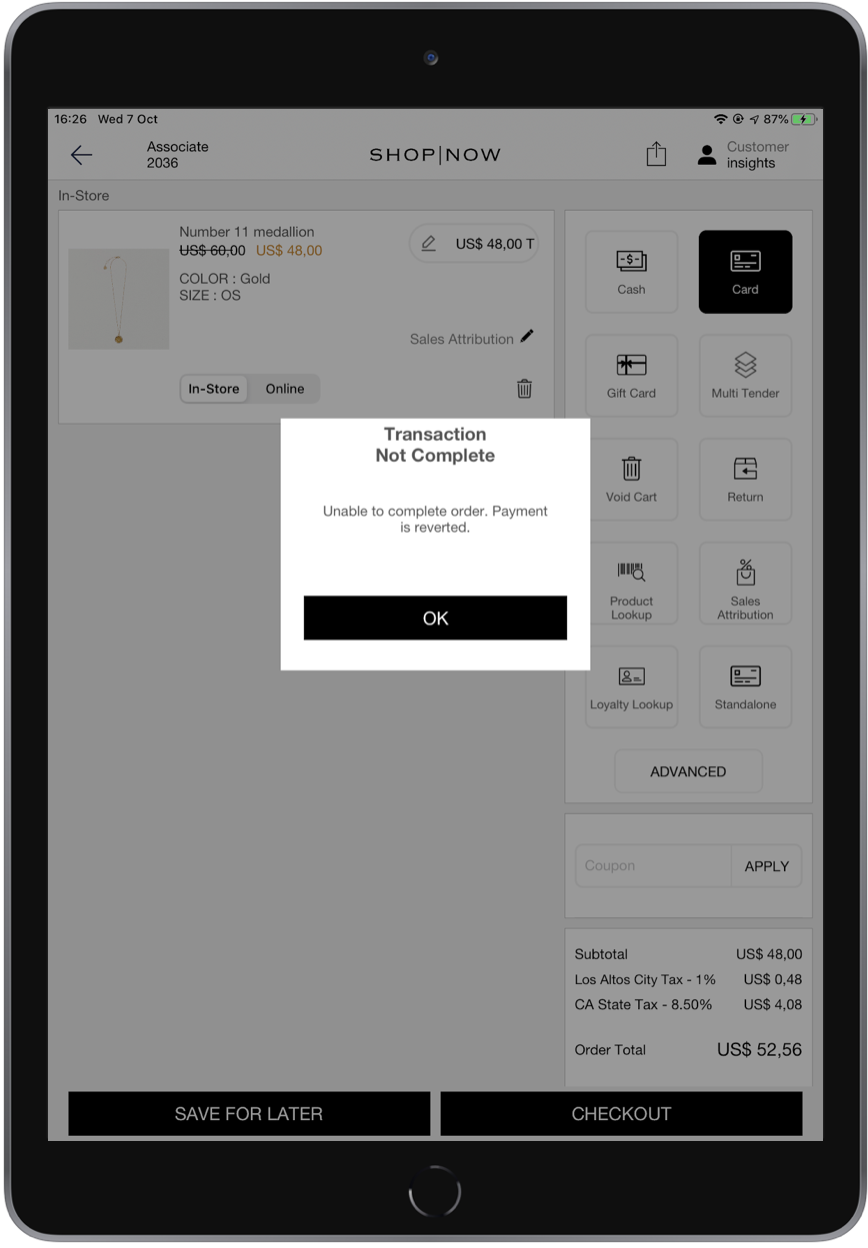
Payment Request Fails at Terminal
On checkout after selecting card as the mode of payment, the POS app initiates the payment request to the terminal. A communication failure can occur between the POS app and the terminal which would cause the app to not receive any response from the terminal after payment initiation. Payment Request Failures can occur in the following scenarios:
Payment Request Timeout
The default timeout value for a payment request is 150 seconds and is configurable in CMS. In the case of a timeout, the response from the terminal wasn’t received by the POS and hence it performs an additional request to the terminal to verify the transaction status of the previously initiated payment. This identifies the success or failure of the payment and submits the same information to the platform so that it can get reported in the CMS.

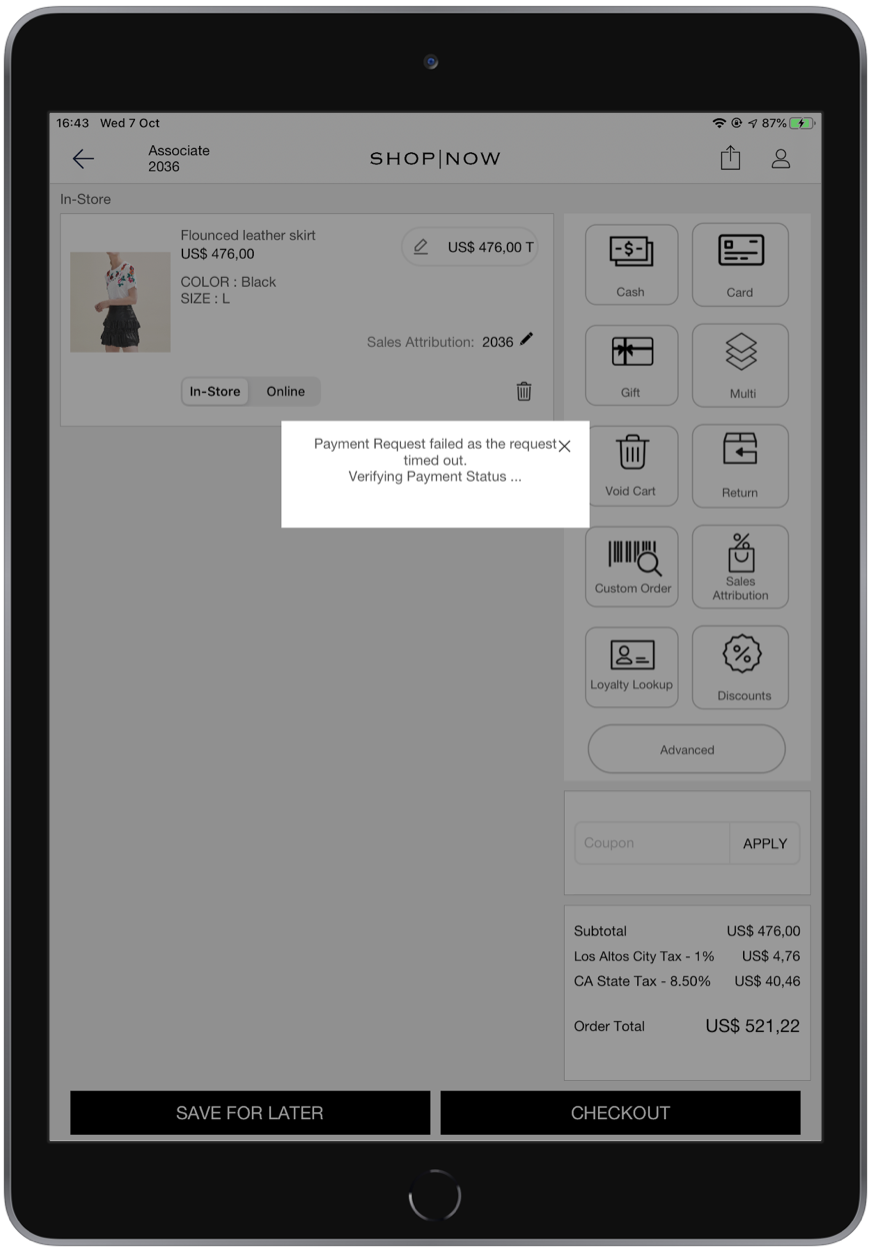
Payment Request Fail Due to Internet Failure
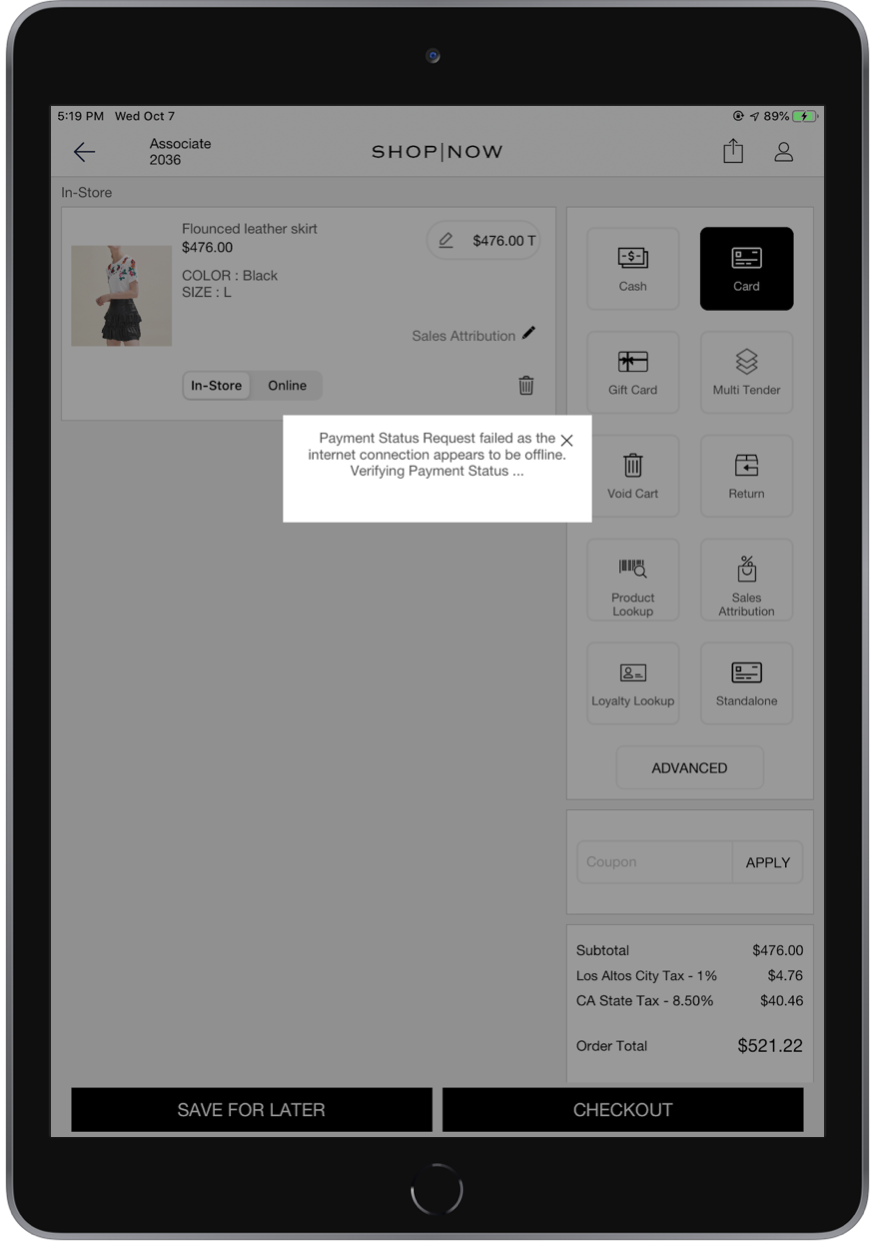
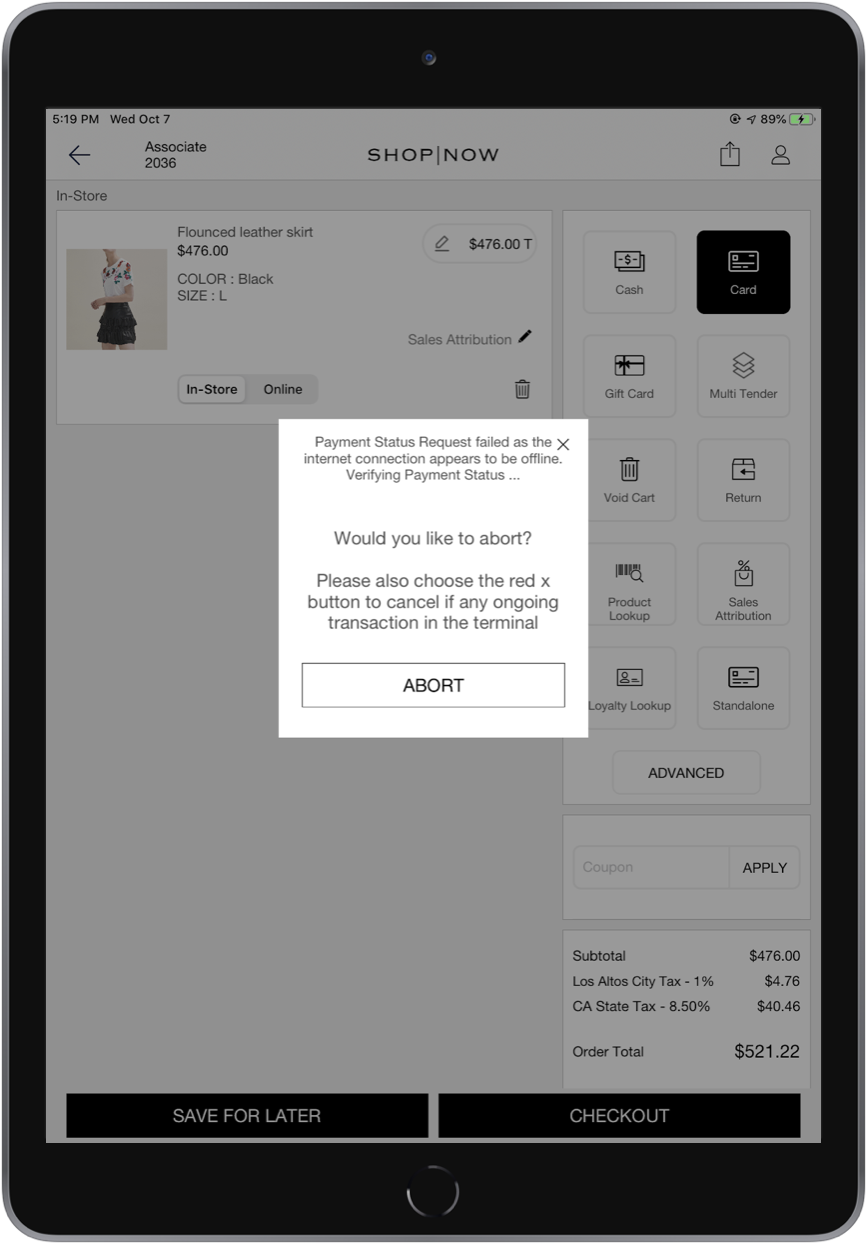
When there is an internet failure after a payment request is initiated, the payment request fails due to network unavailability which disrupts communication between POS and the terminal. The POS app sends a request to the terminal to verify the transaction status of the previously initiated payment. With a network failure, the transaction status request also fails. The associate can cancel the transaction from the POS app or from the terminal using a button. In the case of a cancel request failing, the user will be able to abort the transaction.
The Payment Tender Status for the order will be reported as "ABORTED" in the CMS Failed Orders report as the POS app is unable to know the exact payment status of the order. You will need to manually verify and reconcile the transaction.
Cancel Request Fails During Payment in Progress
After the POS app initiates the payment request to the terminal, while the payment is in progress, the associate can cancel the request using the "X" button. There can be communication failure between the POS app and the terminal causing the app to not receive any cancel response from the terminal. Payment In-Progress with Cancel Request Failures can occur in the following scenarios:
Cancel Request Timeout
The default timeout value for cancel requests is 150 seconds and is configurable from CMS. When the cancel request timeouts, the POS app sends a request to the terminal to verify the transaction status of the canceling payment. In the case of a transaction request time out, the user will be able to abort the transaction. In case of an abort, the Payment Tender status is reported as "ABORTED" in the CMS Failed Order reports as the POS app is unable to know the exact payment status of the order. You will need to manually verify and reconcile the transaction.
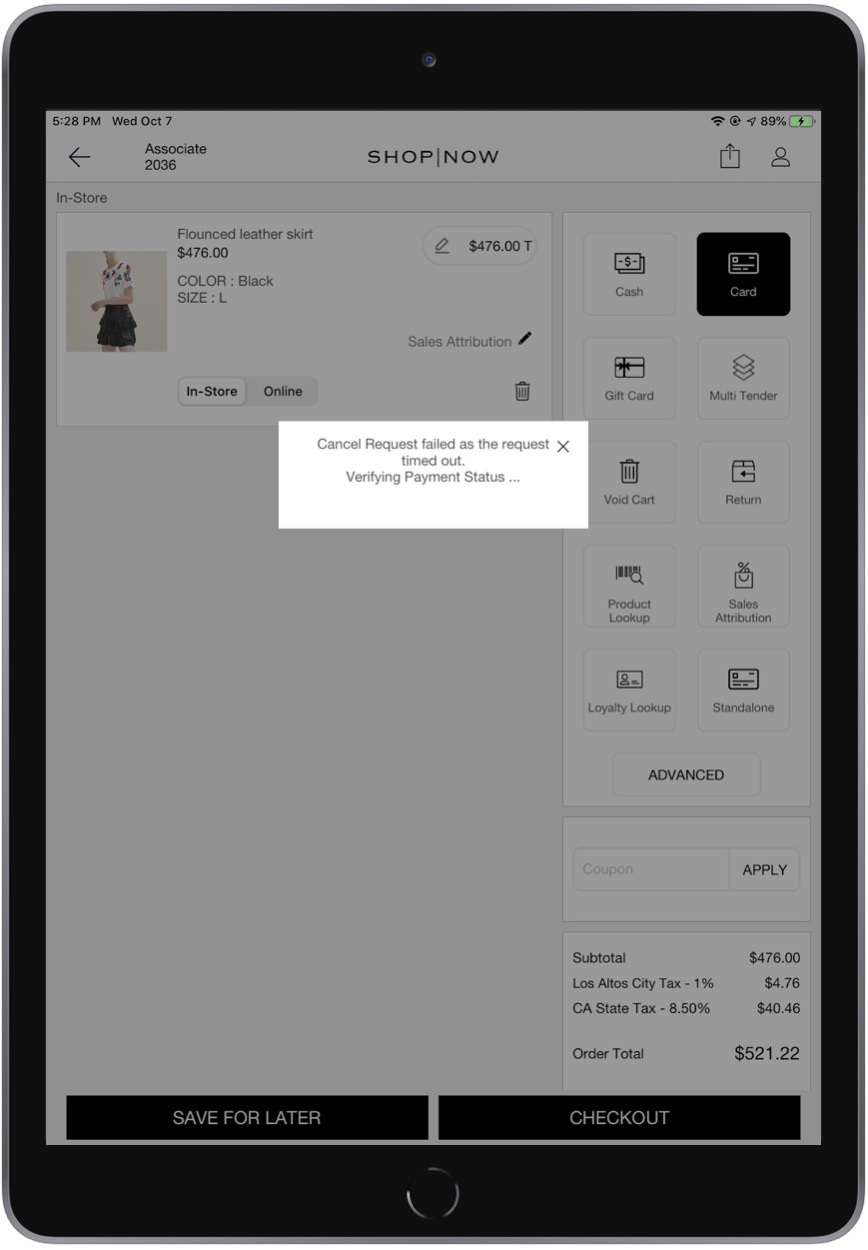
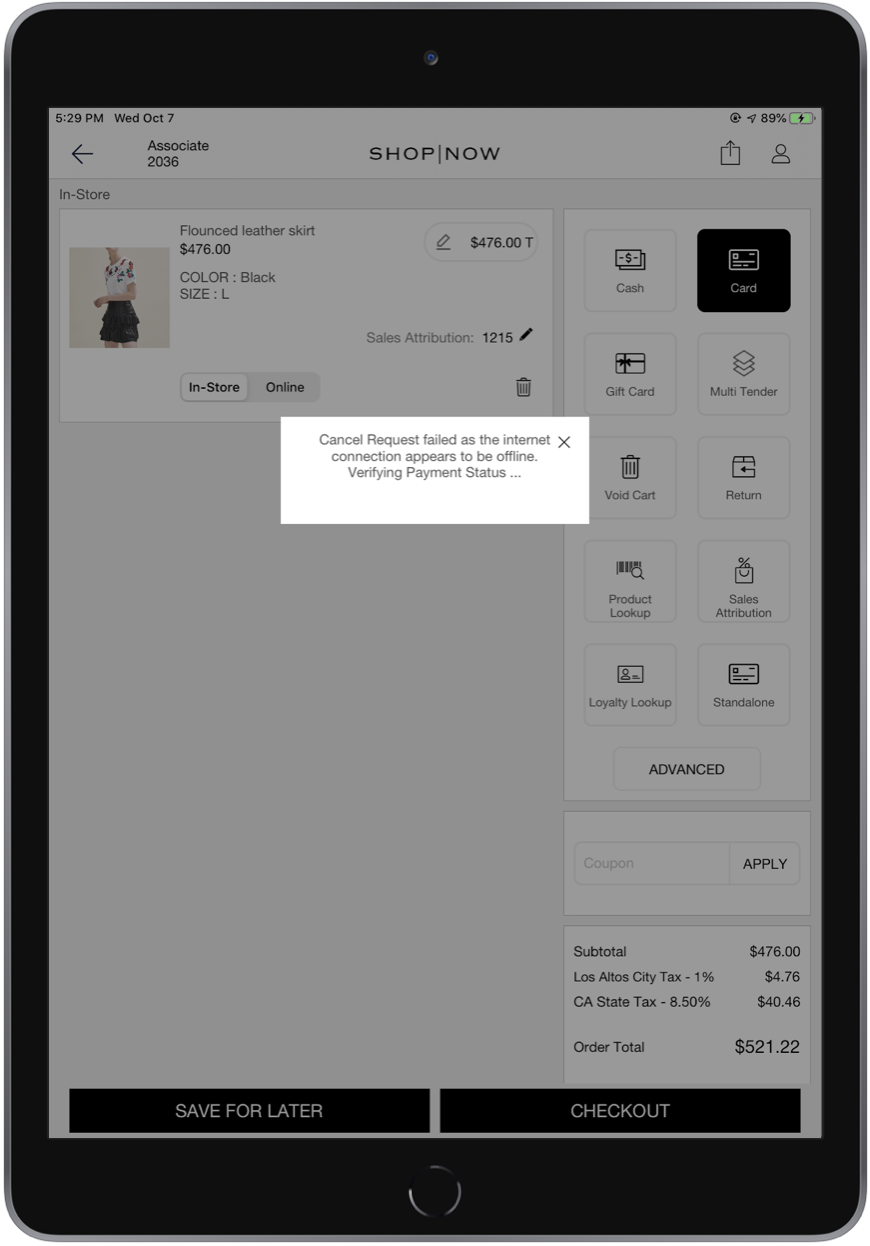
Cancel Request Fail Due to Internet Failure
When an internet failure occurs after a cancellation request from the POS app, there is no communication between the POS app and the terminal. The POS app will not know the status of the cancel request. The POS app will send a request to the terminal to verify the transaction status of the previously initiated payment. In the case of a transaction request time out/fail due to network failure, the user will be able to abort the transaction.
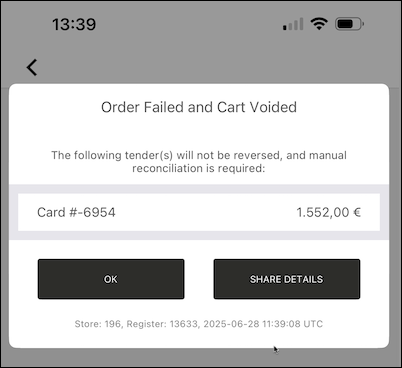
Payment and Order Successful but Missing in CMS
When the payment is approved in the terminal but there are intermittent network failures during communication to the platform, the POS app persists these pending orders locally as failed and syncs them to the platform when the network is online. The associate is shown the failure message and then the cart is voided as we cannot confirm the order. These pending orders will show up in the checkout screen for the subsequent orders and the user can see the details and manually sync them from the pending orders screen. The associate can also see all the pending orders by choosing the pending orders deep link if configured in the Hamburger Menu. Until the orders sync up to the platform, the Payment Tender Statuses for these orders are shown as "PENDING" and Order Status as "UNKNOWN" in CMS Failed Orders report.
Pending Payment and Unknown Order Status in CMS
When the POS app is force-closed after the payment is initiated, and before the app receives a response from the terminal and communicates it to the platform, the Payment Tender Status remains "PENDING", and the Order Status as "UNKNOWN" in CMS Failed Orders report. These orders will not be listed in the pending orders screen in the POS app.
Adyen-Specific Scenario
In such scenarios, in the case of Adyen's credit card payment, the associate will not be able to return the money to the customer. Hence, the app will remember these order references, verify the payment status with the terminal, and report the same during the next session to the platform. These pending verification orders are seen in the pending orders screen below:
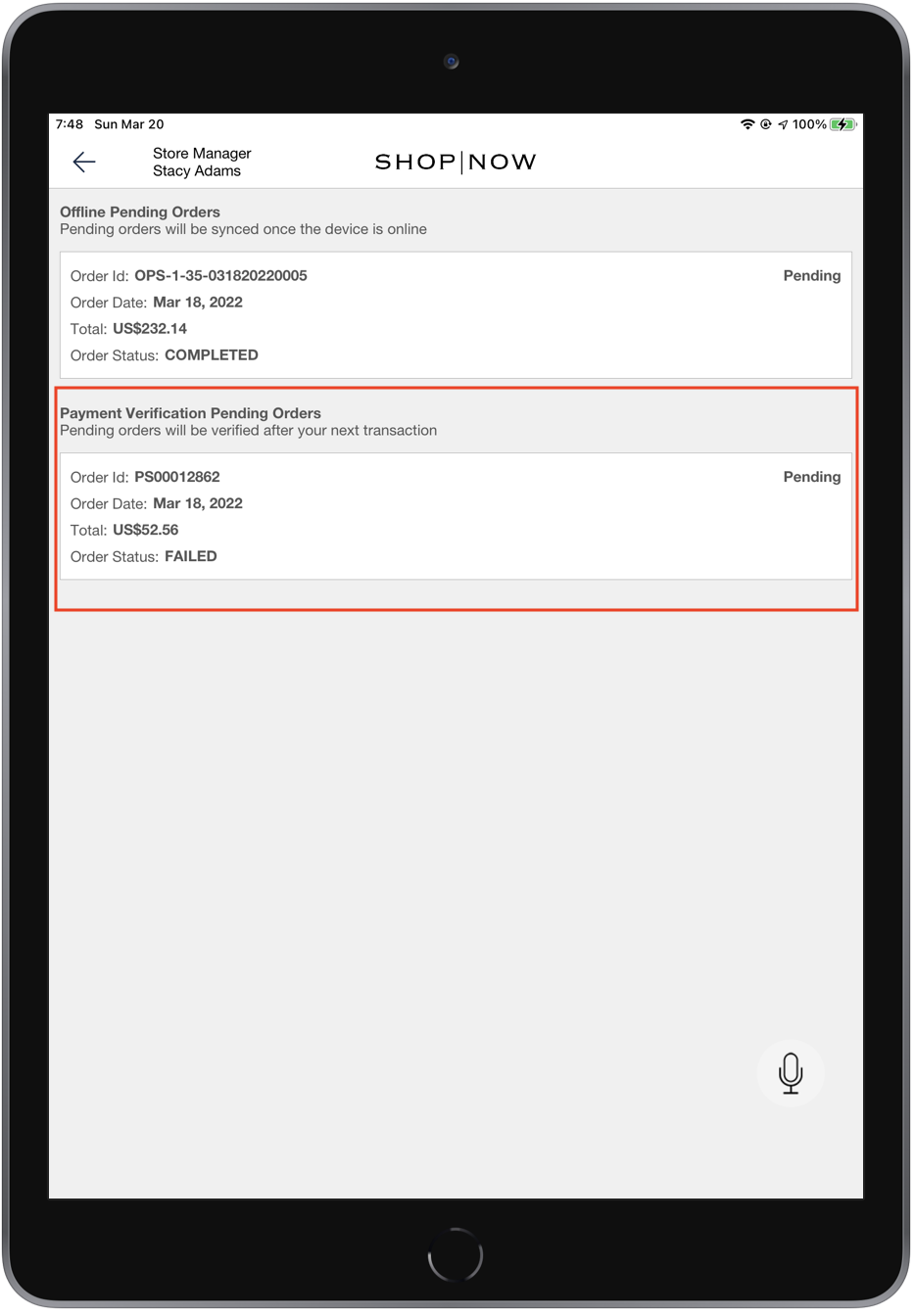
The payment verification is done during the next successful order placement in the case of 1:1 card reader topology and during the next successful card order for 1:N card reader topology settings. If the payment was successful, then the platform refunds these payments as the app did not show the order confirmation screen for these orders. These orders are modified to have a Payment Tender Status as "APPROVED" and an Order Status as "FAILED" in the Failed Orders report in CMS. If the app is unable to retrieve the status from the terminal, it reports the Payment Tender Status as "ABORTED" and they have to be reviewed and manually refunded to the customer.
Verifone-Specific Scenario
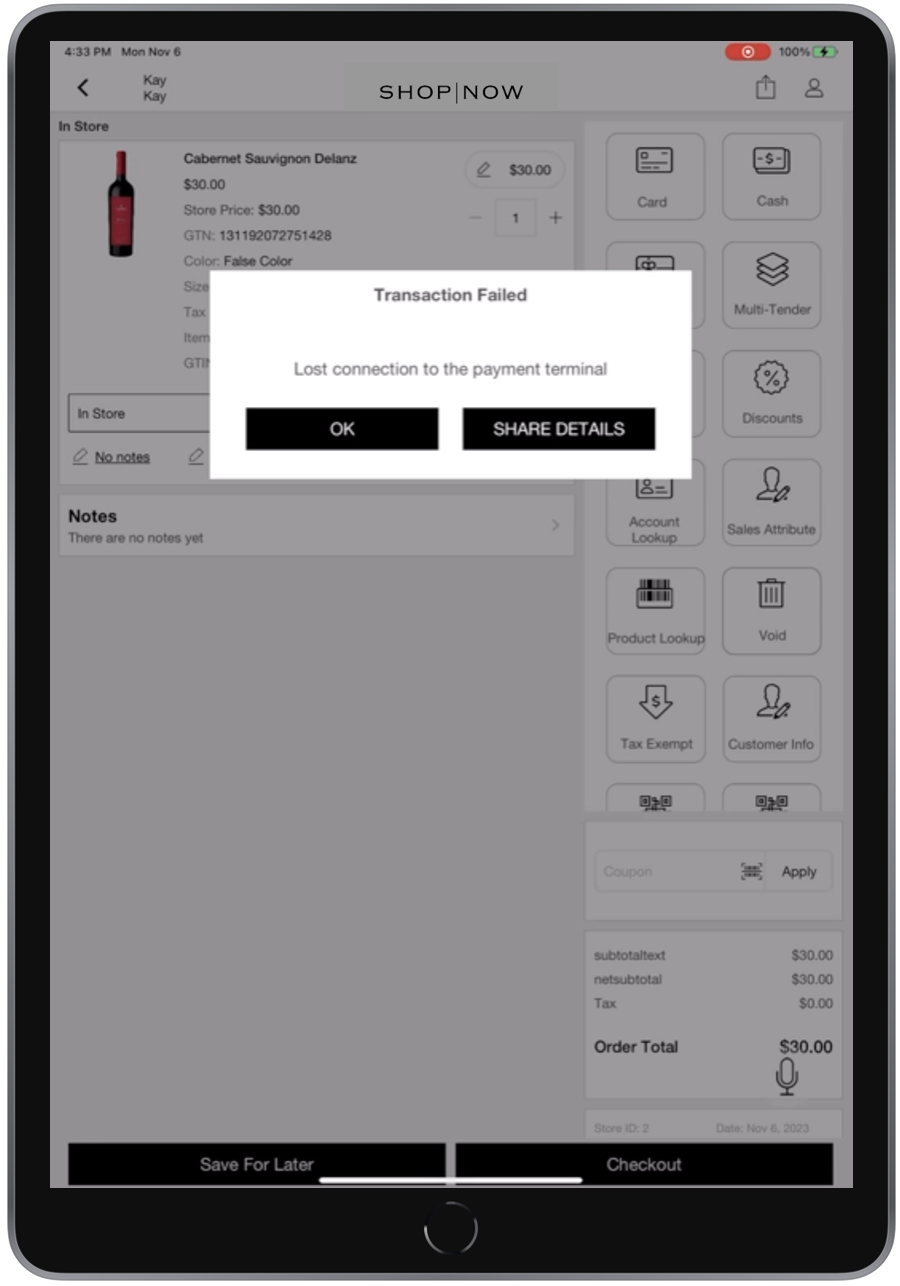
In the case of Verifone terminals, if there is a loss of Wi-Fi or an internet failure, attempting to cancel a transaction will prompt an error message: "Transaction Failed: Lost connection to the payment terminal." When the associate voids the cart, they have the option to reset tenders. At this point, any accepted payment tenders will be returned to the customer. This scenario will report the Payment Tender Status as "Canceled," which is different from Adyen terminals, where the Payment Tender Status is reported as "ABORTED".
Online Payments Restricted During Network Issues
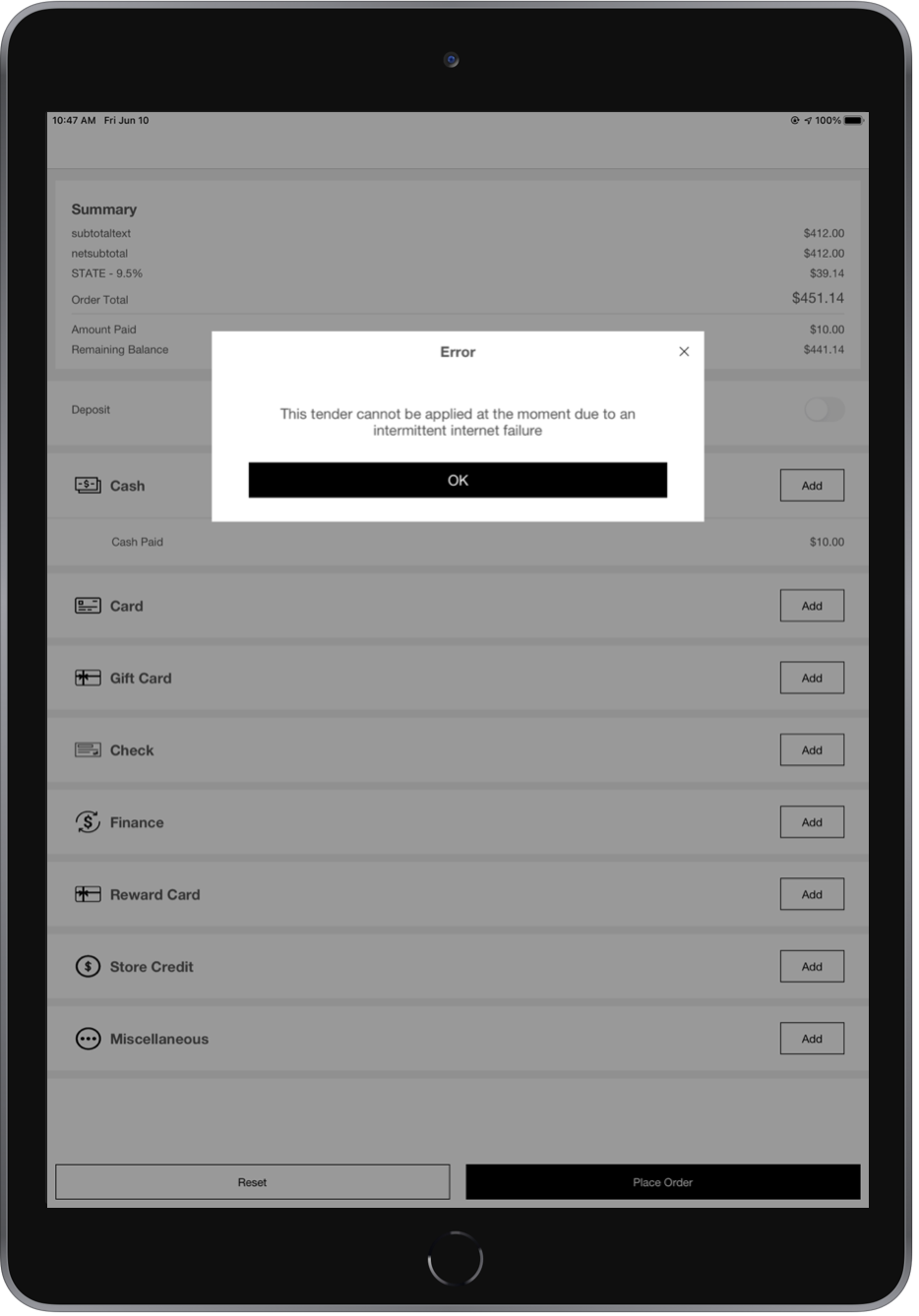
The current app doesn't switch to offline mode when there is an intermittent network failure if a payment is in progress or partially applied for a transaction. The app allows the user to complete the current transaction in the same online mode. As an enhancement in the version 8.0.1 release, the POS app will also now restrict the app of online-only tenders such as GiftCard, Check, Finance, Store Credit, Remote Pay By Link, In Store Pay By Link, Reward Card, Miscellaneous and Loyalty Card when there is an intermittent network failure. The app will be shown an error message and the user will automatically be allowed to use these online-only tenders when the network connectivity issue is resolved.
Online Payment Restrictions During Network Instability
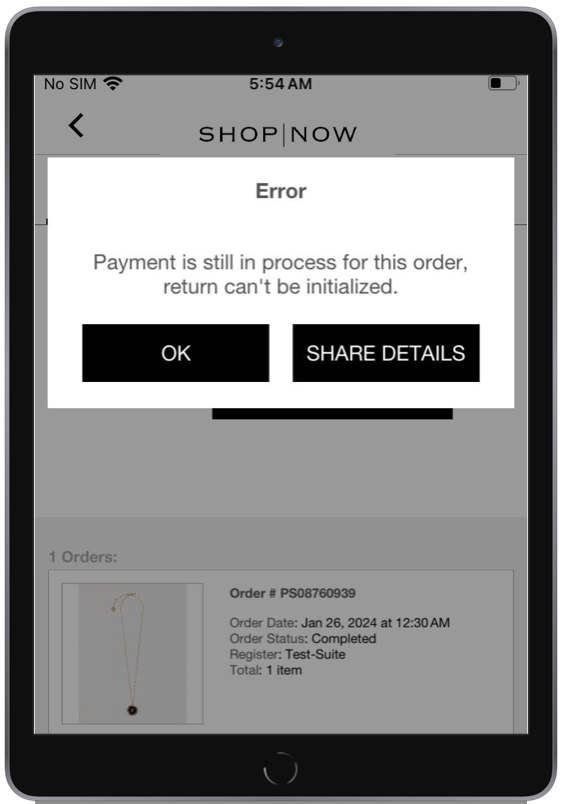
For app builds 9.8.1, Point of Sale introduced handling for scenarios when the POS system is online but operating in Adyen's Store-and-Forward (SAF) mode, and a payment confirmation from Adyen is pending. Now, during return transactions, if the payment status remains unverified, the system will prevent the return from proceeding. Users will be notified with the error message, "Payment is still processing for this order, return can't be initialized".
Unable to Process Refunds for New Store
If you're unable to process refunds for a newly set-up store and encounter the error:
"Expected BEGIN_OBJECT but was STRING at line 1 column 1 path $", check your Adyen configuration in CMS. If there's a configuration marked as Default, check that the Secondary URL Base is correctly configured. An incorrect or missing URL can cause refund requests to fail.
Known Issues & Restrictions
Discovered known issues and restrictions with the Point of Sale payment error handling.
- Phase 1 error simulation is not supported for return flows as it is only for sales.
- Phase 2 error simulation failed order reports do not update for a failed return flow.
- If the app is closed before receiving a response from the payment terminal, reopening the
app will display the pending transaction in the "Pending Verification Pending Orders" section.
- In a 1:1 configuration, tapping on the order entry will trigger a status verification and sync the order with the backend.
- In a 1:N configuration, the terminal must be connected in the Device Manager screen before tapping on the order to sync. Otherwise, a "Terminal not connected" error will be displayed, and the sync will not occur.
