You are here:
Adyen Terminal Discovery via Terminal Management API
Turn on the terminal management APIs for your account and configure terminals with store associate-friendly names to take advantage of this feature.
Prerequisites:
- Modern POS App build: 6.2.3 or later
- Platform Support: iPhone & iPad
- Offline Support: no
The Terminal Management API provides endpoints for retrieving information about your payment terminals and assigning them.
Configuring Web service Account for Terminal Management
Contact your Adyen support team to assist you in turning on terminal management APIs for your account.
To configure the web service account for terminal management:
-
Log in to your Adyen portal and go to .
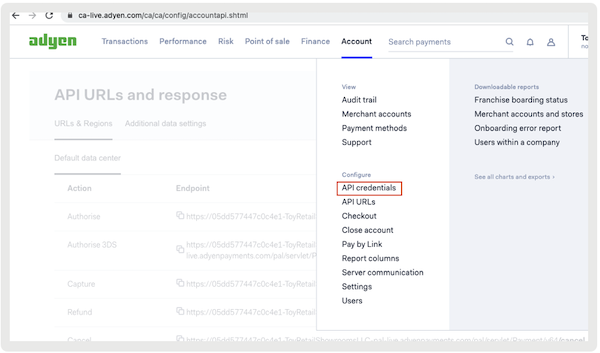
-
Select the correct Web service user that has access to the company level or have the Admin
create one for you. The tab under section shall include the company's account.

-
Make sure the role is set up for the Web service user they currently use for PS Payment
Gateway Integration. The tab under section shall include the company's account.
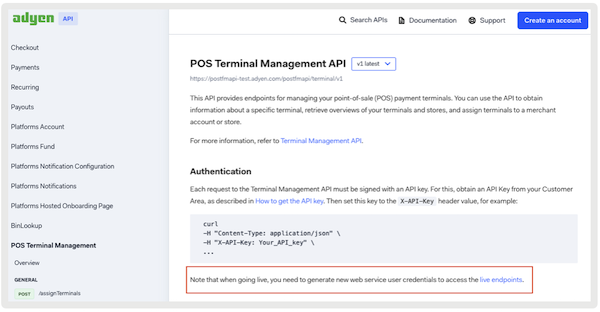
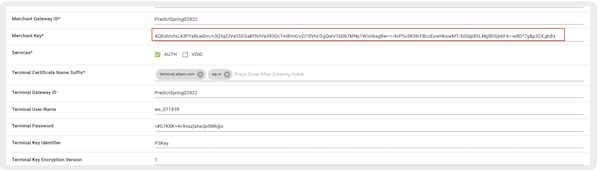
Make sure you have the API key for this Web service user. We have a way to configure this in Payment Gateway on CMS as Merchant key as Point of Sale uses it for refund API. If you're using the returns feature in the POS app, have this configured.
Configuring Terminals with Store Associate-Friendly Names
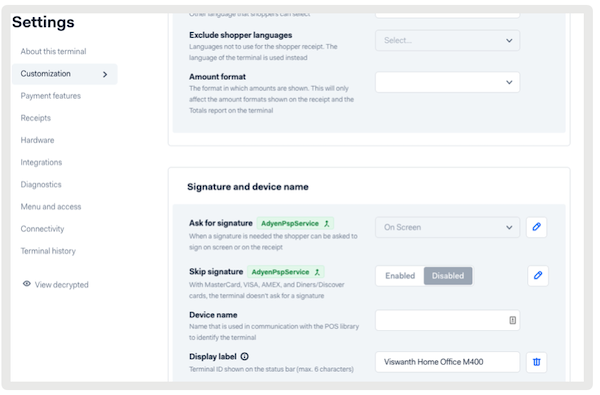
- Set the Display Label for every terminal by going to .
-
A general recommendation is to keep the terminal names short and unique so it is easier
for associate to quickly select the right terminal depending on the location inside the store.
Configure Point of Sale CMS for Ayden Terminal Discovery
Configure terminal discovery properties within the Adyen Payment Gateway so store workers can select payment terminals.
Disabling QR Code Scanning
We've added a QR scan code flag, so associates can scan a terminal QR code before placing an
order through a terminal. This flag is obsolete with the discovery. We've kept that flag for
backward compatibility so the existing POS apps continue to work as before.
To test the new version of the app, we suggest copying the app settings and turning off this flag in the new copy.
You can switch to this app configuration with a token and test the discovery. After the testing is complete with this app configuration, you can distribute the app to all devices and turn on the flag for all app configs.
Configuring Payment Topology to 1:N
- To set the topology at the store level, go to .
- Set to "."
- Starting with version 8.4.1, printer topology can be configured at the register level in the CMS. To configure the payment terminal topology at register level, go to .
If topology is set to 1:N, the POS app doesn't show receipts on devices that support Adyen payment gateways (m400, P400, v400). This is even though the Adyen payment gateway is set to 1:N in the CMS.
Configuring Terminal Management Settings in Adyen Payment Gateway
- Go to .
- Edit the configuration.
-
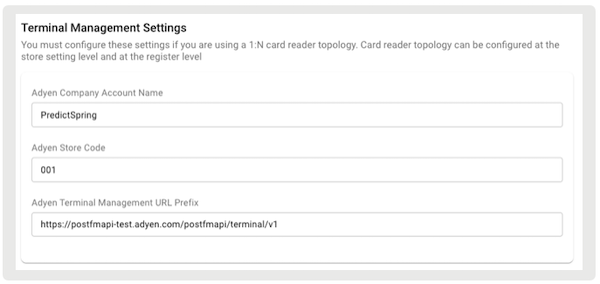
Scroll to to see the terminal discovery properties.
-
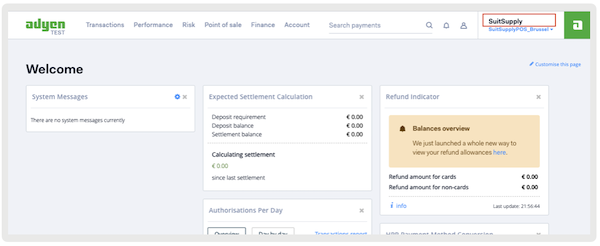
Obtain the Adyen account details from your Adyen Portal:
-
- Name of the company account.
-
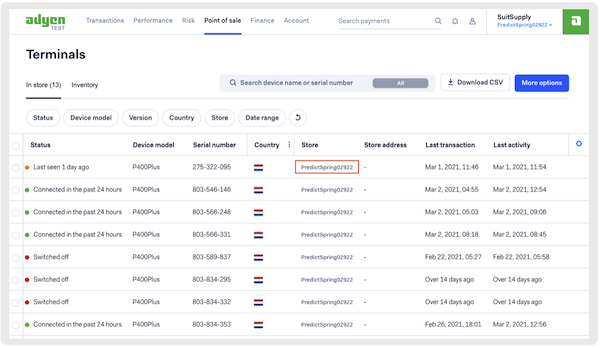
- Store code corresponding to this store on Adyen console. If filled, the
store code filters the discovered terminals as well.
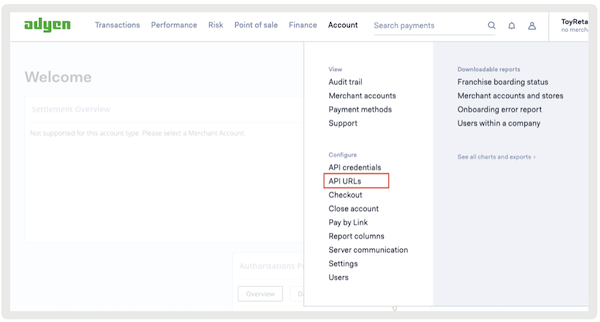
- :
- Production: https://postfmapi-live.adyen.com/postfmapi/terminal/v1
-
Test: https://postfmapi-test.adyen.com/postfmapi/terminal/v1
-
- Name of the company account.
POS App Flow for Ayden Terminal Discovery
Associates can select a terminal for payment processing if logging into the Point of Sale Point of Sale (POS) app, which automatically discovers available terminals.
Discovering Terminals on Cart
If the associate logs in, the POS app automatically triggers the discovery of all available
terminals in the store. If the associate is ready to check out, they select a terminal. The
associate is presented with a list of terminals with their display names as set in the Adyen
console. If no name was set, the app shows the terminal ID. If the associate doesn't see the
terminal, they can select to trigger the discovery of any newly connected terminals.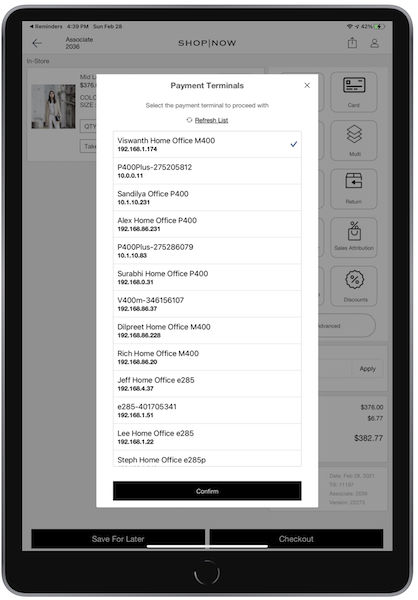
Tapping on any reader from the list and clicking initiates a connection. Upon successful connection, the terminal prompts for payment. After a successful transaction, the terminal chosen is forgotten. The associate is asked to select the terminal again.
Discovering Terminals in Device Manager
The Device Manager screen also
shows the list of all discovered terminals. If the associate chooses to connect the reader from
the Device Manager screen, the app remembers the selection until it is manually disconnected or
completes the current transaction. The associate has to make a selection again for the next
transaction.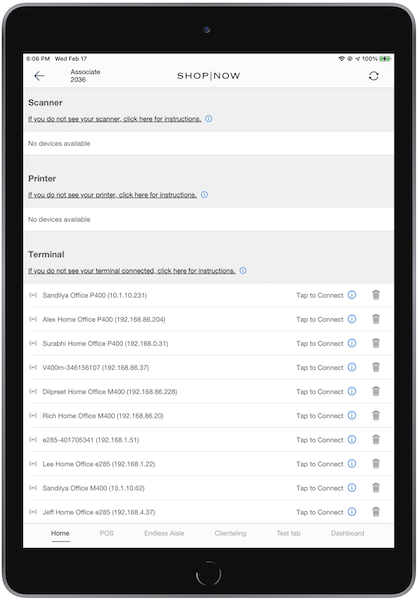
Switching Network Modes
If the app loses network connectivity and
switches to offline mode, the register defaults to a 1:1 topology for terminals. Users shall
re-pair their preferred terminal through the Device Manager screen. While in offline mode, the
list of terminals discovered via Terminal Management API remains available. After network
connectivity is restored and the system switches back to online mode, the register resumes
normal 1:N topology behavior.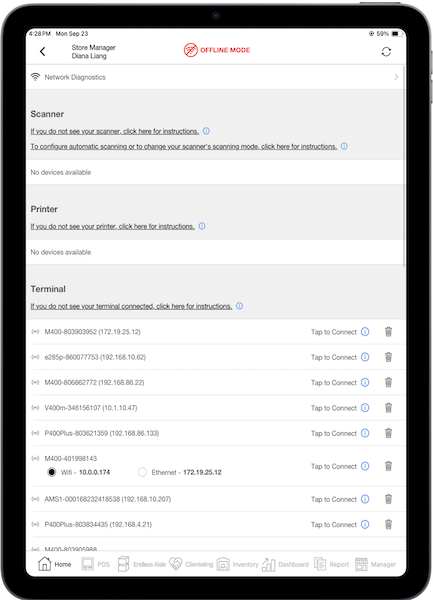
Troubleshooting Ayden Terminal Discovery Errors
When terminals don't appear in Device Manager, it's typically due to issues with Terminal Management API settings or permissions.
If the Device Manager shows no terminals, there are several possible causes.
Possible Cause 1: Terminal Management API settings are incorrect
Verify that the merchant account, store code, and API prefix are set correctly.
Possible Cause 2: Terminal Management API Permissions aren't given at the company account level
Make sure the company level is checked for the WS user accounts. 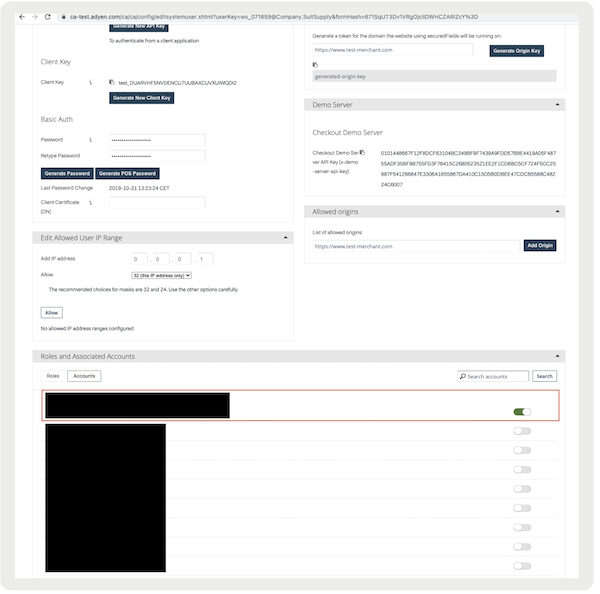
Possible Cause 3: Terminal Management API Permissions are given at subaccount level
Make sure all the subaccounts levels are unchecked for the WS user accounts. In
the screenshot, the subaccount is checked and it shouldn’t be checked. 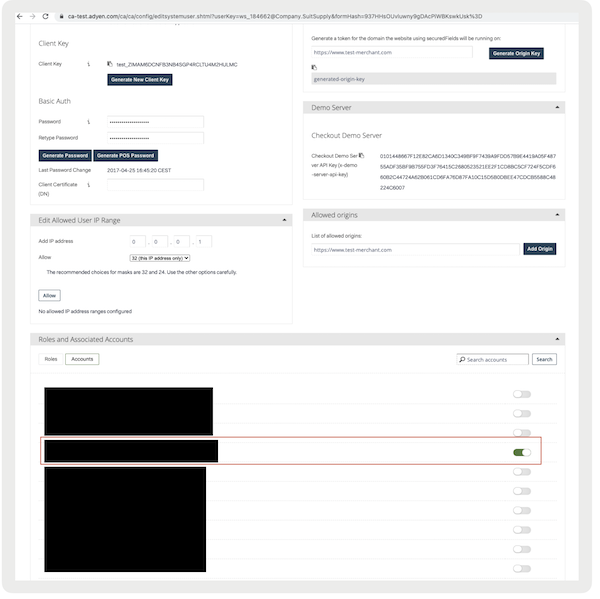
Possible Cause 4: Web service API Key is mismatched
The API key in CMS must match the exact WS API key in your Adyen console. In the screenshots, the last four letters of the key are the same.
On Adyen: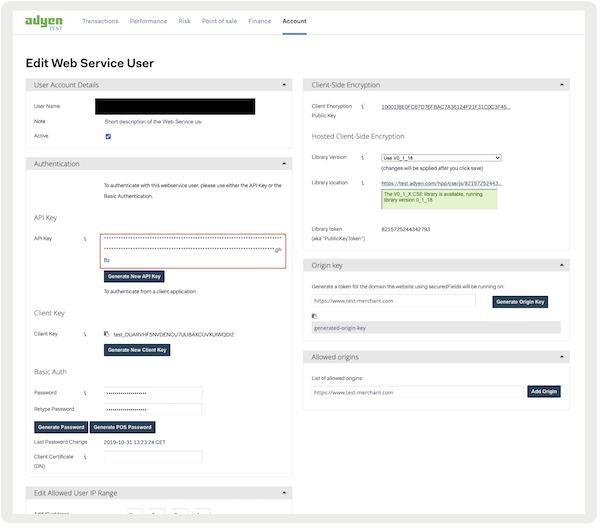
On CMS: