
You are here:
Set Up and Configure Returns Policy
Configure return policies for both online and offline support. You can create a policy for outlet stores and regular stores.
- Go to
- To create a policy, click Add Policy.
- To edit an existing policy, click edit Policy.
- (Optional) To turn off all returns, turn on Block Returns.
- To select refund processors for credit cards, click edit Policy
for the policy you want to edit. If you select PredictSpring Default as the processor,
credit card refunds are processed according to your return policy configuration. You can
select processors for these policies:
- Endless Aisle Orders
- In Store Orders
- Mixed Cart Orders
- Web Order (BORIS)
- For more information on special considerations for each setting, review these sections:
General Settings
The supported store types are Regular and Outlet. You can also specify whether cross-channel and add-on product returns are supported.

Returns Window
Configure the maximum return days policy. This policy controls what happens when a customer returns an item outside the allowed return period. A typical policy specifies that if a customer returns an item after 90 days, a refund is issued by using a gift card. Control settings for exchanges outside of the window, manager approval and overrides, and refunds to prepaid cards.
Cash Returns
Specify the maximum cash allowed for returns and which tender to use if the price of the item exceeds this limit. For example, if a customer's return results in a refund of more than 100 dollars, issue cash for the first 100 dollars, and a gift card for the amount exceeding $100. Control settings for manager approval and overrides.
Credit Card Limits
Define the maximum amount allowed to refund to a credit card. The maximum credit amount allowed should be the same value used in your payment platform (for example Adyen).
No Receipt Returns
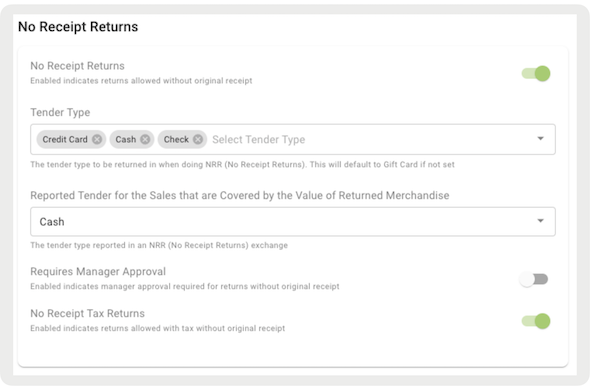
Specify whether returns without a receipt are allowed, and also the tender to be used for no receipt returns (NRR). See No Profile, No Card, No Receipt Returns (NRR) in POS. Control settings for manager approval
Gift Card
If the return tender type is a gift card, the product ID indicates the gift card product SKU to use for returns.
Store Credit
Issue refunds as a store credit for a future purchase. This setting is supported only if you have a custom NetSuite integration for the management of the store credits. For details, contact Salesforce Customer Support.
Edit Order Policies
If a store associate edits an existing order, a customer may be given a refund based on the above-configured policies. But the policies can be skipped for an edit order refund. See Edit Orders on POS App.
Return Tender Mapping
Control what type of tenders to use as substitutes instead of refunding the original tender. For example, if a customer returns items that they paid for by using cash, the store associate can refund by using a check. Control settings for manager approval and overrides.
Refund Fees
Configure the refund fee types and labeling (for example Restocking - Restocking Fee). See Supported Refund Fees.
Unreferenced Refunds
Allow refunds to a card other than the one used for original payment. Other scenarios where unreferenced refunds are common include:
-
Changing from an old/legacy payment gateway to a new one and don’t have access to the old gateway to process a "referenced" refund.
-
By using certain card providers, such as 'Interac' in Canada, which don’t permit referenced refunds.
-
By using a payment gateway that can’t issue a referenced refund for a payment after a specific number of days or months.
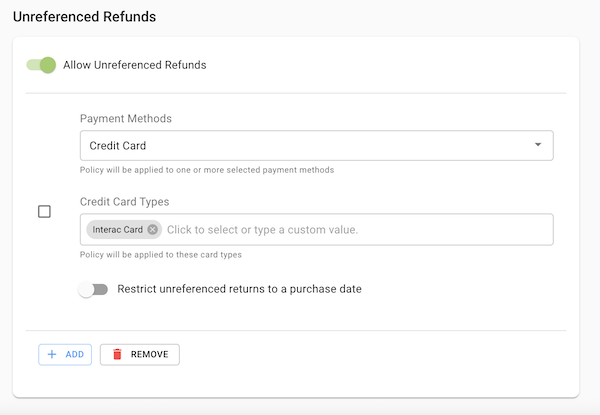
The Purchase Date field is required if you process payments from Interac cards in Canada. Setting the wrong value here can cause refunds for payments made with Interac cards in Canada to fail. For all other cards, the purchase date field is optional. You can add multiple unreferenced policies as needed. Multiple unreferenced refund policies act as an ‘OR’ condition. If any one of the policies is satisfied, an unreferenced refund option is allowed.
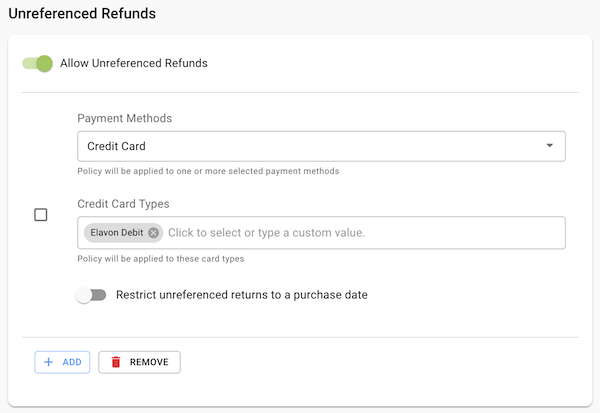
The next sections show sample configurations for specific credit cards and payment providers.
Interac Card Unreferenced Refund Configuration Example
Elavon Only Example
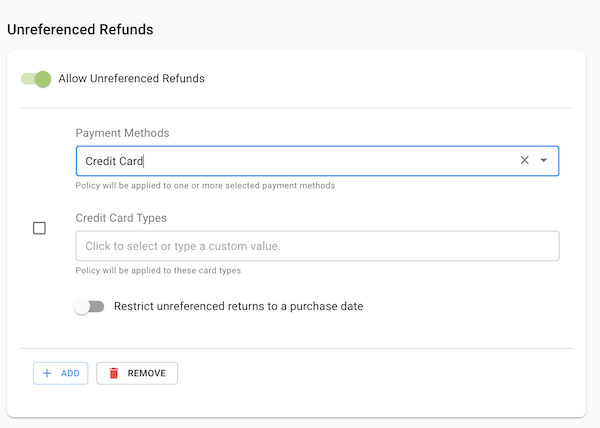
Unreferenced Refund Policy Configuration Only for Credit Card Example

Unreferenced Refund Policy Configuration based on Card Type and Purchase Date Example
In this example, you can get a refund without mentioning the transaction. This is true for
transactions that happened before 6/01/2021 at 1:29 PM and with a credit card that is one of
the set types.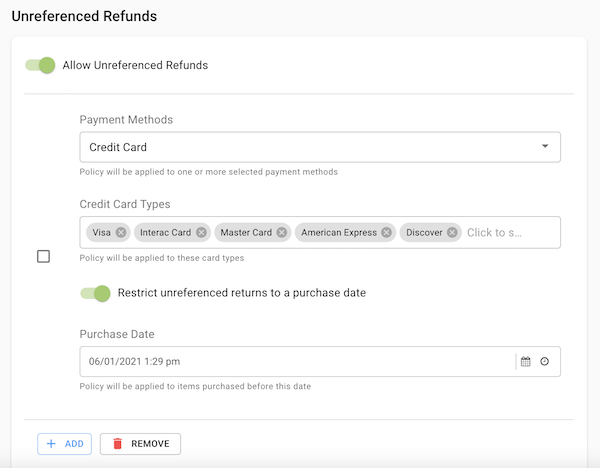
Unreferenced Refund Policy Configuration for Order Imported from External System
To create an unreferenced refund policy for external orders, go to CMS > Store Settings > OMS > Advanced > Refund Mode for External Order. If you choose to use an external system, the POS app completes the return process, but the actual refund is issued by the external system.
Setting a Delay for Unreferenced Refund Capture in Adyen
Make sure to set a delay of 10 minutes for an unreferenced refund in your Adyen merchant account. This lets POS cancel the refund if the return order submission fails for some reason. This can be set up by contacting the Adyen support team. This setting is critical to avoid multiple refunds being made for the same customer in case of return order submission failure.
Gift Receipt Refunds
Handle refunds for gift receipts. If you don’t turn this setting on, refunds for gift receipts follow your settings for unreferenced refunds.
- To give customers the option to refund a gift receipt to a card other than the original purchaser’s credit card, turn on Allow multiple refund options.
- For Eligible Refund Tender Type, select gift card, credit card, or both tender types.
- Make sure the barcode on your print receipt layout for gifts and gift skus isn’t associated with a PS tag. If you associate a PS tag with the barcode component, the POS app can’t identify the return as a gift receipt. For gift receipts, see Receipt Layout Editor. For gift receipts at the SKU level, see Set Up Gift Receipt at SKU-level.
