
You are here:
Socket Mobile Scanner Setup Guide
Integrate your Socket scanner with the Point of Sale (POS) app to streamline barcode scanning. Supported models connect via Bluetooth, enhancing the checkout process.
Socket scanners supported in the POS app are listed below:
| Supported Model | Connection Type |
|---|---|
| 700 Series, 800 Series, D750, D760, DuraSled (Supported Hardware) | Bluetooth |
Prerequisites
- Modern POS App build: 5.1.0 or above
- Platform Support: iPhone & iPad
- Offline Support: Yes
- Connection Type: Bluetooth
Configure Point of Sale CMS for Socket Mobile Scanner
Set up the scanner by enabling app settings in Point of Sale CMS, pairing it with your iPad, and connecting through the POS app's Device Manager.
Turn On App Config Settings
- Go to .
- Edit the .
- Select the socket scanner.
-
Select .
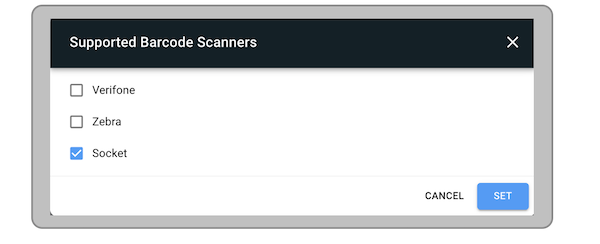
-
To configure the socket scanner, enter the Socket Barcode Scanner App Key and Socket
Barcode Scanner App ID. Contact the Salesforce app team for the Key and App ID.

- Select in the top right corner.
Multiple Scanners in a Region
If you're using two or more different types of scanners in a country, you can configure your POS app to switch a scanner at the touch of a button.
- Create or edit an existing Hamburger menu layout. For more information, read Hamburger Menu.
- Select the blue + sign at the bottom of the screen.
- Enter the text to be seen on the app and select an icon, if applicable.
- Under , select .
- Under , select .
- Select to the right (highlighted in blue).
- In the deep link picker, go to in the menu to the left and select .
- Select and .
- If you haven't assigned your Hamburger menu to an app config, do so now.
Configure POS App for Socket Mobile Scanner
Reset the scanner to factory defaults, pair it with your iPad via Bluetooth, and connect it within the Point of Sale (POS) app.
Configuring a New Scanner
- Turn OFF the Bluetooth setting on the iPad.
-
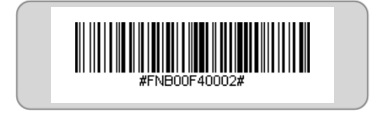
Scan the below reset barcode to make sure the scanner is reverted to factory defaults.

-
Turn ON the scanner using the power button and scan the barcode to configure the scanner
to work with the iOS app.
Configuring Automatic Scanning
Use these steps to configure the barcode scanner to automatically scan barcodes. This is only available for Modern POS >= 9.2.1.
- On your device, go to to make sure your scanner isn't connected to your device. If "connected" is denoted next to your scanner, tap "i" and tap "Disconnect".
- Scan the barcode in the table associated with your configuration.
- In your Modern POS, go to and connect to your scanner.
| Scan Mode | Description | Barcode |
|---|---|---|
| Mobile | Manual scan mode; scanner will only scan if the trigger is pressed. | 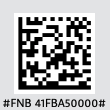 |
| Stand | Scanner automatically scans barcodes regardless of if they're in the stand. | 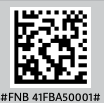 |
| Detect | If the scanner is in the stand, the scanner will automatically scan the barcode. After it’s removed from the stand, the barcode scanner requires the user to press a trigger to capture the barcode. Placing the scanner back in the stand results in it automatically scanning again. | 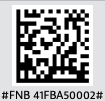 |
| Auto | Scanner will automatically scan barcodes regardless of if they stand or not. After the trigger button is pressed, the scanner writes in "Mobile" mode. | 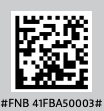 |

If scanning from the stand, the “field of view” is drastically reduced to within a foot, eliminating false barcode captures. Charging cradle automatic scanning can be triggered for any detected movement of barcode codes feet away from the scanner and isn't the advised configuration.
Reverting to Manual Scan Mode
The table describes the different user experiences based on scan mode:
| Scan Mode | Default | Description | Barcode |
|---|---|---|---|
| Mobile | Yes | Manual scan mode. The scanner will only scan if the trigger is pressed. | 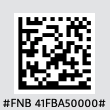 |
Configuring a New Scanner
- On device, go to and turn ON Bluetooth.
- Remove if the socket scanner is previously paired and is listed under . Select to disconnect and remove the scanner.
- Now wait until the socket scanner is seen listed under and tap on it to pair with it via Bluetooth.
Connecting with POS App
- Go to and the socket scanner will automatically be detected and listed under scanners.
- Select .
-
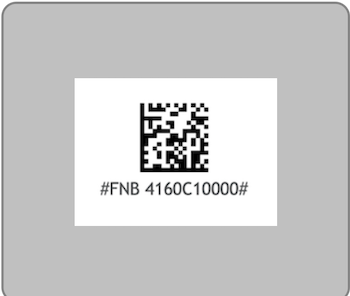
If you're using D750 model, also scan the next bar code.

Resetting Scanner
- Go to on your device and turn ON Bluetooth.
- Remove the Socket Scanner if it is previous paired and is listed under . Select the info icon and select to disconnect and remove the scanner.
- On your device, go to and turn OFF Bluetooth.
-
Go to .
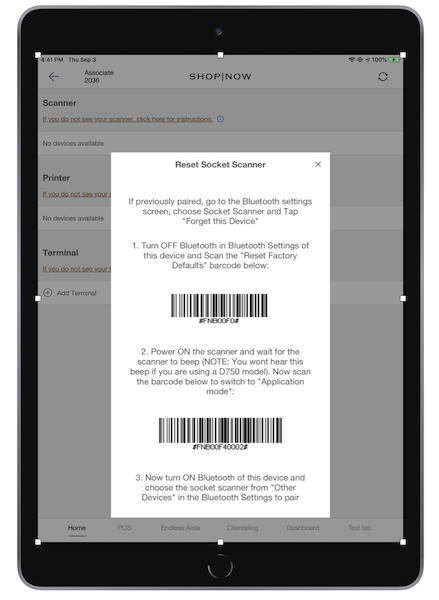
- Turn on the Socket Scanner and scan the first barcode in the popup. It switches off the scanner.
- Switch on the scanner again and wait for the scanner to beep. Now scan the second bar code in the popup.
- Go to on the iPad and turn ON Bluetooth.
- Now wait until the Socket scanner is seen listed under and select the scanner. Always make sure the scanner matches the number on the back of your Socket scanner.
- Go to . Tab on the paired Socket scanner and press .
Socket Mobile Scanning Troubleshooting
Troubleshoot common issues encountered with scanners in Point of Sale, such as pairing failures and connectivity problems.
Important

The scanner isn't listed in Settings > Bluetooth (or) the scanner is listed in Other Devices but unable to connect with the scanner by tapping on it
The scanner can power off after a particular idle time. Make sure the scanner is powered on and retry Pairing with the iPad.
If there's still trouble pairing with the scanner, try resetting the scanner.
If it still doesn’t connect, relaunch the Device Manager by reloading the app.
Scanner is listed in the Settings app, but I don't see it in Device Manager
Verify in that your scanner is listed and connected. Not-connected scanners won't show up in Device Manager.
Make sure to properly configure your scanner via the barcode noted in Configuring a New Scanner.
Scanner is powered off overnight or after a period of inactivity
The scanners are programmed to go to sleep after two hours of inactivity. Power it on and wait for 3–5 seconds to hear the scanner beep.
Scanner not appearing on iPad Bluetooth setting of iPad A
Check if Scanner is paired to iPad B.
Able to Locate iPad B
Go to Settings app on iPad B > Bluetooth
Disconnect if connected and then Forget Device.
Unable to Locate iPad B
- Turn on the scanner
- Press the power button while pressing the scan button
- Wait for the scanner to turn off
- A series of three beeps will confirm the pairing information has been deleted. If these three beeps aren't heard, retry these steps until you hear the three beeps.
To connect the scanner to the host, turn it on, and go to the host's Bluetooth Settings, select the scanner from the list of the Other Devices to pair to it.
If the scanner has been paired with the device before, first you select the scanner from the list, and select Forget the Device, and then proceed to Step 5.
Returns aren't Scanning for D750 - D760 model
Go to and under tap, "". Scroll down to point #5, that is, If the scanner model is D750, also scan the code to prepare it to scan order receipts.
Scan the QR code.
Previously-scanned barcode appears on a new barcode scan
- Unpair the scanner from the iPad, turn the scanner on and off, and repair it with the iPad.
- If step 2 doesn't resolve the issue, follow the troubleshooting steps on to and switch to .
Unable to configure automatic scan mode
- Disconnect your scanner from your device before changing the automatic scan mode
- On device, go to to make sure your scanner isn't connected to your device. If "connected" is denoted next to your scanner, tap "i" and tap "Disconnect".
- If your device auto-connects to your scanner, forget your device and restart configuration starting with step Configuring a New Scanner.
Unable to scan QR codes or other 2D barcodes
For certain scanner models, such as S800, the scanner only can scan 1D linear barcodes. Scanning 2D barcodes such as QR codes won't be supported.
Previously connected scanner reconnects after disabling bluetooth permissions for POS app
The socket is a Bluetooth Classic scanner, so it isn't handled by the device's Bluetooth permissions. These permissions are only for Bluetooth Low Energy devices and only work on iOS 13. It is expected that, even after you turn off the permissions for the POS app in the device's settings, the scanner still reconnects.
Automatic scan mode not working after scanner reboot
If automatic scan mode is set on the scanner, after the scanner reboots, it doesn't automatically detect barcodes if not positioned in the scanner stand. Refer to the recovery steps:
- Option 1: Place the scanner in the scanner stand to reactivate automatic scan mode.
- Option 2: Reset the scanner to factory defaults and reconfigure automatic scan mode.
