You are here:
Validating Customer Profile Address on Cart
Integrate the Clienteling SPI to check a customer’s address before placing an order.
Prerequisites
- Modern POS App Build: 9.2.1 and later
- Platform Support: iPhone & iPad
- Offline Support: no
- Technical Prerequisites: Third-party integration (for example Quick Address Systems (QAS) by Experian)
Set up Point of Sale CMS for Customer Address Validation
Establish complete customer profiles by configuring the address field completion check in Point of Sale CMS.
Configuring SPI
- In the merchant's CRM system, configure the Clienteling SPI. Then, create a custom Customer Search layout, for more information, refer to this article.
- Configure the endpoints of the merchant's third-party integration in Point of Sale CMS by going to .
Address Field Validation
The POS app can be configured to support validation of entered addresses.
- In CMS, go to .
- Edit the app configuration.
- Go to .
- Turn on .
Address Field Completion Check
Point of Sale offers a check for address fields within the POS app. This verifies that all necessary address fields are filled out before completing the checkout process.
This setting checks for the presence of data in these fields and doesn't verify whether the entered values are valid. Refer to Address Field Verify for details on enabling validation. For example, if the ZIP code field is left empty, the app flags it as an issue. However, if the value "000000000" is entered, the app won't assess the validity of this entry.
- In CMS, go to .
- Edit app configuration.
- Go to .
- Turn on .
These address fields are validated:
Additional fields can be validated, but only if configured in the CMS app configuration settings:
- Salutations:
 Important When customer profile information includes a salutation field, checkout address verification checks that value, so configure the salutation options correctly.
 - Company Name and Company ID:
- Federal ID:
- House Number: Validation occurs only if the region is Brazil
- Phone Number:
For non-US countries that don't include states as part of their address format (for example United Kingdom), it is recommended to turn off this switch. If the switch is turned off, validation is only applied to the street address and postal code.
Validate Customer Addresses in the POS App
Use the POS app to check customer addresses and tell store workers to fix wrong information. This will give you the correct shipping information for online orders.
If a store associate adds an online item to the cart and pulls a customer's profile, the shipping address auto-populates from the profile.
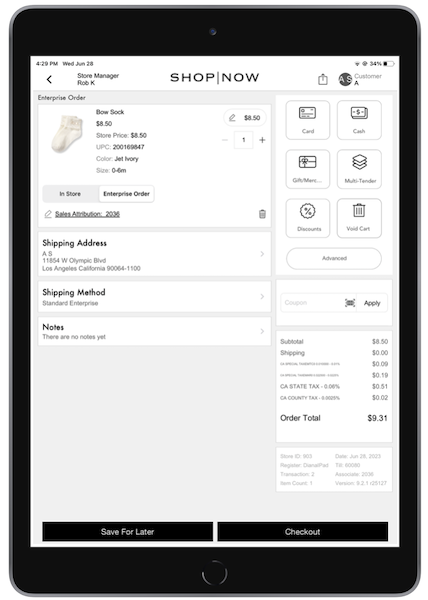
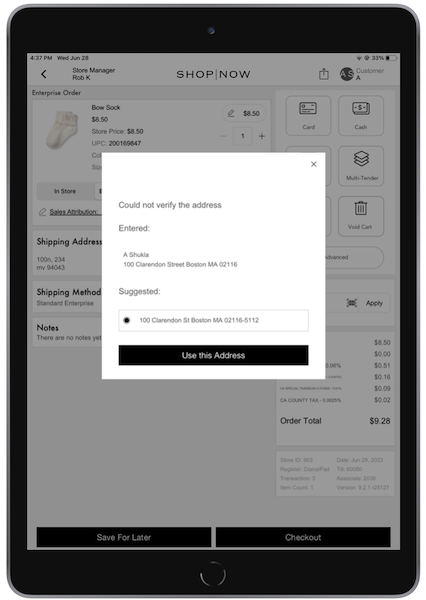
If there's no address listed in the customer's profile, the POS app prompts the associate to enter an address. If the address can't be checked, a window opens. The associate can select either the address that was updated before or a suggested one. If an address has been inputted before logging in as a customer and if unable to validate, the POS app offers suggestions.

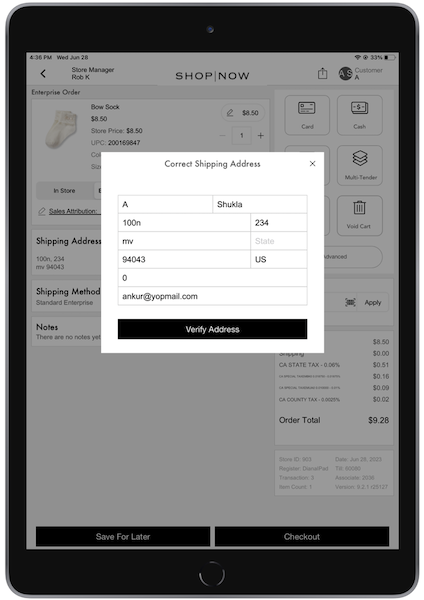
However, if there's an address listed in the customer profile but it's incomplete, the POS app will validate the address if the associate attempts to checkout. If unable to verify, a window appears prompting the associate to correct the information.
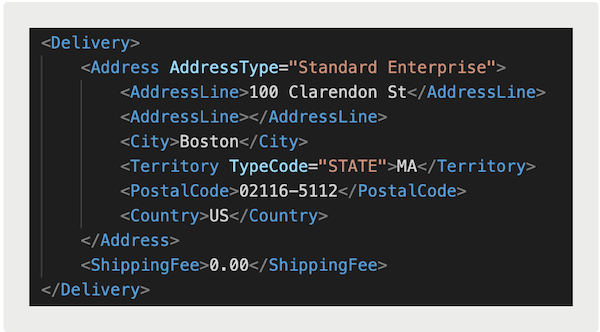
After the address has successfully been verified and the associate completes checkout, it'll be recorded in the TLogs.
There's no difference between how this is recorded and whether the address was edited via suggestion or not. The TLogs only records the address used to ship a completed order.