
You are here:
Configure Advanced Shipping Notice (ASN) Receiving
Set up accurate inventory receiving, check merchandise against prearrival notifications, and set reason codes for inventory mismatches in Point of Sale.
The Advanced Shipping Notice (ASN) Receivings feature is part of Point of Sale's Inventory Management. ASN is a notification received by a store before products arrive at the store from a warehouse. This means that the system contains information about the merchandise before it physically arrives. ASNs help receiving stores to verify the successful arrival of all delivered merchandise. The receiving process can be completed by scanning barcodes, labels, pallets, cartons, or UPC tags.
Prerequisites
- Modern POS App Build: 5.5.2 or later
- Supported POS Device
- Offline Support: no
- Files: up-to-date ASN Feed
Configuring CMS Settings for ASN Receiving
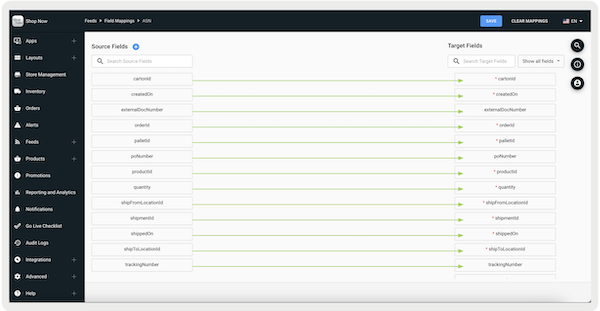
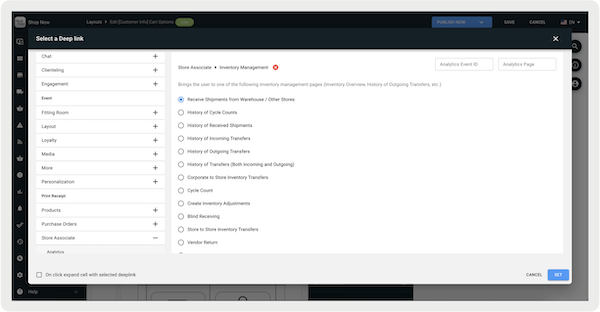
Field-map an up-to-date ASN feed, configure reason codes, and establish a deep link for access within the POS app.
ASN Field Mappings
- Configure ASN Feed Field Mapping by going to .
-
Configure and schedule ASN Feed by going to .
Reason Codes
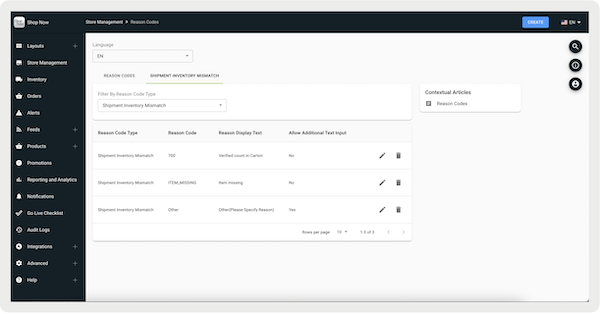
Reason Codes are required for inventory mismatches.
- In CMS, go to .
- Select to configure reason codes related to inventory mismatches.
-
Save your changes.
Manage ASN Receiving in the POS App
Use the Point of Sale (POS) app to receive real-time updates on item quantities, verify accurate receiving and inventory management, and reduce receiving errors.
Tap on the deep link, you’ll receive an interstitial to scan the pallet ID, carton ID, or
tracking number.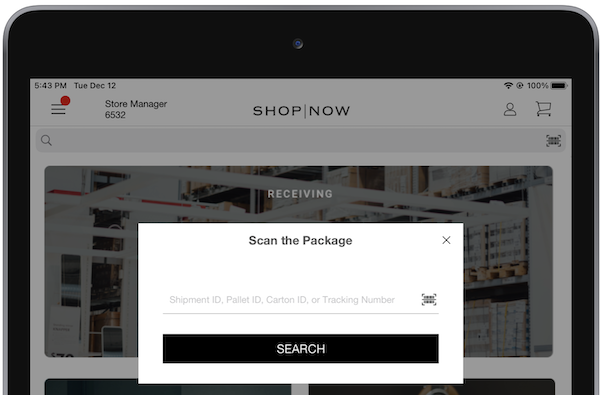
An error message appears if the package is unidentified or has been received. The Container ID
is a general warning for a container, pallet, or carton that's been scanned but not found.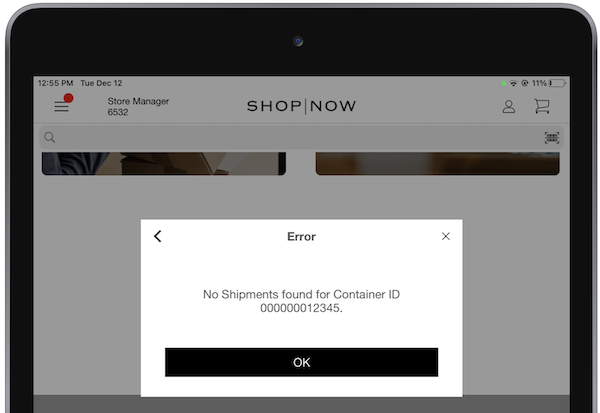
Receivings for App Versions before 10.1.1
For app versions less than 10.1.1, see the receiving instructions next. For app versions 10.1.1 or greater, refer to Receivings for App Versions 10.1.1 or Greater.
After identifying, view the list of cartons or carton details, including , , , and status ().
- - Pallet / Carton was delivered to the store
- - Pallet / Carton
- - Pallet / Carton is partially received as some cartons are yet to be received.
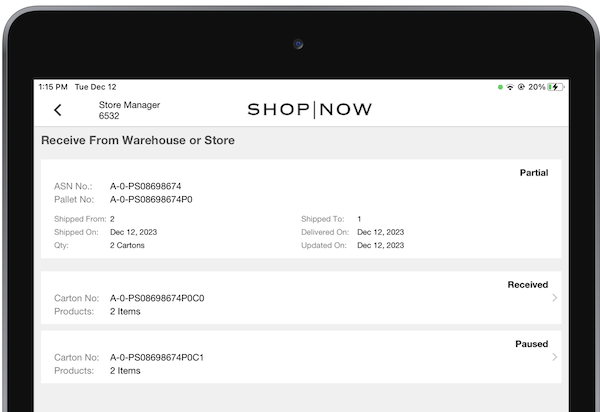
Tap one of the cartons to see details like products to scan, carton ID, status, and
more. You can also tap to receive all the cartons without scanning (item-level receiving will be turned
off).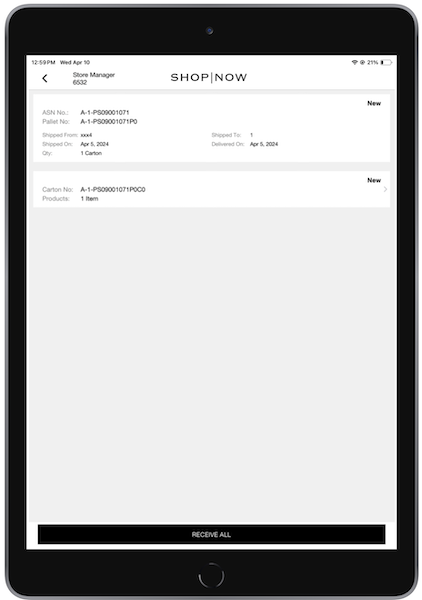
Receivings for App Versions 10.1.1 or Greater
For app versions 10.1.1 or greater, after a carton ID has been scanned, you can tap to receive all the cartons without scanning (item-level receiving shall be turned off).
Scanning Products
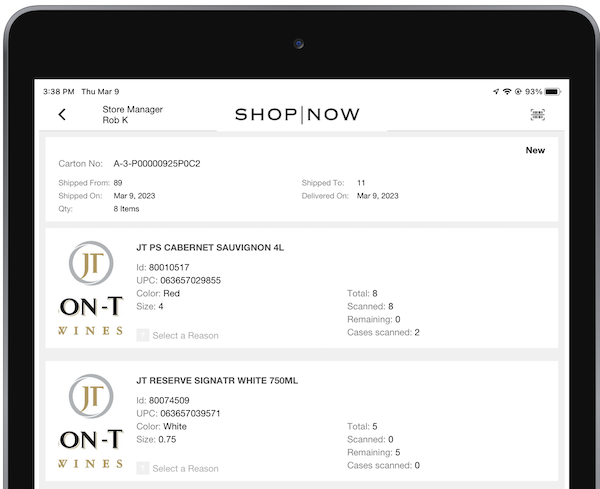
For each product listed, you'll see the total quantity of items, along with the quantity
scanned and the remaining quantity to scan. As you scan, these quantities update in real time to
reflect the current status for each product.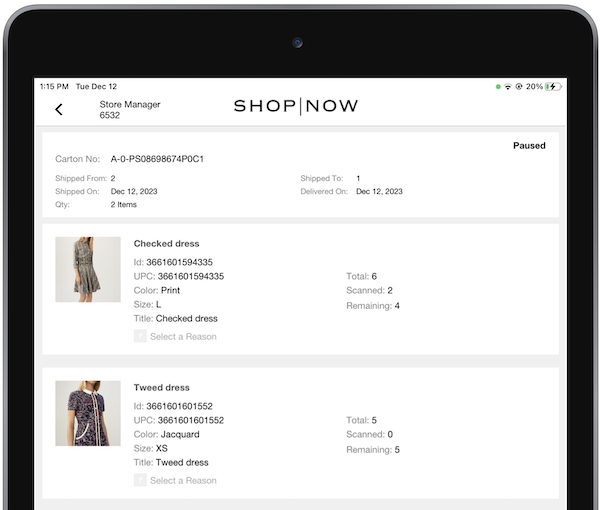
Manage Specialized Receiving
Decide how to receive shipments, considering logistics, merchandise specifics, and the store's setup. Set these methods in Point of Sale CMS
Receiving by Pallete
Receiving by pallet is best for large shipments. You scan a pallet ID to get the whole contents. This makes it perfect for receiving large amounts of items without having to scan each carton or item individually.
Receiving by Carton
Receiving by carton is suitable for smaller shipments or for breaking down larger ones. You can use the unique carton tracking label to receive all items within the carton simultaneously. This method is used if you have carton information and don't want to scan individual items.
Individual Receivings
In some cases, scanning individual items can be necessary. The CMS flag "" can enforce this mode, requiring the scanning of each item in the palette or carton. In CMS, go to .

Case Pack Receivings
For app builds 8.9.1 or greater, case pack receiving involves scanning the case pack ID, automatically populating the quantity based on the contents. After it’s successfully scanned, the quantity count will automatically increase and a new field, , increases by one.
Serialized Items Handling
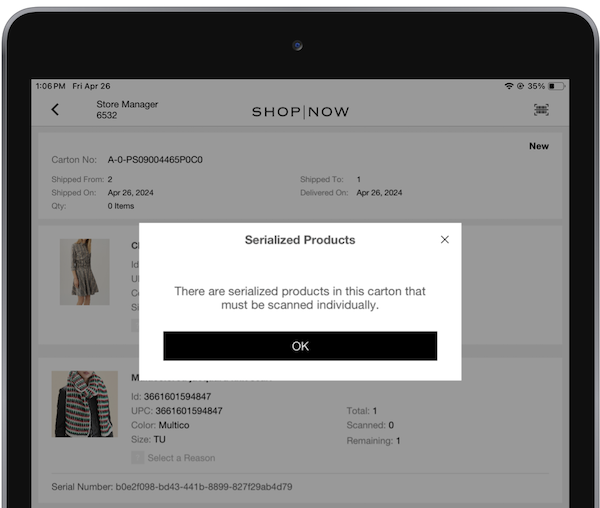
If you have serialized products, it is recommended to turn on the flag "" for tracking and managing these items. Any action or transaction, including receiving, will require scanning or entering the product's serial number. Serialized products are identified by the 'SerialNumberRequired' attribute, which can be configured via Product Feed. If this attribute is set to and the flag is enabled, users are prompted to scan the product's serial number.
In CMS, go to and turn on .
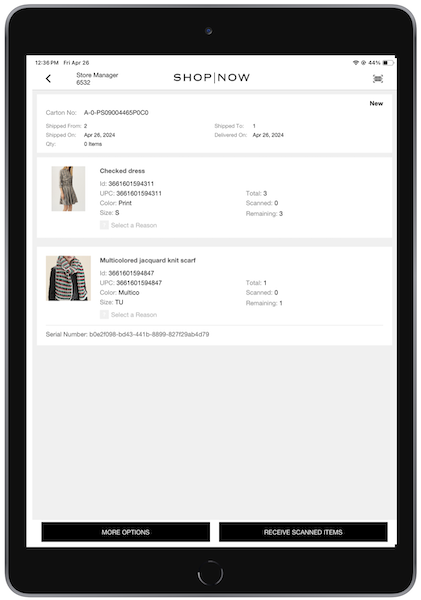
If processing an ASN receipt for serialized products, scan each item to capture its serial number, which is listed after the product description.
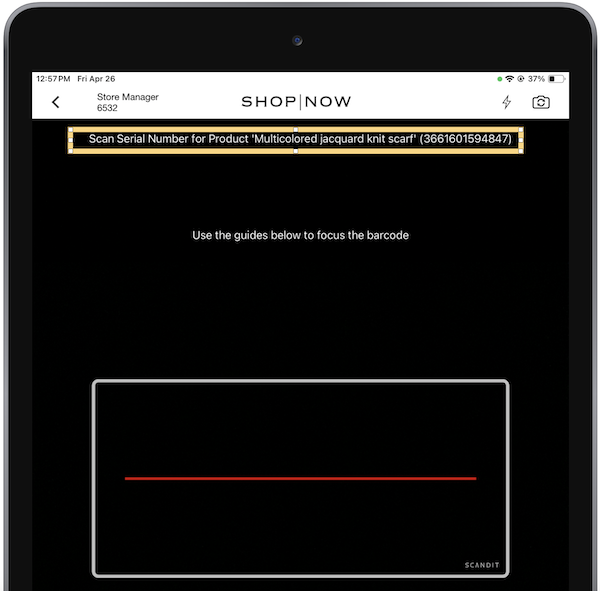
If using the device’s camera, the prompt to scan the product's serial number will appear at the top of the screen as shown in the screenshot. Scan again to add the product for the transfer.
However, if you're using an external scanner, a serial number entry window appears,
allowing you to scan or manually enter the serial number. The POS app shows an error message if
an incorrect serial number is entered or scanned. It also alerts you if a serial number is
scanned twice.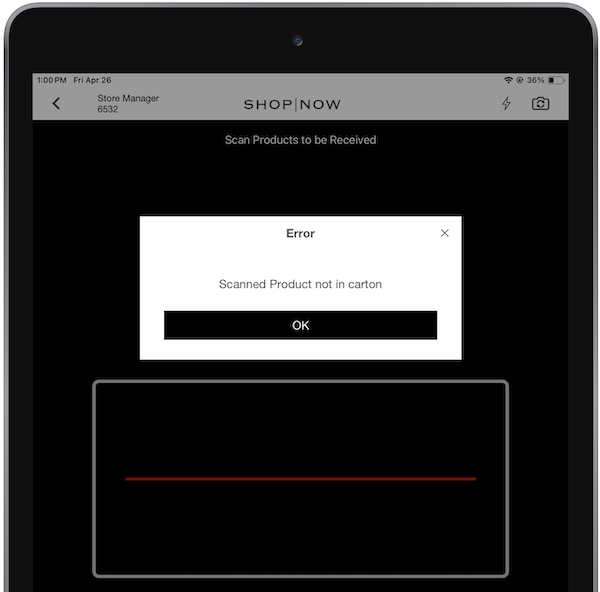

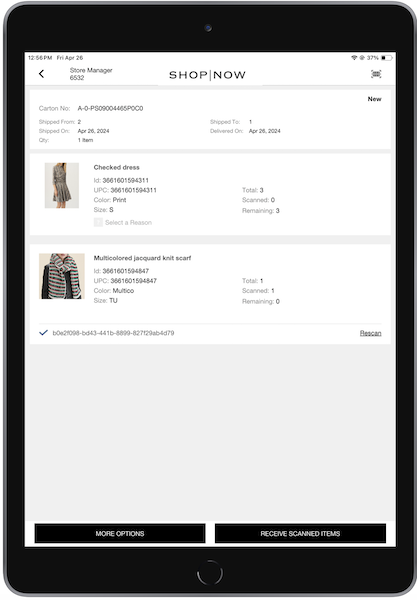
After a serialized product is successfully scanned, a checkmark appears to the left of it. If there are discrepancies due to overscanning or underscanning, tap to restart the scanning process for the product. After the receiving process is complete, the details are recorded in an event file. Serial numbers for each product are listed using a pipe delimiter.
After the receiving process is complete, details can be exported through event exports by mapping the field . Serial numbers for each product will be listed using a pipe delimiter.
Receiving Items Not Included in the Original ASN
The POS app offers the ability to receive items that weren't originally included in the ASN. The POS app only gets items from the ASN. You can either get more or less than the items that are in the ASN. However, to get items that weren't first listed in the ASN, you can set a flag in the CMS to turn on manual receipt of unspecified items.
To permit manual receipt of items not included in the ASN:
In CMS, go to and turn on .
After the setting is turned on, the POS app checks if the scanned item is present in the product database. If it's not found, the app provides the user with the option to manually receive the item.
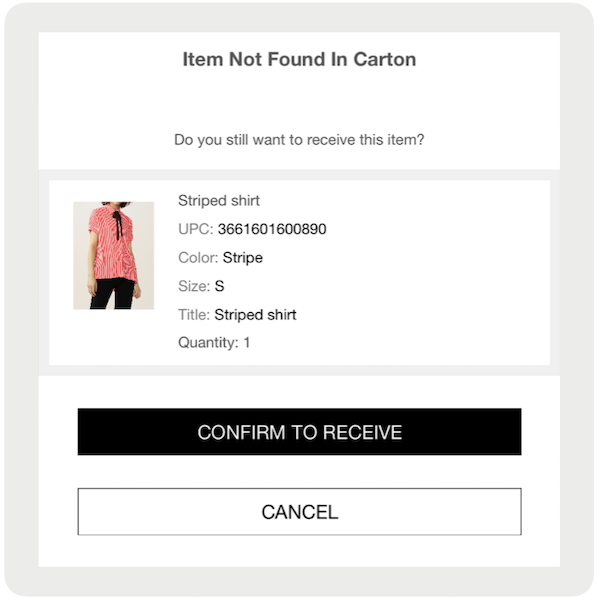
If bulk receiving () is enabled, users can enter the quantity for the nonlisted item after scanning it one time. Bulk receiving doesn't apply to items originally listed in ASNs.
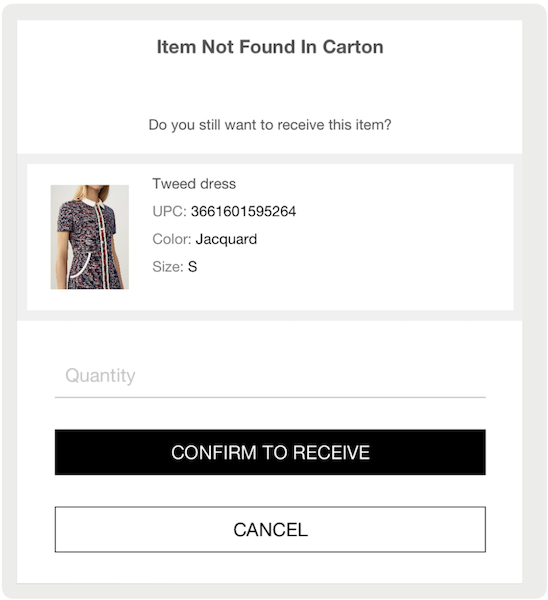
The manually received items are displayed in a dedicated section, and if necessary, you can delete them. Additionally, information about unlisted items is recorded in an event file along with their product details.
Pause and Resume
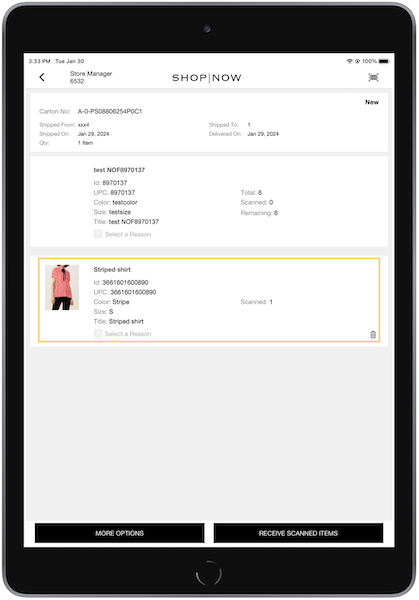
For app builds 8.10.1 or greater, ASN receiving can be paused and resumed at any point during the receiving process. If you've scanned a certain number of items before pausing, the app saves the scanned quantity. This makes sure that progress isn't lost, and that the received items are recorded.
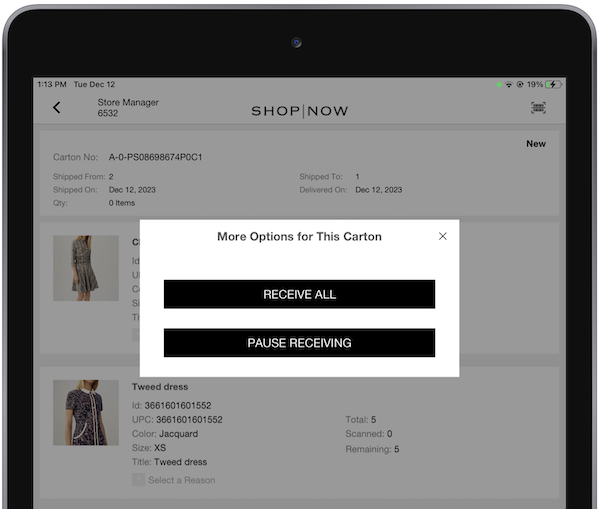
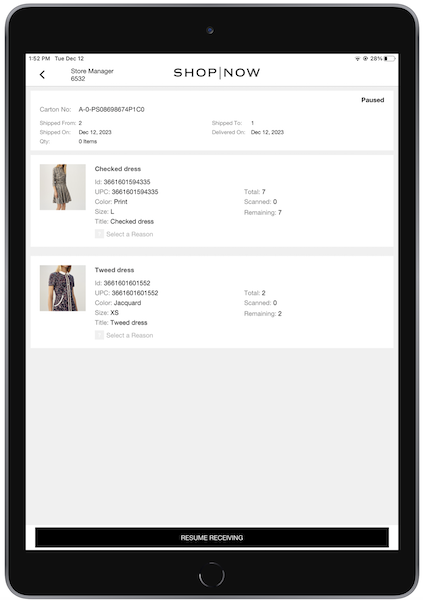
Any items flagged with discrepancies and associated reason codes can also be saved during the paused session. If paused, the status of the ASN transitions is . During this state, the app restricts the scanning or receiving of additional items until the session is resumed.
To resume the ASN session, you can either scan or manually type the pallet ID that was paused. Alternatively, you can access the ASN report and select the specific carton that was paused, allowing them to resume directly from there. It's important to note that the system doesn't currently support recording pause events in the Electric Journal.
Manage ASN Quantity Discrepancies
Complete the receiving process by choosing to receive only the scanned items or receive all expected items, and track inventory movement
Rescanning Items
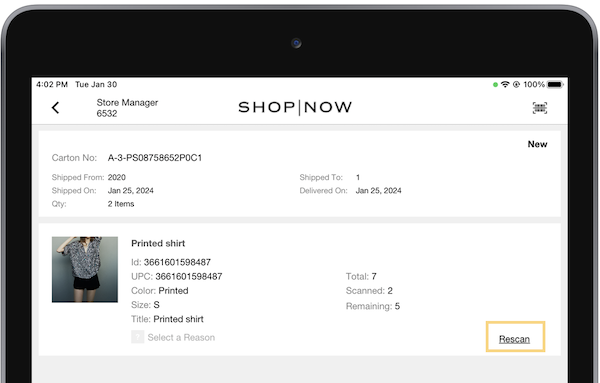
If you make a scanning error, whether it's overscanning or underscanning an item, you can tap Rescan to clear the previous scan and rescan the item.
Reason Codes
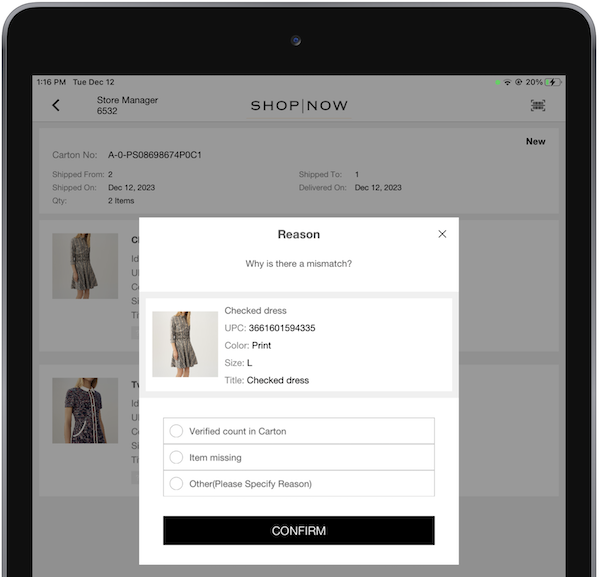
In scenarios where the scanned quantity differs from the expected quantity (underscanning or overscanning), a reason code is required.
Event File Logging
Details of quantity discrepancies, including expected and actual quantities along with reason code numbers, are logged in an event file. Learn More
Completing Receiving
After all items are scanned, you have two options to finalize the receiving process:
- Receive Scanned Items: Proceeds with receiving all items that have been scanned thus far, as displayed on the screen—reason code required for mismatched quantities
- Receive All: Gets the whole carton, including all expected quantities for every product, even if you've scanned it. You shouldn’t scan each item separately.
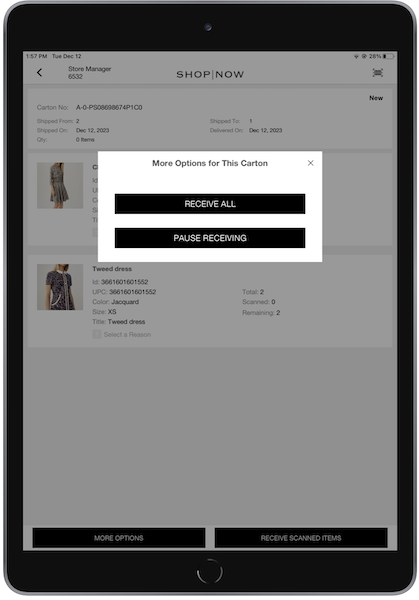
After selection, the app returns to the list of cartons screen. The user can proceed to receive the next carton, if it's available.
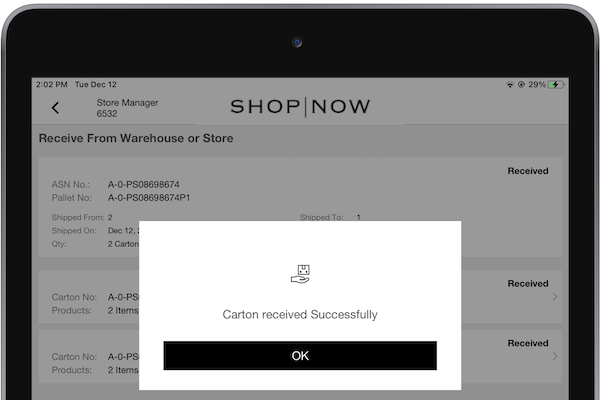
In terms of inventory movement for incoming ASNs, the In Transit inventory bucket increases. After inventory is received, both On-Hand and Available increase, while In Transit decreases.
View ASN Reports and Known Issues
See all available ASNs, view details of the inventory, and understand ASN issues.
ASN Reports
To view a list of all available ASNs, whether they are new, completed, or received, Retail Cloud offers the ASN Report. The report is accessible in the CMS and in the POS app (if a deep link is configured). You can also view details of the received inventory or initiate the receiving process from this report.
Known Issues & Restrictions
- For app versions earlier than 9.8.1, while receiving, failure to save your progress can result in the loss of all work, including scanned items, if you tap the merchant logo in the POS app. However, for versions 9.8.1 and later, users are provided with the option to save before exiting.
- If a transfer includes a serialized item, users can't select "" and shall individually scan each product in the transfer. Even after scanning the serialized items, the "" action remains blocked for the remaining items.
- Tracking numbers are supported only at the item level for ASNs, and multiple tracking numbers aren’t supported per ASN.
- We only support tracking numbers at the item level for ASN, and the tracking number is the same for all items.
- Point of Sale doesn't apply any logic to check for duplicates if creating an ASN in the CMS via API or feed.
View ASN Reporting Frequently Asked Questions (FAQs)
Explore frequently asked questions regarding Advanced Shipment Notifications (ASN) reporting.
What happens if a shipment arrives at a store and there's an issue with the ASN, and the POS doesn't have an ASN to receive against?
You can either triage the ASN issue and resend it, or use the blind receiving flow to receive the inventory as quickly as possible.
What happens if, after blind receiving, the ASN flows down correctly? How does the store clear the ASN? Can an ASN be recalled?
Because ASNs can't be canceled, if the ASN is released, there are two ways to clear it and achieve a net inventory of zero:
- Bring up each carton, don't scan any items, and select "Receive Scanned Qty." You will need to select a reason code for each item, but the items will be received with a quantity of "0." This will show the ASN as received with a "0" quantity and clear the in-transit status.
- Receive the ASN in full and then adjust the items out.
Can Point of Sale's ASN feature receive noninventoried items?
Yes, if the SKU is included in the ASN, it'll be validated against the product file. If it passes validation, it'll be added to the ASN and can be received in-store. For Blind Receiving, the system will validate the SKU, and even if it’s a nonmerchandise SKU, you can still receive it.
