
You are here:
Inventory Management of Serialized Products
Point of Sale supports the management of serialized product inventory. In inventory processes such as transfers and receivings, any serialized products must have their serial numbers scanned or manually entered. The following inventory flows support serialized products: Blind Receivings, Store to Store (STS) Transfers, Return to Vendor (RTV), and Advanced Shipping Notice (ASN).
Set Up Serialized Inventory
Set up serialized inventory to manage serialized products effectively. Configure the Product Feed and enable serialized scanning in Store Settings to ensure accurate tracking and management of serialized items.
Prerequisites
- Modern POS App Build: 9.10.1 or above
- Platform Support: iPhone & iPad
- Offline Support: Yes
Serialized products are identified by the SerialNumberRequired attribute, which is configured via the Product Feed. This attribute is a boolean: setting it to True indicates that the product is serialized, prompting users to scan its serial number in the POS app. If set to False, users will not receive a prompt to scan.
Enable serialized scanning or manual entry on the POS app.
- Go to .
- Expand Advanced.
- Toggle on the flag, Enable Serialized Inventory.
POS App Flows and Serialized Inventory
Manage serialized inventory effectively in the POS App by following specific flows for ASN receiving, blind receiving, RTV, STS transfers, and cycle counts. Ensure accurate tracking and error handling to maintain reliable inventory records.
ASN Receiving
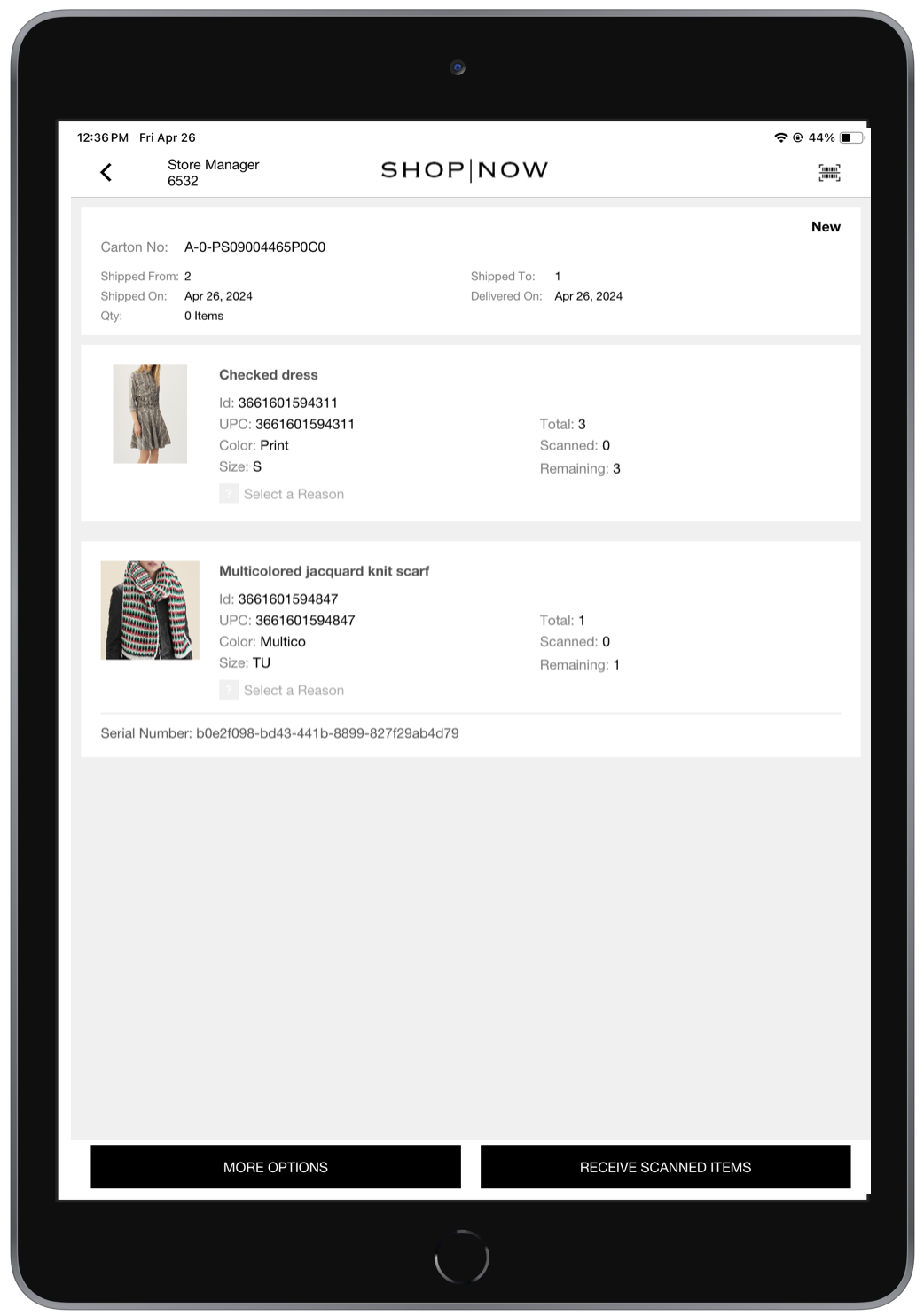
When processing an ASN receipt for serialized products, each item must be scanned to capture its serial number, which is listed below the product description.
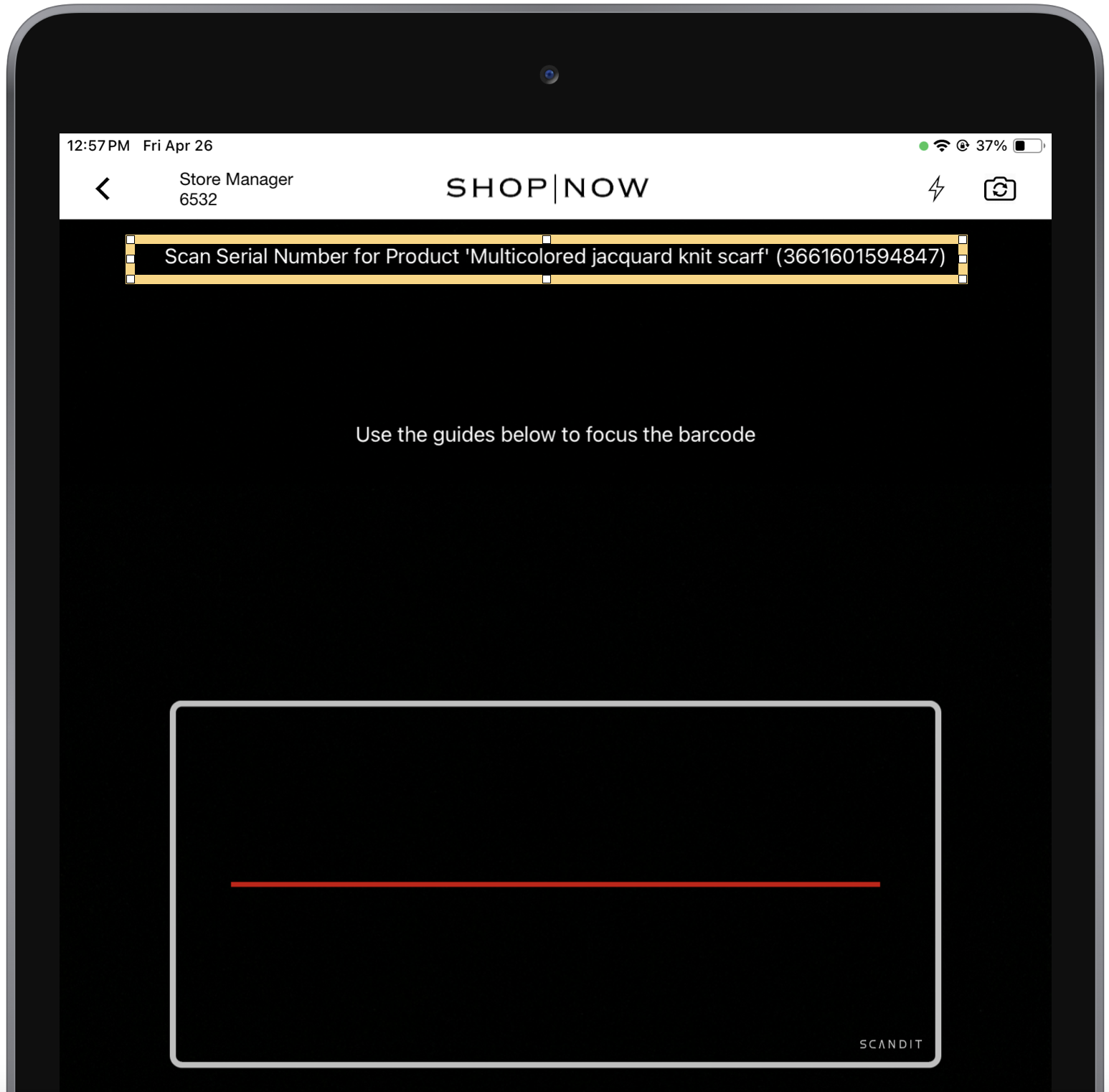
If using the device’s camera, the prompt to scan the product's serial number will appear at the top of the screen as shown in the below screenshot. Scan again to add the product for the transfer.
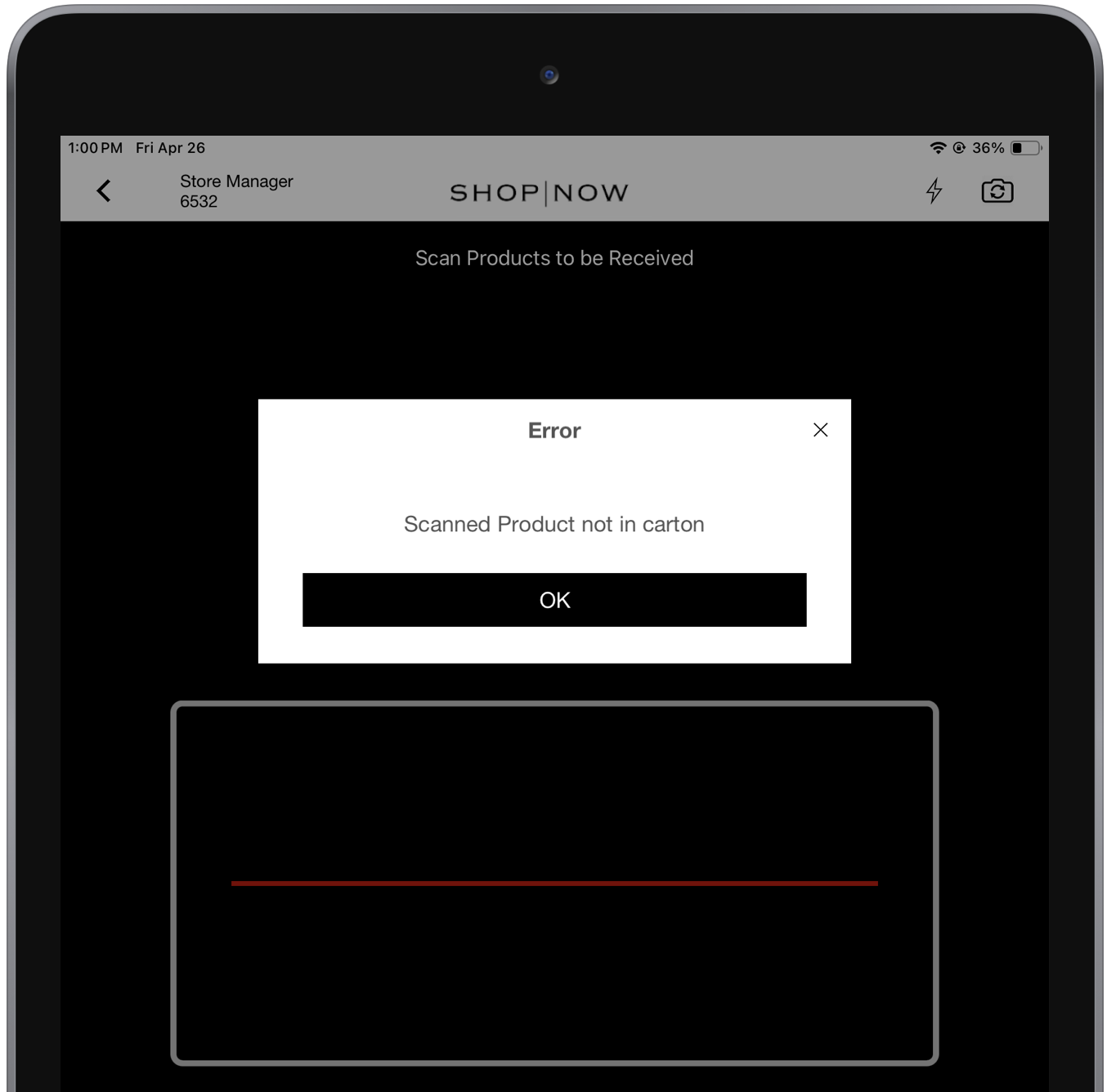
However, if you are using an external scanner, a serial number entry modal will appear, allowing you to scan or manually enter the serial number. The POS app will display an error message if an incorrect serial number is entered or scanned. It will also alert you if a serial number is scanned twice.
Important: Case pack IDs and serialized inventory cannot be used together. Serialized products are individually tracked by their unique serial numbers, preventing them from being grouped into case packs for collective scanning. Each serialized item must be managed independently to maintain accurate inventory records.
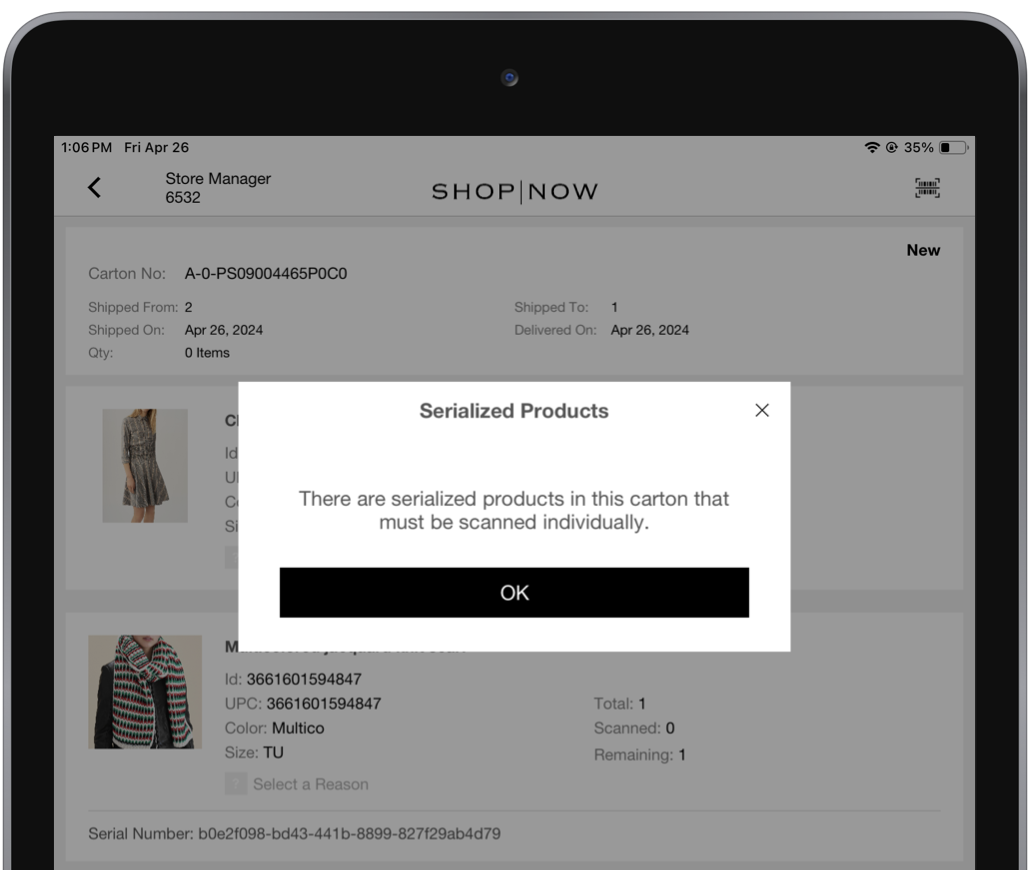
The error displayed below occurs when you attempt to receive all items in a shipment without individually scanning each item.
When a serialized product is successfully scanned, a checkmark will appear to the left of it. If there are discrepancies due to overscanning or underscanning, tap Rescan to restart the scanning process for the product. When the receiving process is complete, the details will be recorded in an event file. Serial numbers for each product will be listed using a pipe delimiter.
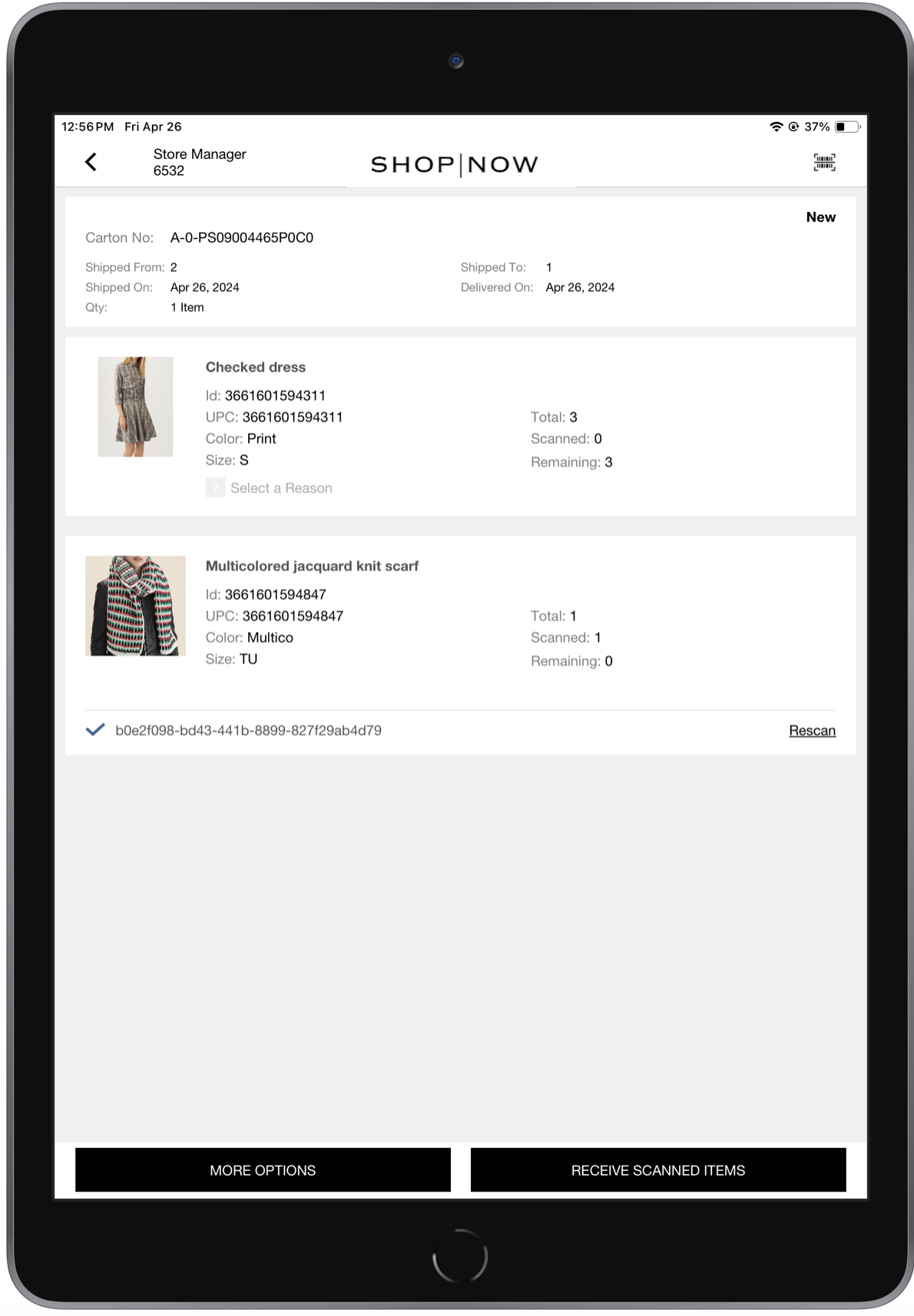
For an overview of ASN Receiving, please refer to this article.
Blind Receiving
For an overview of Blind Receiving and to understand how serialized inventory is managed during the process, please refer to the following article.
Return to Vendor (RTV)
For an overview of RTV and to understand how serialized inventory is managed during the process, please refer to the following article.
Store to Store Transfer (STS)
For an overview of STS Transfers and to understand how serialized inventory is managed during the process, please refer to the following article.
Cycle Counts
For an overview of Cycle Counts and to understand how serialized inventory is managed during the process, please refer to the following article.
Adjustments
For an overview of STS Transfers and to understand how serialized inventory is managed during the process, please refer to the following article.
Serialized Inventory Known Issues and Restrictions
When using Case Pack Receivings, case pack IDs and serialized inventory are incompatible. When conducting cycle counts, scanning the same serial number in multiple batches can result in the same serialized item being recorded multiple times.
Case Pack Receivings
Case pack IDs and serialized inventory cannot be used together. Serialized products are individually tracked by their unique serial numbers, preventing them from being grouped into case packs for collective scanning. Each serialized item must be managed independently to maintain accurate inventory records.
Cycle Counts: Handling Duplicate Serial Numbers
If you scan the same serial number in multiple batches, it will record multiple quantities for the same serialized item.
