
You are here:
Manage Buy Online, Pickup In Store (BOPIS) and Buy Online, Fulfill In Store (BOFIS) Orders
The POS app provides the ability to process Buy Online, Pickup In Store (BOPIS) and Buy Online Fulfill In Store (BOFIS) orders. A store associate can place, pack, cancel, and update orders in the app.
- Modern POS App Build: 6.4.2 or greater
- Platform Support: iPad & iPhone
- Offline Support: No
See Also
Enable BOPIS
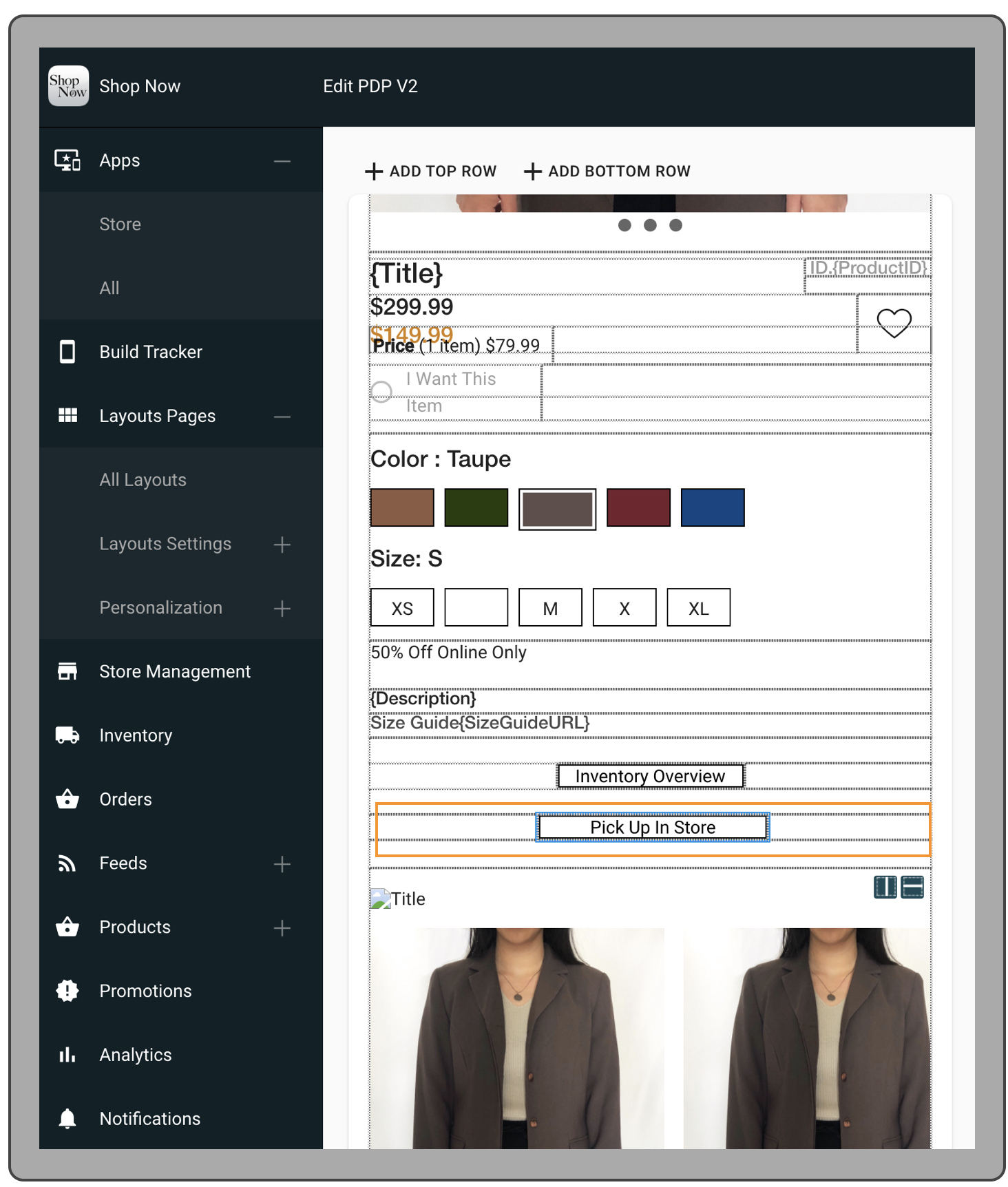
Configure a Product Display Page (PDP) layout to allow products to be picked up.
- Go to > > > .
- Edit a PDP layout or Set Up a Product Display Page (PDP) Layout.
- Add a cell in the layout and select it.
- Click .
- Select the Field Type as "Button".
- Enter any button text, e.g., “Pickup In Store”.
-
Select the Button Action as “Pickup in Store” from the drop-down menu.
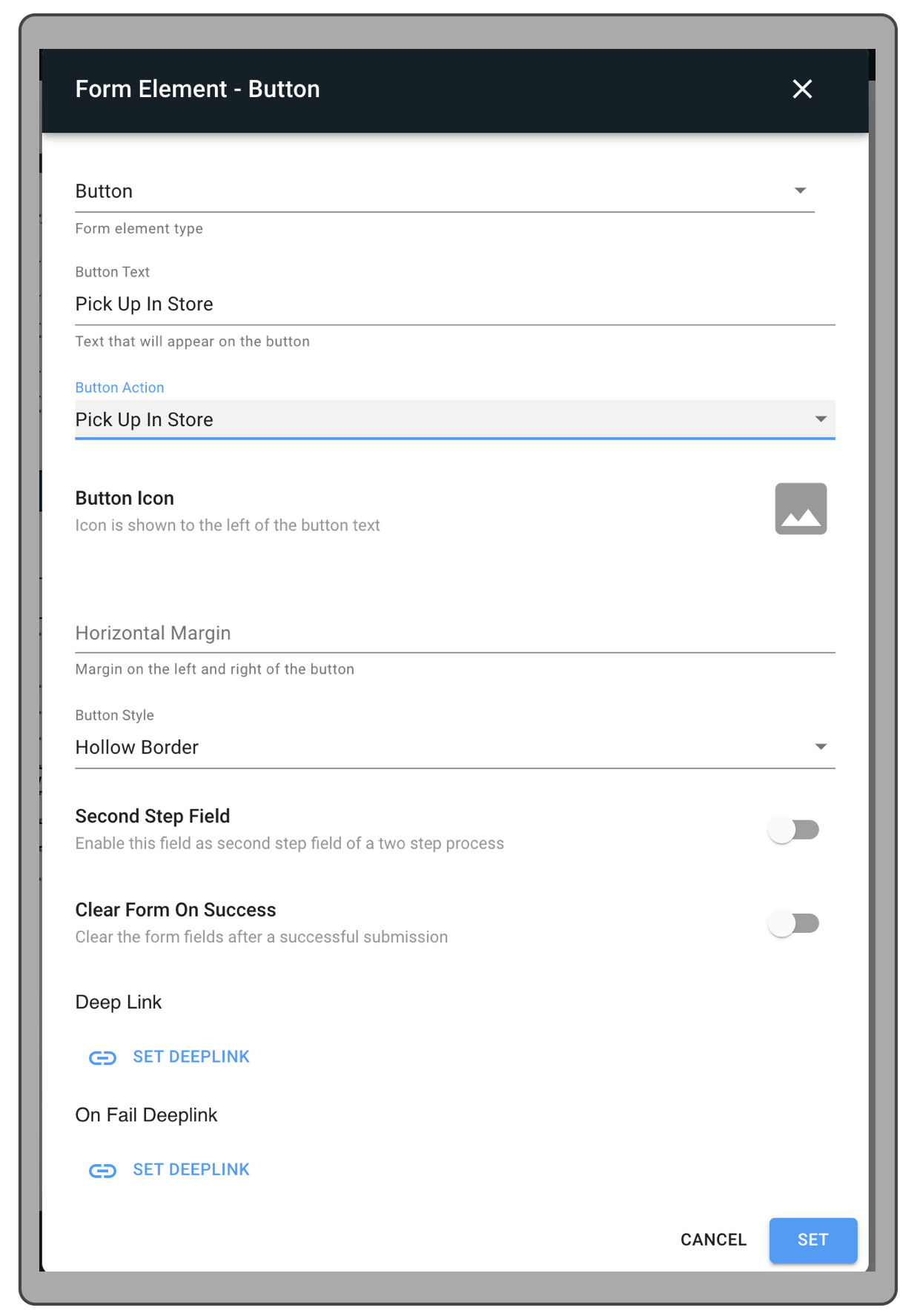
- Select other button UI settings, e.g., button style, icon, etc., if needed.
-
Set and save your changes.
Configure BOPIS Deep Links
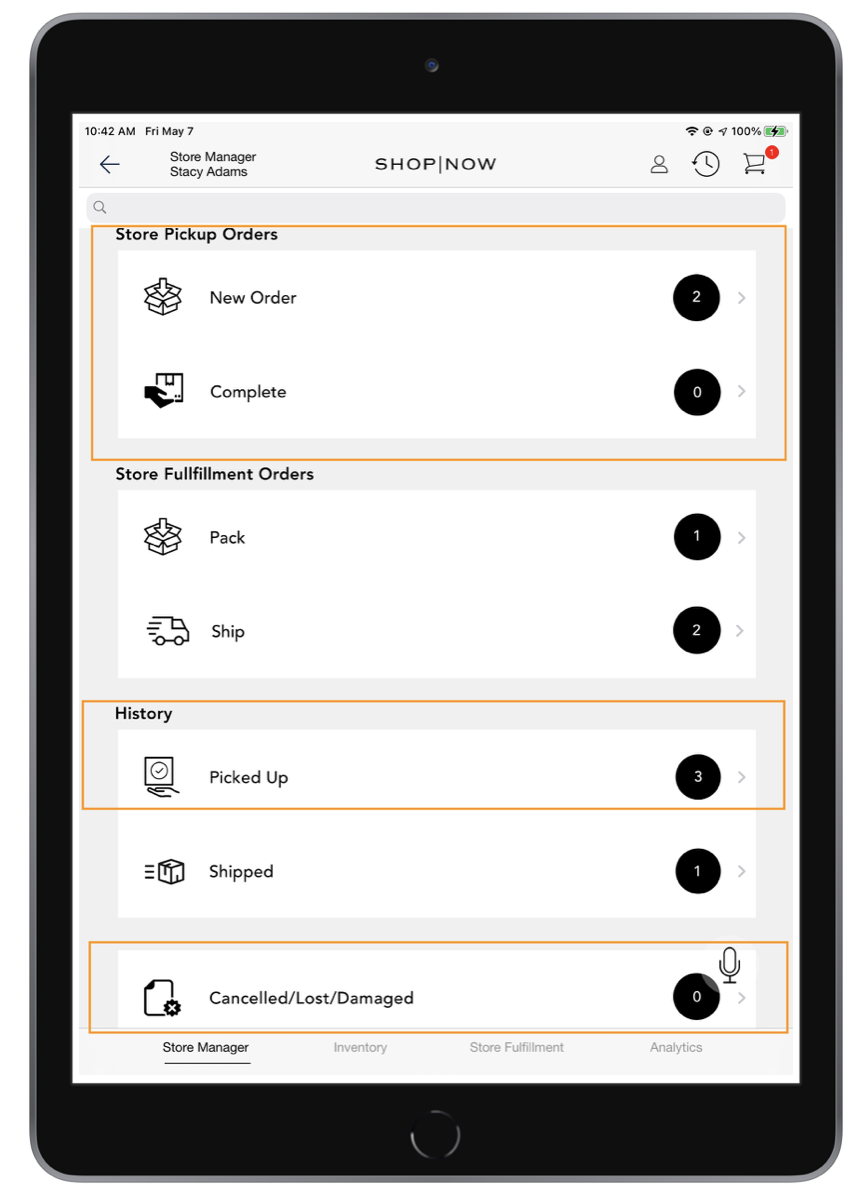
Create a layout and add these BOPIS/Store Fulfillment Deep Links to manage BOPIS orders.
- Deep link > BOPIS/Store Fulfillment > Store Pickup Order to be Packed
- Deep link > BOPIS/Store Fulfillment > Store Ready to Pickup Order
- Deep link > BOPIS/Store Fulfillment > Store Picked Up Order History
- Deep link > BOPIS/Store Fulfillment > Cancelled/ Damaged Store orders
Enable BOFIS
Configure a PDP layout to allow products to be fulfilled for BOFIS orders.
-
Enable Ship to Home From Current Store in the omni settings.
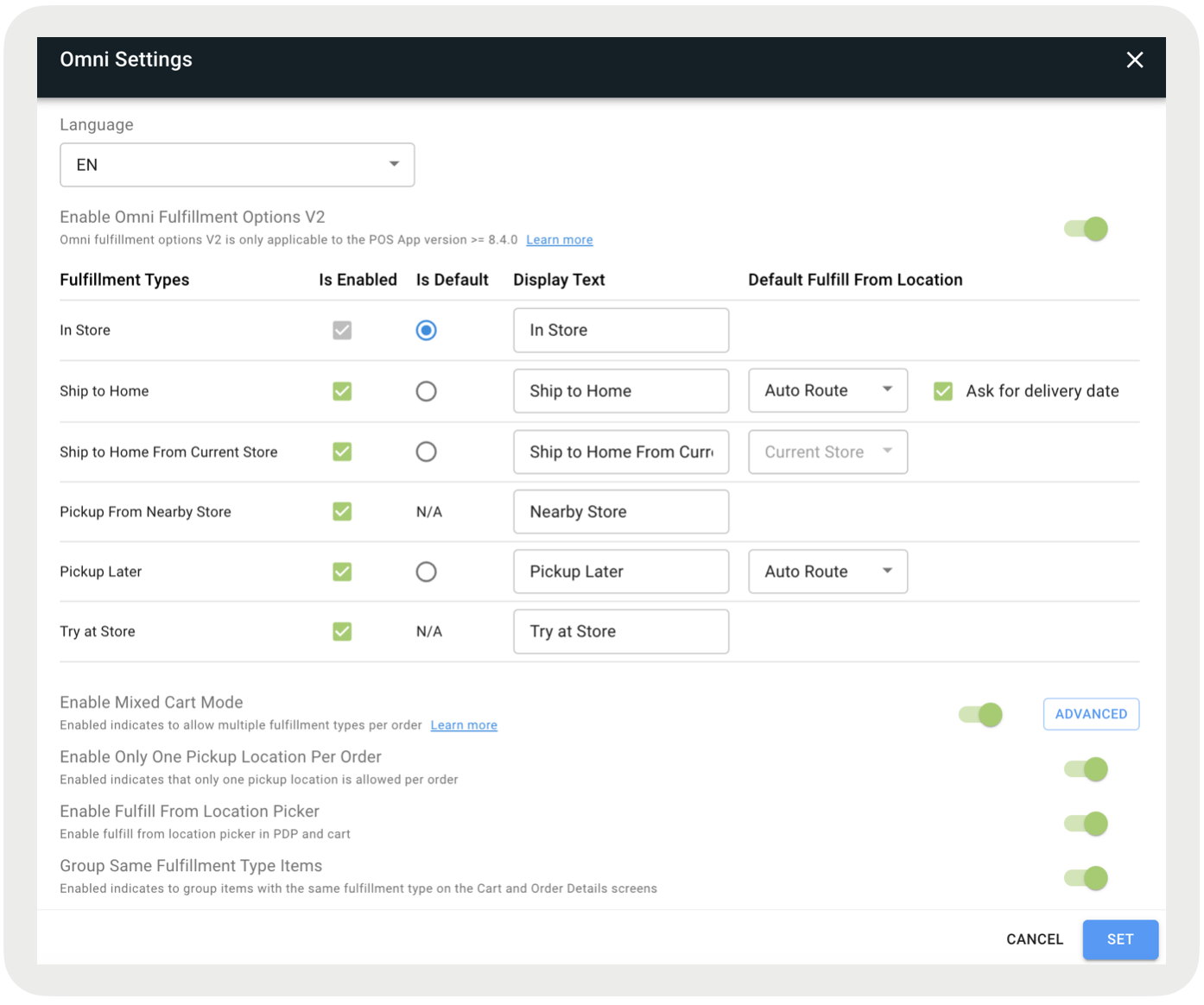
- Enable Ship to Home From Current Store Items Sent to PredictSpring Fulfillment in the omni settings.
-
Configure a PDP layout for BOFIS orders. For more information, seeSet Up a Product Display Page (PDP) Layout.
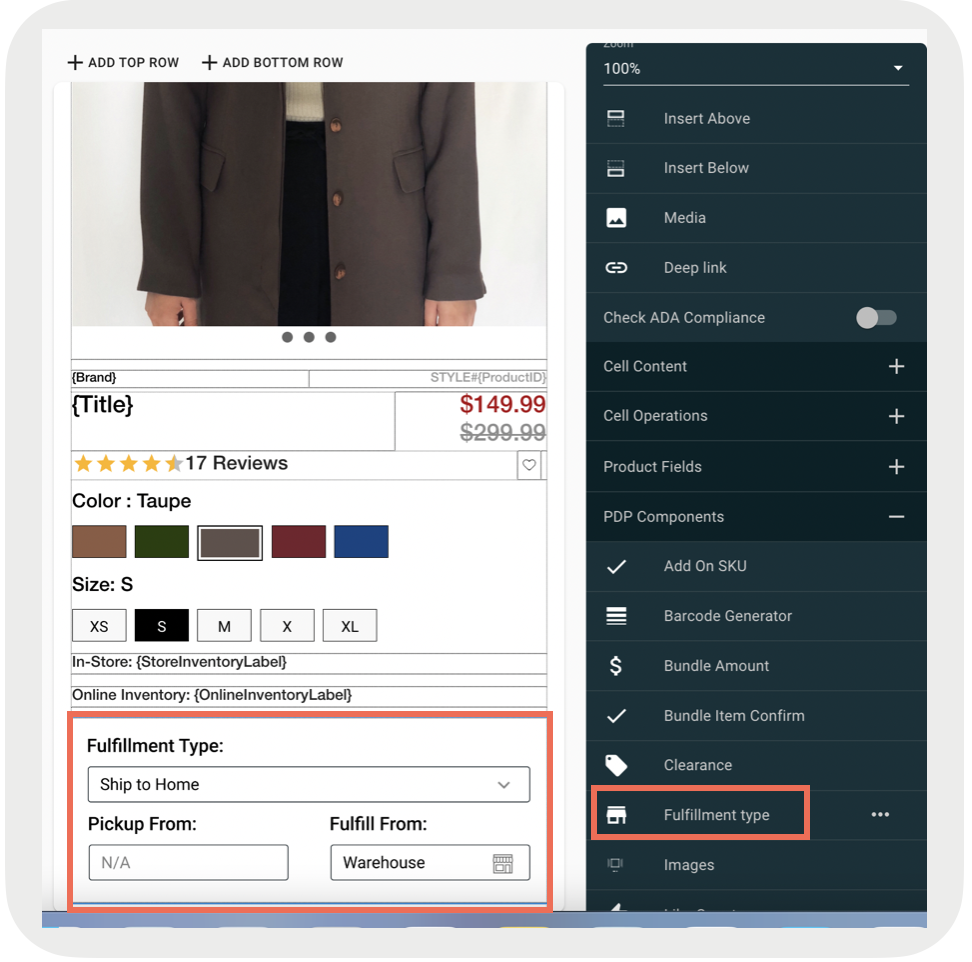
Configure BOFIS Deep Links
Create a layout and add the below BOPIS/Store Fulfillment Deep Links to manage BOFIS orders.
- Deep link > BOPIS/Store Fulfillment > Store Fulfill Orders Ready to Ship
- Deep link > BOPIS/Store Fulfillment > Store Fulfill Orders to Pack
- Deep link > BOPIS/Store Fulfillment > Store Fulfilled Order History
- Deep link > BOPIS/Store Fulfillment > Store Fulfilled Order to Unpack
- Deep link > BOPIS/Store Fulfillment > Cancelled / Damaged Store Orders
POS BOPIS Flow
Pack Order
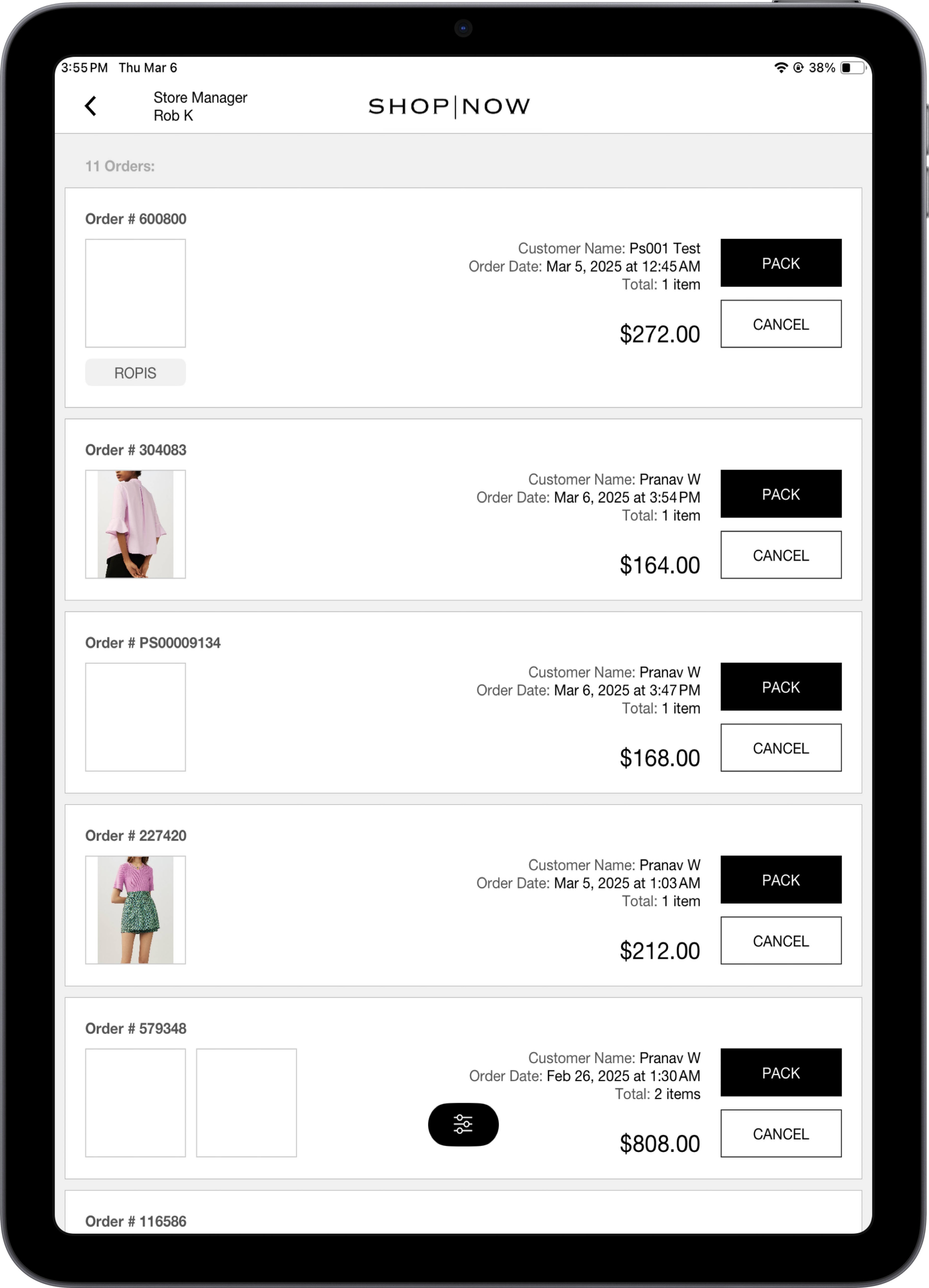
When the associate clicks on the Store Pickup Order to be Packed deep link, the app will show the list of orders to be packed. The associate can click on the PACK button to start packing the order.
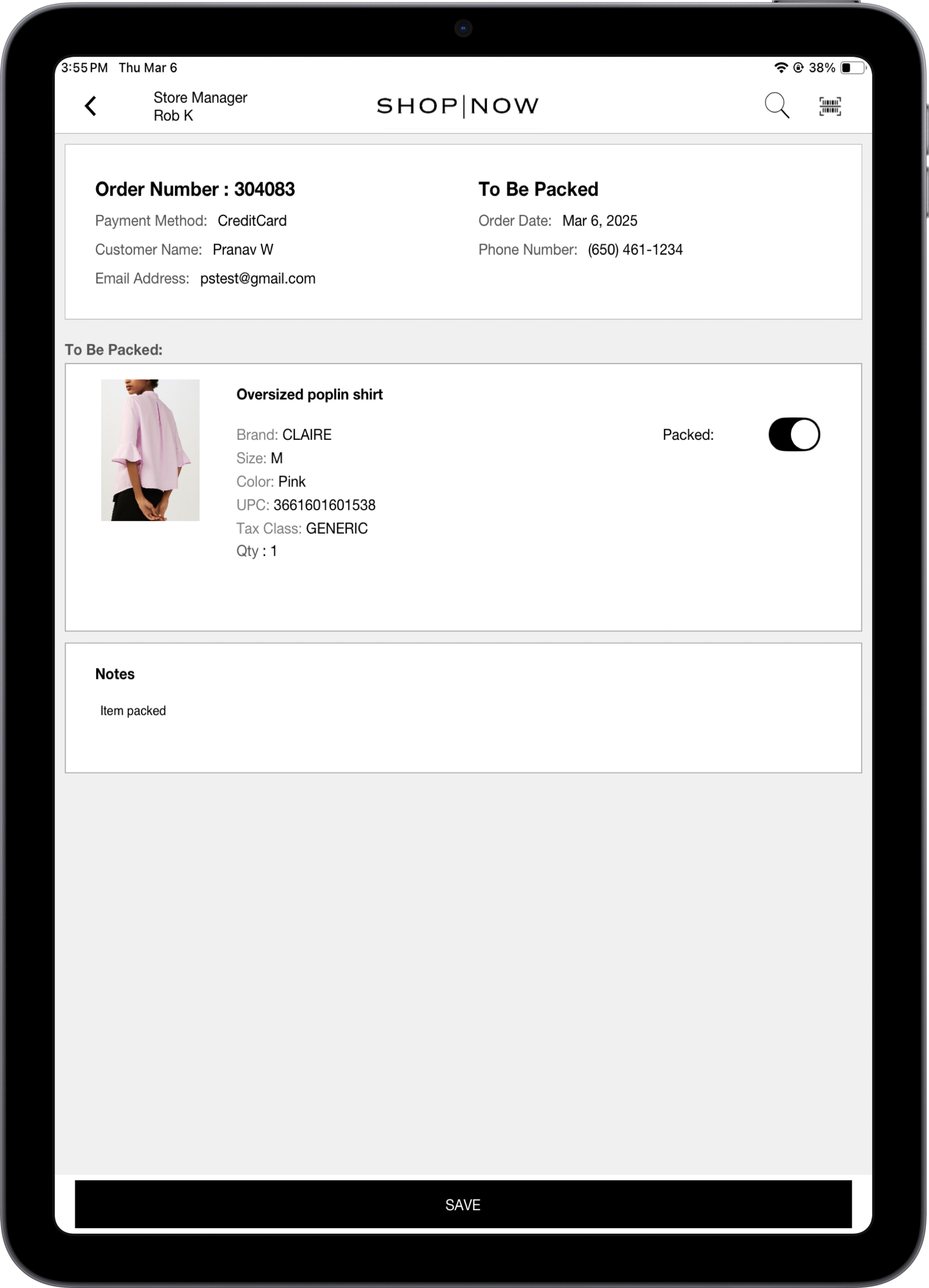
The associate can enter notes (optional) and select the items that are ready to be packed.

Complete Orders
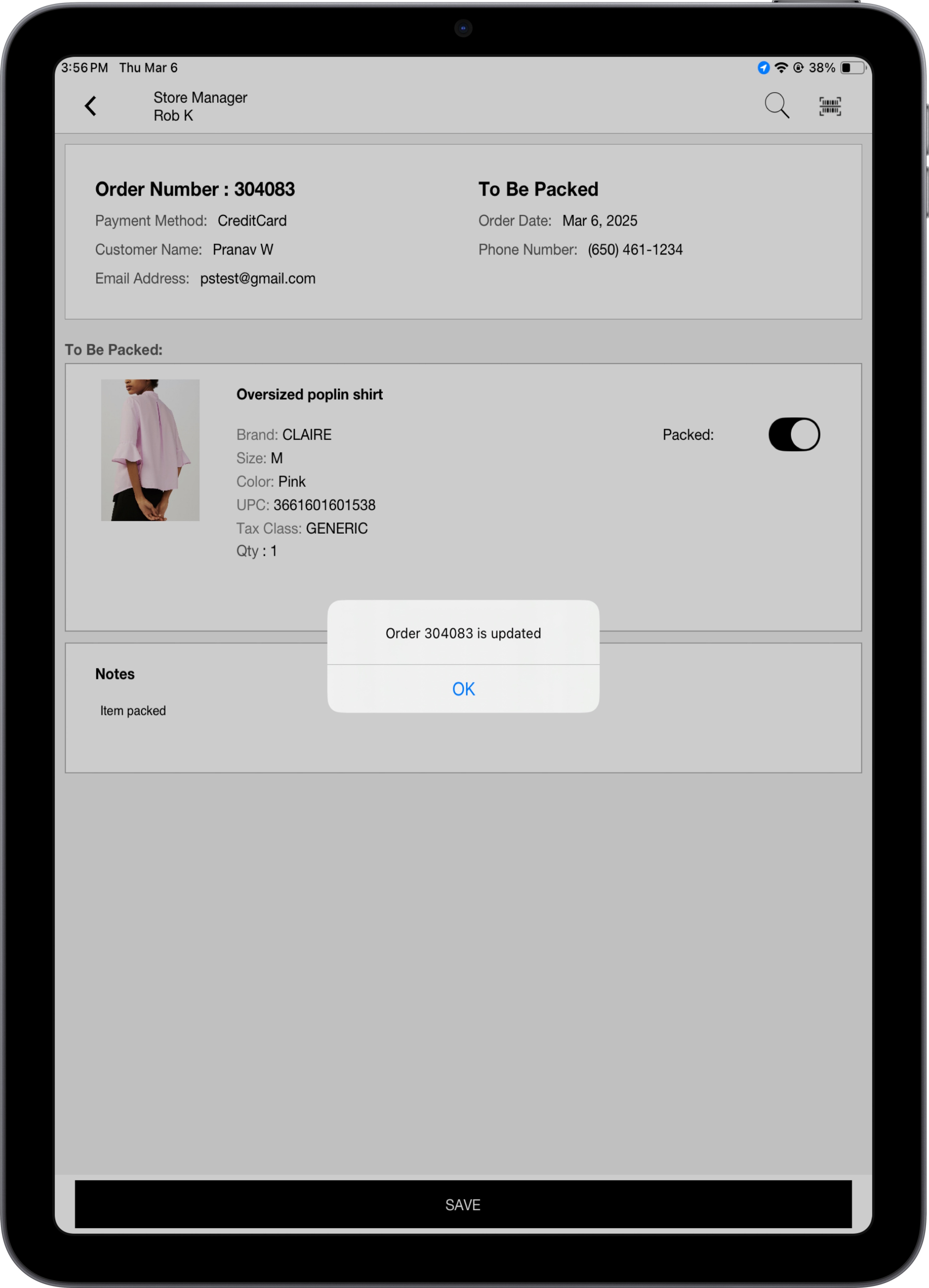
To complete the packing process, the associate will click on the SAVE button and the order will be updated.
Pick Up an Order
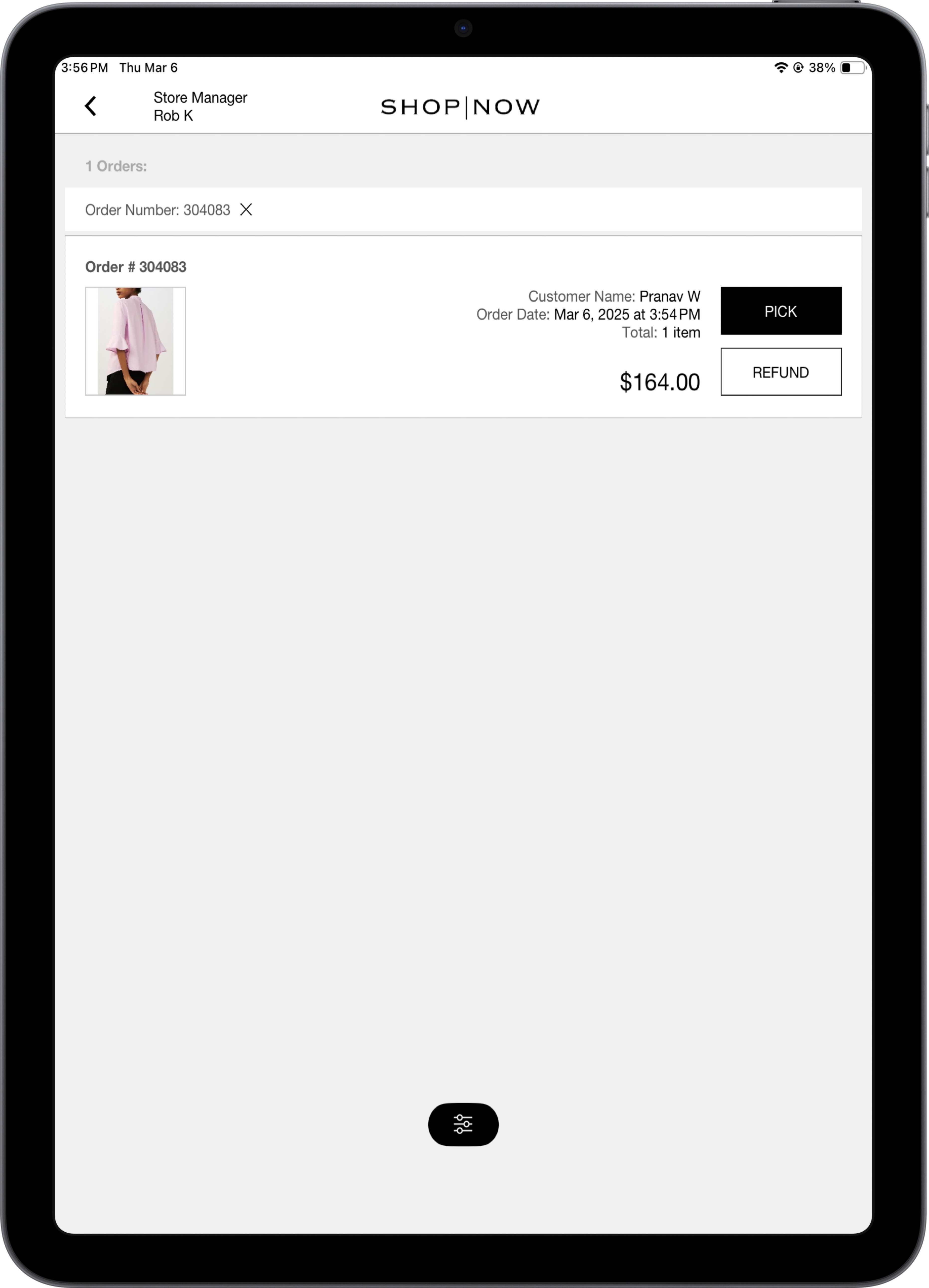
When the customer comes to the store to pick up the order, the associate will click on the Store Ready to Pickup Order order to see the list of orders ready for pickup. Tap Pick to access the order ready to be picked up by the customer. If the customer changes their mind, the associate can cancel and refund the order by tapping Refund.
If the BOPIS Item Level Cancelation (CanCancelIndividualBopisItems) app config flag is enabled from the CMS, associates will be able to select the items to be canceled and the reason code after clicking on the CANCEL ORDER button. If this flag is not enabled, associates will only be able to cancel the entire order. The associate can click on Cancelled/ Damaged Store Orders to view canceled orders.
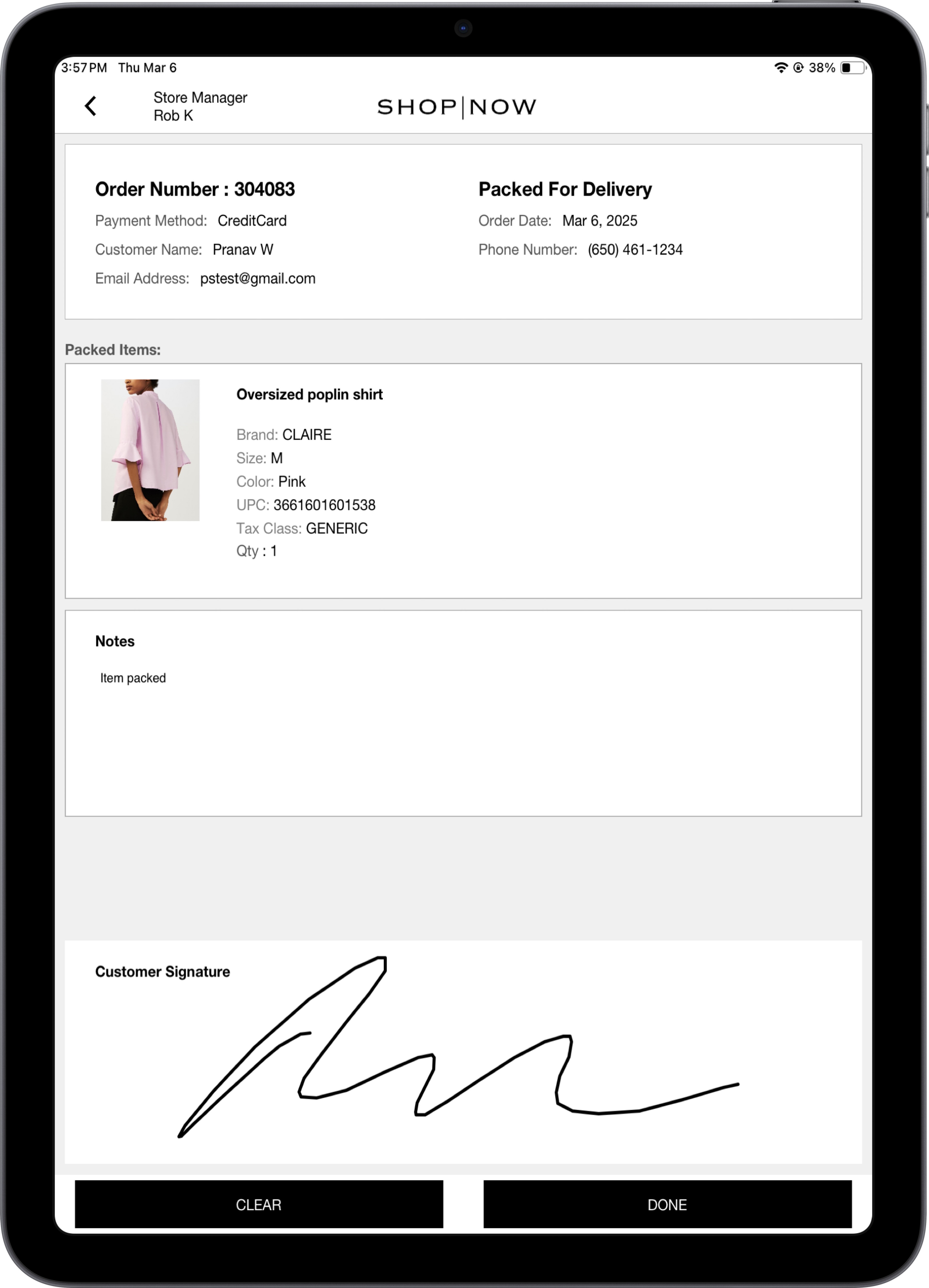
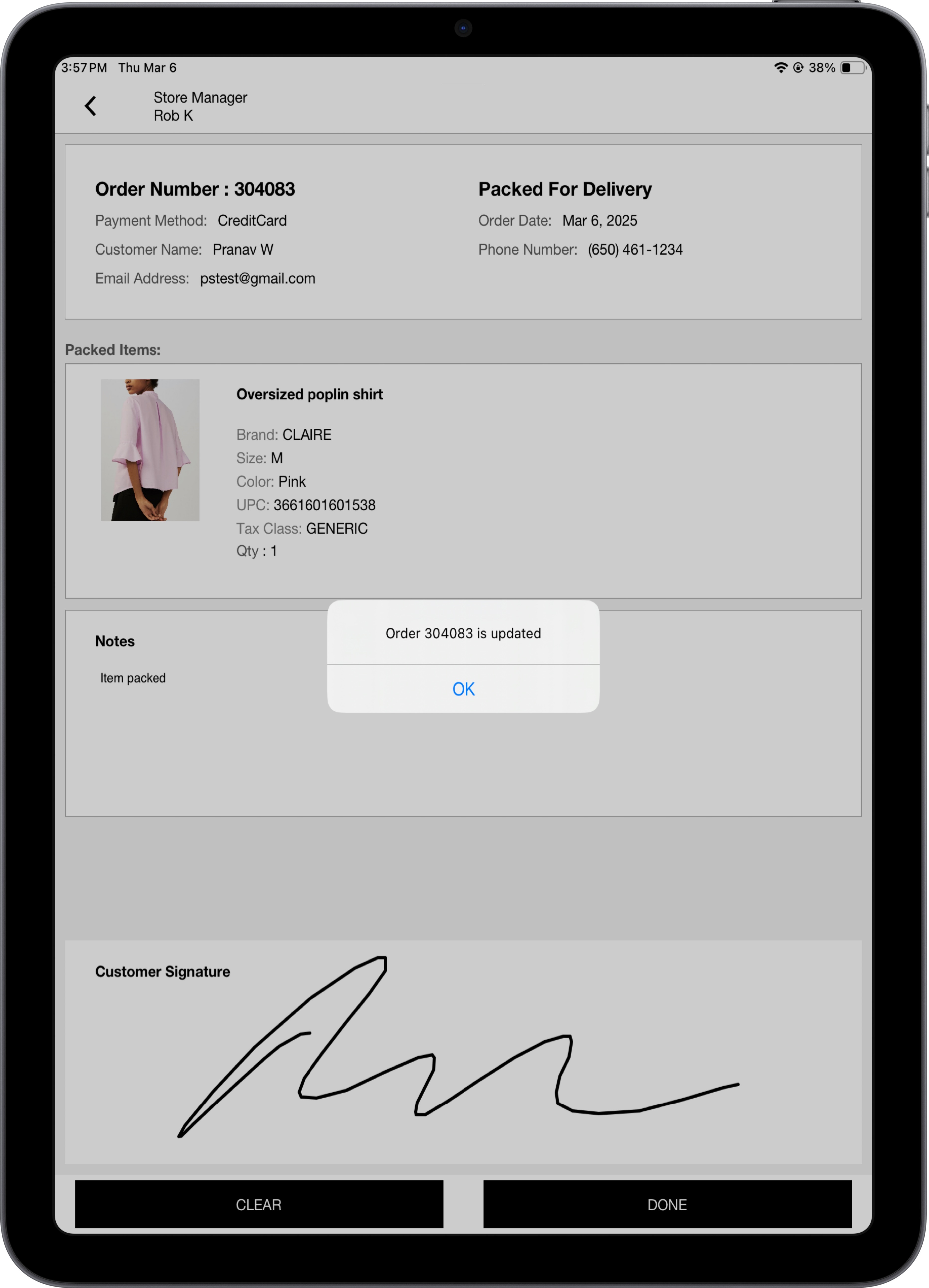
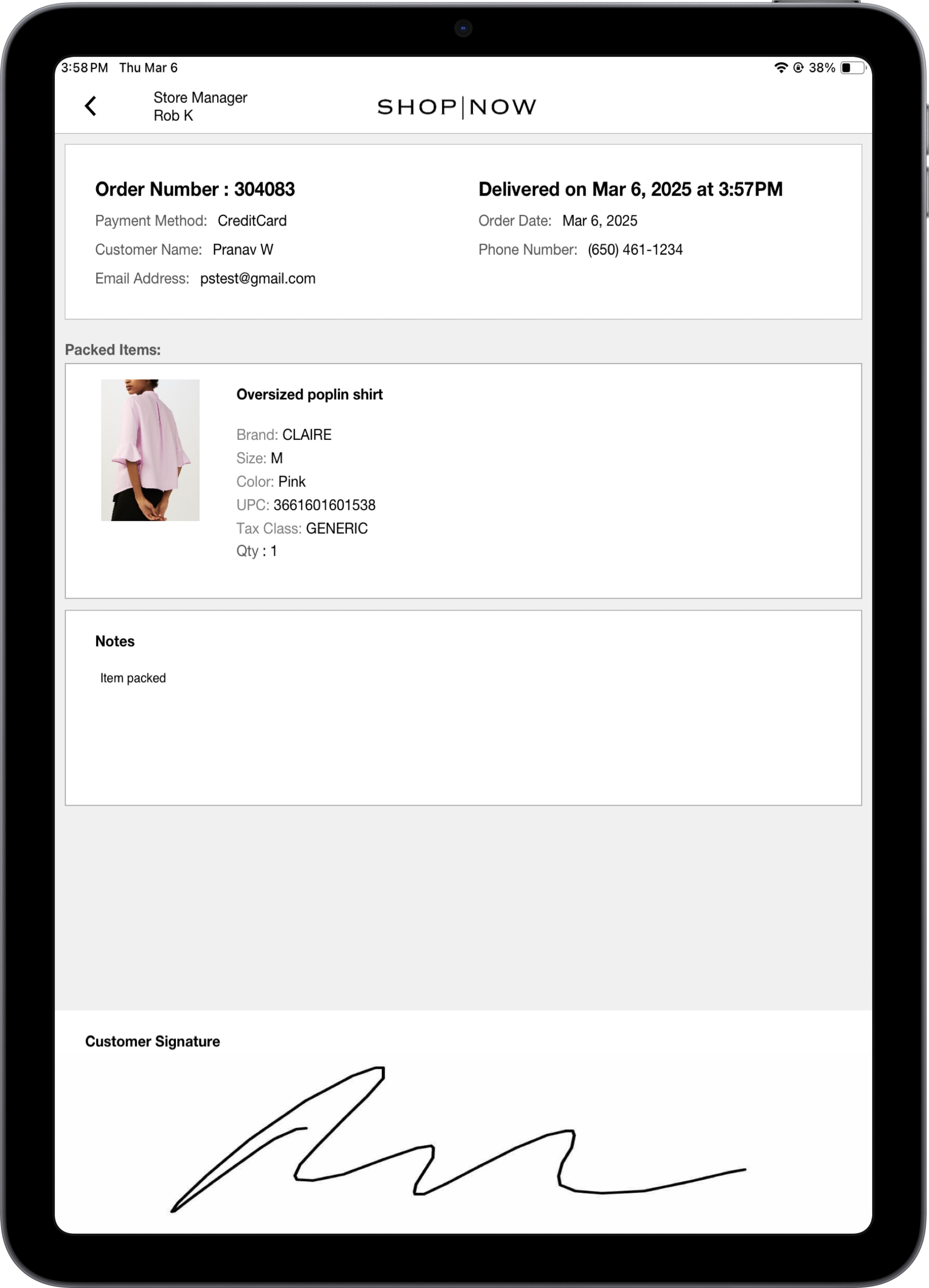
When the customer picks up their order, the app will ask for the customer's signature and complete the order after clicking DONE.
Order History
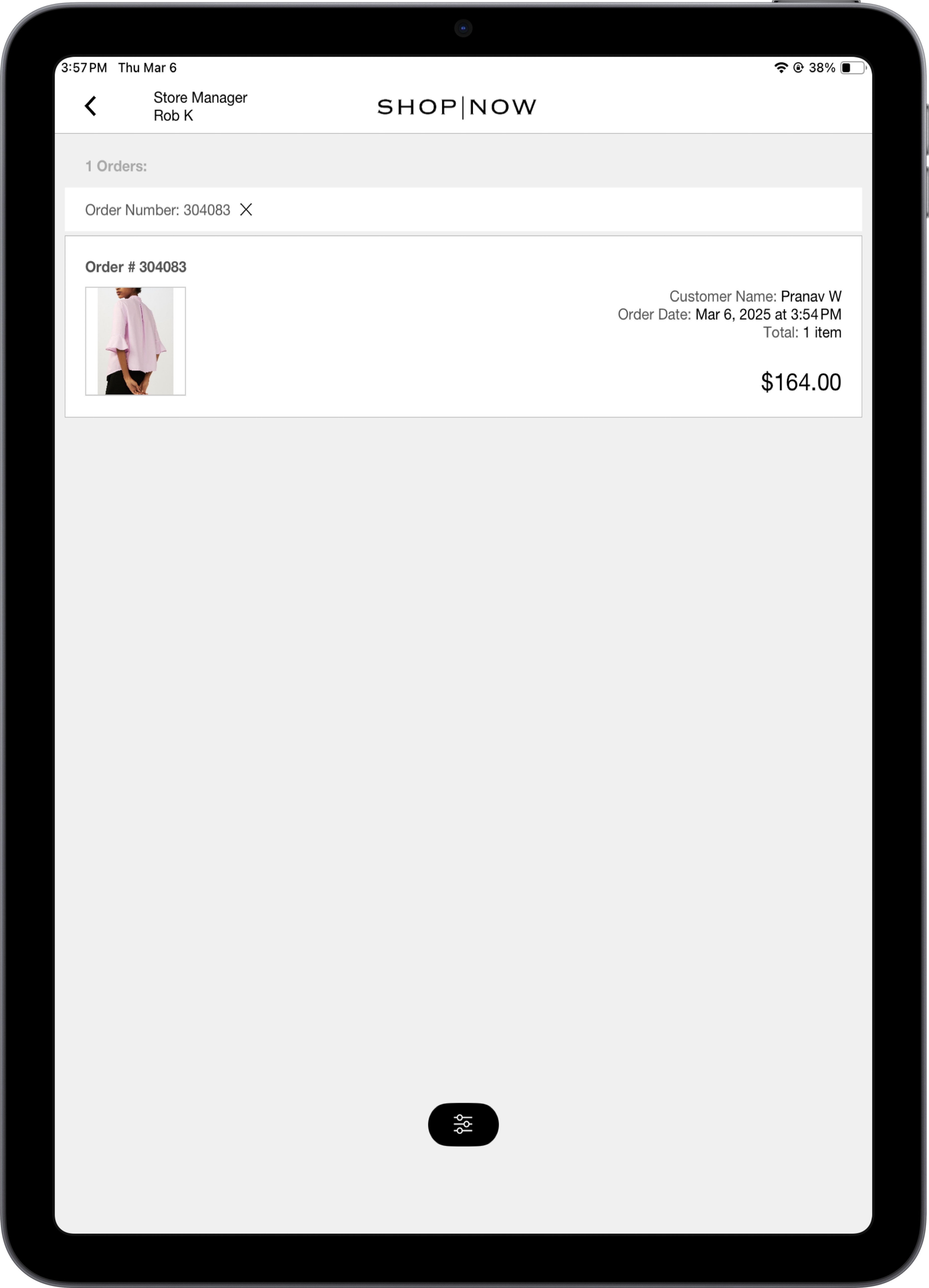
Once the order is picked up by the customer, it will be moved to the order history screen. The associate can view a list of pickup orders from the deep link Store Picked Up Order History.
Split Orders
Unpacked items will be updated in the order display, and the order will not be considered complete until all items are packed. The associate can choose to pack the remaining items later or leave them unpacked.
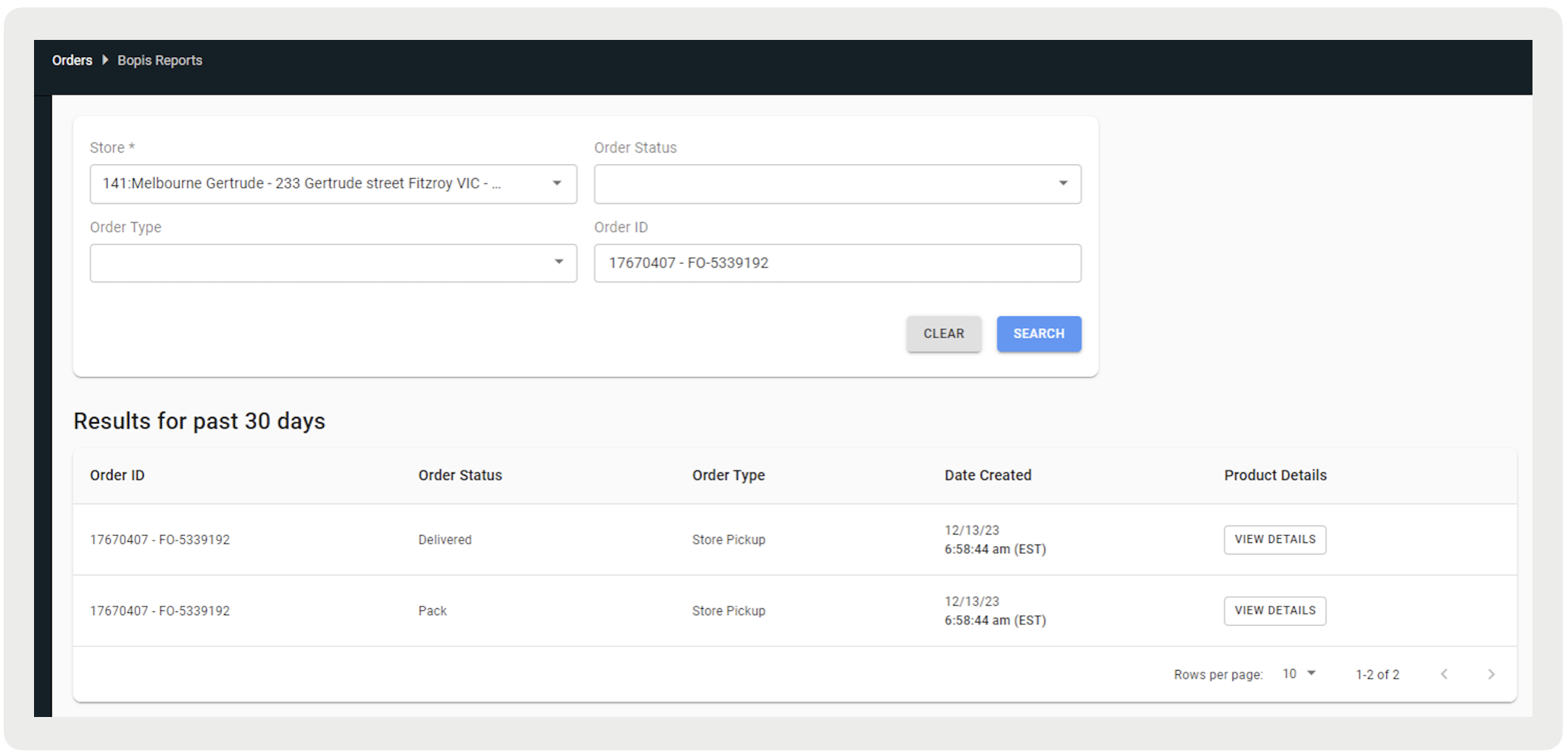
Split orders will be reported in CMS under BOPIS Reports (in CMS, go to ) with the same order but different statuses.
POS BOFIS Flow
Manage Orders
Similar to the app flow of BOPIS orders, BOFIS orders allow you to view and pack received orders. However, with BOFIS orders you'll have the option to either scan and attach a shipping label (Shipping Label) or manually generate a label (Generate Label) with an SPI. For details on this flow, refer to Configuring & Printing Shipping Labels via Point of Sale SPI.
Return or Exchange
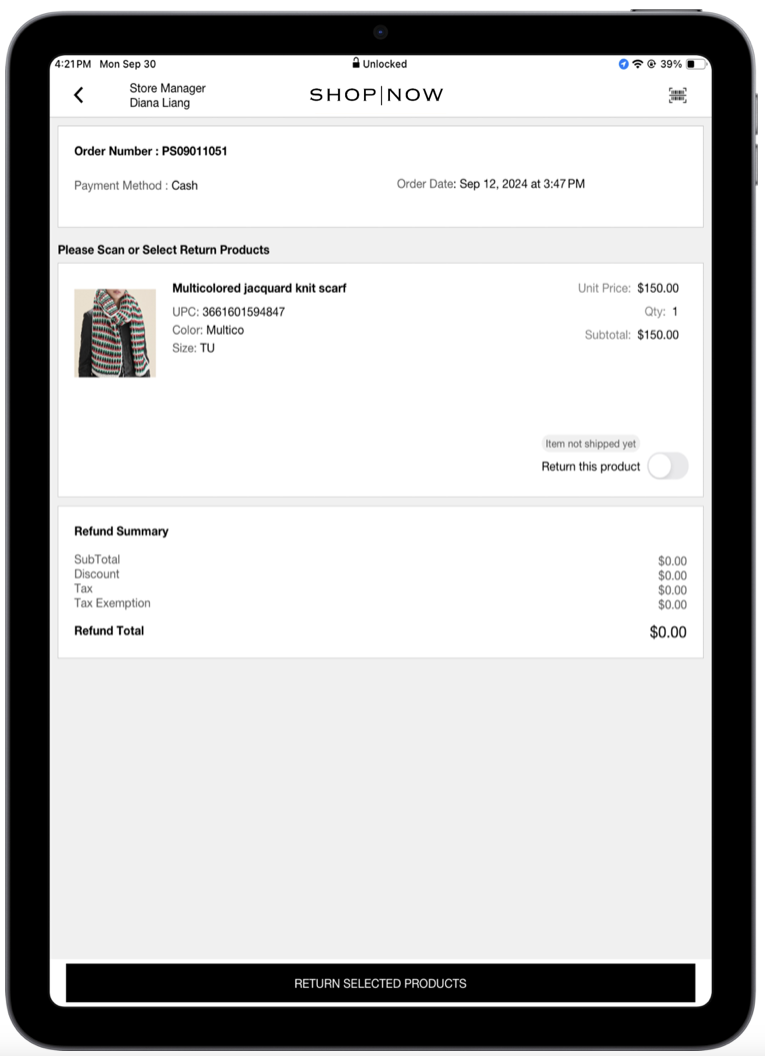
The app will prevent unshipped items from being returned to avoid inventory discrepancies or the need for reconciliation. Specifically, for Ship to Home from Current Store items, if an order is in a pre-shipped state (not yet packed or shipped), the Return this product toggle will be disabled and non-editable during the return process. Instead, it will display the message "Item not shipped yet" (screenshot below). If the item has already been packed and shipped, it cannot be returned and will display the message "Cannot be returned."
Known Issues and Restrictions
- Partial refunds are not supported for BOPIS orders.
- The POS doesn’t prevent duplicate shipment creation for the same order item across registers. Because fulfillment orders aren’t marked as in progress, multiple associates can process the same item on different devices at the same time. As a result, an order can still display as Partially Shipped after shipment in the POS app.
