You are here:
Add Order Notes
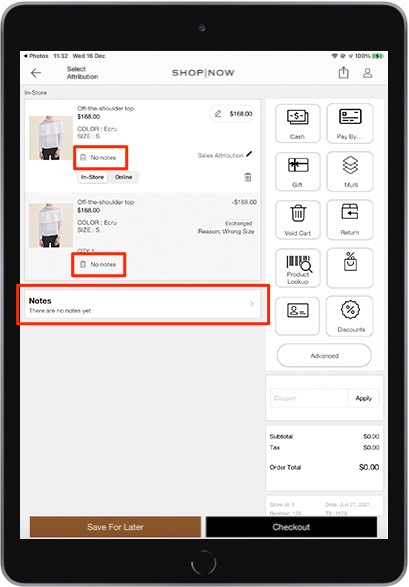
The POS app allows associates to add notes to orders and to items in an order. Store associates have the ability to add notes during checkout, in the order details screen, and to a suspended cart. Notes are also visible when creating a quote.
- Modern POS App build: 5.12.2 21098 or above
- Platform Support: iPhone & iPad
- Offline Support: 6.5.2 22712 and above
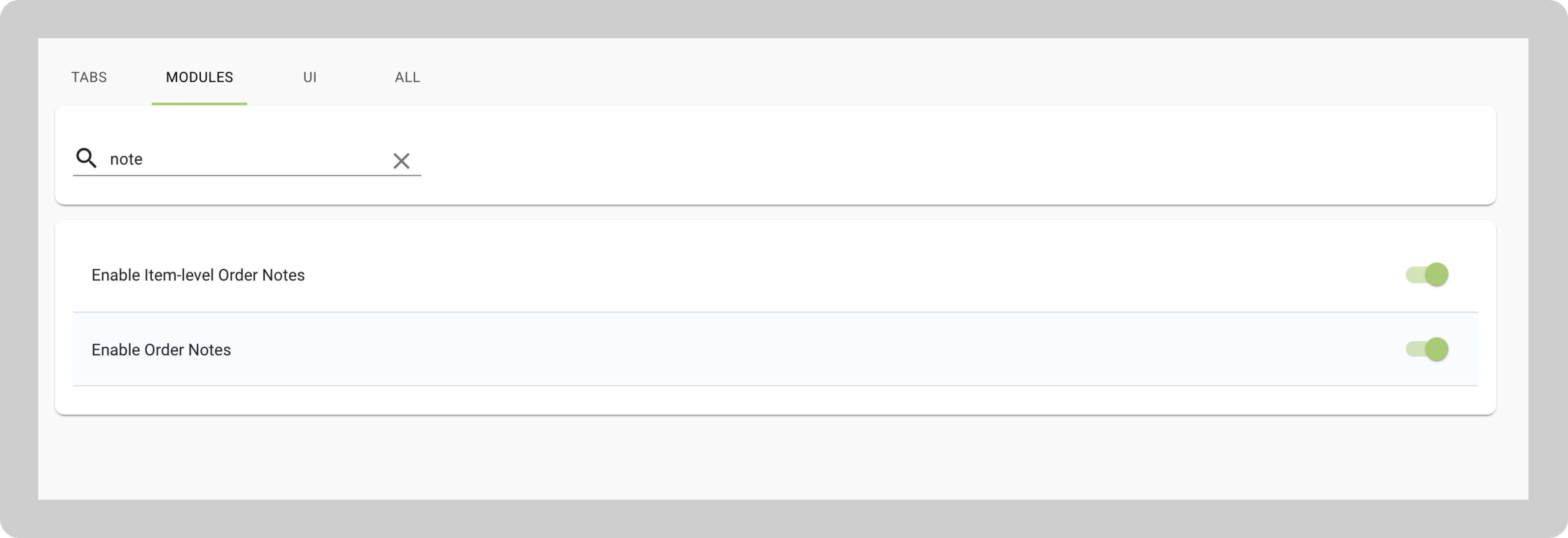
- Go to .
- Enable the Enable Item-level Order Notes app config setting to enable adding notes to items of the order.
-
Enable the Enable Order Notes app config setting to enable adding notes to the entire
order.
POS Behavior
Add Notes During Checkout
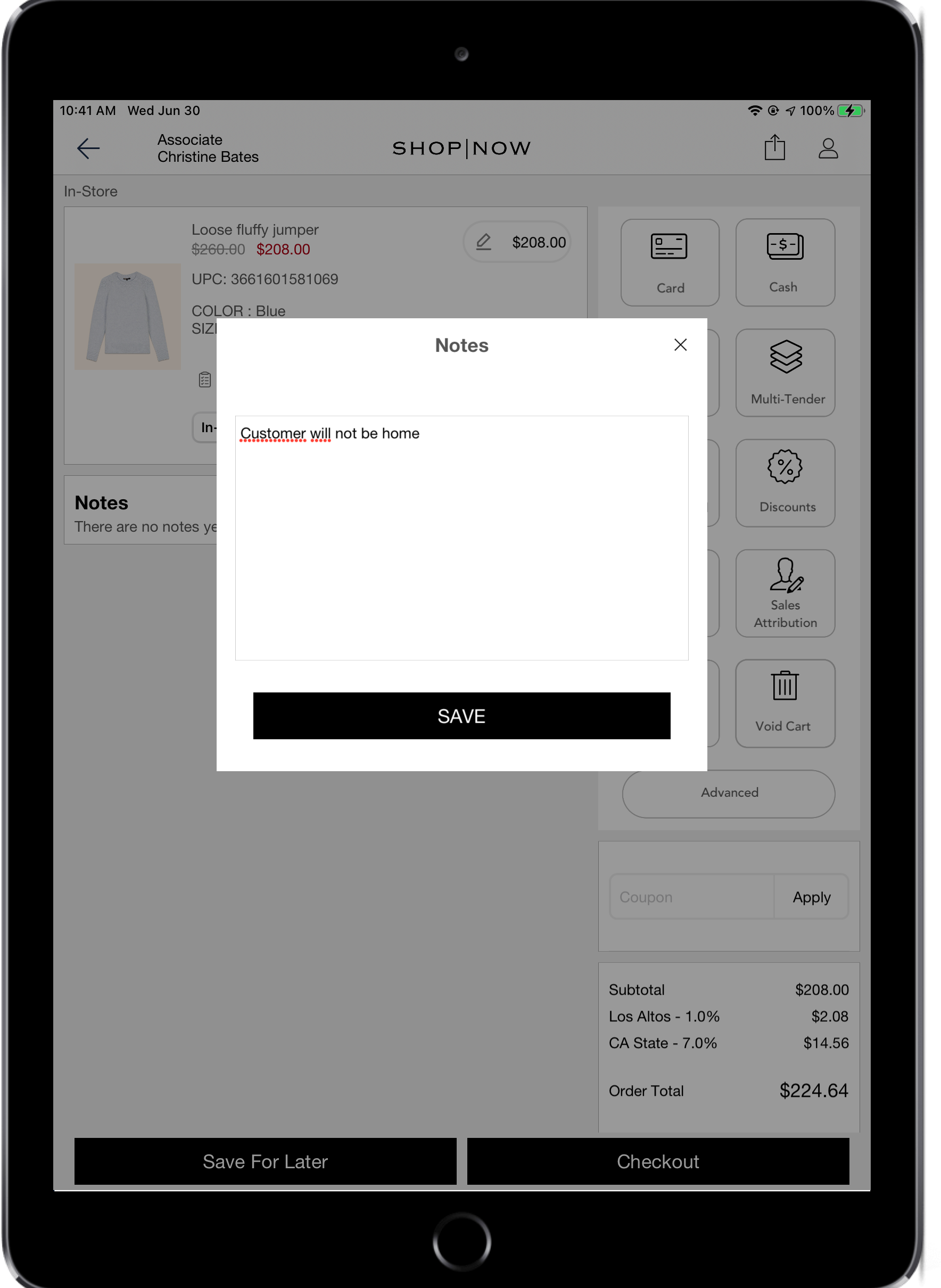
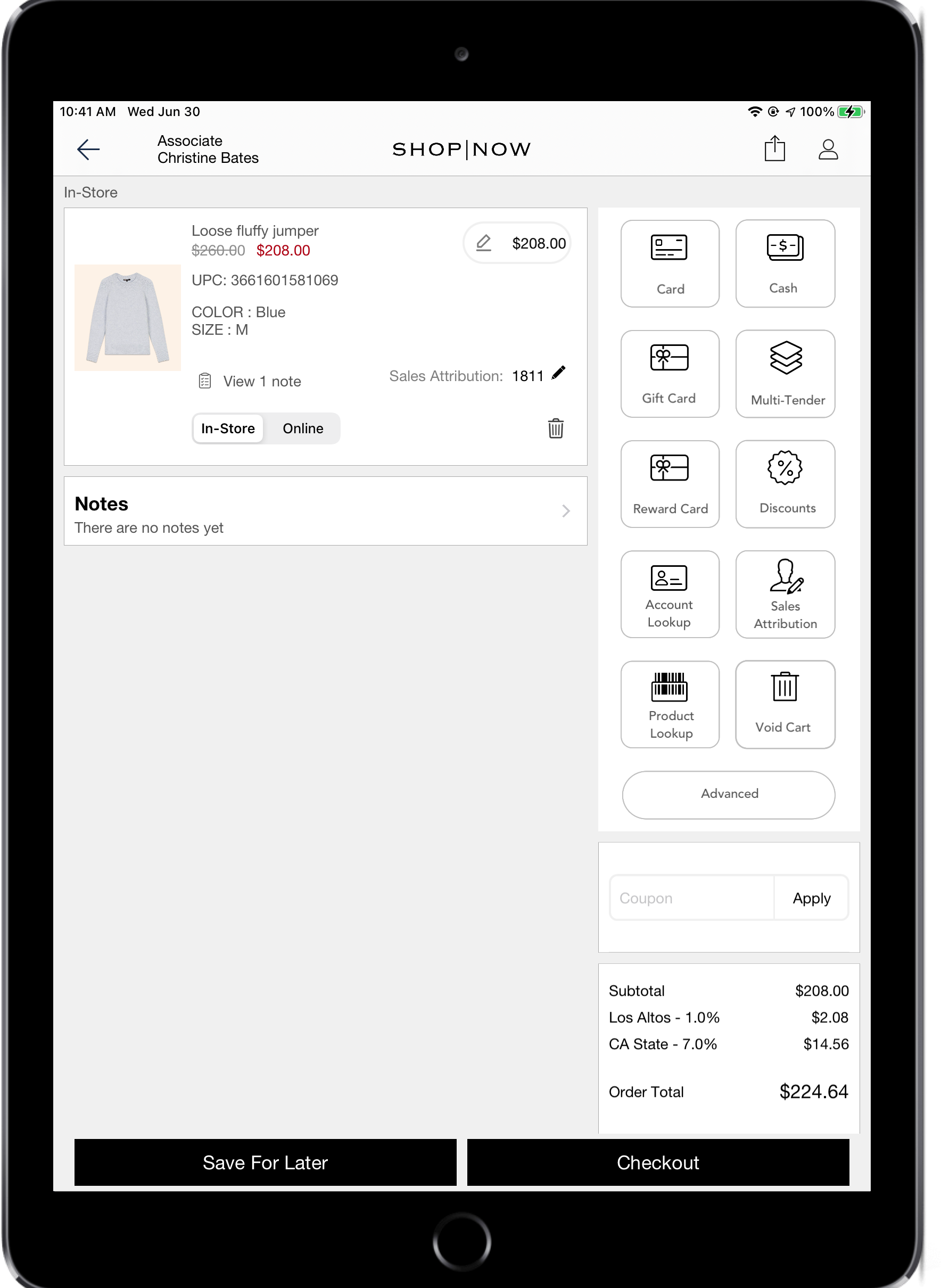
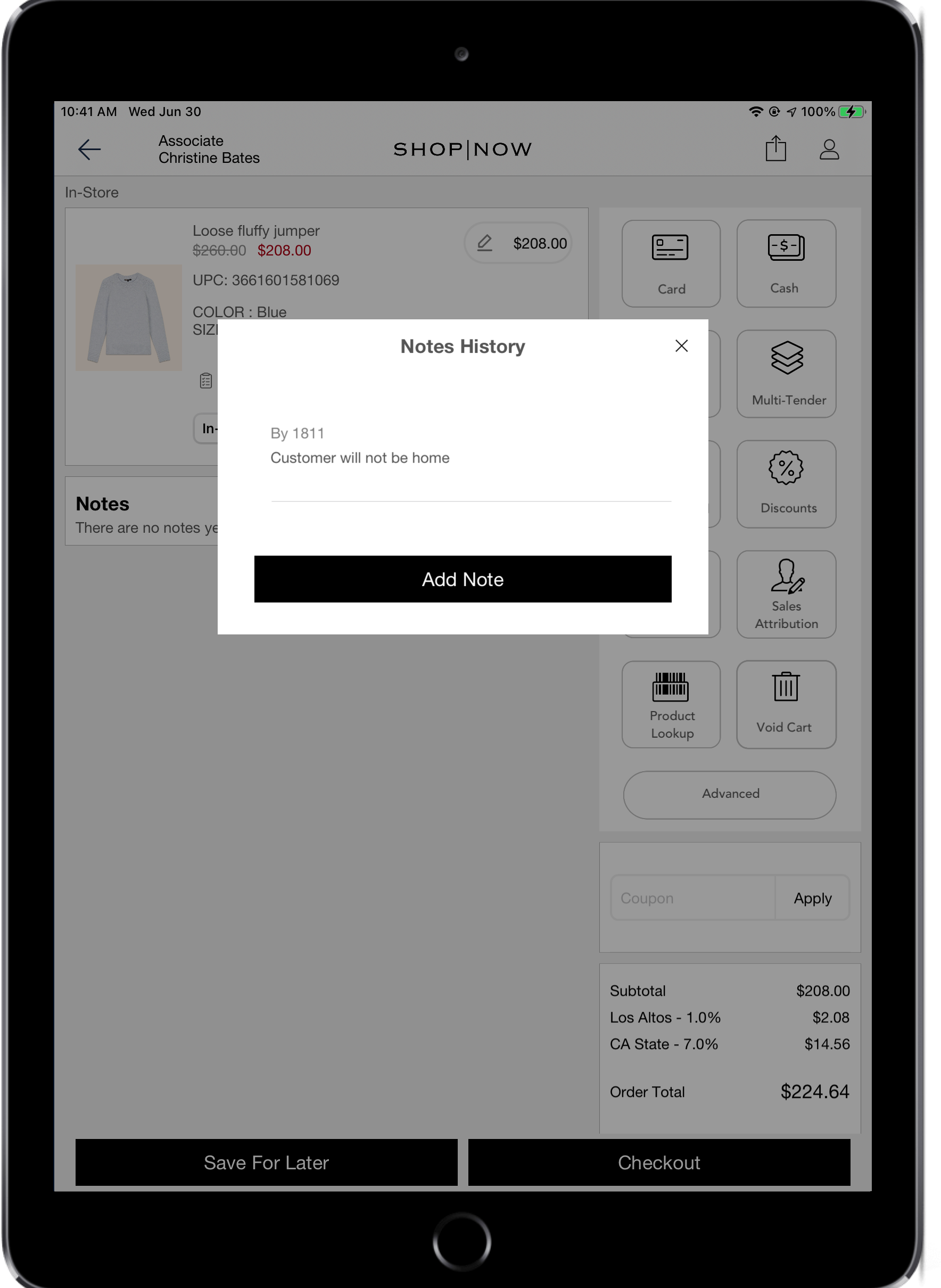
Once the settings are enabled, store associates will be able to add notes to an order
and its items during checkout.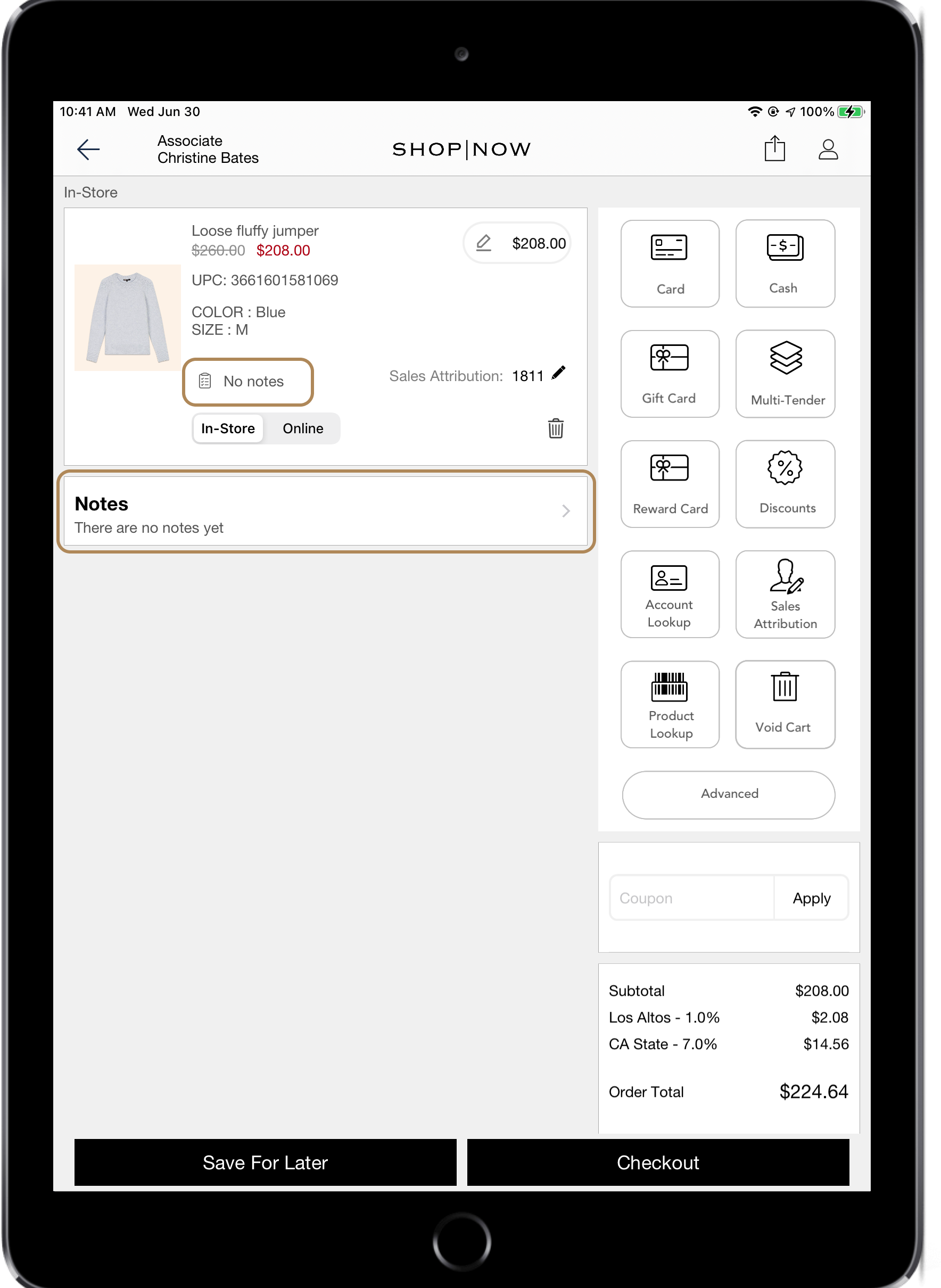
Add Notes For Existing Orders
Notes can also be added to orders already placed. To do so, navigate to the "Orders"
screen and select the order to add notes to: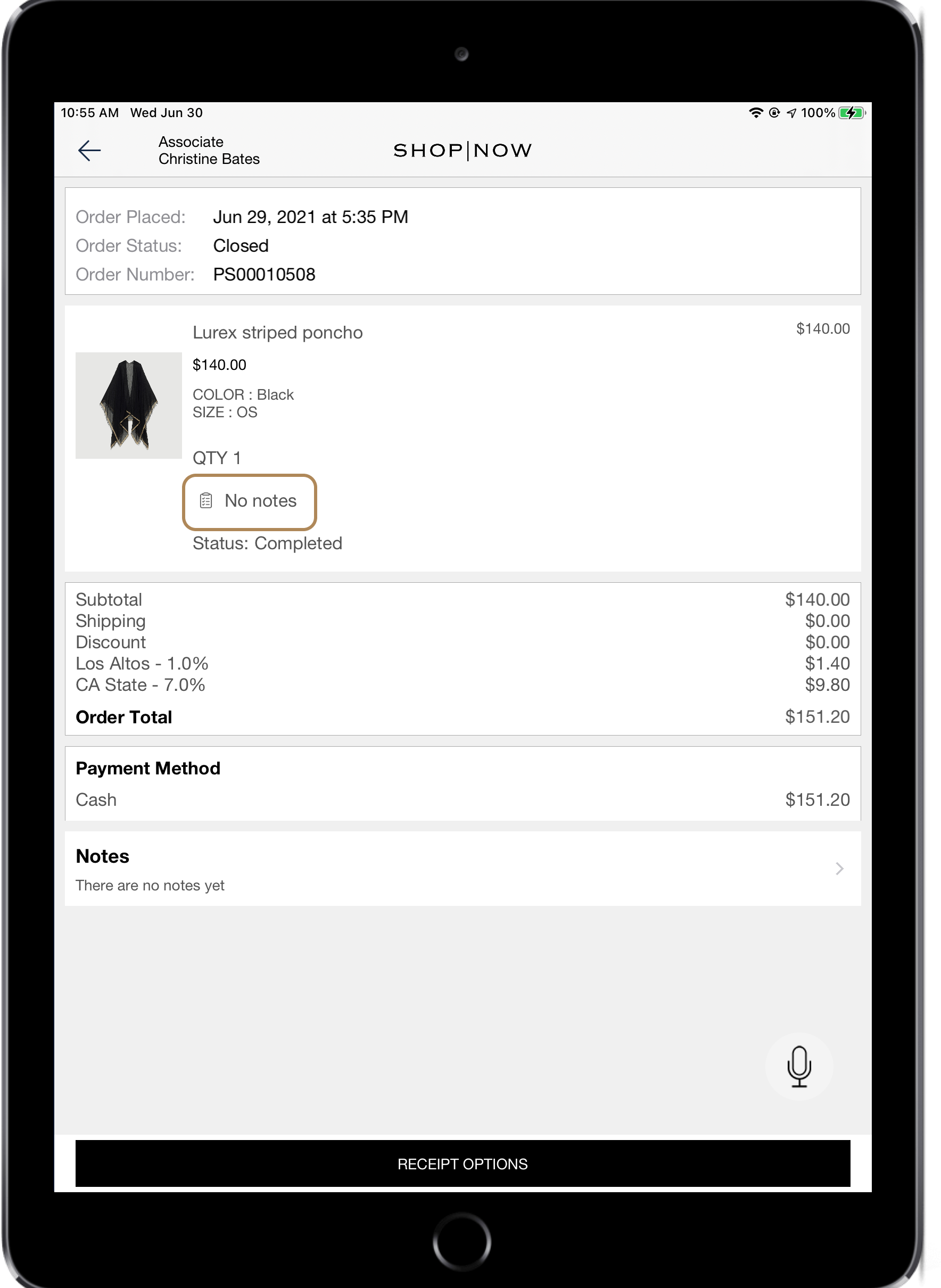

Add Notes For Orders in Suspended Carts
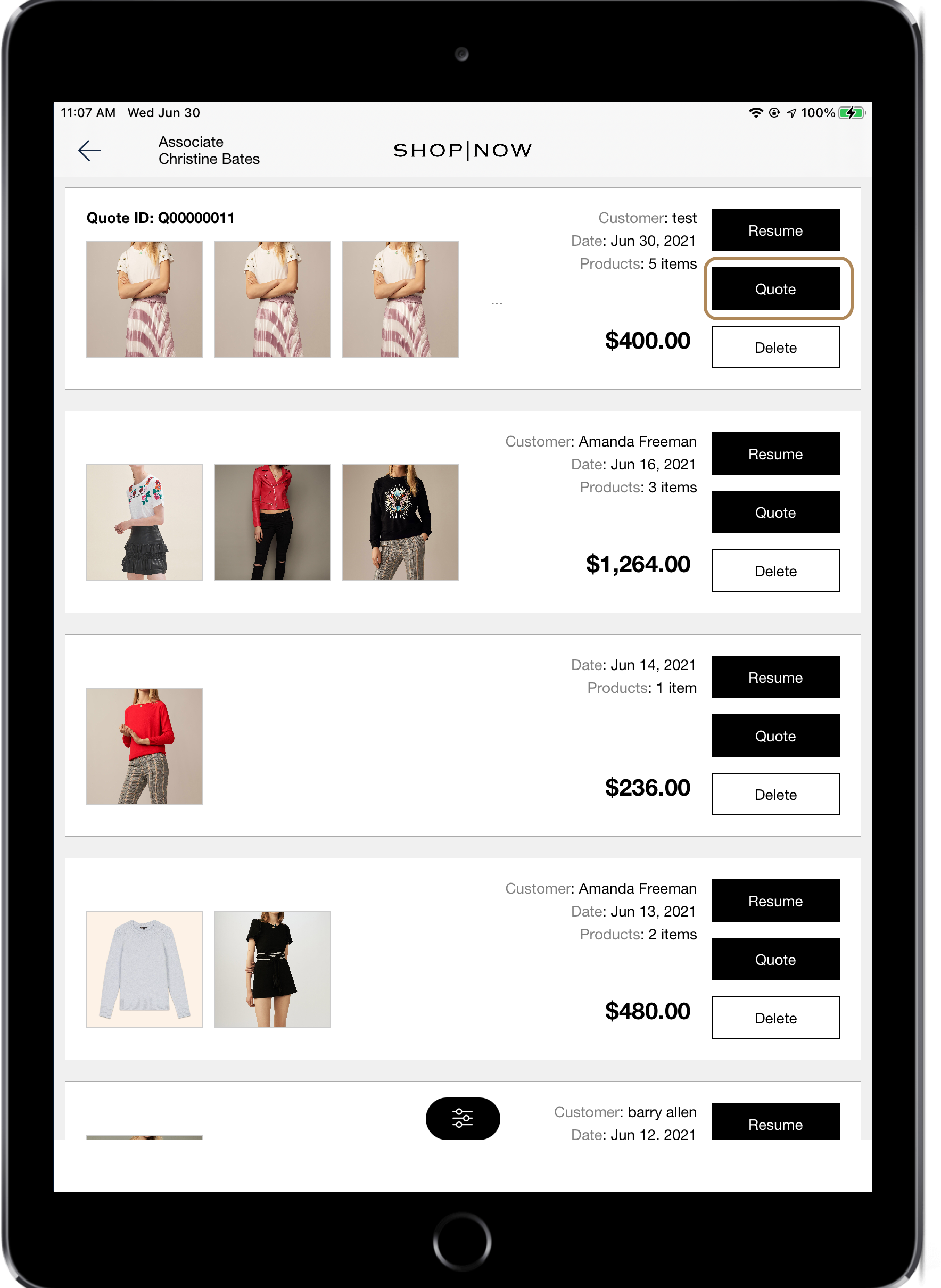
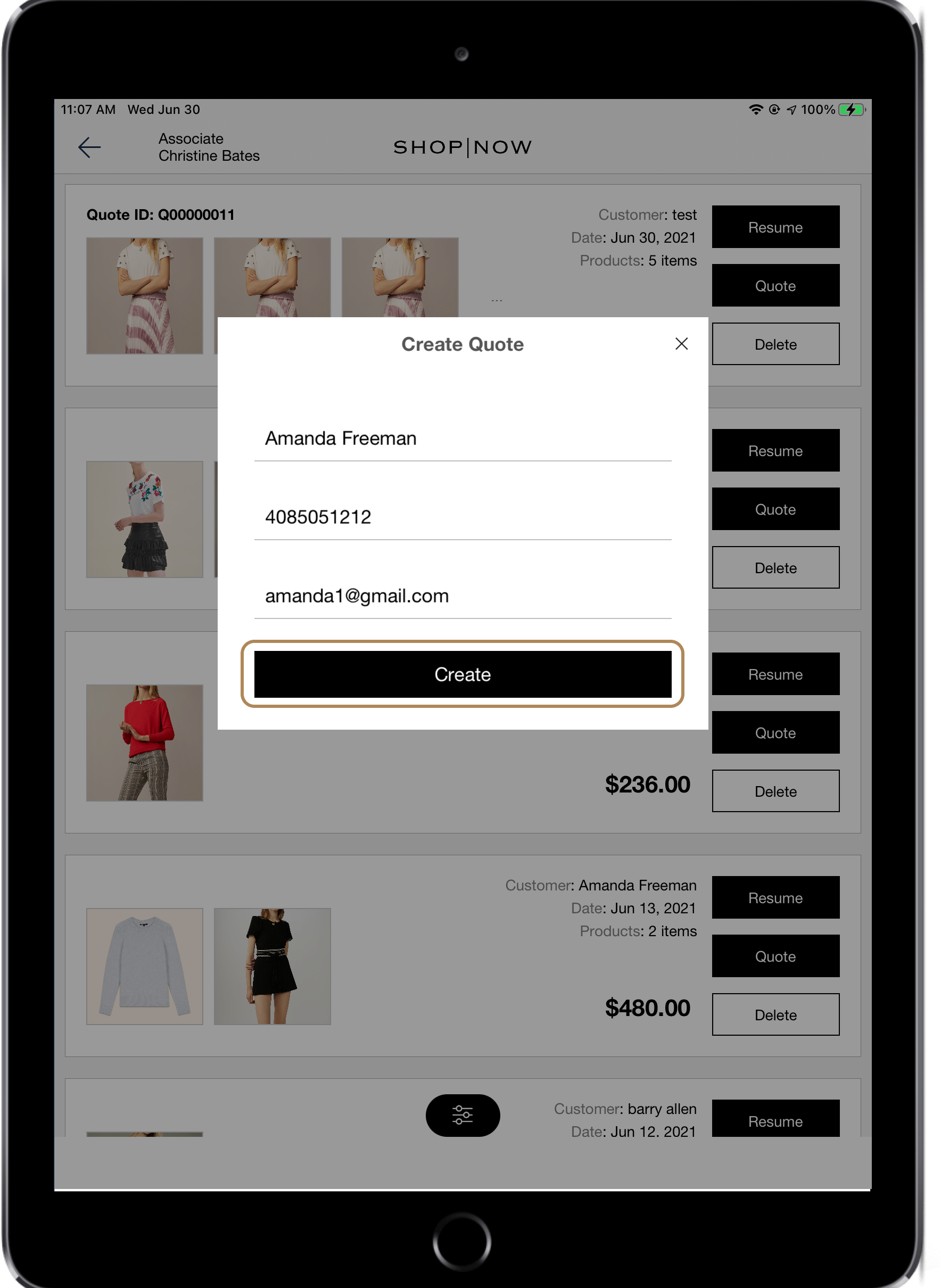
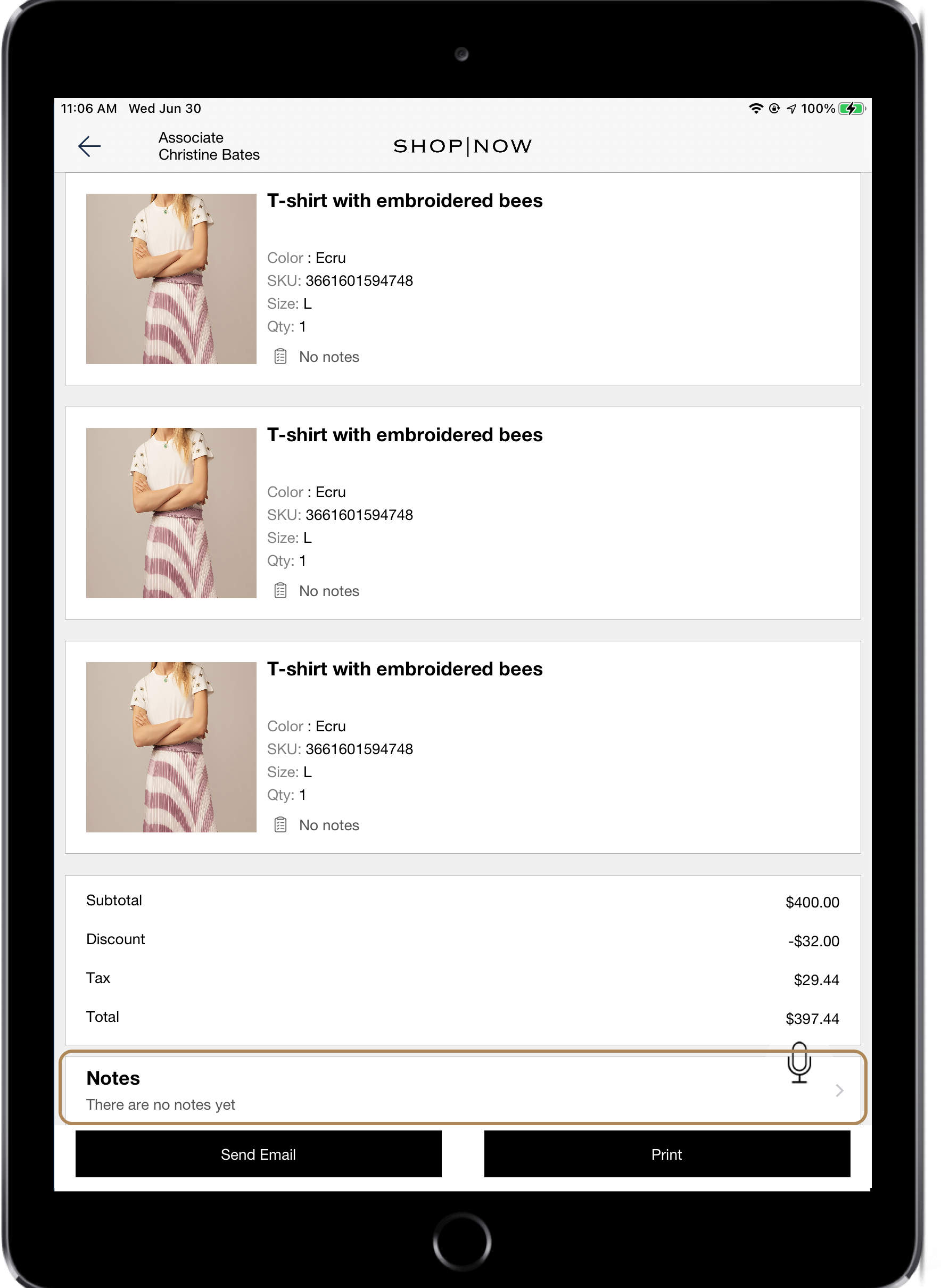
Notes are also visible when creating quotes. Once the store associate navigates to the
"Suspended carts" screen and creates a quote for an order, notes previously added to the cart
will be visible,
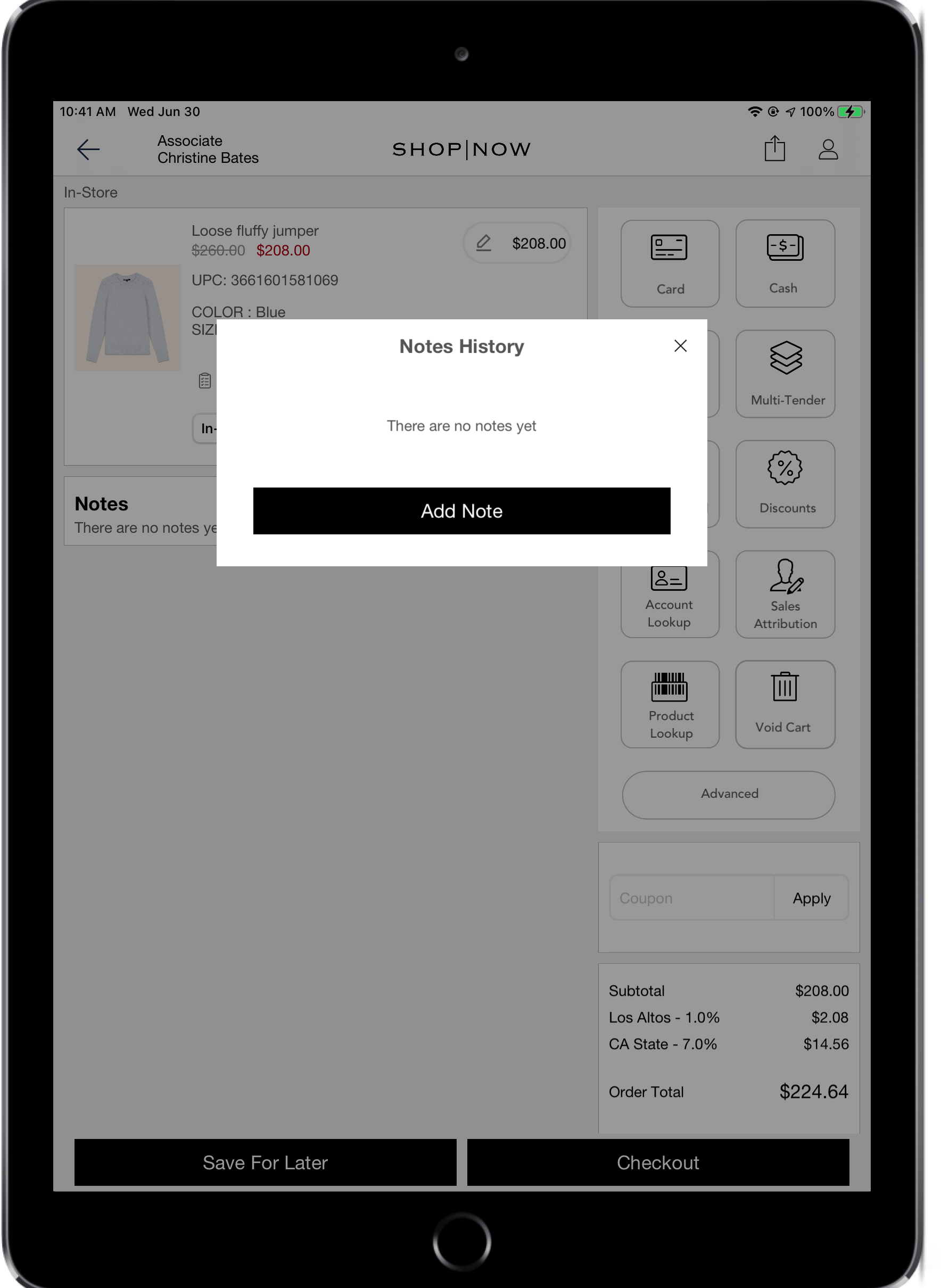
Update Notes
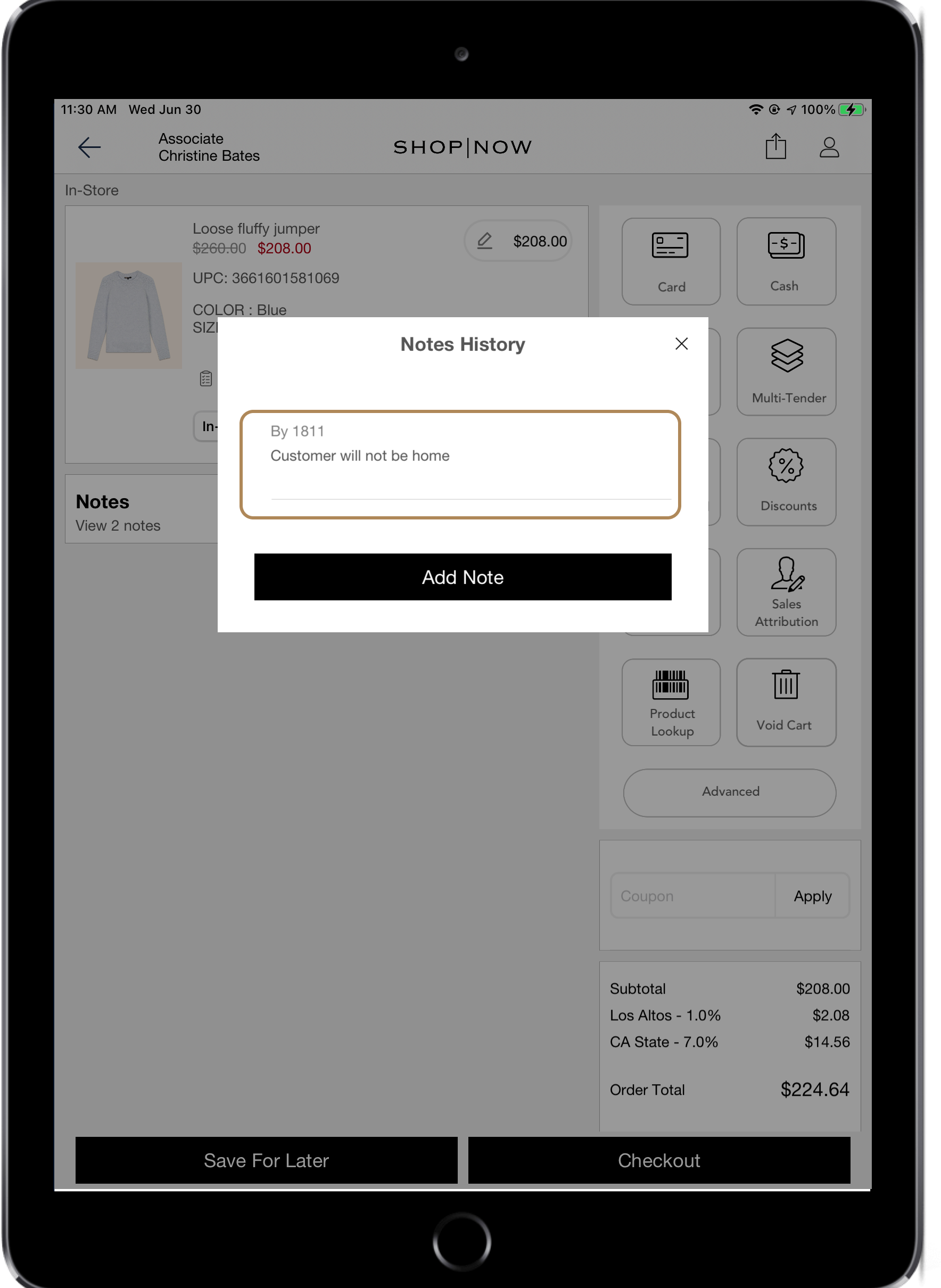
Notes can be updated during checkout and when viewing an already placed order.
To update a note, tap on the Notes label to view the notes. Then, tap on the note to be updated and enter the new text for the note.
Return / Exchange Notes
Similar to sales transactions, notes may be added to returns and exchanges at the order
level and product level. When a new cart is created for a return or exchange of an existing
sale order, the product and order notes from that sale order are carried forward to the new
cart. When exchanging an item, notes may be added separately to both the old and new
items.