
You are here:
Add Filters to a Data Lake Object
Use filters on the data lake object (DLO) field attributes to view region-specific or brand-specific data. Add the same DLO to multiple data spaces with different filters to segregate data.
Required Editions
| Available in: All Editions supported by Data 360. See Data 360 edition availability. |
| User Permissions Needed | |
|---|---|
| To add filters to data lake objects: | Permission set:
|
- In Data 360, go to the Data Spaces tab.
- Select a data space.
- From the dropdown next to a DLO, select Set Filters.
- Click Add Filter.
-
Select an object, column, and operator, and enter a value to filter on. Nested
operators aren’t supported. Add filters only on non-key qualifier text fields.
The available operators depend on the data type:
- Text: EQUALS, NOT EQUALS, IN, NOT IN, CONTAINS ANY
- Number: EQUALS, NOT EQUALS, IN, NOT IN, GREATER THAN, LESS THAN
- Date/DateTime: GREATER THAN, LESS THAN, LAST NUMBER OF DAYS
- Boolean: EQUALS, NOT EQUALS
 Note The CONTAINS ANY operator accepts multiple comma-separated values to identify partial or multiple matches. The resulting data includes only records where the field matches the full value or any individual token obtained after splitting the input by commas. Spaces are treated as literals. For example, a filter for
Biohealth, Systemsspecifically searches for those exact strings, including any leading or trailing spaces.Note When you select a value in a DateTime field, the value saves in your Salesforce org's time zone, not converted to GMT. For instance, a selection of '2025-09-09 7:30 PM' in a GMT-7:30 time zone saves as '2025-09-09 19:30', not '2025-09-10 03:00' (GMT).Filters don’t affect the total record count of a DLO and data stream.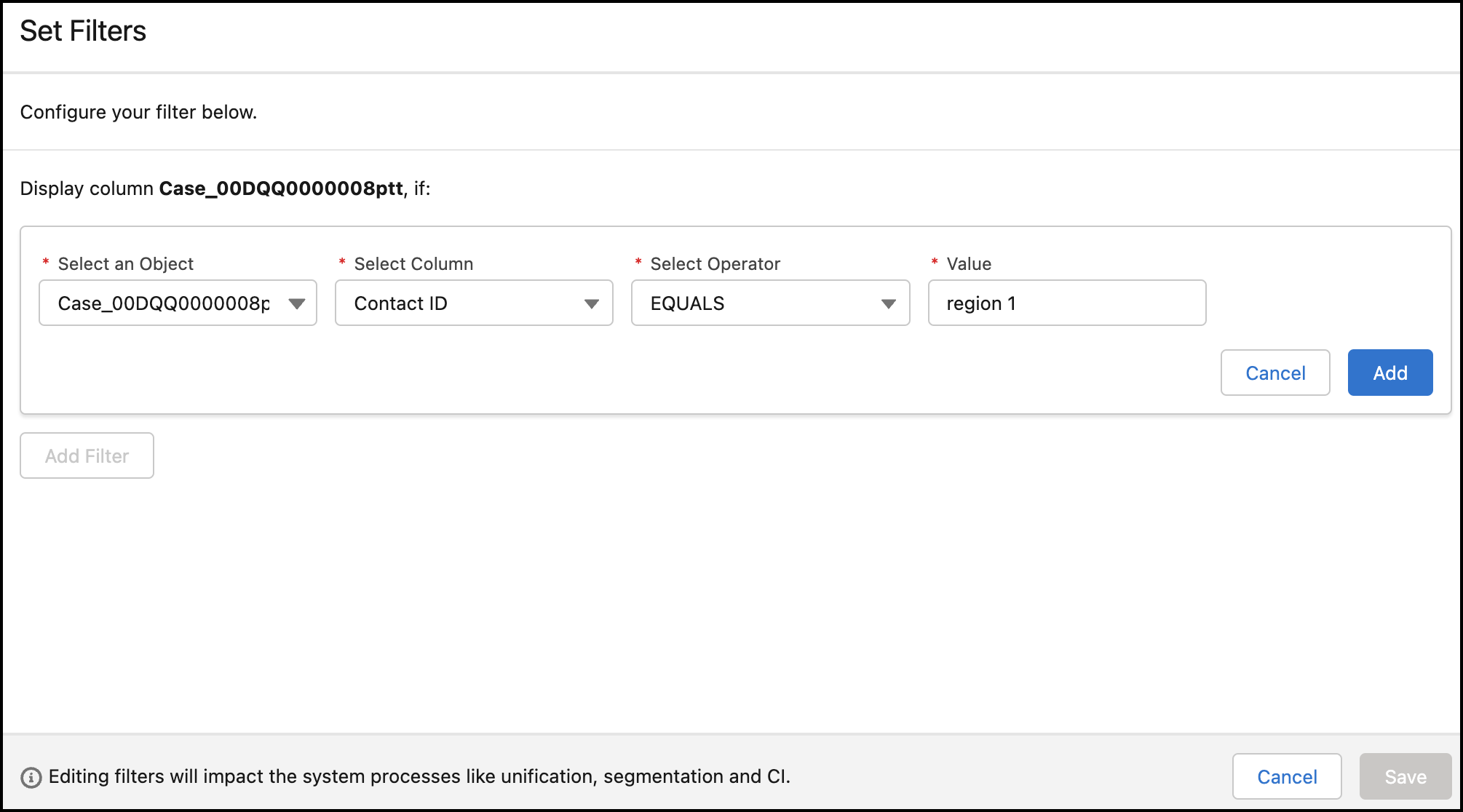
- Click Add, and then click Save.

Example
You have a Sales org with contacts from different regions connected to Data 360, and the contact DLOs are ingested with all the contacts. To segregate the contacts, you create region-specific data spaces, such as Region 1 and Region 2, and associate the contact DLOs to these data spaces by adding two different filters. For both filters, select Region for the column and EQUALS for the operator. Enter Region 1 as the value for the first filter and Region 2 as the value for the second.
Did this article solve your issue?
Let us know so we can improve!
