
You are here:
Add a Foundation Model
Adding a foundation model in AI Models (formerly Einstein Studio) establishes an endpoint connection between the external model provider and Salesforce. After you connect the model, create a new model configuration and evaluate your model’s response to custom prompts.
Bring Your Own LLM (BYOLLM) supports Amazon Bedrock, Azure OpenAI, OpenAI, and Vertex AI from Google as foundation model providers. Use the Connect to your LLM option to use the LLM Open Connector, which enables you to connect the Einstein AI Platform to any language model hosted on major cloud platforms or hosted by you.
To add a foundation model, Einstein Generative AI must be enabled in your org. For more information, see Set Up Einstein Generative AI in Salesforce Help.
To connect to a model endpoint, you need its URL and authentication information. Find these details on the provider’s dashboard.
For LLM Open Connector, the URL must end with /chat/completions. If the URL path doesn’t satisfy this requirement, Open Connector automatically appends /chat/completions to the URL path.
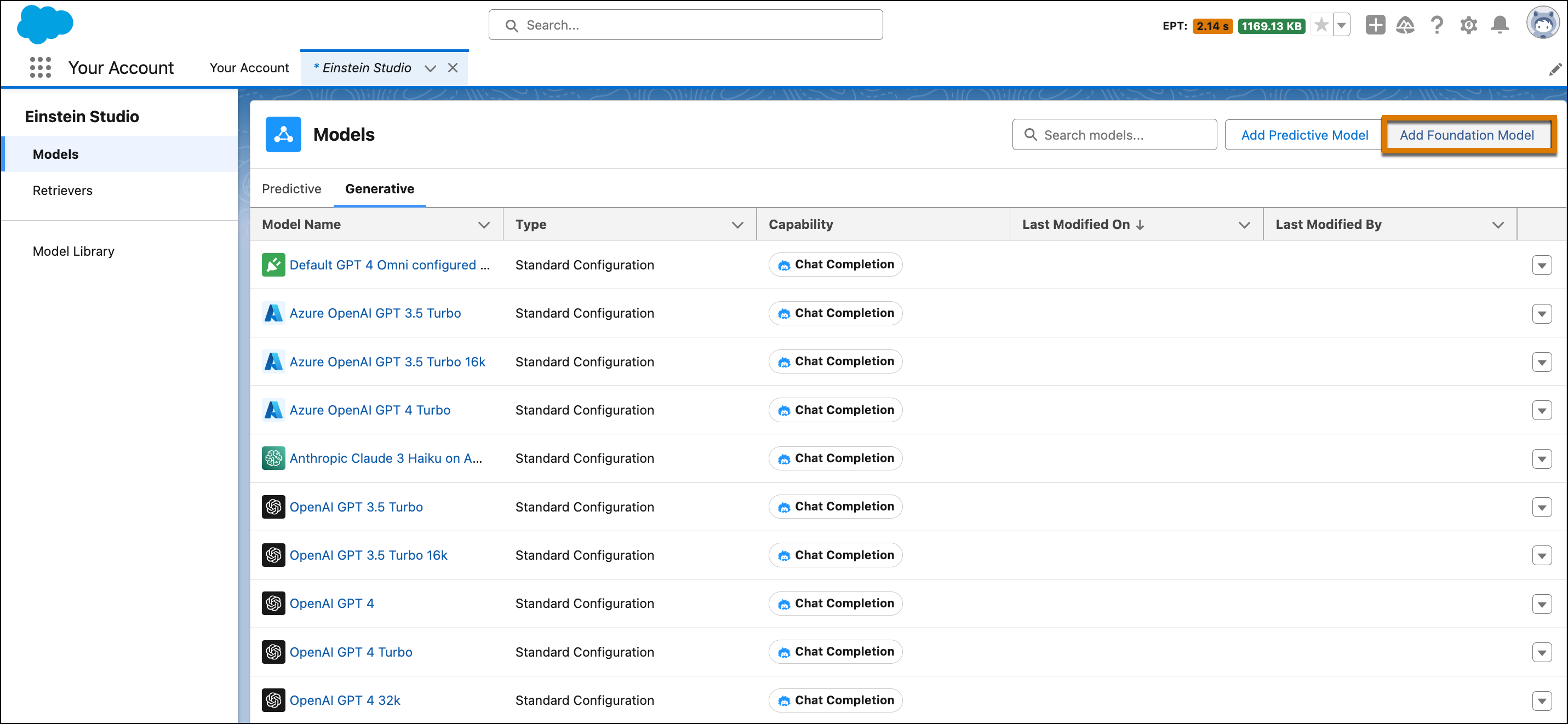
- In AI Models, go to the Generative tab.
-
Click Add Foundation Model.
-
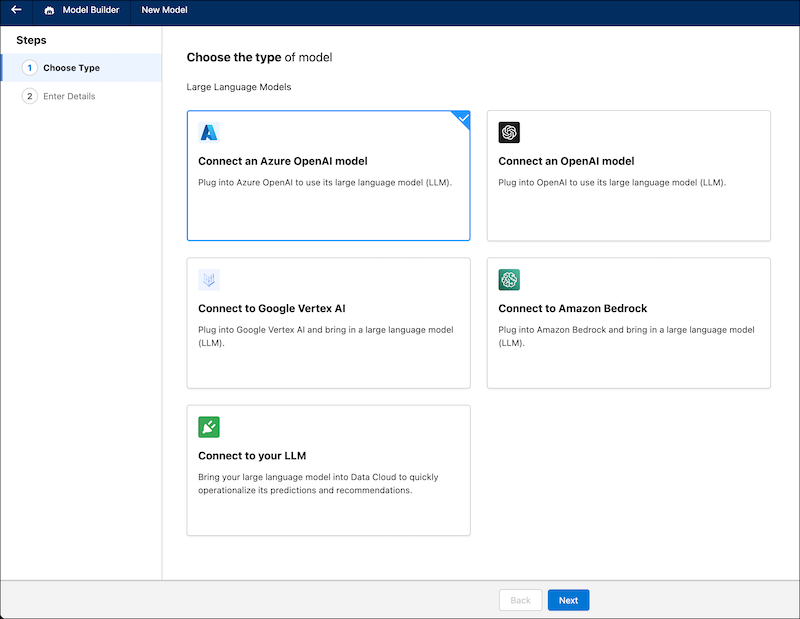
Select the type of foundation model that you want to connect, and click
Next.
-
Connect to the model endpoint.
-
Enter the endpoint name and URL.
 Note To connect to a remote model endpoint, a standard HTTPS 443 port is required.
 -
Enter your authentication details.
If you’re bringing your own Azure Open AI model, you can select OAuth and select a named credential. To learn more, see Salesforce Help: Create Named Credentials and External Credentials.
-
Enter the model information.
If you’re connecting an Azure Open AI model, enter the Azure deployment. You can find this information on the Azure OpenAI Dashboard in Deployments. If you’re connecting an OpenAI fine-tuned model, select Yes when prompted during setup.For details about the supported models, see Large Language Model Support.
- Click Save & Test.
- Enter the exact name of the model that you want to connect.
- Click Connect.
- Enter a name for your model, and then click Name and Connect.
-
Select the model version.
You may see references to “recitation” in your model’s generated text response to a prompt. For more details, see Google Gemini API Reference.
-
Select the model type.
For Amazon Bedrock, use Anthropic. For a list of models, see Large Language Model Support.
-
Enter the endpoint name and URL.
- To use your foundation model, go to the Foundation Model tab and configure it.
