You are here:
Use the Predictive Model Agent Reference Action to Enhance Predictions
For an AI agent to provide and interpret outputs from a predictive model, you must create a custom agent action in your org. Let's look at how Agentforce can enhance predictions from a Predicted Attrition model that was created in Model Builder.
Required Editions
| Available in: All Editions supported by Data 360. See Data 360 edition availability. |
For editions and permissions needed to create a custom agent action, see Agent Actions.
| USER PERMISSIONS NEEDED | |
|---|---|
| Allow users to manage models in AI Models | Enables you to create, update, and delete models in AI Models. |
| PERMISSION SETS | |
|---|---|
| Data Cloud Architect | Admin-level access to all AI Models features, including the ability to create, update, delete, and activate models. |
| Data Cloud User | Restricted access to use a model, including getting predictions and improvements derived from a model. |
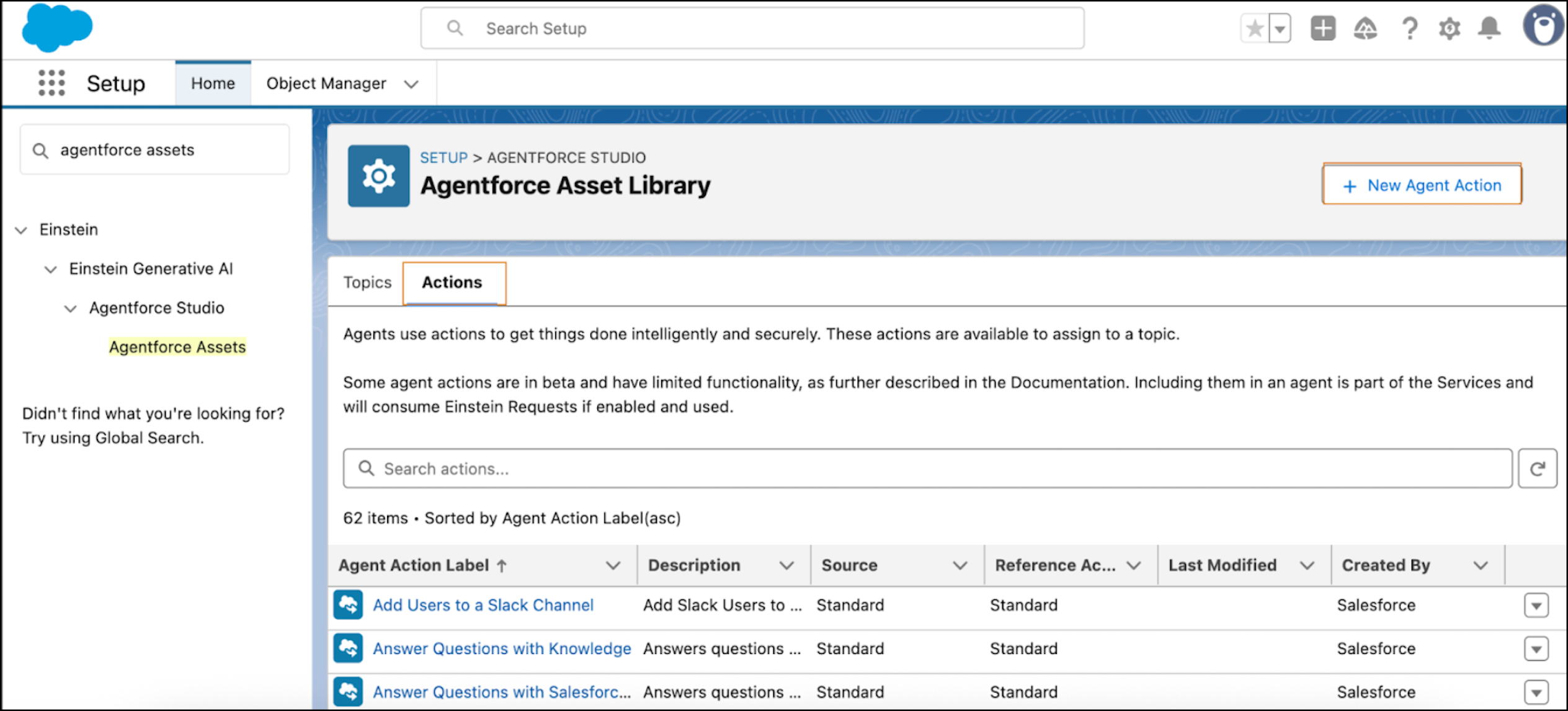
- From Setup, search for and select Agentforce Assets.
-
Go to the Actions tab and click New Agent Action.
-
Select the Predictive Model reference action type.
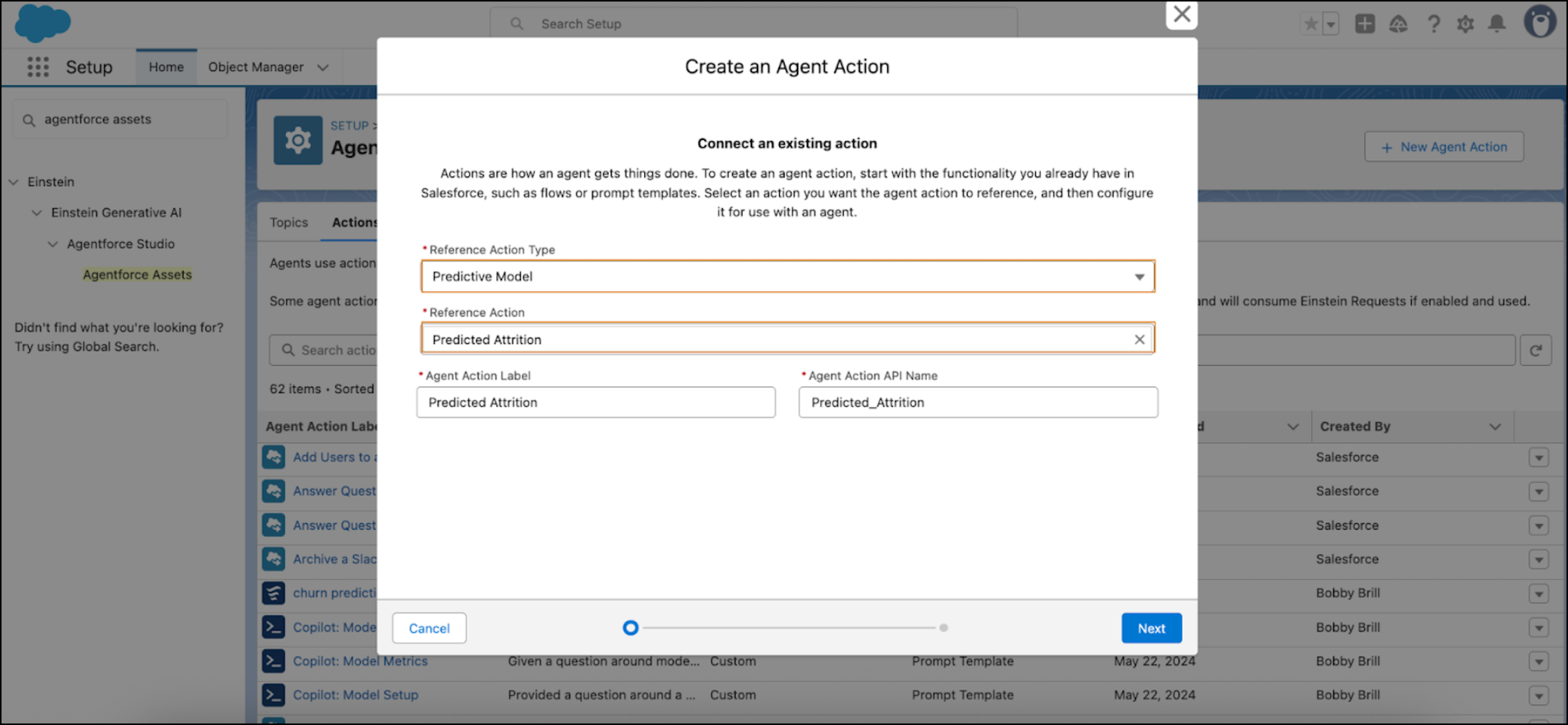
- For the reference action, select the model (Predicted Attrition) that you want the agent to provide predictions for. The agent action label and API name is autopopulated.
- Click Next.
-
Review and update the Predicted Attrition agent action. If needed, you can customize
the pre-populated text.
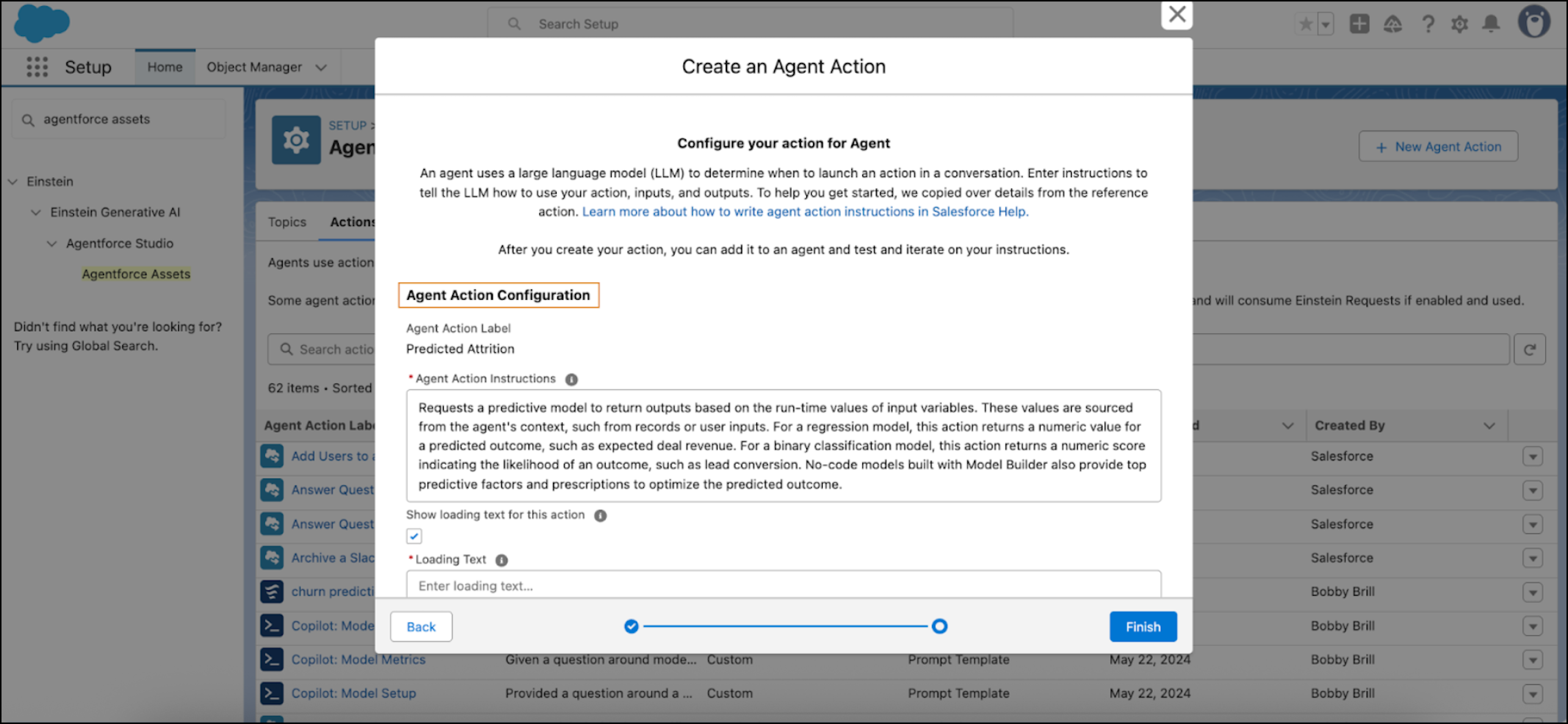
-
Agent Action Instructions (pre-populated text):
Requests a predictive model to return outputs based on the run-time values of input variables. These values originate from the agent's context, such as from records or user inputs. For a regression model, this action returns a numeric value for a predicted outcome, such as expected deal revenue. For a binary classification model, this action returns a numeric score indicating the likelihood of an outcome, such as lead conversion. No-code models built with Model Builder also provide top predictive factors and prescriptions to optimize the predicted outcome.
-
Inputs: Each field in the model schema is displayed as an input, and some fields
are model variables.
Autopopulated text is used for these model inputs.
 Note
NoteThe Require Input option is selected for all inputs except for Recommendations.
i. Top Predictors — specify the number of outputs. If no value is specified, the default is 3.
ii. Recommendations — specify the number of outputs. If no value is specified, the default is 3.
iii. Department — the model requires a value for Department. Get the value at run time from a record, a user conversation, or some other source.
iv. Daily Rate — the model requires a value for Daily Rate. Get the value at run time from a record, a user conversation, or some other source.
v. Age — the model requires a value for Age. Get the value at run time from a record, a user conversation, or some other source.
vi. Total Working Years — the model requires a value for Total Working Years. Get the value at run time from a record, a user conversation, or some other source.
vii. Years at Company — the model requires a value for Years At Company. Get the value at run time from a record, a user conversation, or some other source.
-
Outputs: Results provided by the predictive model.
Autopopulated text is used for these model outputs.
i. Top Predictors — represents the most important variables that influence a predictive outcome. The Output Rendering option is an Apex class type.
ii. Recommendations — represents actions that can improve a predicted outcome. The Output Rendering option is an Apex class type.
iii. Prediction — represents a prediction. The meaning of the value depends on the model type. The Output Rendering option is a decimal.
- When your agent action settings are complete, click Finish. The Predicted Attrition action must be assigned to an active agent such as Predictive Assistant.
-
Agent Action Instructions (pre-populated text):
-
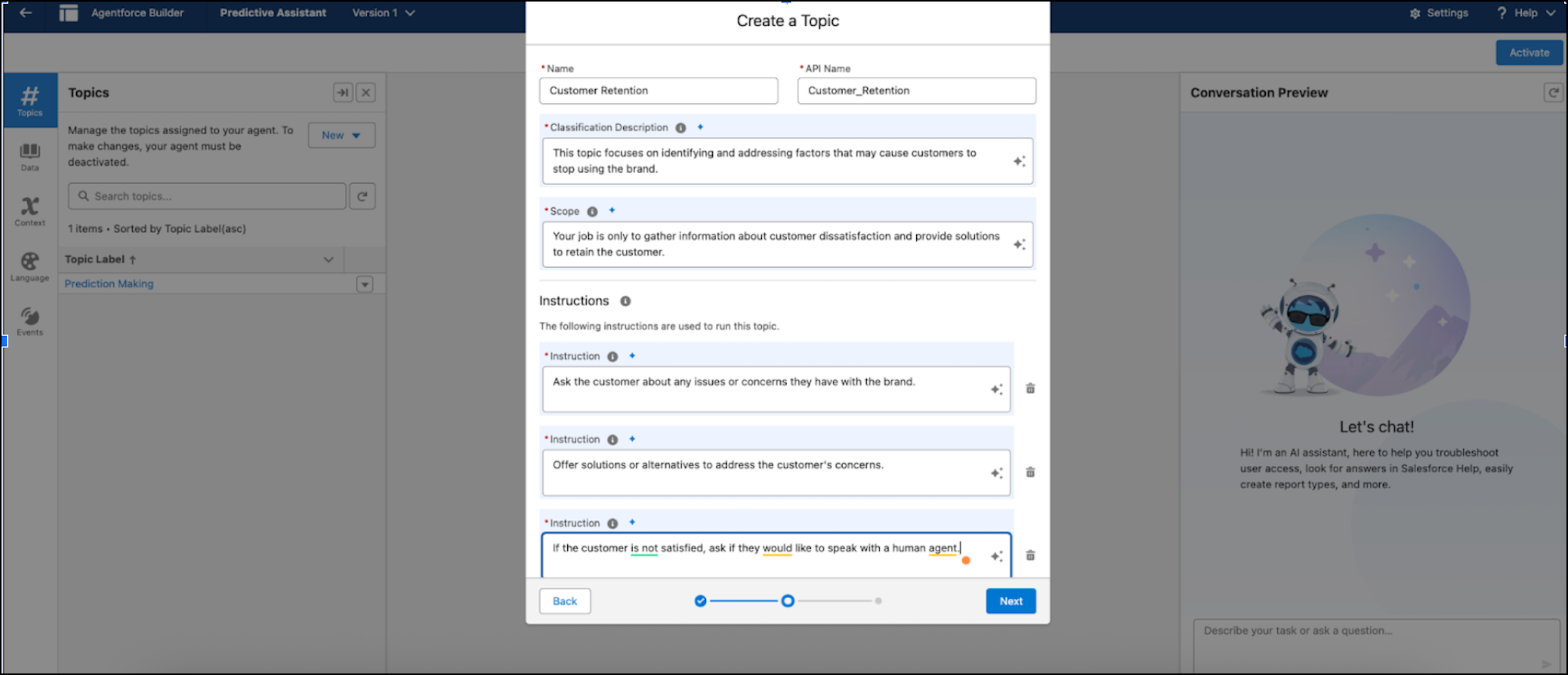
In Agentforce Builder, create a new topic to assign to an agent action based on the
model's outcome, and click Next.
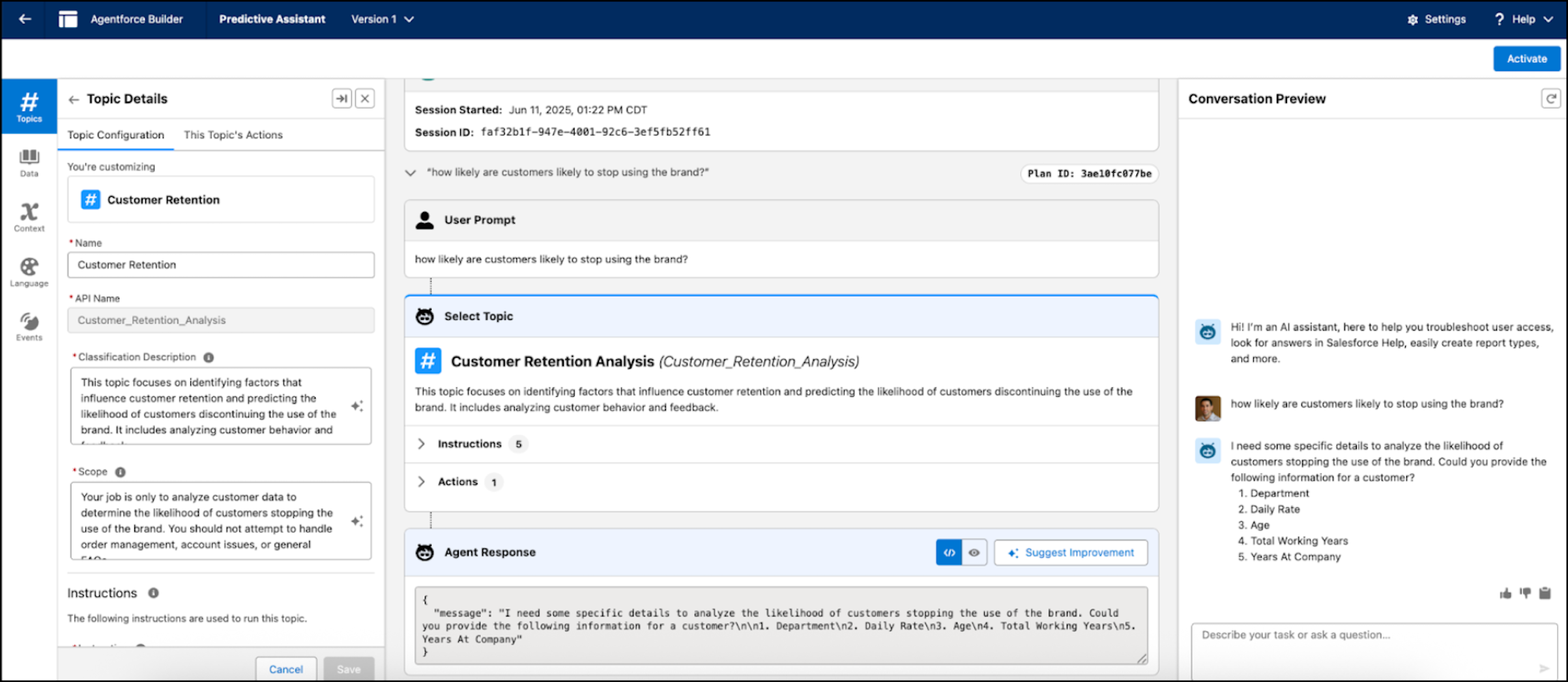
You can ask a question based on the model outcome, such as: what’s the likelihood that customers will switch brands?
- Review the autopopulated topic fields. Update the information as needed, and if you're satisfied, click Next.
- Click Finish to assign your agent action to the topic. Now you can use the action so the agent can provide responses from the model.
- Click the topic and use the conversation preview to post questions related to the model outcome.
- Activate the topic you’re satisfied with the responses provided by your agent.