
You are here:
Use a Record-Triggered Flow to Automate Actions when a Prediction Changes
Automatically perform actions when a record is created, updated, or deleted. Let's look at how to use a flow to create actions when a prediction score on a case updates and it exceeds the threshold, indicating a case escalation.
Before you create a flow, make sure your predictive model is activated in AI Models (formerly Einstein Studio).
- From Setup, in the Quick Find box, enter Flows, and then select it.
- Create a flow from scratch. Flow Builder launches.
- Create a record-triggered flow.
- Define the flow's object, trigger, and conditions. To queue records for processing even
if there are system delays, choose an asynchronous
path.
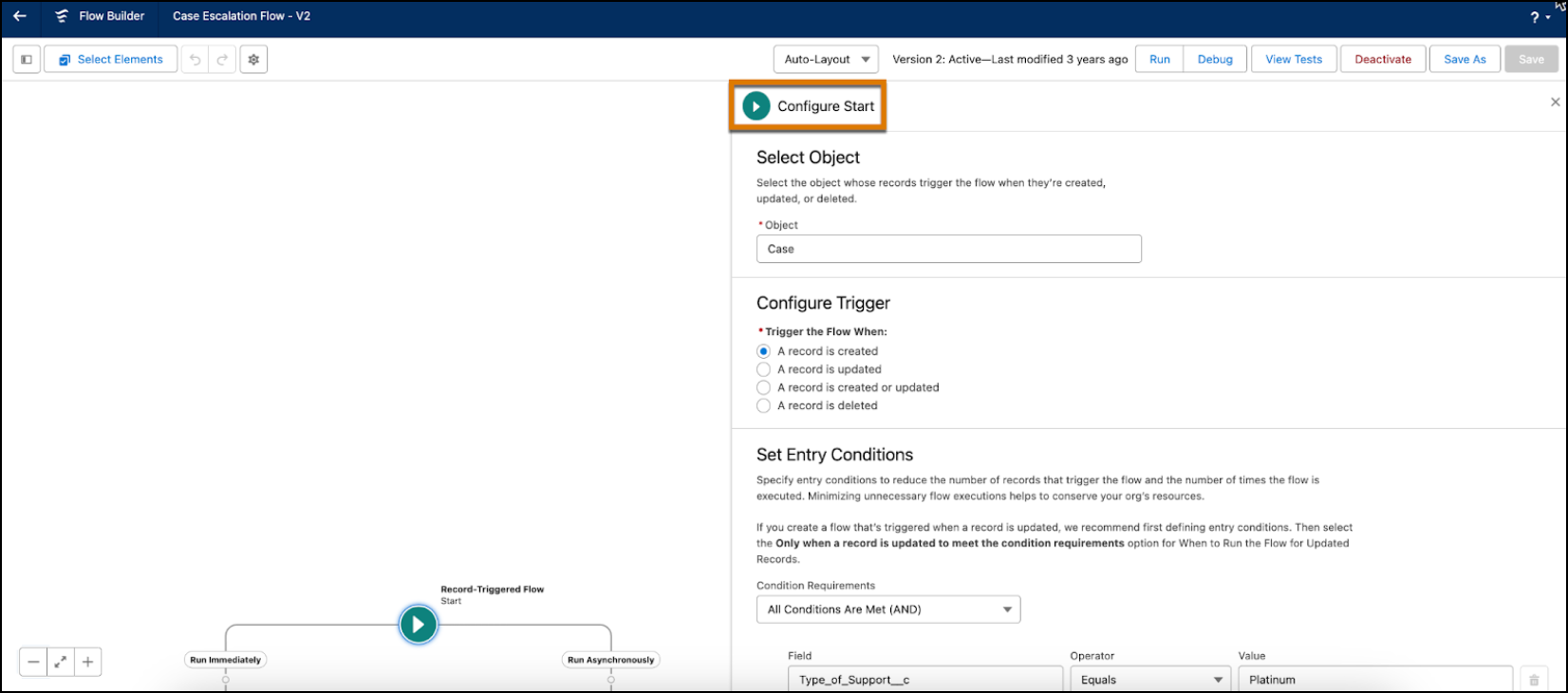 For example, you initiate the flow only for cases that are eligible for platinum support.
 - To assign values to variables in the flow, add the Assignment
element.
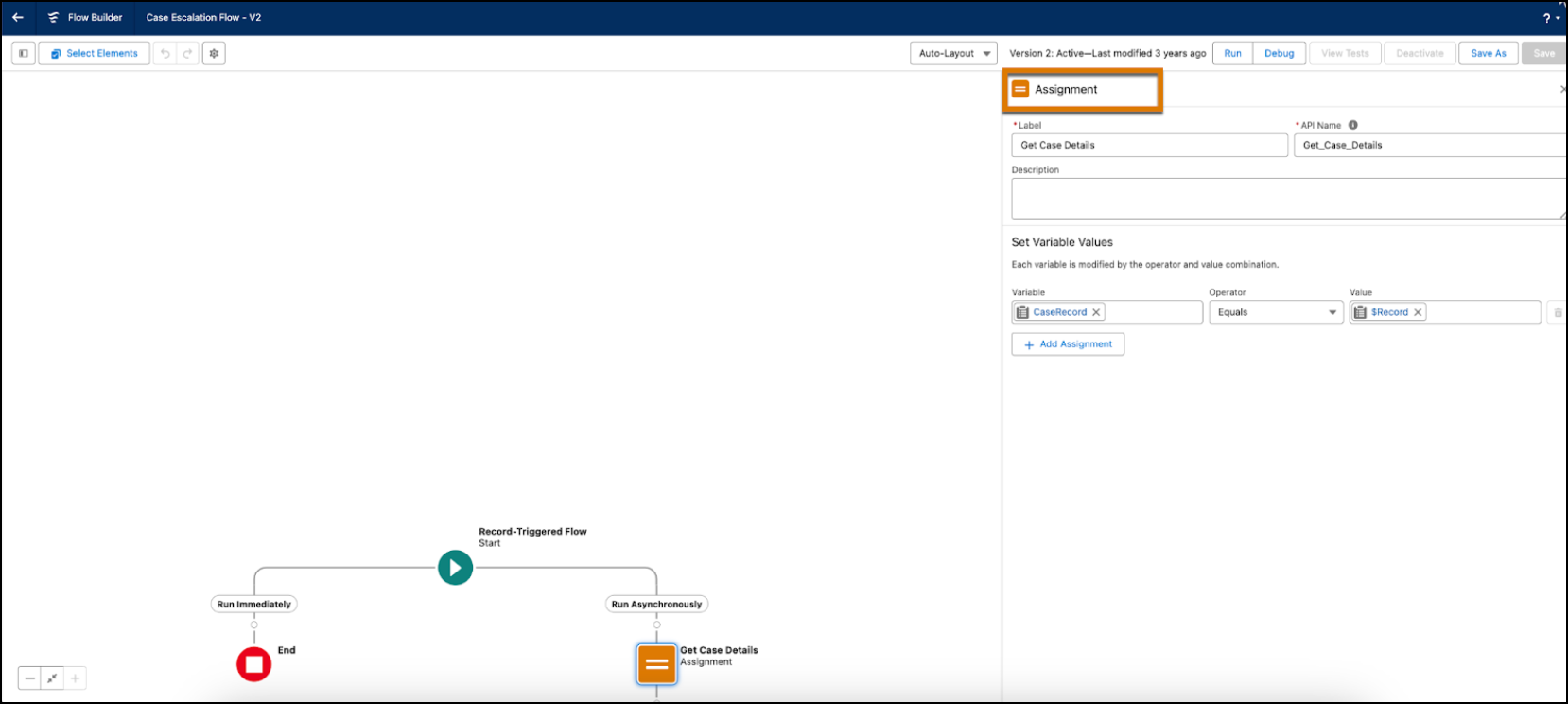 For example, to update values for a case record, specify the case record variable.
 - To get data from an object and the inputs required to run the model, add the
Get Records element.
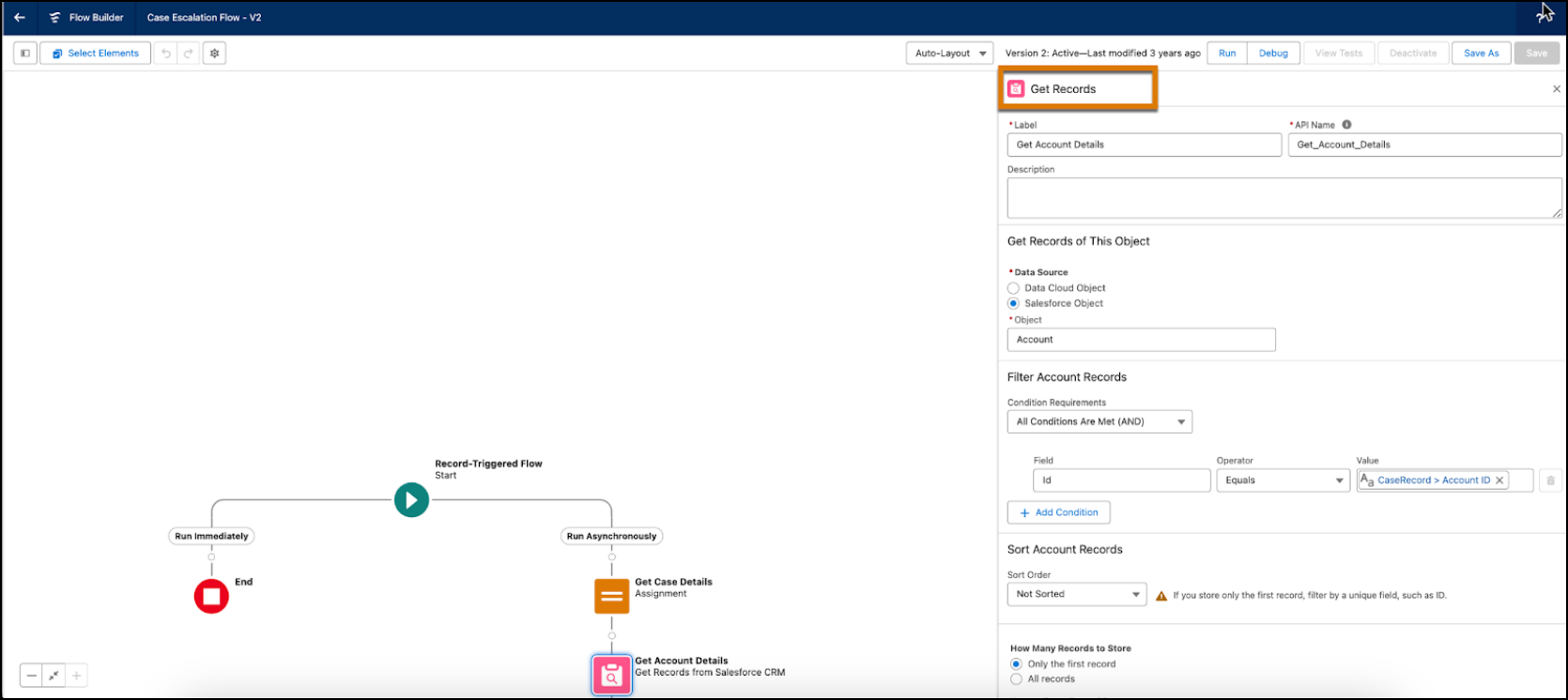 For example, get account records associated with a case using the Account ID.
 - Add the Action element, and choose the predictive model that you
want to use. Search for your model by its name or location in the Data Cloud action
category.
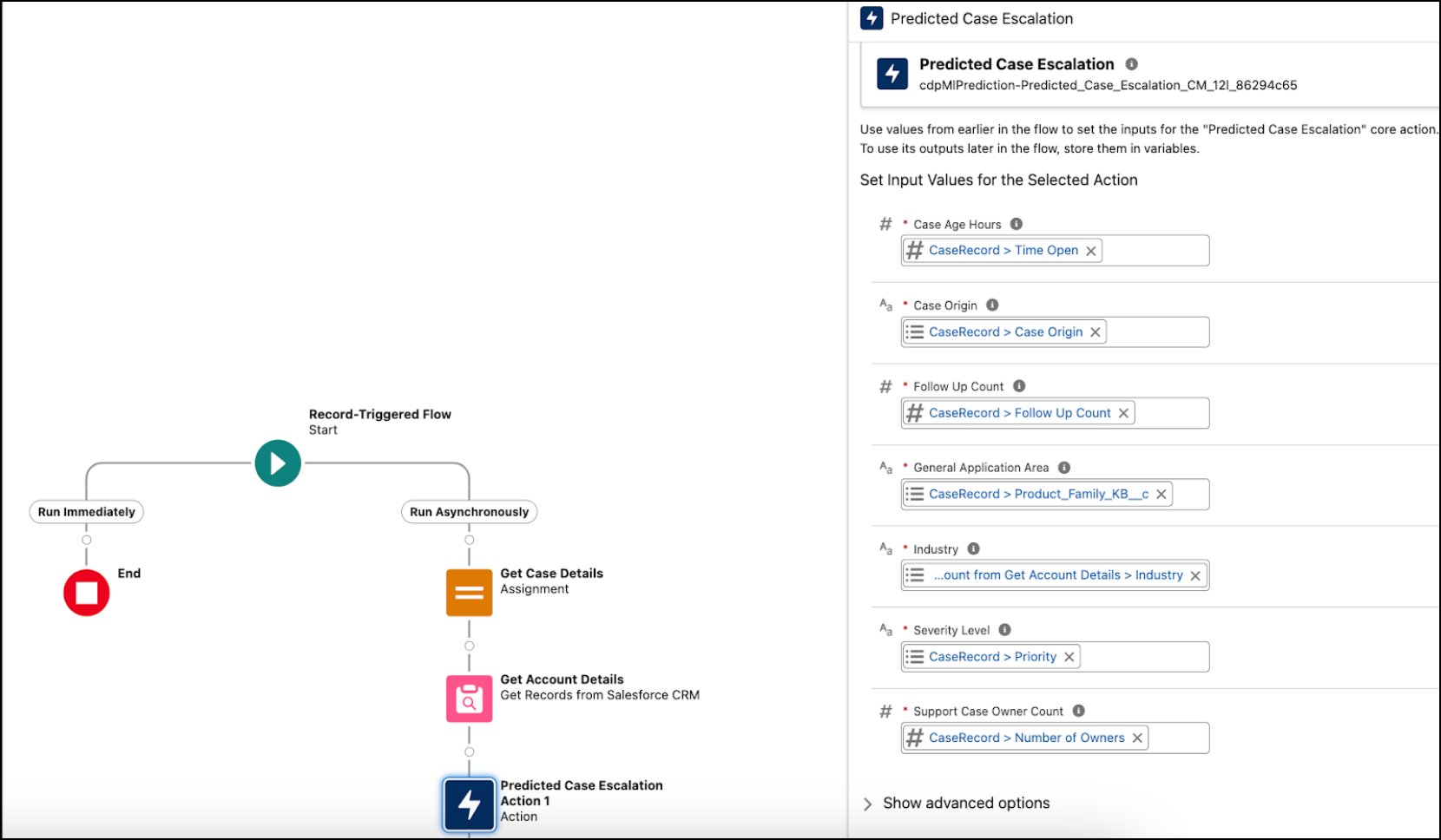 For example, "Predicted Case Escalation" to predict the likelihood of a case escalation.
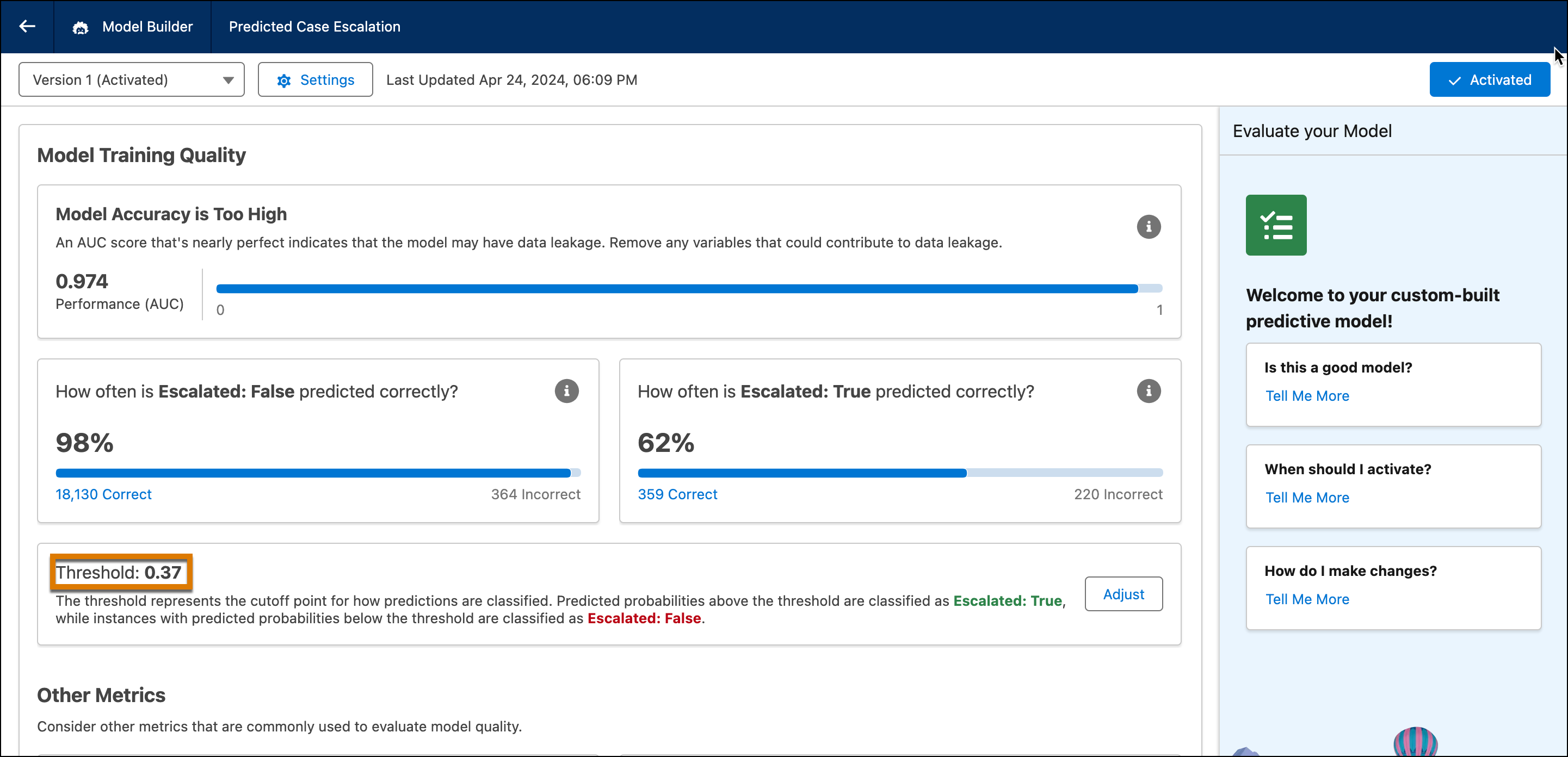
 - In the model inspector, get your model’s prediction threshold from AI Models.
- Use the Decision element to add possible outcomes.
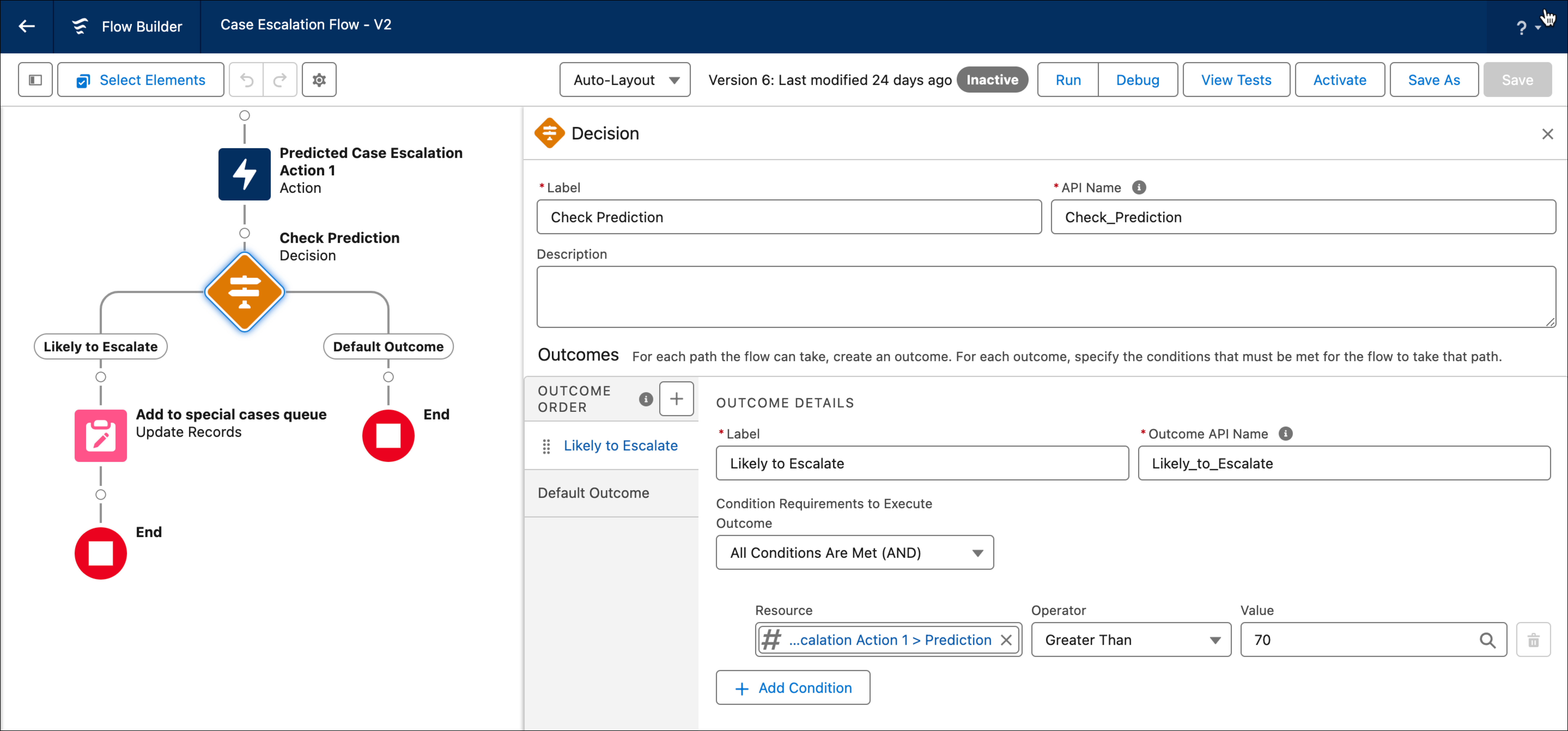 For example, if a case is likely to escalate, specify a Predict Case Escalation and the prediction score threshold. A record must exceed this value to initiate possible actions.
 - To receive notifications, add the Notify element.For example, email the account team handling the case on what measures to take to resolve the escalation.
- Save the
flow.
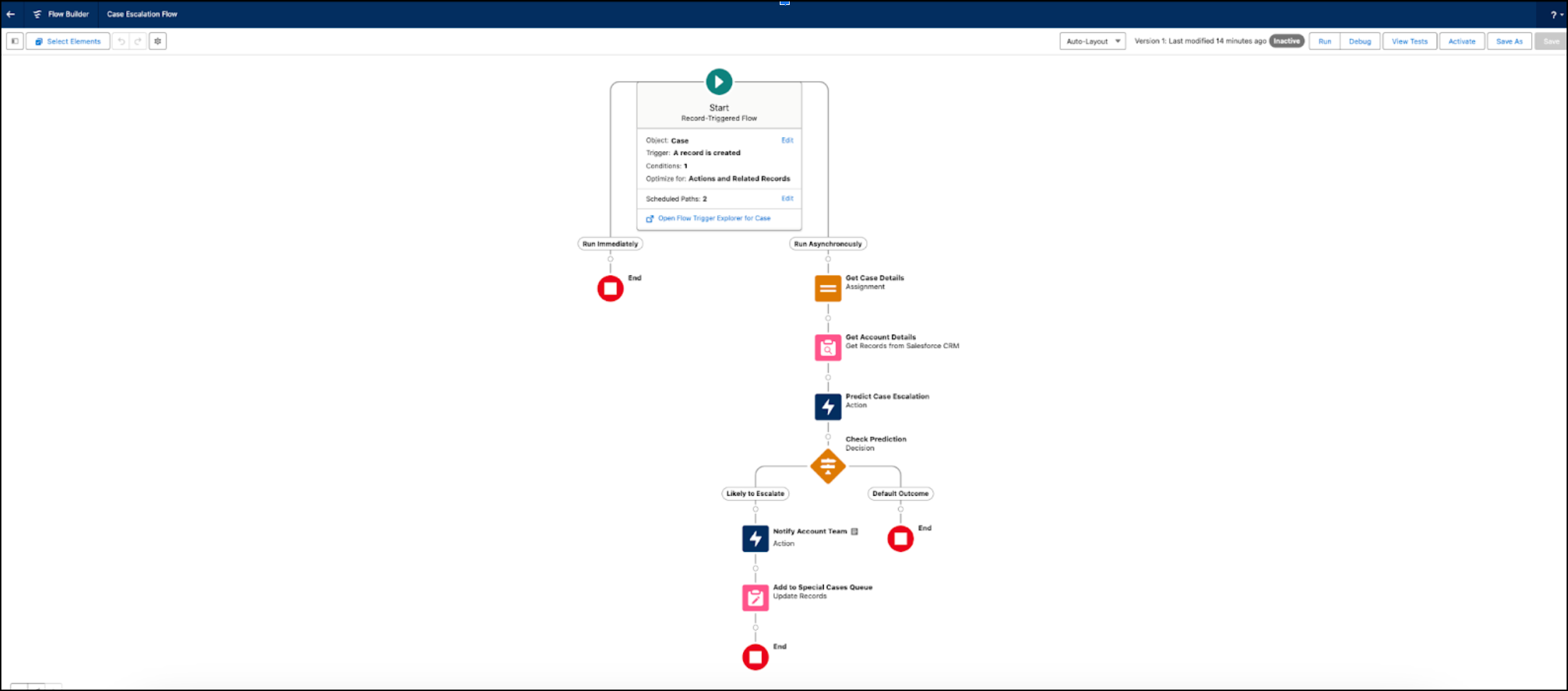
- After you test the flow, activate it.You can now automatically initiate actions when a prediction score changes on your case record.
Did this article solve your issue?
Let us know so we can improve!
