
You are here:
Use a Screen Flow to Enrich Records with Predictions
Create a screen flow to get records from Salesforce objects and add a prediction to a Lightning page. For example, you can add a lead conversion prediction score to a lead record.
Before you create a flow, ensure that your predictive model is activated in AI Models (formerly Einstein Studio).
- From Setup, in the Quick Find box, enter Flows, and then select it.
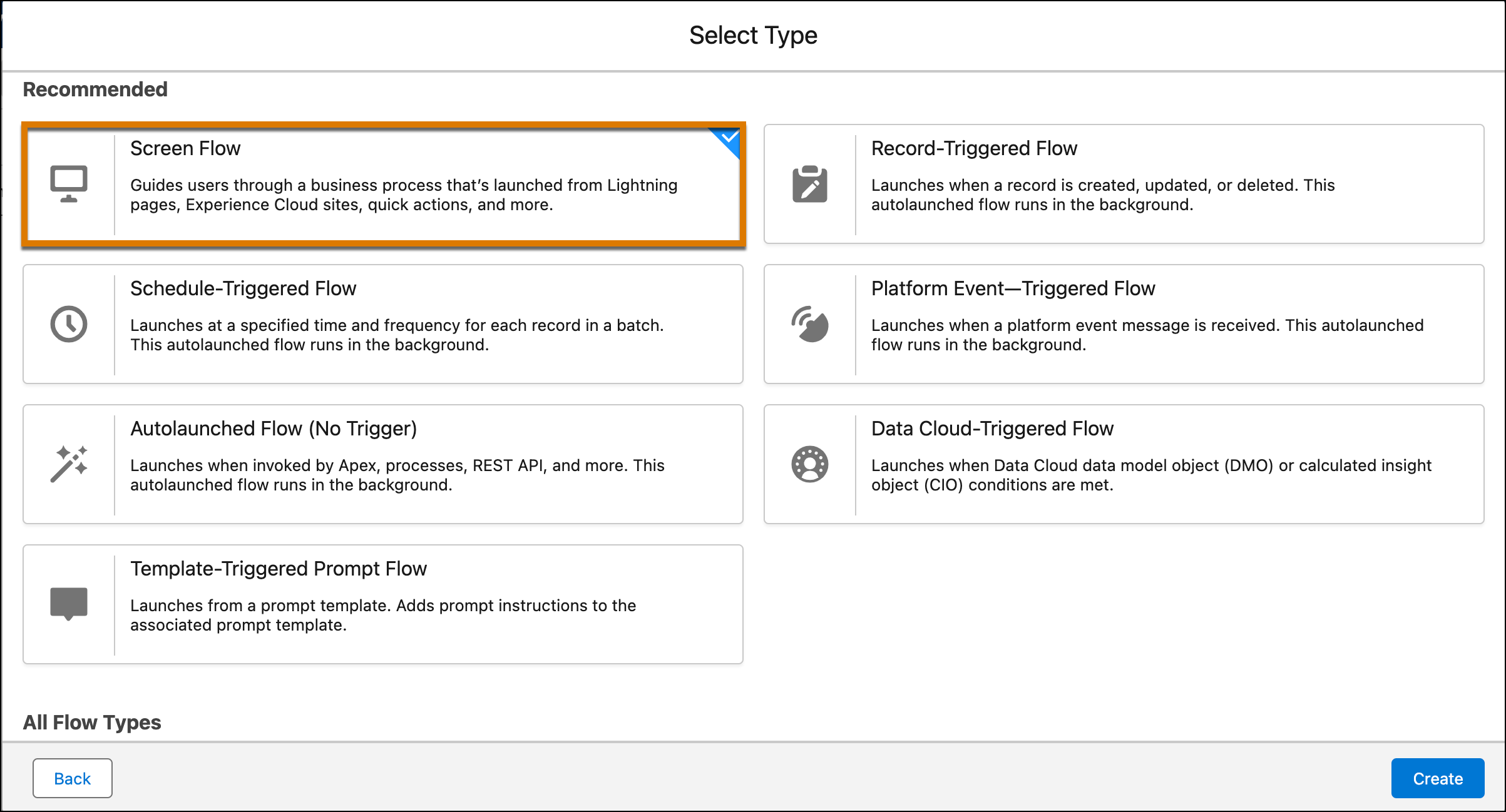
- Create a flow from scratch. Flow Builder launches.
- Create a screen
flow.
- To get the inputs required to run the model, add the Get Records
element.
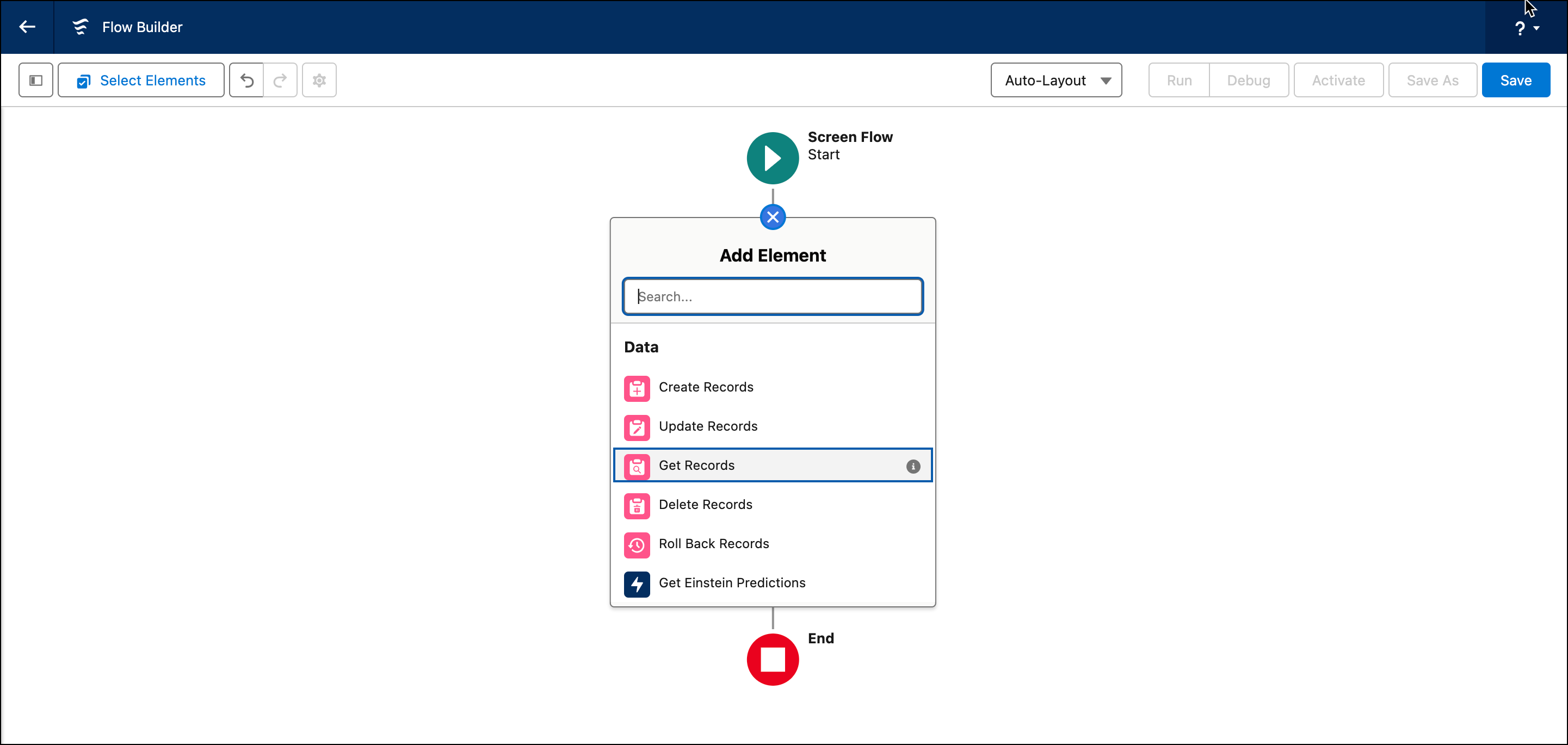 For example, to get leads records.
 - For the data source, add a Salesforce or Data 360 object. Enter a label, API name. In this case, select the Lead object.
- (Optional) Filter records based on a condition, field, operator, and
value.
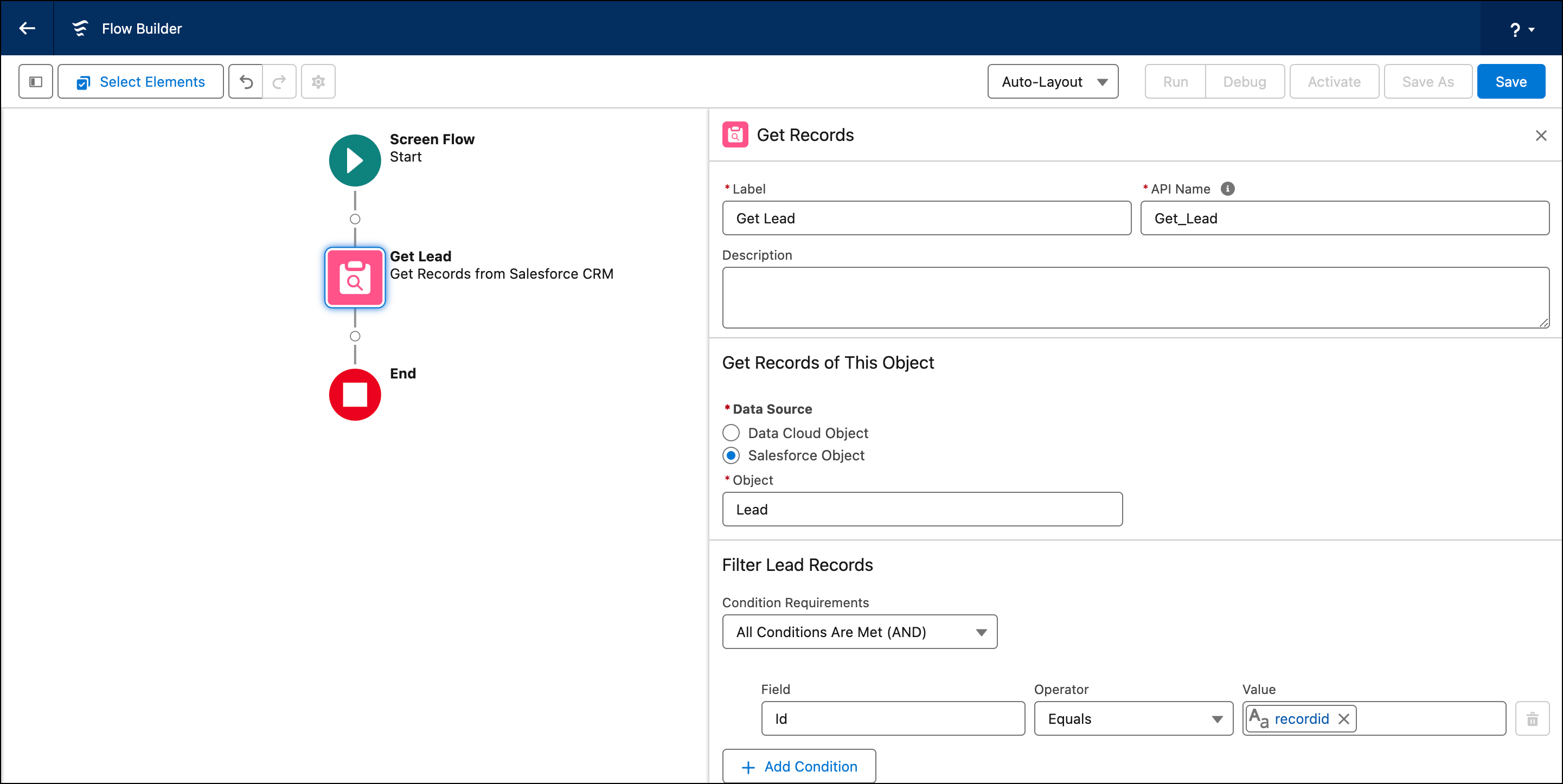 For example, to predict leads by record ID, filter your data by selecting All Conditions Are Met (AND), Field=Id, Operator=Equals, and Value=Resource (a variable named recordid).
 - To use data that resides elsewhere, add another Get Records element, and enter the information.
- Add the Action element, and choose the predictive model that you
want to use.
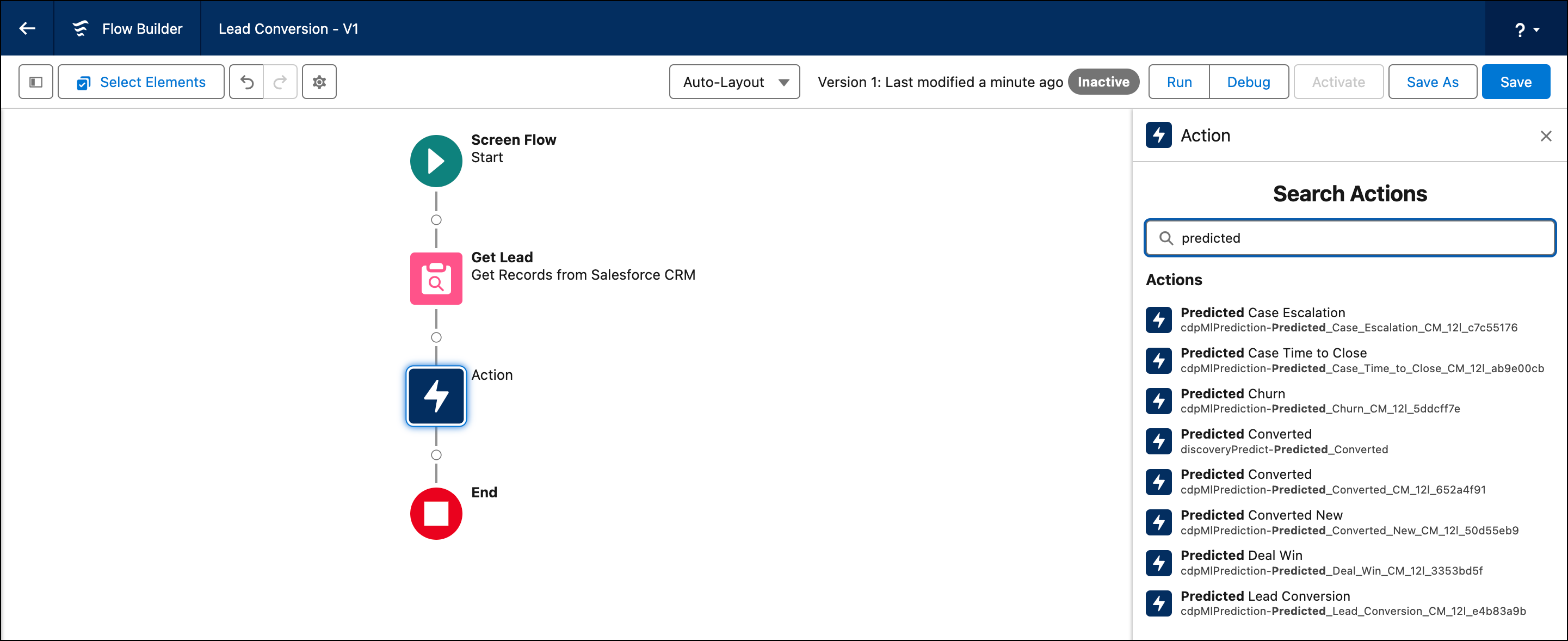 For example, "Predicted Lead Conversion."You can search for your model by its name or location in the Data Cloud action category.
 - Because your model needs inputs to generate predictions, map the relevant
fields.
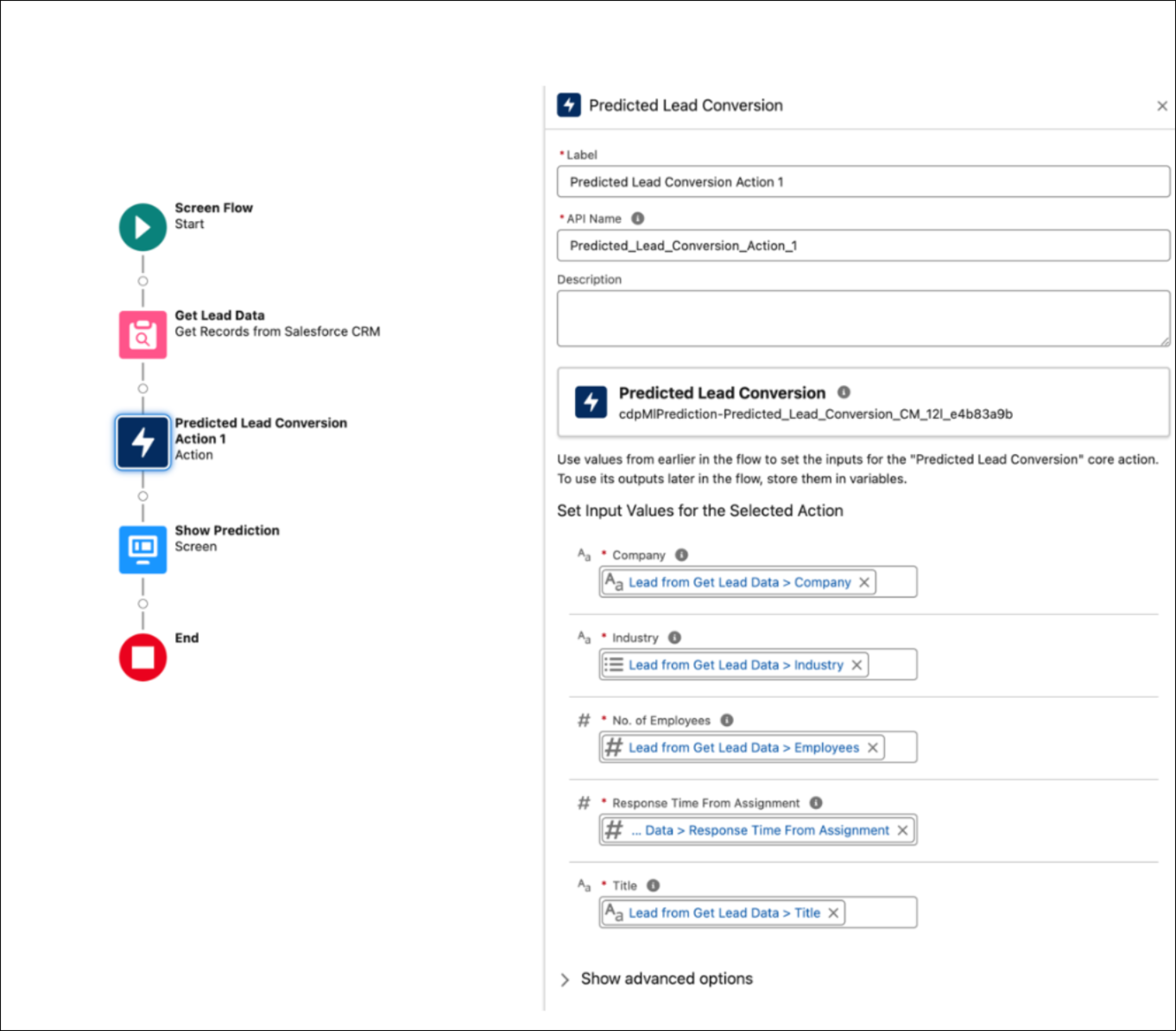 For example, use the fields from the lead object that match your model inputs.
 - After you configure an action, a resource {ActionName.Prediction} is available to use in the flow.
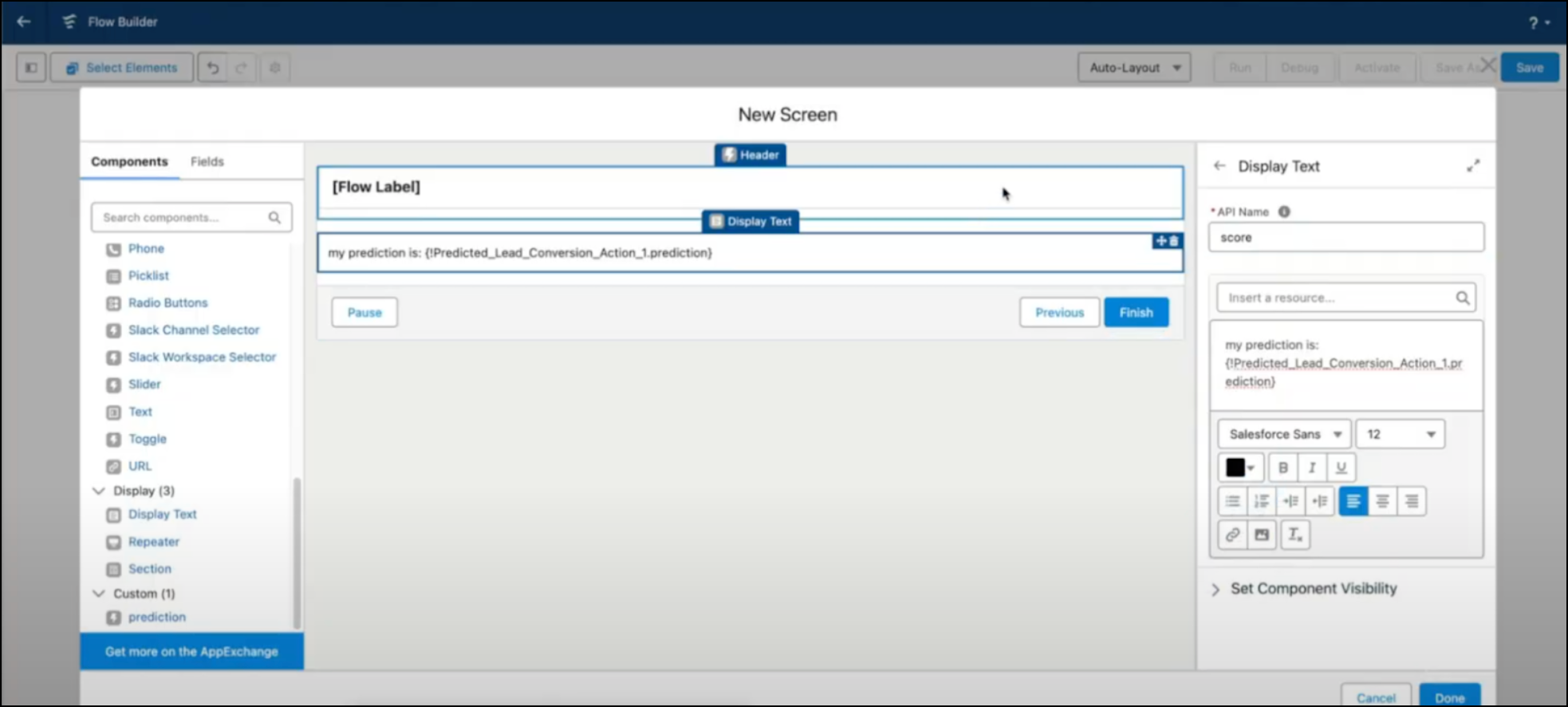
- To append a prediction score to your record page, add a screen interaction to the flow,
and enter a label, API name, and resource.For example, {!Predicted_Lead_Conversion_Action_1.Prediction}.
- Save the flow.
- Test the flow, and then activate it.
- To view leads in your org, go to the App Launcher and enter Marketing CRM Classic.
- Add the screen flow to a record page to show prediction scores on all leads records.
- Go to Setup, and edit the object in Object Manager.
- Use the Lightning Record pages to create a record page.
- On the Components tab, search for Flow, and drag the component to your preferred location on the object.
- Add the flow that you want to use on your object, and save to display the output from your flow.
Did this article solve your issue?
Let us know so we can improve!
