Refine Segments with Grouping, Ranking, and Limiting
In Data 360 Segmentation, after setting your initial criteria in the Include and
Exclude tabs, go to the Rank and Limit tab to further refine your segment. The first container is
automatically created and locked to your segment's primary entity. This container defines your
innermost filtering rule.
Drag an attribute into the container to define your grouping criteria and set the rule type
to Group By.
Drag a second attribute into the container to define your ranking criteria. Set the rule
type to Sort By and select a sort order.
Enter a number in the Maximum Records field to limit the records
selected from each group.
The maximum number of records allowed is 2 billion.
Click Add Ruleset to create a second, outer container that defines
the next layer of filtering.
In the new container, click the Object dropdown. The objects
available are determined by the Group By attribute used in the previous step. Select the
appropriate object for this rule.
Repeat the process of adding Group By and Sort By attributes and setting a maximum number
to limit the records for this new group.
Continue adding rule sets as needed for each layer of filtering.
Click Done.
Example
First, let's create a segment that selects only the top two contacts from
each account based on their authority level. This is useful for targeting key
decision-makers.
In your first container:
Set the Maximum number of Account Contacts to 2.
For the Group By rule, use the Account ID
attribute. This groups all contacts by the account they belong to.
For the Sort By rule, use the Authority Level
attribute and set the order to Descending. This ranks the contacts within each account.
This single rule set limits the segment to only the two highest-ranked contacts
from every account that meets your Include criteria.
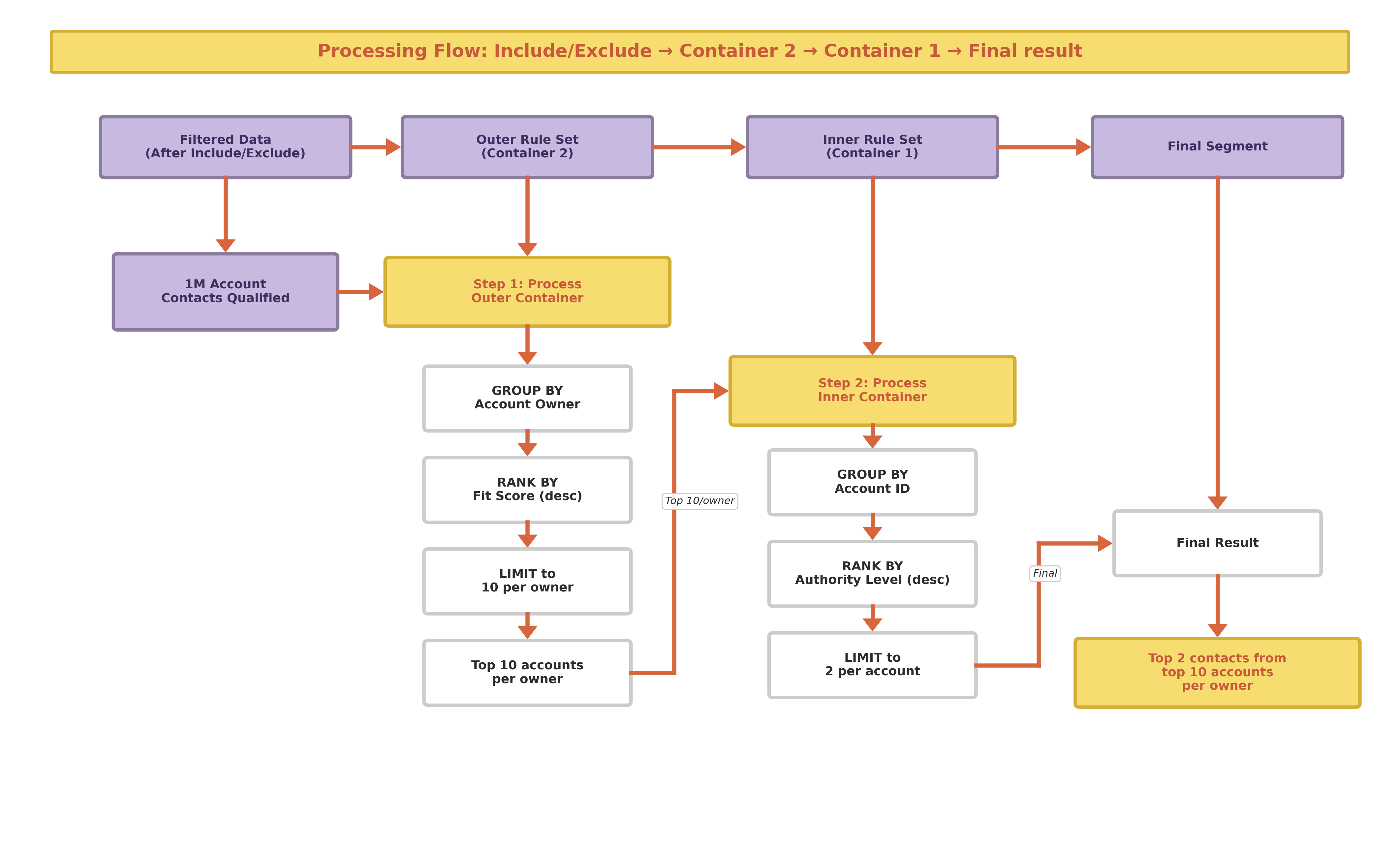
Now, let's extend the example. Before
finding the top contacts, find the top 10 accounts for each account owner, based on a Fit Score.
This creates a targeted list of the most important contacts from the most promising
accounts.
Add a second container (the outer rule):
Select the Account object from the dropdown.
Set the Maximum number of Accounts to 10.
For the Group By rule, use the Account Owner
attribute.
For the Sort By rule, use the Fit Score
attribute and set the order to Descending.
Click Save.
When you save, as illustrated, Data 360 finds the top 10 accounts for each owner,
and then selects the top 2 contacts from each of those accounts.
Did this article solve your issue?
Let us know so we can improve!
Loading
Salesforce Help | Article
Cookie Consent Manager
General Information
Required Cookies
Functional Cookies
Advertising Cookies
General Information
We use three kinds of cookies on our websites: required, functional, and advertising. You can choose whether functional and advertising cookies apply. Click on the different cookie categories to find out more about each category and to change the default settings.
Privacy Statement
Required Cookies
Always Active
Required cookies are necessary for basic website functionality. Some examples include: session cookies needed to transmit the website, authentication cookies, and security cookies.
Functional Cookies
Functional cookies enhance functions, performance, and services on the website. Some examples include: cookies used to analyze site traffic, cookies used for market research, and cookies used to display advertising that is not directed to a particular individual.
Advertising Cookies
Advertising cookies track activity across websites in order to understand a viewer’s interests, and direct them specific marketing. Some examples include: cookies used for remarketing, or interest-based advertising.