
You are here:
Categorize Text Column Values into Buckets
Use a column field to categorize and organize text values, including email, phone, and URL. For example, to group by region, you can create the buckets West, Central, and East.
- In the Transform node, select the dimension field in the Preview tab.
- In the Transform toolbar, click the Bucket button (
 ) to define the buckets.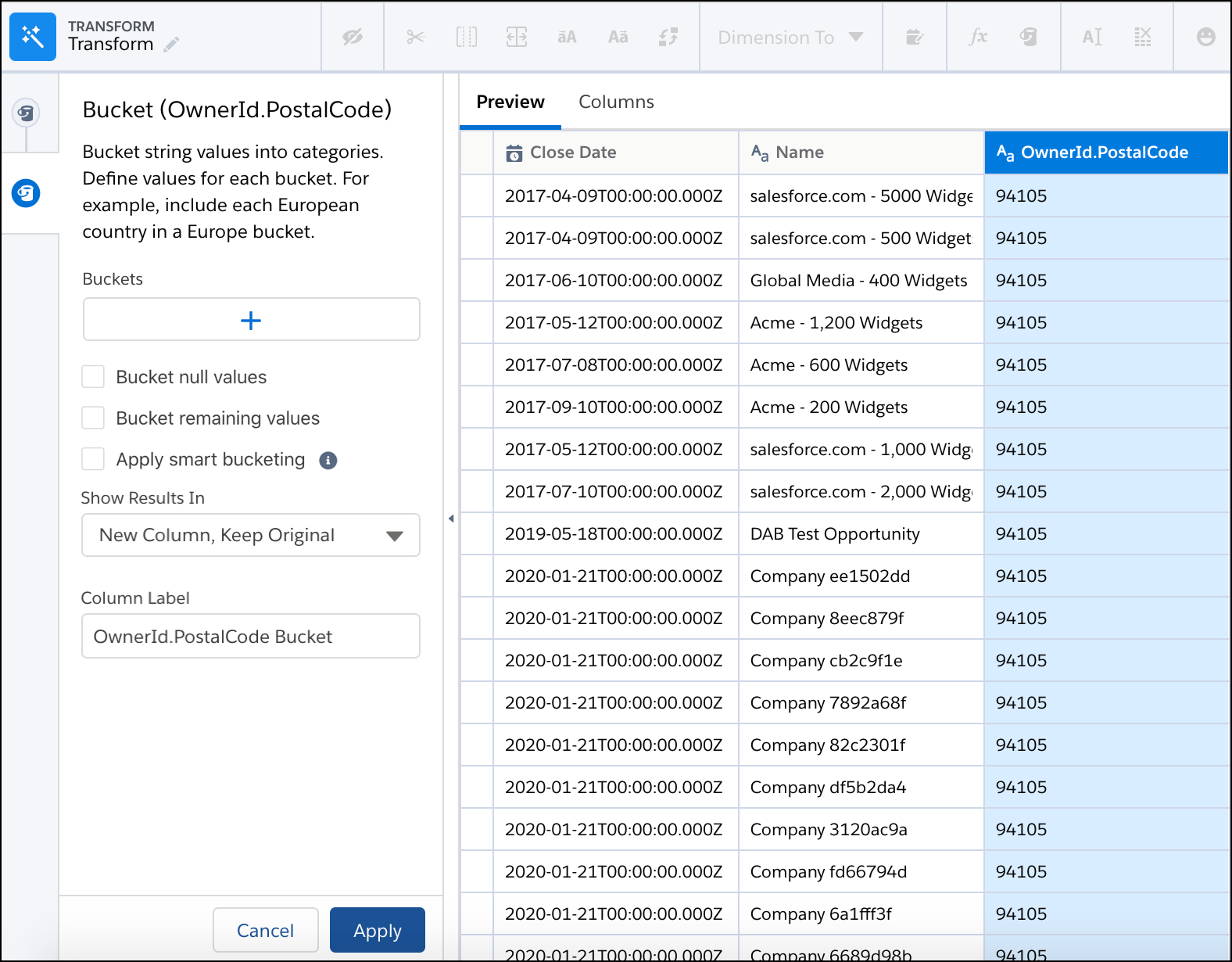
- Click
 .
. - Enter a label for the bucket.
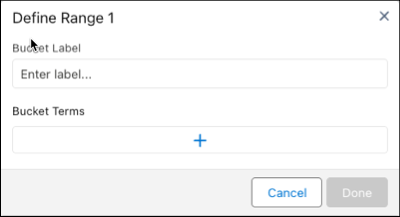
- In the Values Included in Bucket box, search for and select the values to be assigned to this bucket. If a value doesn’t appear in the list, adjust your sample size or refine your search. Then, click Add new value and enter the value.
- Click Add.
- To create more buckets, click and select a label and the values to assign to
the bucket.
- To place null values into their own bucket, select Bucket null values.
- To place values not otherwise bucketed together in a bucket, select Bucket remaining values then specify the name for this group.
- To bucket similarly spelled values together, select Apply smart bucketing. To change the edit distance, use the Distance Threshold slider. Einstein uses the Levenshtein distance for fuzzy matching. The default edit distance is set to 1, which means that a single-character edit is allowed for text matching. For example, with an edit distance of 2, variations such as flavor, Flavor, flavour, and flavors all can belong in the same bucket. By default, differences in uppercase and lowercase characters are ignored.
- Under Show Results In, select whether the buckets appear in a new field and what happens to the original field.
- If you elect to create a field, set the label under Column Label.
- Click Apply to add the transformation to the Transform node. The Preview tab shows the new bucket field.
- To view the canvas, click the Collapse button (
 ).
). - Click Save.
After you run the batch data transform, you can view the bucket assigned to each row in the bucket column.
Did this article solve your issue?
Let us know so we can improve!
