
You are here:
Formula Transformation: Create a Calculated Column Based on an Expression
Create a column that displays values based on a formula calculation. The calculation can include input from other columns in the same row or across rows. For example, you can create a Profit column based on input from Revenue and Cost columns. Enter formulas in SQL. SQL in Data 360 is a collection of standard and custom functions for numeric, string, and date data.
- In the Transform node, select the column in the Preview tab.
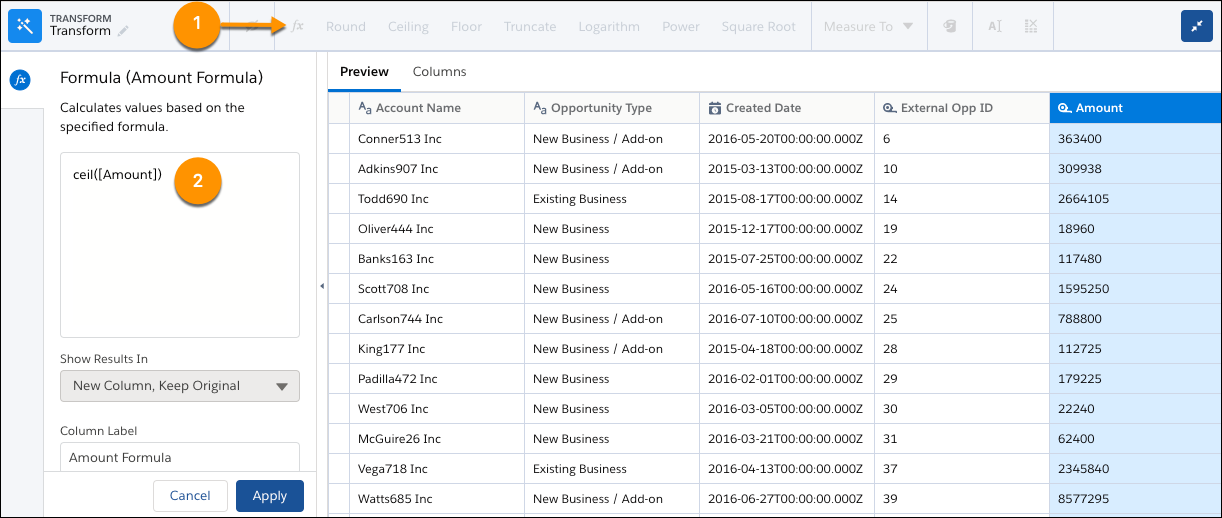
- To create the formula for the calculated column, select the
Formula
button (
 ) in the Transform toolbar and select Custom
Formula.
) in the Transform toolbar and select Custom
Formula. - In the formula editor, enter the formula and add parameters using the correct syntax.As you type in the formula editor, functions and columns matching the name appear for you to select to add to the formula.
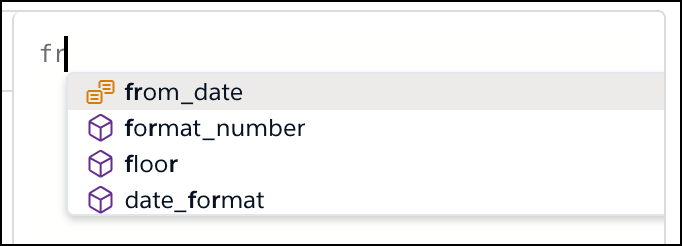
 Note The best practice is to use double quotes around all column names. For a value that is a string literal, use single quotes.
Double quotes are required when referencing dataset columns that share a name with reserved keywords.
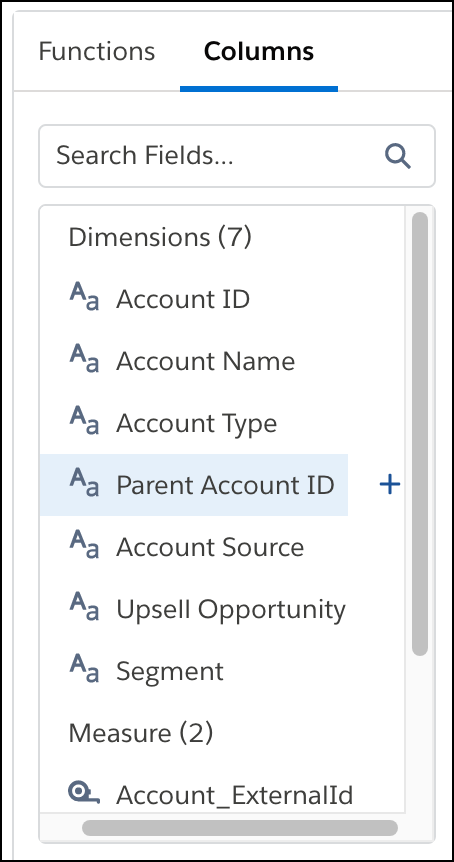
To get help, check out all functions and columns in the Functions and Columns tabs. To add one to the formula, select it and click +.
Functions are listed in the Functions tab by category: Window Functions, String Functions, Numeric Functions, Date/Time Functions, and Additional Functions. To view the window functions, enable Multiple row formula.
- For formulas with window functions, specify the column used to partition the rows in
Partition By, column used to sort the data in Order
By, and sort direction in Sort Direction.
For example, set Partition By to Opportunity Name, Order By to Last Modified Date, and Sort Direction to Ascending. Based on these settings, the transformation combines all records into partitions (think buckets) based on the same opportunity name. It then sorts the records in each partition in ascending order based on the last modified date.
- Identify each column in the formula by its API name. Type in the API name or select the
column from the Columns tab.
- In Output Type, select whether the calculated column’s data is text, numeric, date, or datetime.
- Based on the output type, you can set these attributes.
Attribute Description Precision The maximum number of digits in a numeric column. Includes all numbers to the left and to the right of the decimal point (but excludes the decimal point character). Enter an integer from 1 through 18, inclusive. Scale The number of digits to the right of the decimal point in a numeric column. Enter an integer from 0 through 17, inclusive. The scale must be less than the precision. For example, if the numeric value is 123456.789 and you set the scale to 2, the number appears as 123456.78. Length The maximum number of characters in a text column. Enter an integer from 1 through 32000, inclusive. The default length is 255 characters. Date Format The date format of a date column. - In Default Value, choose the value to show if your expression returns no results.
- If needed, you can change the label of the calculated column.
- To add the formula as a step in the Transform node, click Apply. The calculated column appears in Preview.
- To view the
canvas,
click the
Collapse
button (
 ).
). - Save the data transform.
You can bucket a formula column or reference it in later formulas defined in the data transform.

- Date Functions for Formulas
Use date functions to adjust or calculate values from dates. For example, you can add time, find time until, and extract a day of the week from date fields. The arguments for date functions are date fields. - Numeric Operators and Functions for Formulas
Use numeric functions to calculate values from measures. For example, you can round, truncate, and determine the absolute value of a number. The arguments for numeric functions can be numbers or measure fields. - String Functions for Formulas
Use a string function to manipulate the text data type, including email, phone, time, and date values. For example, change text from uppercase to lowercase, concatenate values from multiple fields, and replace values. - Window Functions for Formulas
Use window functions to perform calculations across rows. For each row of input data, perform a calculation on a selection—or window—of related rows. Unlike aggregation functions that group rows, window functions return a result for each row. For example, you can calculate the changes to the opportunity amount throughout the stages of each opportunity to see if you can hit your sales target. - Multivalue Functions for Formulas
Multivalue data is limited to use in formulas. To work with multivalue data in downstream processes from batch data transforms in Data 360, such as reporting in CRM Analytics, convert it into a string. - Additional Functions for Formulas
To build logic into formulas, use these functions with the text, number, and datetime data types.
