
You are here:
Batch Data Transforms
To transform your data for further usage, such as identity resolution, segmentation, or calculated insights, or to derive insights in Salesforce reports, use a batch data transform. A batch transform is a repeatable series of operations that you can run when data updates. The first time you run a batch data transform, it pulls in data and defines it according to your steps. You can then run a transform manually or set it up to run at scheduled intervals.

A batch data transform represents a high-level view of the flow of data by displaying nodes in a canvas. All your data objects are available on the canvas. For example, you can add more data, manipulate it, and write it to a data object.
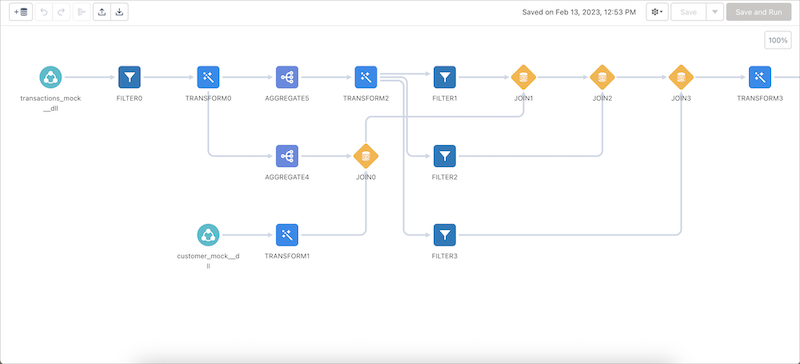
The canvas shows the full sequence of operations to your data. In this example, append, aggregate, filter, transform, and join nodes modify the data lake object input. The results are written to a data lake object target. A transform node contains a group of transformations, formulas that you can combine in sequence. Built-in transformations include concatenation and column type conversations. Use a custom formula to combine date, string, numeric operations, window functions, and case statements.
Although the canvas doesn’t show individual data transformations, you can select a transform node (1) to see its transformations details (2).
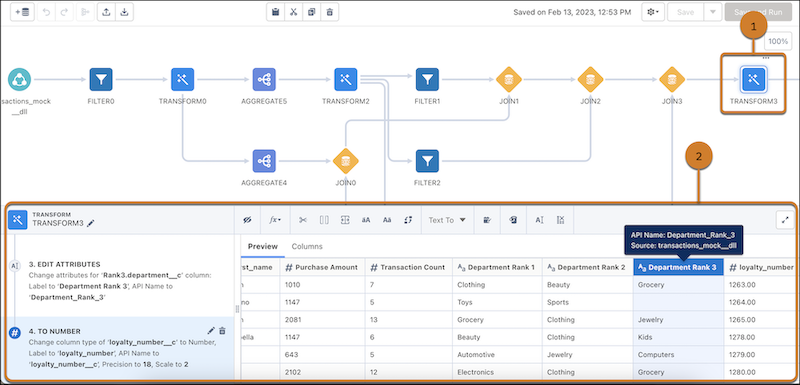
You can select a transformation step in the left panel to preview the results of that transformation in the Preview tab. Similarly, you can select any node in the canvas to preview the results of that node.
When you run a batch data transform, it applies the function of each node on the input data and then outputs the results to the specified data object. You can then use that data object as input to other batch data transforms or in downstream processes.
Each batch transform is assigned both a transform name and a definition name. You can use the definition name to identify specific transform definitions and to combine multiple definitions into a single transform.
- Access Batch Data Transforms
Create and access batch data transfroms using the visual in-app builder or custom code. - Set a Currency for a Batch Data Transform
To use currency values in a data transform, set a currency. Otherwise, data remains unchanged. This setting converts data with multiple currencies to a single value. For example, if your data includes GBP and USD and you set the currency to USD, then GBP values automatically convert to USD for use in the transform. - Create a Batch Data Transform
Create a batch data transform with data lake objects or data model objects by using the in-app builder. - Work with Nodes in Batch Data Transforms
Batch data transforms provide nodes that allow you to bring in data, transform it, and write the results to a target. You add nodes in the canvas. String together multiple nodes to sequentially change the flow of the data. A batch data transform can have multiple Input and Output nodes along with multiple Append, Join, Aggregate, Filter, Transform, and Update nodes. - Build Batch Data Transforms
Ensure that you're getting the most out of your batch data transforms by keeping the following guidelines and recommendations in mind. - Run a Batch Data Transform
Run a batch data transform for the first time to create the data. Run it again to update it with the latest data. - Check Batch Data Transform Status
After you’ve created at least one batch data transform, clicking the Data Transforms tab leads you to the Recently Viewed screen, where you can view a data transform's status. - Keyboard Shortcuts
Perform basic actions from your keyboard.
