
You are here:
Calculated Insights in Segmentation
Use a calculated insight to control data-driven insights in segmentation. You can also describe the calculated insight’s metrics and dimensions in a segmentation filter.
When using a calculated insight in a segment, the Segment On data model object (DMO) that you choose must be a Profile type.
To use a calculated insight in a segment, go to the Segments tab in Data 360. Select the segment that you want to update, and click Edit Rules. Find calculated insights in the direct and related attributes library under the DMO referenced in your insight’s SQL expression. Click the insight to view the list of metrics, and then drag the metric that you want to add to the segmentation canvas. Update the operator and add a value. Optionally, you can also aggregate your data by adding dimensions to the segment by clicking Add Dimension.
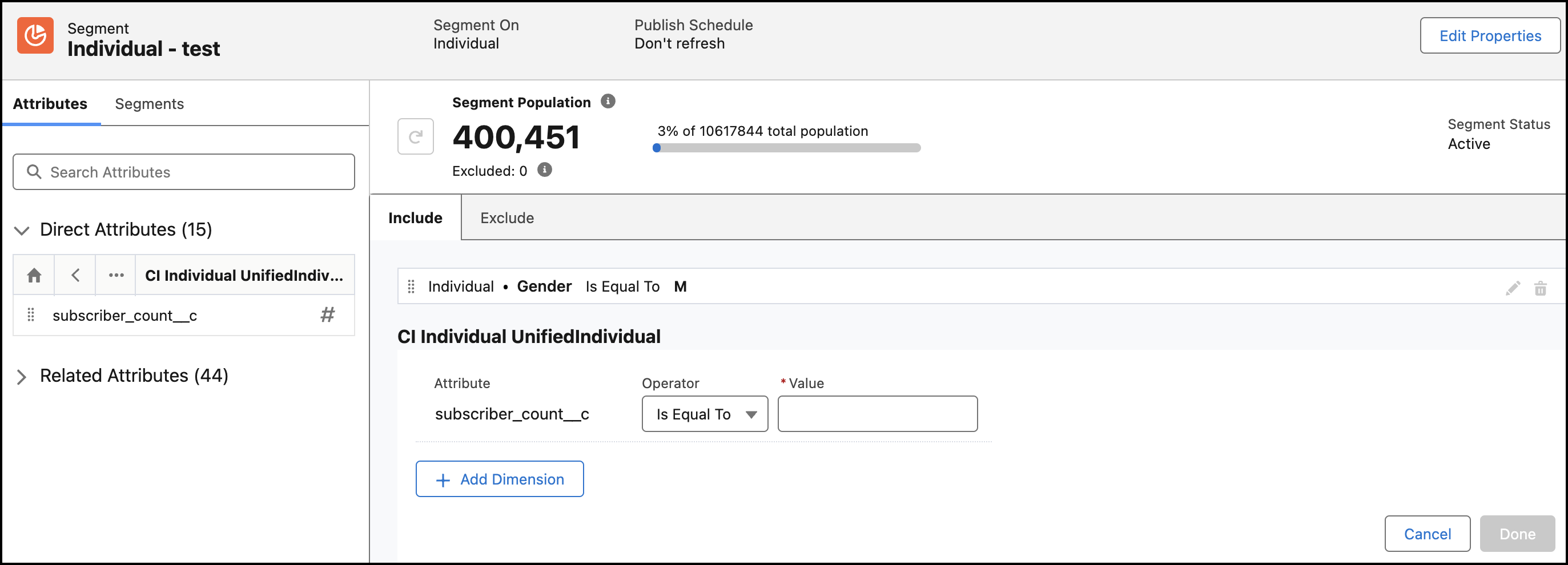
Metrics
- A container can include only one metric.
- To define AND/OR operators between multiple metrics, add the metrics to different containers and then define.
Dimensions
- A container can include multiple dimensions as filter criteria for a metric.
- When multiple dimensions are added, define the AND/OR operator between the dimensions.
- If a calculated insight has multiple dimensions and all of them aren’t selected, the calculated insight is rolled up into a single output for the selected dimensions.
For a calculated insight to appear in a segment, add the table that you segment on as a JOIN in the insights query definition. The calculated insight must also be associated with the DMO of the direct or related attribute and have a relationship with your segment. If you have two DMOs—for example, Individual and SalesOrder—the calculated insight must contain the Individual DMO’s primary key as one dimension and at least one dimension directly derived from a SalesOrder attribute to appear under the SalesOrder DMO. The segmented table’s primary key must also be a dimension in your calculated insight. See the example queries in Github Repo.

You can’t use streaming insights in a segment.
Non-Aggregatable Metrics in Segments
Non-aggregatable metrics are supported in segmentation. When creating multidimensional metrics in Data 360, some calculated insight functions or metrics aren’t further aggregatable or collapsible for one or more dimensions. These measures are known as non-aggregatable metrics.
When a calculated insight is defined using complex functions in a segment, the only filter available for a dimension is Equal to. A calculated insight is hidden if it includes a date-time or date dimension and contains only one non-aggregatable measure. Similarly, a non-aggregatable measure is hidden from the attribute library in the segment builder if it contains a date type dimension. A date-time dimension causes aggregating on multiple possible records, which conflicts with the non-aggregatable mechanism.
