
You are here:
Create a Data Action in Data 360
Use a data action to send an alert or event to targets such as Salesforce Platform, Webhook, or Marketing Cloud Engagement. Create the data action to focus on near real-time events and insights at different levels, including the channel, product, account, service, or individual.
Required Editions
| Available in: All Editions supported by Data 360. See Data 360 edition availability. |
| User Permission Sets Needed | |
|---|---|
| To create a data action: | One of these permission sets:
|
- In Data 360, go to the Data Actions tab, click New.
- Choose to create a data action from scratch or import from data kits and packages.
- Select the data action target, and click Next. If the selected data action target is in the draft state, the data action also moves to a draft status.
- Select a data space.
-
Select either a data model object (DMO) or calculated insight object (CIO) type. For
Marketing Cloud Engagement targets, the selected object type must be from the Marketing
Cloud data stream.
If there are multiple Marketing Cloud Engagement instances (EIDs) and the subscriber key is from a CIO, add the Field API Name “DataSource__c” to your expression when creating the CIO.
-
Select a primary object, and click Next.
To trigger a data action when change events are identified, select a DMO, CIO, or an accelerated DMO that’s linked to an external data lake object (DLO), such as Amazon Redshift, Google BigQuery, Snowflake, or Databricks. If you select an accelerated DMO, verify that the acceleration process is complete. If you select a DMO, make sure that the primary key field of the DLO is mapped to the DMO.
-
To enrich your data action, select a related object.
A DMO or a data graph mapped to an external DLO is available as a related object. For an object to appear as a related object in a data action, the primary object must have either a many-to-one or one-to-one relationship with the related object.
-
If you use a DMO as a related object:
- Add up to 10 related attributes to your data action.
- Select a subscriber key value. A subscriber key is the unique identifier of a message recipient in Engagement. It determines the email address to use for communication.
- Include the cdp_sys_record_currency field when selecting a currency data type. Without this field, Data 360 treats the currency attribute as a number.
-
If you use a data graph as a related object:
- Select the related object lookup path where the data is available. You can’t select attributes individually, as the entire payload is sent to the data action target.
- For a Marketing Cloud Engagement data action target, configure the data extension to store the data action payload. See Configure a Data Extension to Store a Data Action Payload. .
-
If you use a DMO as a related object:
-
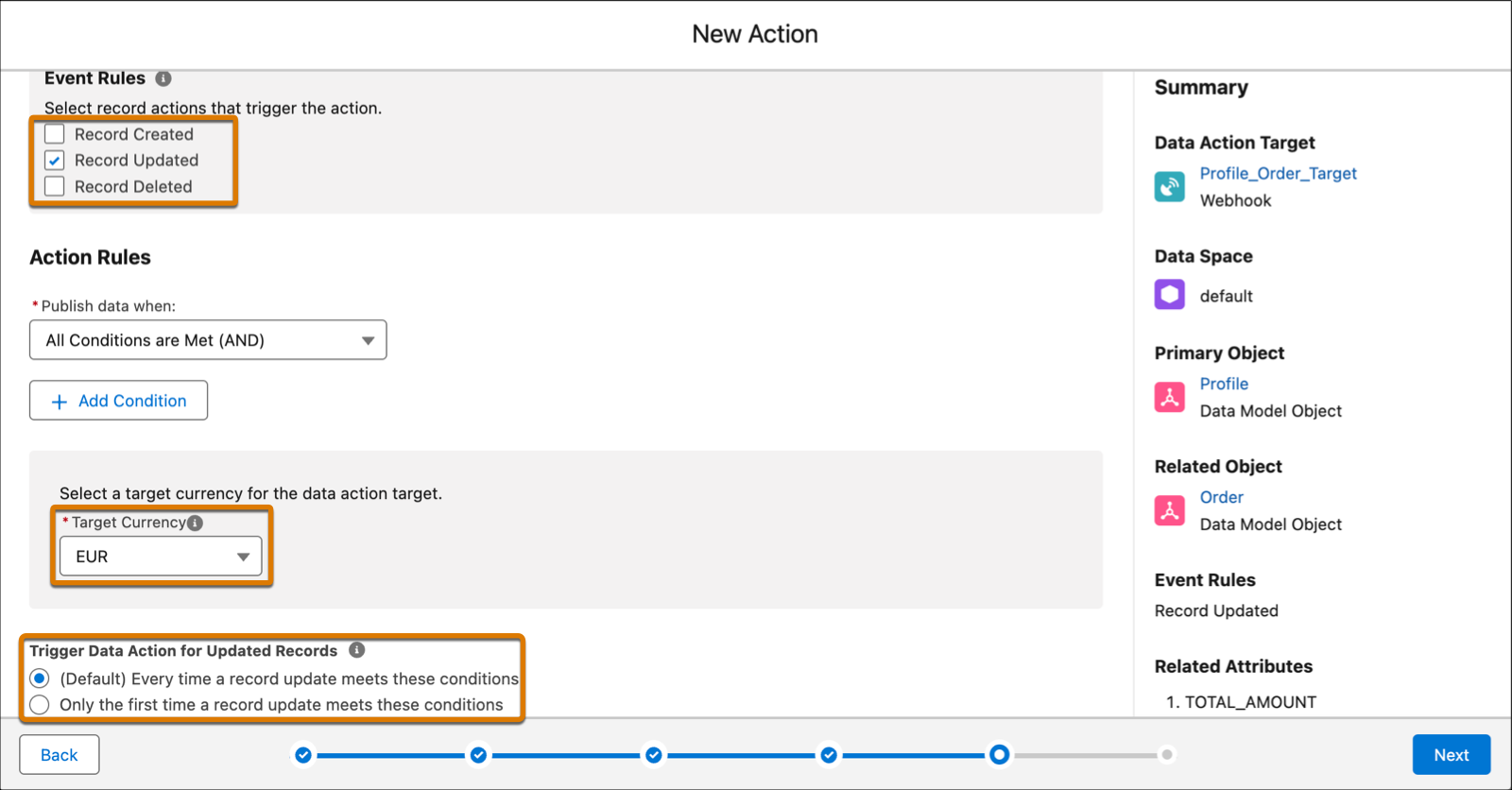
Select an event rule and an action rule.
Use the event rule to create an action based on record changes. The action rule evaluates your data action and can include OR and AND conditions.
- To add more conditions, click Add Condition.
- Select the object, attribute, and operator, and enter a value that can trigger the data action.
- For orgs where multicurrency option is enabled, select a currency for the data action target. Your output data reflects the selected currency.
-
Select when to trigger the data action for the Record Updated event rule.
The Trigger Data Action for Updated Records option is available only if you select the Record Updated event rule. If any action rule condition uses a change operator such as Has Increased or Is Changed, you can’t change the Trigger Data Action for Updated Records setting. To change this setting, remove all change operators from the conditions.
- Click Next.
-
Enter the action name.
The Action API Name field is automatically populated.
-
Click Save and Publish. You can view your data action on the
record home page.
After you create the data action, it takes about 15 minutes to complete the configuration. It then send the events in near real-time and is triggered only when a row is added, updated, or deleted in the primary object. For subsequent changes, the event is triggered immediately.Data actions created by integration users, such as a Copy Fields enrichment or Data Cloud-triggered flow using Flow Builder, are read-only. You can’t delete, disable, or edit these data actions.
- Supported Operators for Event and Action Rule Conditions
To trigger a data action, you can select one or more event rules based on the record actions and specify when to publish data using OR and AND conditions. - Monitor the Event Activity of a Data Action
Track key metrics for a data action, such as events identified, processed, published, and failed in the Event Activity dashboard. Get enhanced visibility into your data as it moves through the data action pipeline in near real time. This gives you transparency around the volume of events and data delivery.
Did this article solve your issue?
Let us know so we can improve!
