
You are here:
Data Model Object Relationships
A Data 360 data model object (DMO) can have a standard or custom relationship with other DMOs. The relationship can be structured as a one-to-one or many-to-one relationship. You can view the relationships and their statuses on a DMO record’s Relationships tab.
Cardinality of Relationships
When you create a relationship, choose the cardinality carefully. Cardinality between two DMOs has implications for segmentation and activation. You can’t change the cardinality after the relationship is created.
If you have a relationship between two objects, for example A and B, and object A has multiple records for each record in object B, the relationship chosen is many-to-one.

Standard Relationships
The Data 360 data model includes several standard relationships. A standard relationship is inactive until the related object fields are mapped. It’s activated when there’s at least one mapping to both fields in the relationship. The relationship is deactivated when a mapping for at least one field in the relationship is removed. You can disable a standard relationship, but you can’t delete it.
A standard relationship is visible on the Relationships tab only when it’s activated.
Custom Relationships
Create a custom relationship between DMOs on the Relationships tab.
You can also deactivate a custom relationship or delete it. You can reactivate a deactivated relationship at any time. When you delete a relationship, it’s permanently removed. A custom relationship is automatically deleted if the mappings for at least one field in the relationship is removed.
DMO Relationship Status
A pair of DMOs can have one or more relationships between them, but only one relationship is allowed between a given pair of DMO fields. The relationship status between DMO fields can be active or inactive.
View the status of a relationship in the Edit Relationships window.
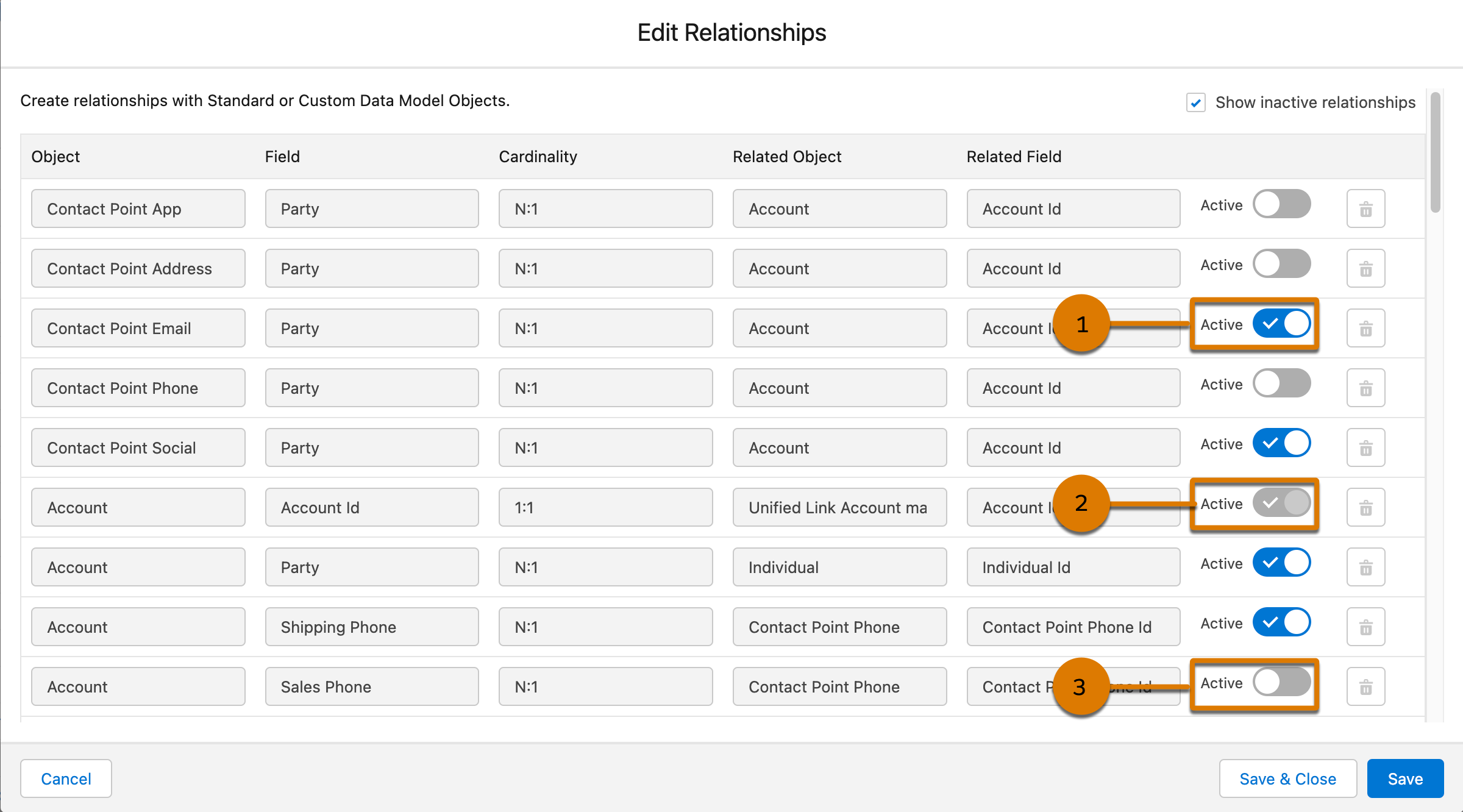
If the relationship status is active and can be deactivated (1), use the toggle switch to modify the state. When the relationship is deactivated, it can’t be used by downstream functional areas, such as segmentation and activation. However, you can’t deactivate relationships that are being used in calculated insights, segmentation, or activation.
Some relationships are active but can’t be deactivated (2). You can’t deactivate relationships that are used by the identity resolution process.
By default, deactivated relationships (3) aren’t visible and can be seen only when you select Show inactive relationships. Use the toggle to activate the relationships.
DMO Relationship Limits
Data 360 limits the number of custom relationships that can be active for each DMO. When the DMO reaches its active relationship limit, you can’t add a custom relationship or activate an inactive relationship. There isn’t a limit on the number of standard and inactive relationships.
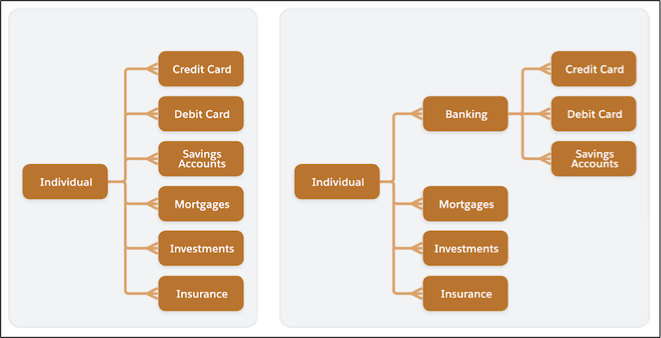
The custom relationship limit applies only to direct relationships associated with a DMO, not indirect relationships. To add more custom relationships, organize DMOs into multiple levels and create a nested structure in the data model. For example, if each DMO is limited to 25 custom relationships but you need 30, decide which 5 DMOs to group together. From the parent DMO, create 25 custom relationships. Designate one of the children as a new parent to the five grouped DMOs.
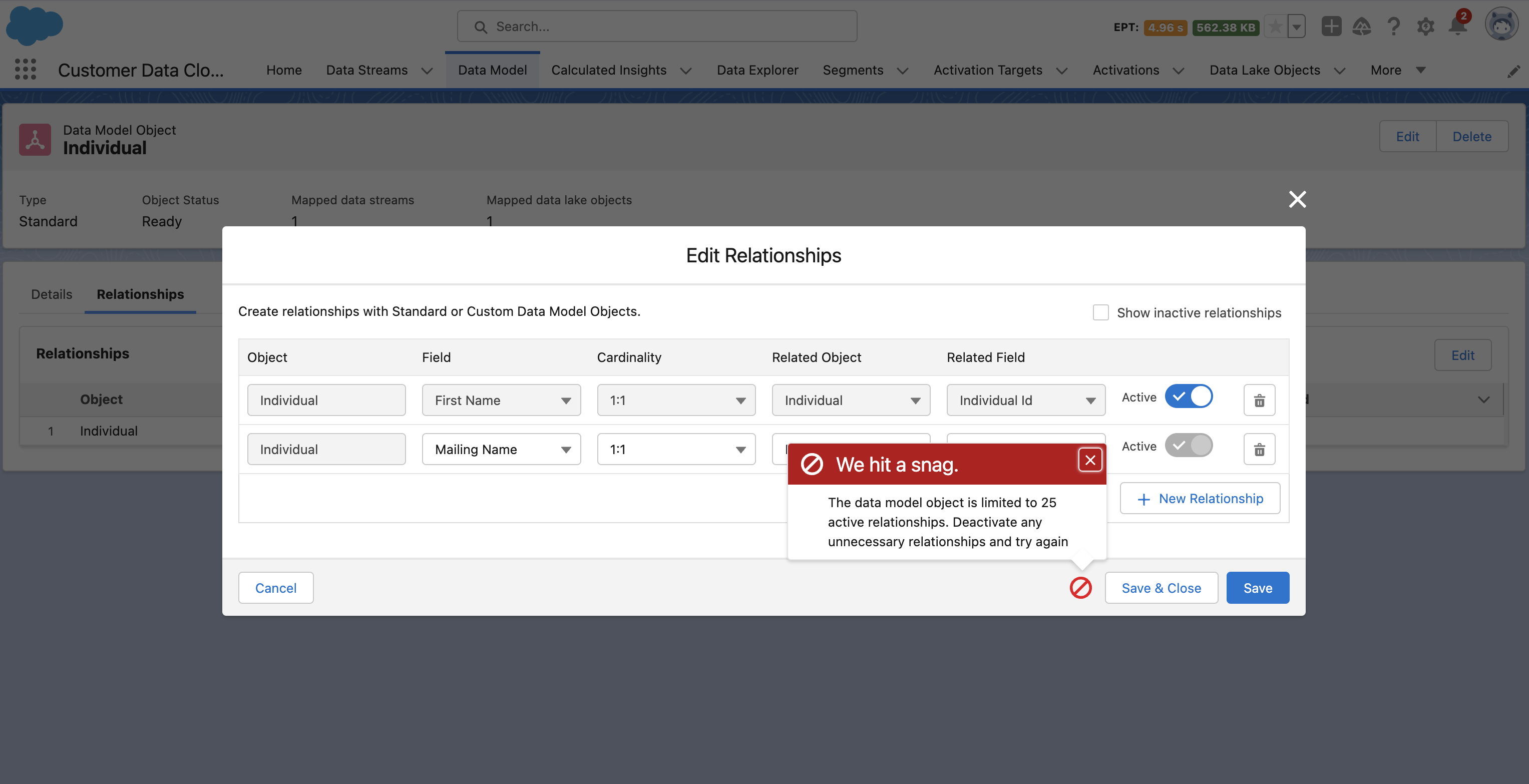
Data 360 checks for relationship limits when a packaged data bundle is deployed to an org. The package installation fails if the relationship limit is reached.
Salesforce starter data bundles, such as the CRM starter bundles, only include standard relationships. Installation of starter bundles will not fail because standard relationships are not counted towards DMO relationship limits.
