
You are here:
Migrate Data Cloud Permission Sets using User Access Policies
Learn how to use user access policies to grant updated Data Cloud permission sets to groups of users based on criteria you set.
Required Editions
| Available in: All Editions supported by Data 360. See Data 360 edition availability. |
| User Permissions Needed | |
|---|---|
| To modify user access policies: | Manage User Access Policies |
Follow these steps to migrate all users assigned to a specific permission set to a new permission set.

Note New permission sets become available on a rolling basis starting on September 4, 2025. For
more information about the new permission sets, see these resources.
To migrate subsets of users, add additional criteria to define your subgroups.
- From Setup, in the Quick Find box, enter User Management Settings, and then select User Management Settings. Make sure that both the User Access Policies and Enhanced Interface for User Access Policies settings are enabled.
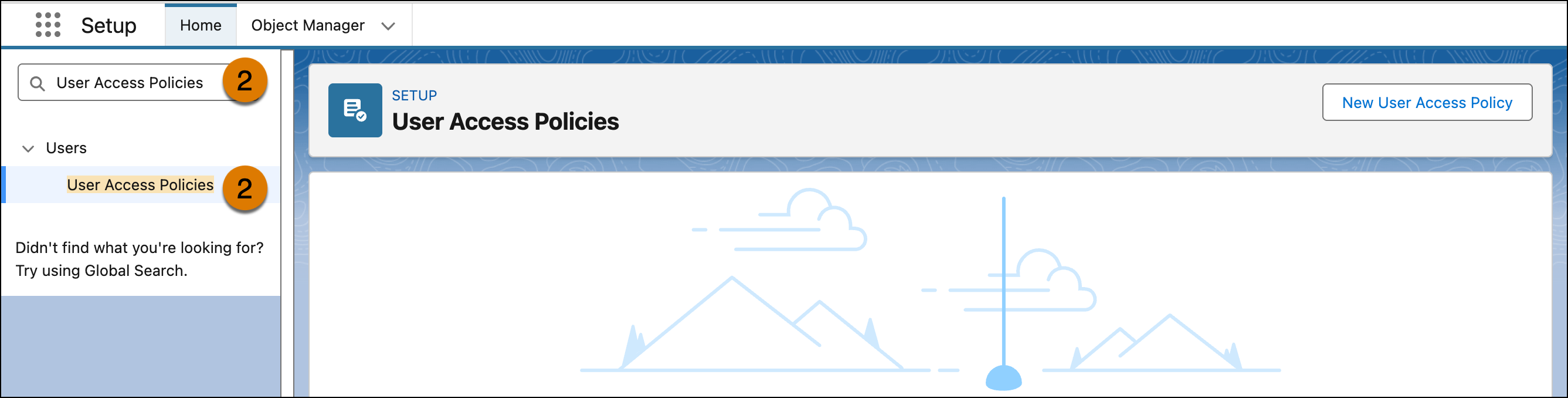
- In the Quick Find box, enter User Access Policies, and then select User Access Policies.
-
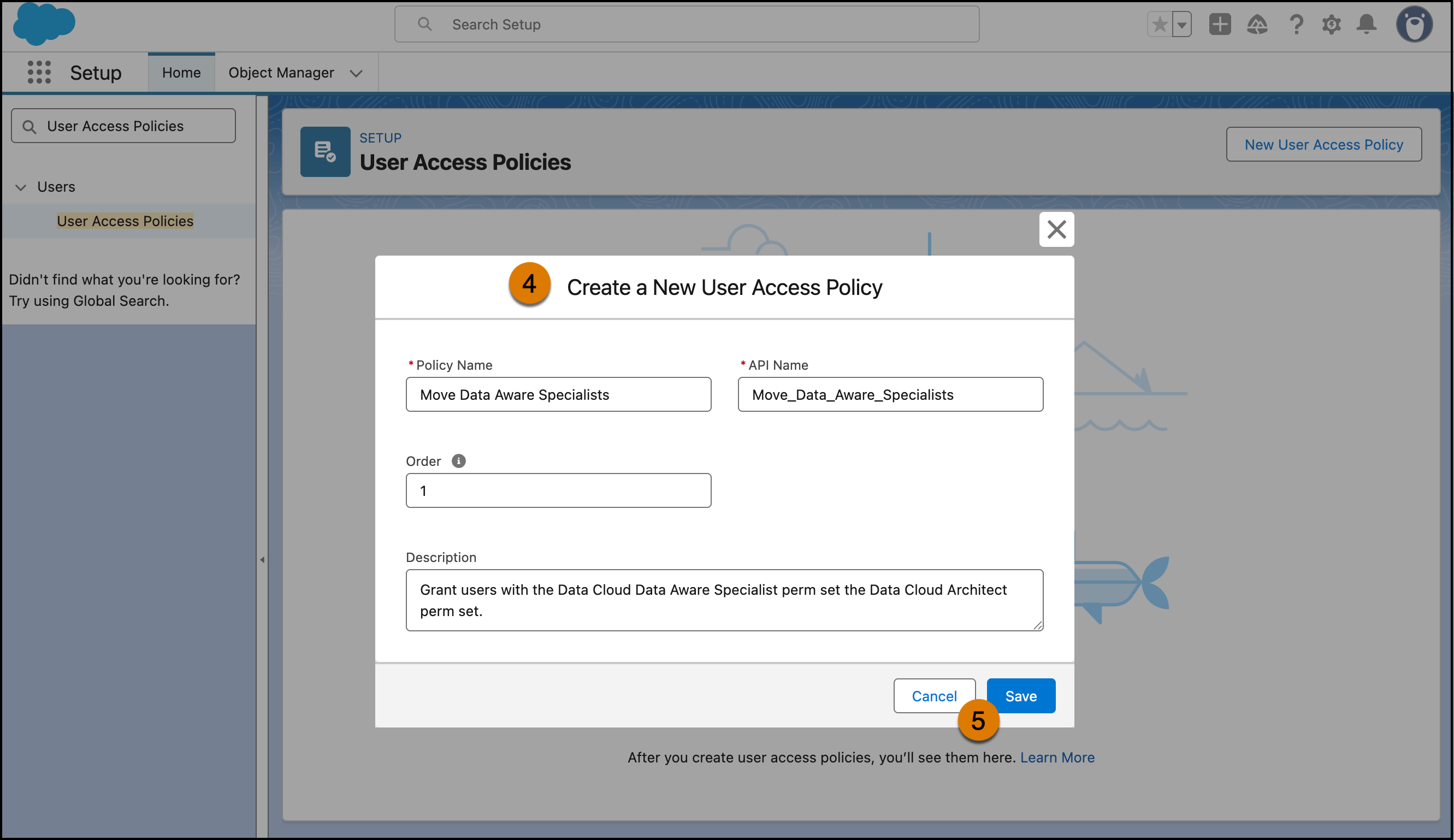
Click New User Access Policy.
- Enter a value for the Policy Name and Description.
-
Click Save.
-
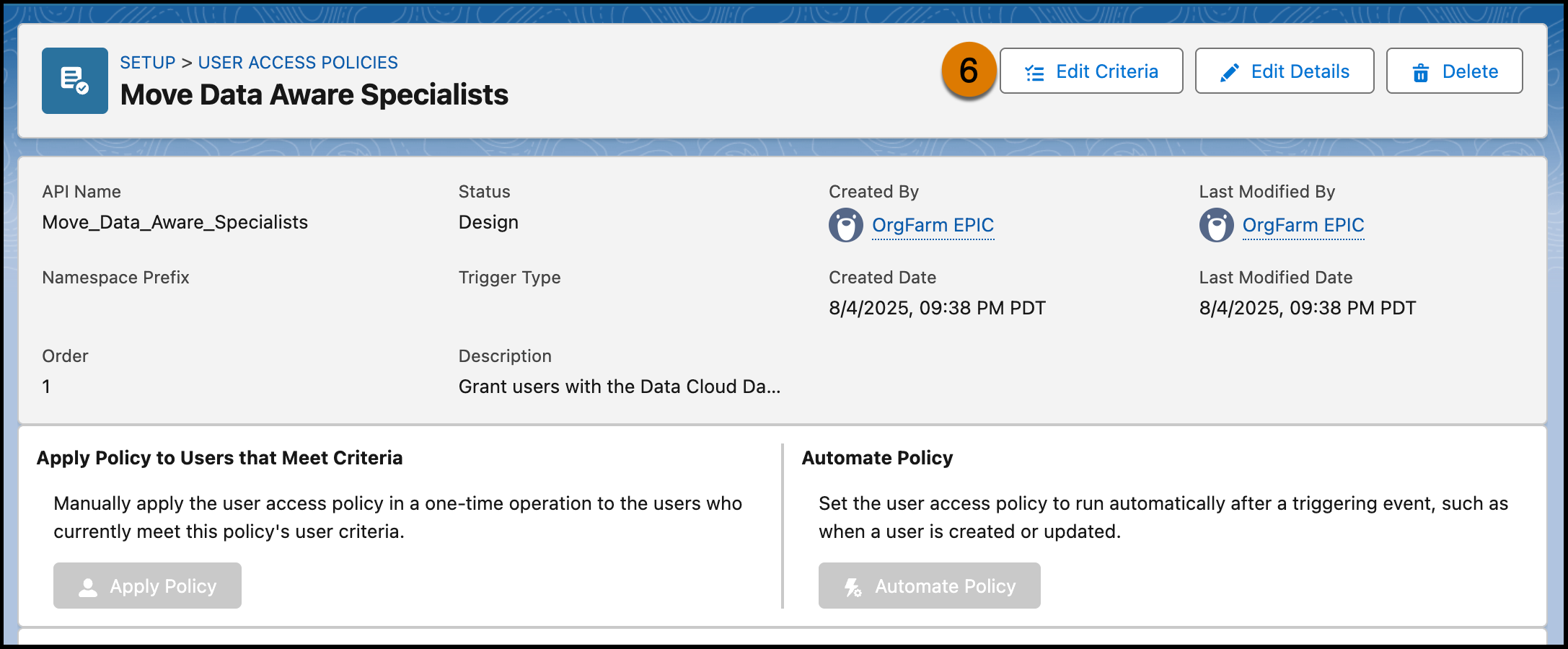
On the user access policy’s detail page, click Edit Criteria to
configure the policy’s user criteria filters and actions.
-
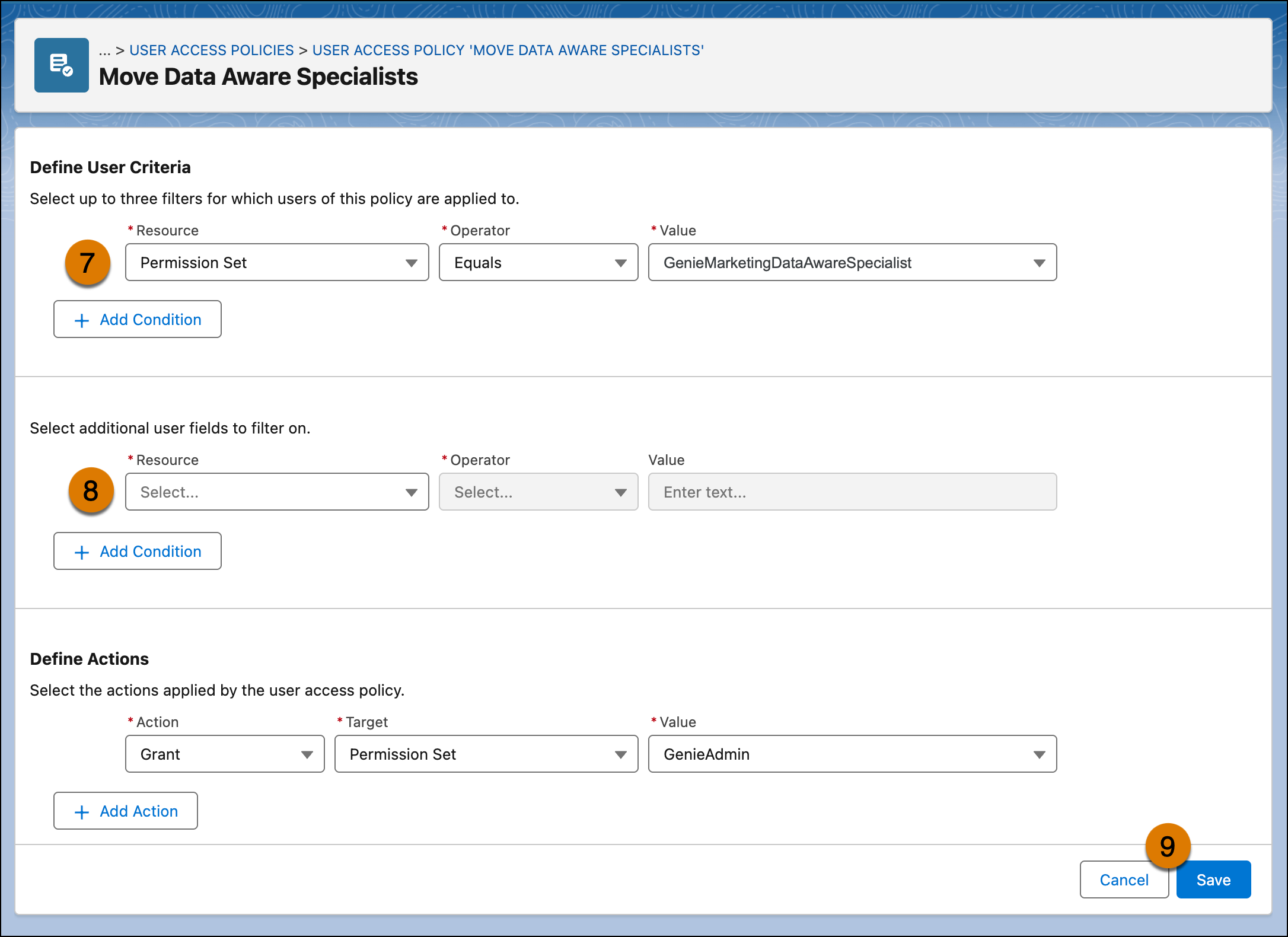
For Define User Criteria, select the following.
- For Resource, select Permission Set
- For Operator, select Equals
- For Value, select the API name of the permission set users currently have.
-
For Define Actions, select the following.
- For Action, select Grant.
- For Target, select Permission Set.
- For Value, select the API name of the permission set you want to grant to users. For a list of permission set API names, see the Data Cloud Permission Set Transition Guide.
-
Click Save.
-
Click Apply Policy. You can select a subset of users to apply
the policy to, or click Apply to All.
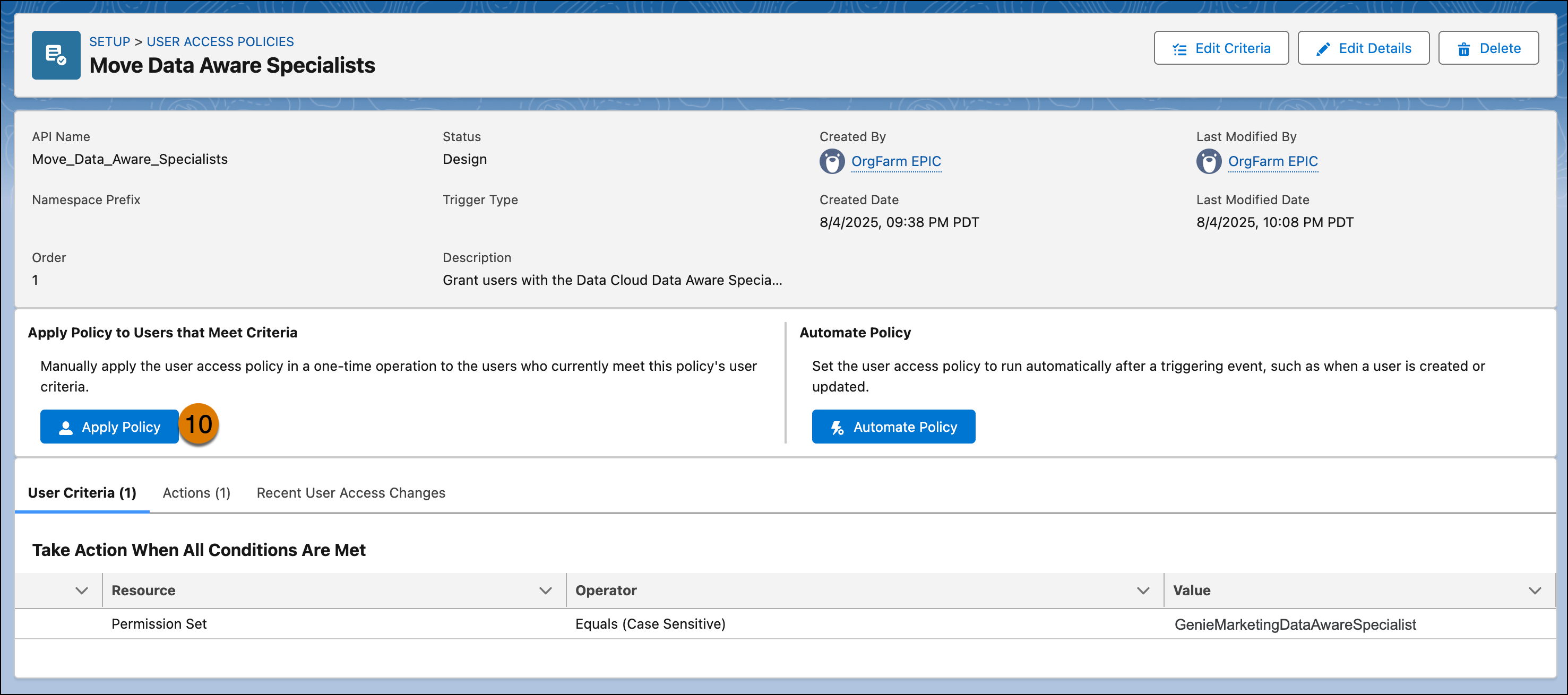
To confirm that the users were granted access correctly, review their individual user records. On the policy’s detail page under Recent User Access Changes, you can see when this policy was applied and the affected users.
After you’ve assigned new permission sets, use user access policies to revoke old perm sets.
Did this article solve your issue?
Let us know so we can improve!
