
You are here:
Create a Calculated Insight Using SQL
Write SQL expressions to create your metrics and dimensions from mapped objects and fields. You can create a calculated insight in Data 360 using SQL.
Required Editions
| Available in: All Editions supported by Data 360. See Data 360 edition availability. |
| User Permission Sets Needed | |
|---|---|
| To create calculated insights: | Permission set:
|
DMO names are case-sensitive for calculated insights. When creating a calculated insight with SQL, verify that the DMO references match the casing found in the API name. This can be confirmed by reviewing the Object API Name column on the Data Model tab.
- In Data Cloud, go to the Calculated Insights tab, and click New.
-
From the Data Space dropdown, select a data space.
You can use only the data spaces that you have access to. Only the objects that are included in the data space are available to create a calculated insight.
- Click Calculated Insight.
- Click Use SQL Authoring and click Next.
-
Enter the calculated insight name.
The Calculated Insight API Name field is auto-filled.
-
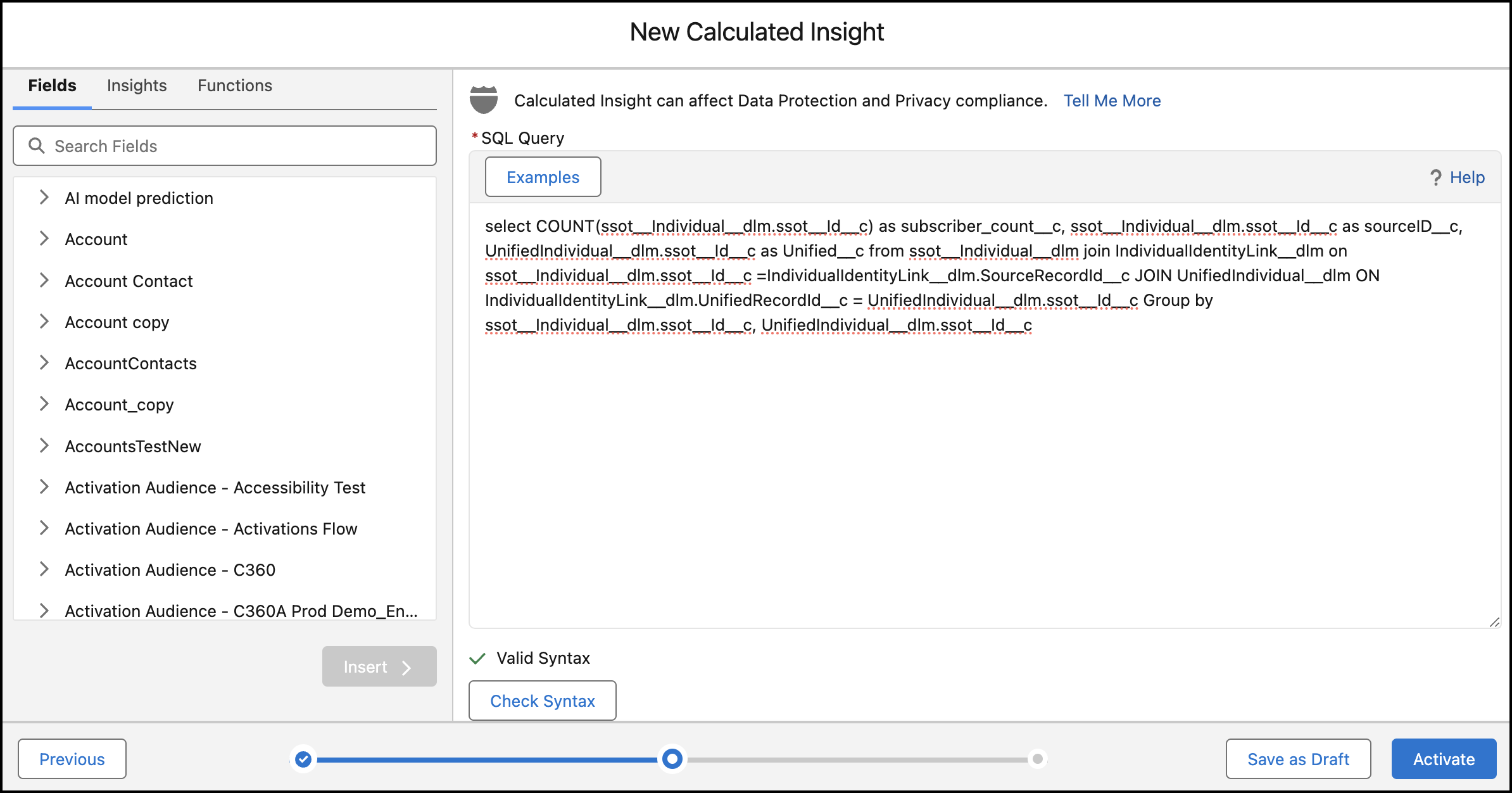
Enter the new insight SQL query expression.
The SQL statement character limit is 131,021.
-
When your insight includes currency measures, you must use the
TRY_CONVERT_CURRENCYfunction.
- Use the NOW function to define a relative time window and the SECOND_ADD and SECOND_ADD functions to create more granular time period logic. See SQL Functions for Insights.
-
When your insight includes currency measures, you must use the
-
To check whether your SQL expression is valid, click Check
Syntax.
If it isn’t valid, you can’t continue.
- Click Activate.
- From the Schedule dropdown, select a schedule.
- Select the start date and time of the schedule.
- Click Enable.
The calculated insight appears on the record home page.
Did this article solve your issue?
Let us know so we can improve!
