
You are here:
Activate the Segment and Add Related Attributes
When your segment is complete, the next step is to activate it, add, and filter related attributes in Data 360.
Set up a Marketing Cloud Engagement activation target before creating an activation.
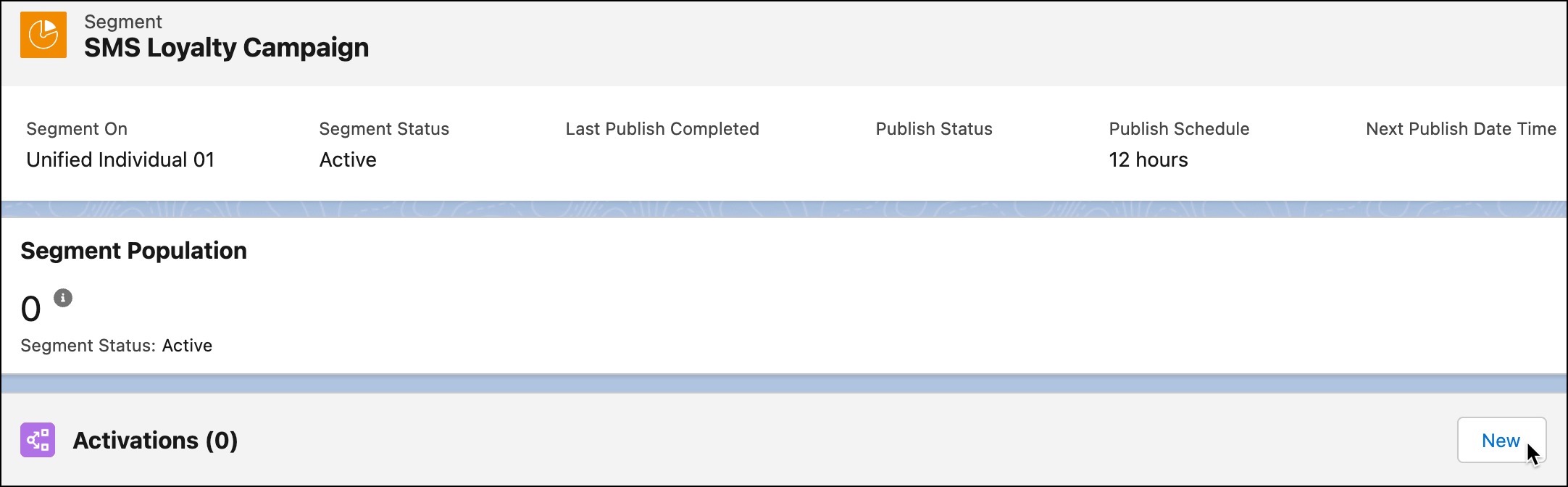
- On the Data 360 Segment tab, select the SMS Loyalty Campaign segment.
- In the Activations section of the segment record, click New.
- For the destination of the segment data (the activation target), select MC_Activation.
- Confirm that the activation membership is Unified Individual and click Continue.
- Click the + Select button for Phone (SMS) as the contact point (channel) for the campaign and then click Next.
- The campaign has placeholders for personalization to include the customer’s first name
and previous and new tier levels. To send this information to Marketing Cloud Engagement,
click Add Attributes.
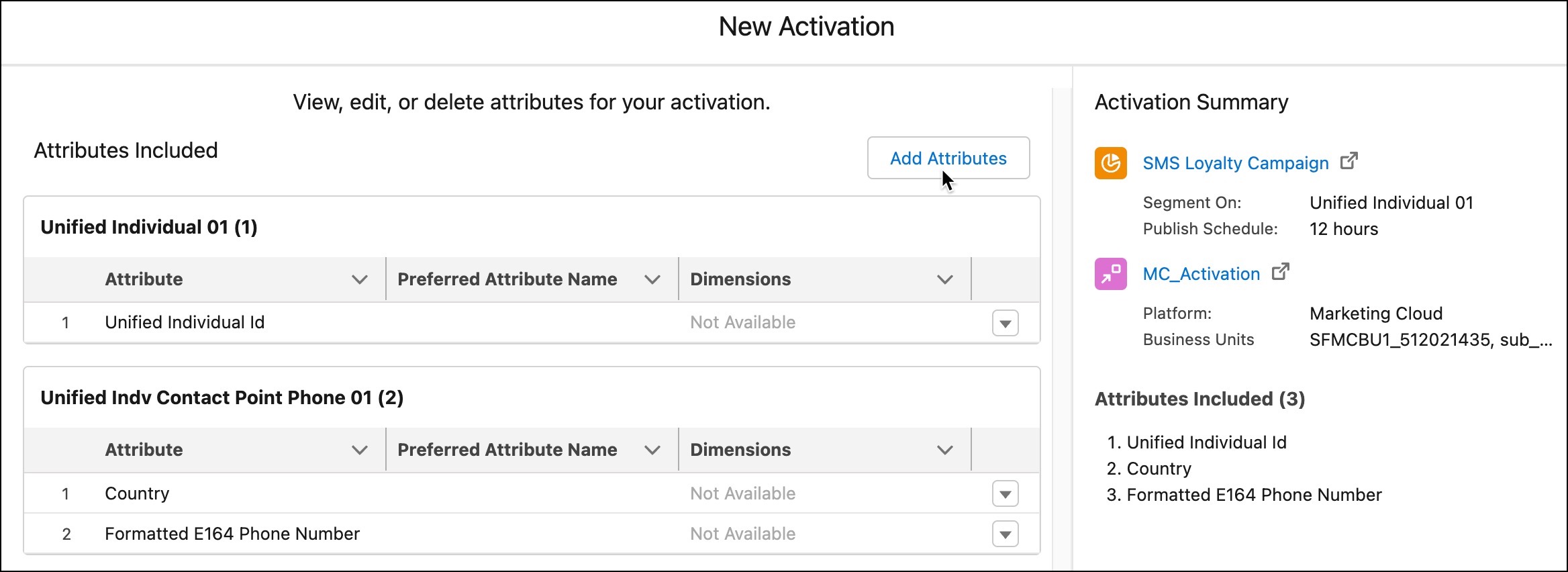
- From the direct attribute list, drag First Name to the canvas.
- From the related attribute list, navigate to Loyalty Program Name and select the attribute Program Name and select a path.
- For Loyalty Member Tier select the Loyalty Tier and
Previous Loyalty Tier attributes.
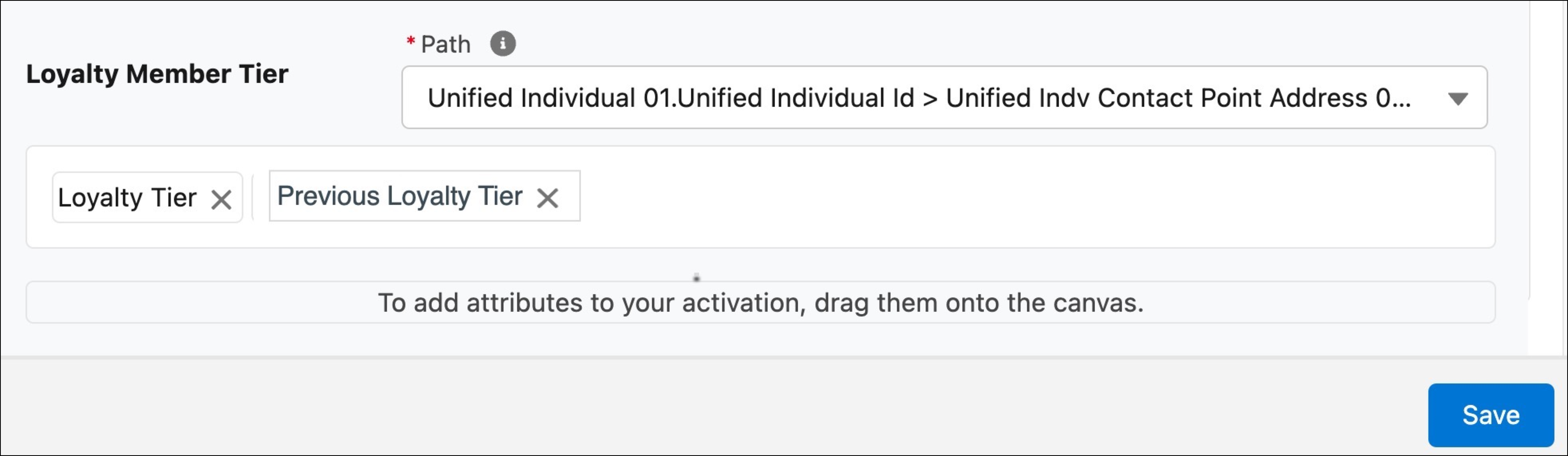
- Confirm and click Save.
- Click Add Filters to further define the campaign.
- To see only members whose loyalty tier has changed in a certain number of days, drag the Last Modified Date attribute to the canvas.
- For Operator, select Last Number of Days, and enter
7 for the number of days.
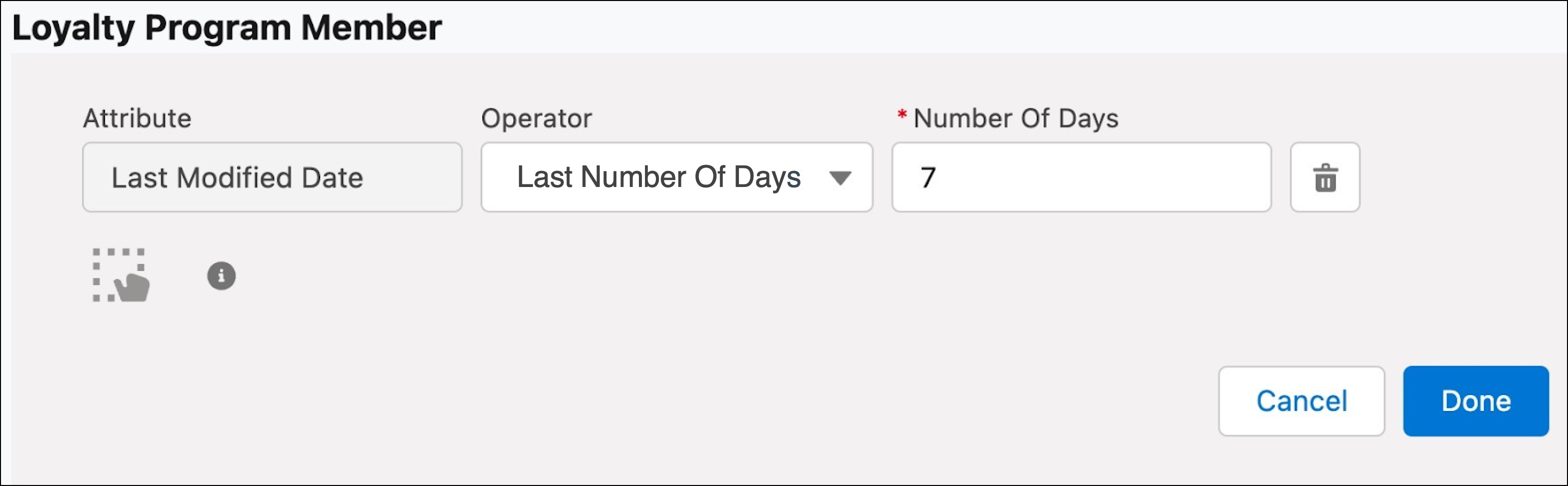
- Click Done and then click Save.
- Add an operator of Last Number of Days and then add the value of 7.
- Click Done and then Save.
- To reduce the number of results, set a limit of the applicable attributes relevant to this campaign. Set Max. # of Attribute Values to 1.
- For Sort By field, select Last Modified Date, and select Most Recent to define how to sort the date.
- Click Next.
- Name the activation Loyalty Tier Change, and click Done.
The activation is sent to Marketing Cloud Engagement.
Did this article solve your issue?
Let us know so we can improve!
