
You are here:
Segment Your Data with Attributes
After you create a segment, narrow your data based on related or direct attributes on the segment canvas interface. Narrow down a subset of the population from a filtered audience to see who’s included and excluded. Segment exclusion is optional.
Required Editions
| Available in: All Editions supported by Data 360. See Data 360 edition availability. |
| Permission Sets Needed | |
|---|---|
| Add attributes to segments: | One of these permission sets:
|
- Click the Segments tab, and select the segment from the list.
- Click Edit Rules.
-
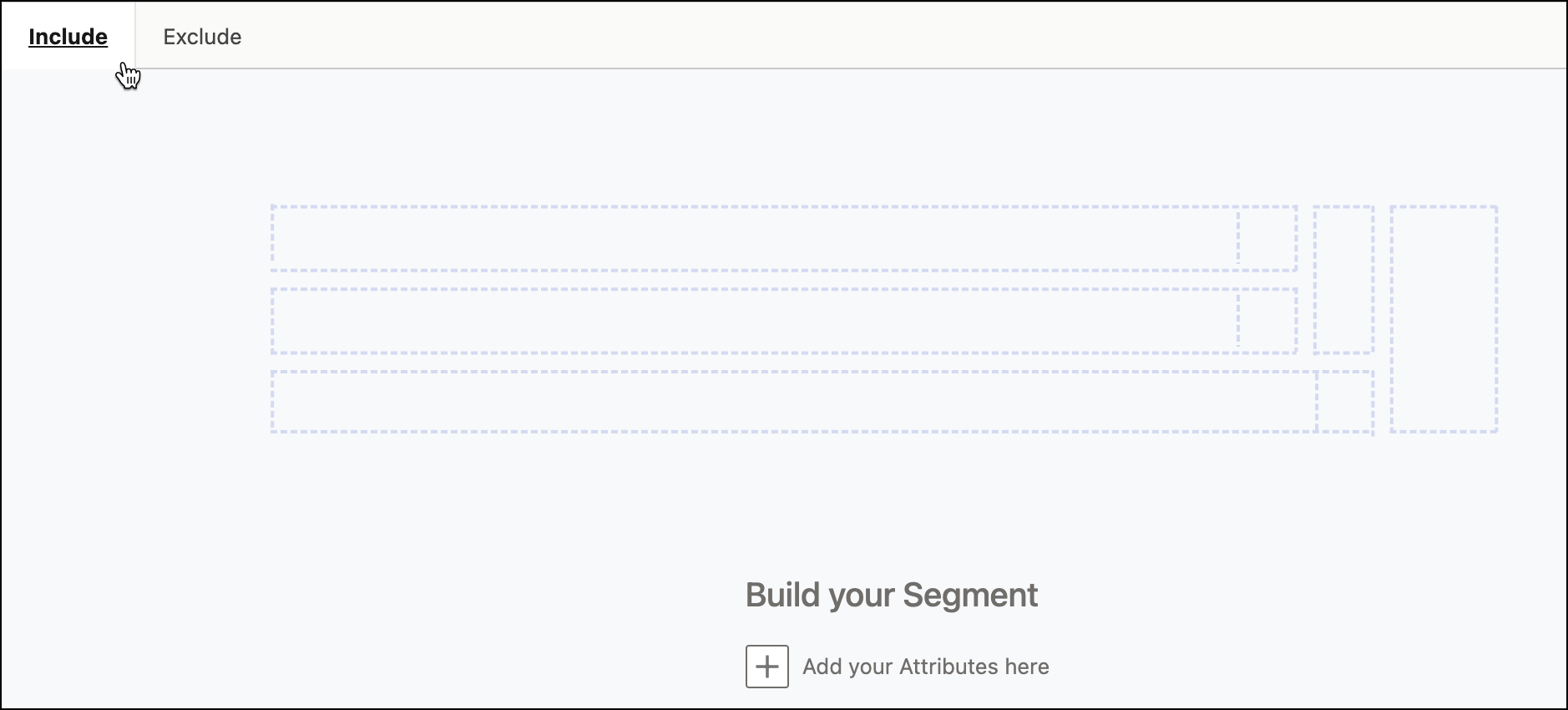
Click the Include or Exclude tab.
Each tab can have up to 50 filters.
 Note Aggregations in general count toward the limit of 50 filters.
 - To see how each filter or container affects the segment, use the count in the ribbon below that filter or container. For more information, see View Filter and Container Level Counts.
-
From the attributes list, drag attributes to the segment canvas. If you don't find the
attribute you're looking for, type the name of the attribute in the Search
text box. Results appear as you enter the search terms. If the attribute you need is in
more than one DMO, all the results show up. Choose the one you want to add to the segment
filter. The left pane displays the path as you select attributes, ensuring you’re
including attributes from the intended objects.
For dynamic segments, to provide values to an attribute during execution time, select Enable parameterized values.
Note When searching for attributes, only first-level attributes from related objects are visible by default. To access deeper-level DMO attributes, first find the main object in the DMO that contains the attributes you want. For example, in the Sales Order Product DMO, the main object is Product. If you need a deeper-level attribute such as Product Description, drag any attribute from that main object into the canvas to create a container (you can cancel without saving), then search again; the deeper-level attributes appear in the search results.Each segment can have up to 100 attributes.You can add criteria to these attributes.- Direct Attributes—Each DMO being segmented on has only one data point such as postal code or first name.
- Related Attributes—Each DMO being segmented on has multiple data points such as purchases, product characteristics, or email events.
- Calculated Insights—Search for calculated insights by name or find them under the object referenced in the SQL. You can use only processed calculated insights in a segment.
Note Calculated insights with boolean measures are not currently supported in segmentation. Using a calculated insight with a boolean measure in your segment criteria causes a population error. This behavior is expected and affects all segment types. To ensure your segments show the correct population, use calculated insights with other supported data types. -
To create more complex filters, add AND or OR nested operators.
You can nest up to three levels of attributes. For example, you want to run a promotion for customers who have purchased either $5000 or more on products or a total of 20 products over the last month. With nested operators, you can layer your filter logic to target both sets of customers over the specified time frame. You can nest filters up to three levels within a container. Across containers, you can nest filters up to ten levels.
-
After adding each attribute or calculated insight, click Done.
If Approximate Segment Population is enabled, you can get an estimate of the population count to validate your segment rules. The approximate segment population is calculated by using a sample of your profile dataset. Before saving your segment with the final segment population, ensure that the segment count meets your expectations. If necessary, update it by using the approximate count as a guideline.
-
To save your canvas and recount your population, click
Save.
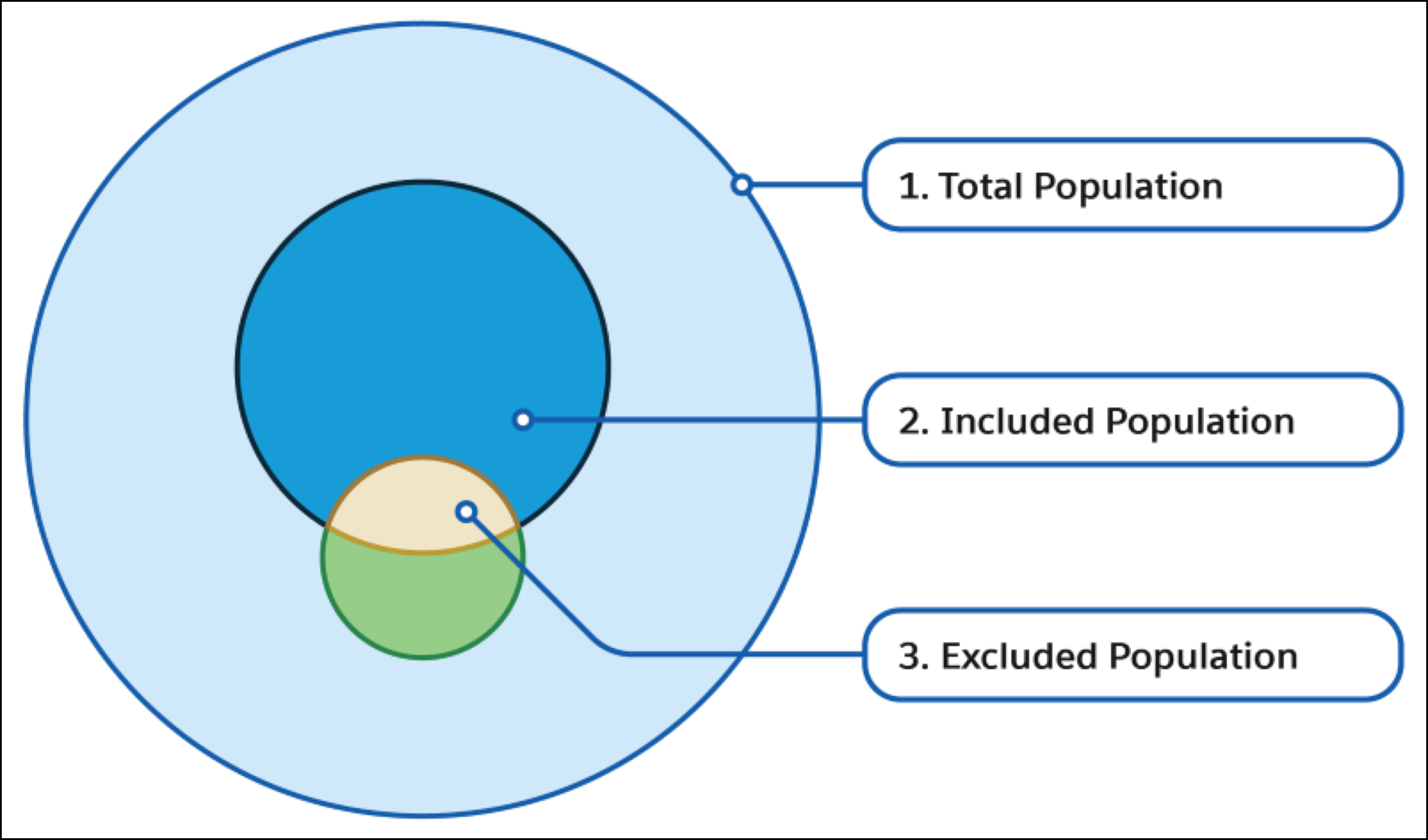
- Total Population—Overall set of entities available in the segment.
- Included Population—Total number of entities that qualified for your include criteria minus the entities that qualified for the exclude criteria.
- Excluded Population—Total number of entities that qualified for your exclude criteria within the segment entities.
- Click Done.
- Create a Nested Segment in Data 360
Reuse filters and maintain consistency in your data by using an existing segment built on profile objects to build a new nested segment. A nested segment is a combination of an outer segment and inner segment. Each nested segment can have up to 50 filters in each tab.
Did this article solve your issue?
Let us know so we can improve!
