
You are here:
Set Up a Marketing Cloud Engagement Connection in Data 360
After you create your Data 360 instance, control the scope of data ingestion and activation from Marketing Cloud Engagement and other sources. Before integrating with Data 360, make sure that your Engagement user’s default business unit (BU) is set to the Enterprise ID (EID). Set up your data sources to tell Data 360 where to pull data from, also known as ingest, for data mapping and segments. You can connect multiple EIDs to a single Data 360 org, where each EID has its own connection to Data 360. For each of these connections, you can set up multiple data streams using data bundles or data extensions. Each connection also has its own business unit-to-data space mapping configuration. Data 360 supports only Engagement Enterprise 2.0 account connections.
Required Editions

| User Permissions Needed | |
|---|---|
| To access Data Cloud Setup: | System admin profile OR Data Cloud Architect |
| To connect to an Engagement account: | Administrator AND Marketing Cloud Administrator Roles must be assigned to the Engagement account user. |
- From Setup, click Data Cloud Setup.
- Under Salesforce Integrations and Marketing, select Marketing Cloud Engagement.
- To create a new connection, click New and enter a name for the connection.
-
Click Save.
If you want to reconfigure an existing connection, select the connection from the list of connections, and select Edit from the menu.
-
To provide your Engagement credentials for authentication, click
Manage.
During connection setup, if you are already logged in on a Marketing Cloud account, Data 360 assumes the credentials for that account and begins configuring a connection. If you intend to connect to a different Marketing Cloud account than the one that is currently logged in, you must log out of the account from the Marketing Cloud Engagement Authentication page.
- Enter the Engagement username and password.
 Important To prevent service disruptions, use a dedicated Marketing Cloud API user account for integration with Data 360. If your password expires, activations fail to publish new or updated segments to Engagement until the password is updated. A Marketing Cloud API user's password doesn’t expire.
 - To enable the channels so that Data 360 can pull in data, click Manage for Setup bundles to ingest into Data 360.
- To enable the highlighted channels so that Data 360 can pull in data using the Data Cloud Starter Bundles, click Start.
- Data bundle sources appear. Use data bundles to quickly and easily create multiple data
streams to ingest system-owned data from Engagement. You can manually add more data
extensions afterward.Data 360 creates a set of automations and automation activities in Automation Studio to support data ingest. These automations transfer data between the two products. Don’t alter or edit these activities.
- To select which business units to ingest data from, click Manage.
- From Setup, use the arrows (1) to select the business unit name to add, remove, or
move.The top-level business unit is preselected and can’t be deselected because all subscriber data for the email channel is at that level.
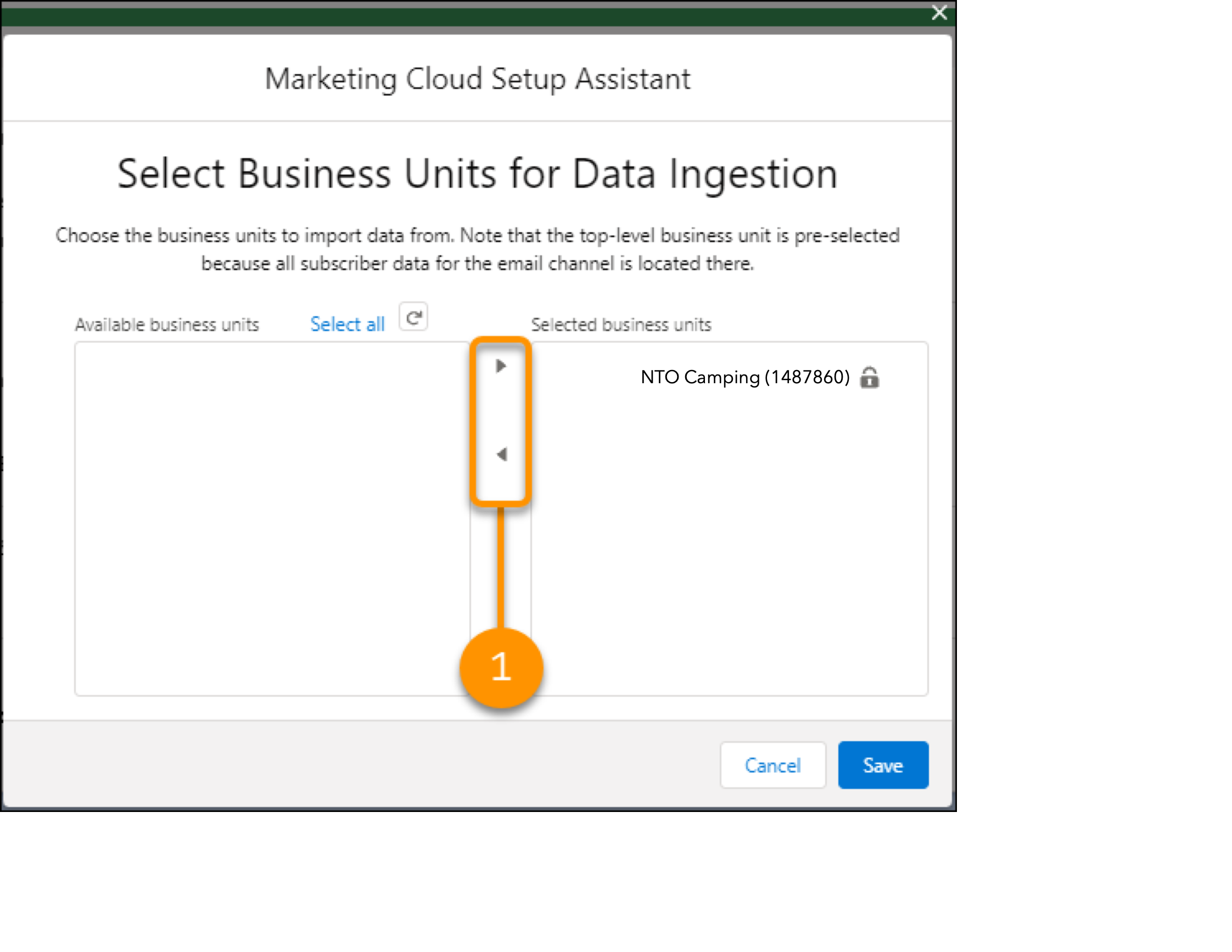 When you select a new business unit, Data 360 ingests only 90 days of historical data for the business unit.
 - To enable business unit mapping, click Save.
- To select which business units to activate segments to, click
Manage.
If you don’t want to ingest any data from business units and only want to activate data to the Marketing Cloud Engagement account, click Skip.
- Use the arrows to add or remove business units in Selected business units.You can select any number or combination of business units independent of the BUs selected for ingest.
- To automatically map Engagement subscriber data to the Affiliation Data Model Object
(DMO), enable Allow Profile Business Unit Mapping Data.Enabling Allow Profile Business Unit Mapping Data is permanent and can’t be undone. The new SFMC Subscriber BU Mapping Data Stream is created and mapped to the Affiliation DMO. Data can take up to 24 hours to appear in the Affiliation DMO. Until data is ingested into the Affiliation DMO, activations are sent to Engagement as shared data extensions. After successful ingestion, activations are sent as data extensions automatically. Because the SFMC Subscriber BU Mapping Data Stream gets a full refresh one time a day, view the refresh history for the latest status details.
- Map other data to the Affiliation DMO.
- Create a relationship between the Party field of the Affiliation DMO and the Individual Id field of the Individual DMO with the cardinality of ManyToOne.
- Create a data stream and map data to the Affiliation DMO.
Affiliation DMO Fields Field Label Field API Label Description Mapping Requirements Affiliation ID ssot__Id__c Unique value for each individual. Required Party ssot__PartyId__c
Information about the individual.
The default mapping is to the Engagement Subscriber Key field.
Required Affiliated To ssot__AffiliatedTo__c Information about the business unit. For example, brand or region.
Default mapping is to the Engagement MID.
This field ensures activations are sent to the right business unit in Engagement.
Required Affiliation Type ssot__AffiliationType__c Type or category of the affiliation. For example, product category or other granular details. Optional
- Update your Connection’s Credentials After a Connection Failure
If you receive a notification that one or more Marketing Cloud Engagement connections has failed, update your credentials to fit the issue.
