To create a connection in Data Cloud securely without sharing passwords, some external
connectors allow access using OAuth (Open Authorization). If using OAuth, there are several
prerequisite implementation steps to complete before you connect the source to Data Cloud.
Follow these prerequisite steps before connecting to the data source in Data Cloud
Setup. To complete these steps you must have admin access.
Bookmark this page or keep it open to refer to this topic as you complete these
tasks.
Note Steps and links outside of Salesforce content may not be updated or
accurate.
Optional: Create a Custom OAuth Application
Before you can define your authentication provider in Salesforce, you can optionally
create a custom OAuth application on your provider's website. The process can vary depending on
your provider.
According to your provider's documentation, create a private app on their website.
Write down these configuration values:
Client ID
Client Secret
Authorization Endpoint URL
Token Endpoint URL
Configure an Authentication Provider
Create an authentication provider in Salesforce and then update your provider with the
callback URL.
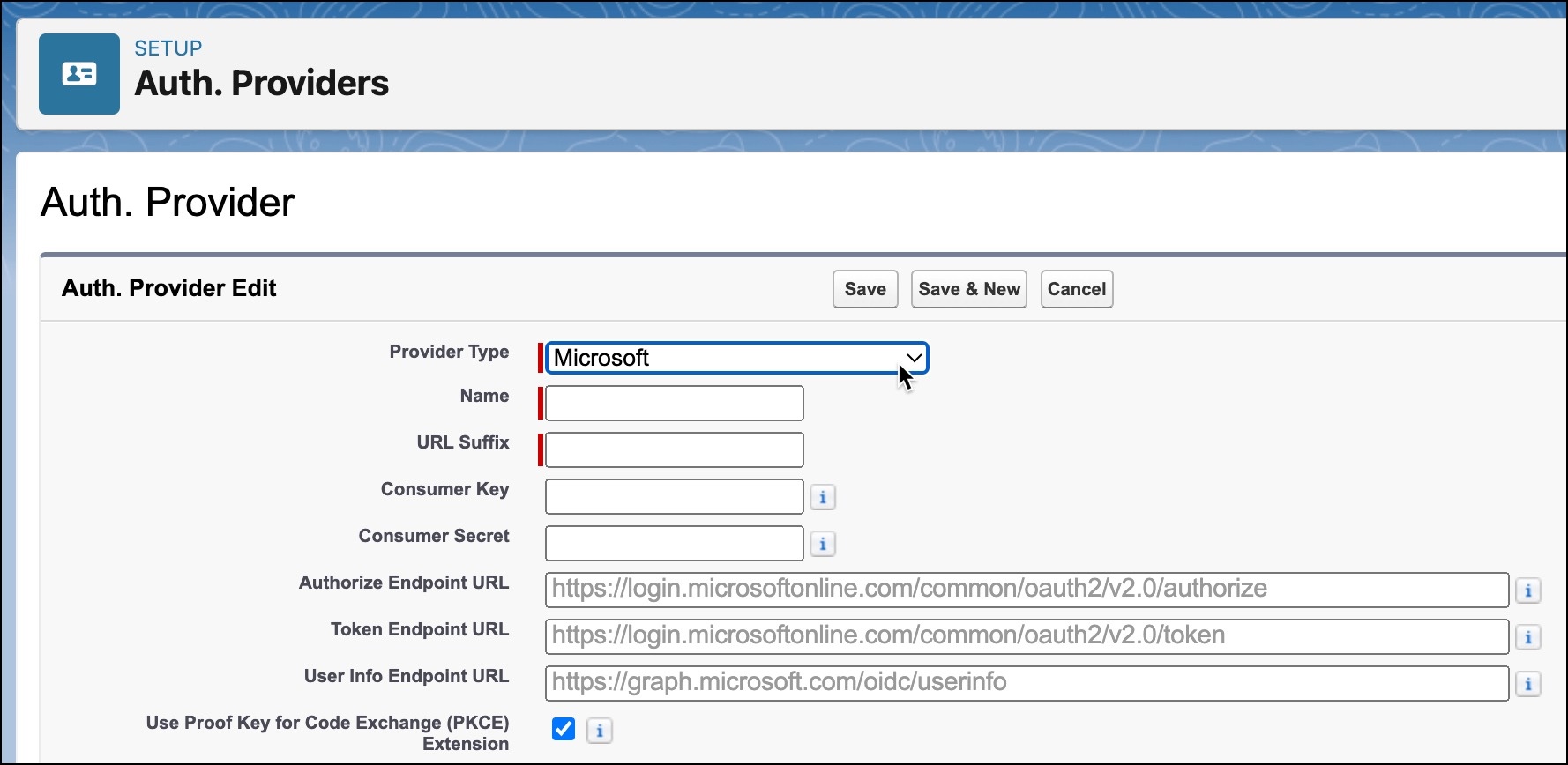
From Setup, in the Quick Find box, enter Auth. Provider, and then
select it.
Click New.
Select Microsoft from the provider type dropdown.
Fill out the required information.
Name—Enter a name for the Authentication provider.
URL Suffix—The URL automatically gets suffixxed with the name you have given to the
Authentication provider.
Complete optional fields.
Consumer Key—Add the Client ID from your provider.
Consumer Secret—Add the Client Secret from your provider.
Authorization Endpoint URL—Enter the Authorization Endpoint URL from your
provider.
Token Endpoint URL—Enter the Token Endpoint URL from your provider.
Click Save.
Several client configuration URLs are generated after defining the authentication
provider. Write down the callback URL from the Salesforce configuration after you save your
work.
After defining the authentication provider in Salesforce, go back to your provider and
update your app's callback URL.
Did this article solve your issue?
Let us know so we can improve!
Loading
Salesforce Help | Article
Cookie Consent Manager
General Information
Required Cookies
Functional Cookies
Advertising Cookies
General Information
We use three kinds of cookies on our websites: required, functional, and advertising. You can choose whether functional and advertising cookies apply. Click on the different cookie categories to find out more about each category and to change the default settings.
Privacy Statement
Required Cookies
Always Active
Required cookies are necessary for basic website functionality. Some examples include: session cookies needed to transmit the website, authentication cookies, and security cookies.
Functional Cookies
Functional cookies enhance functions, performance, and services on the website. Some examples include: cookies used to analyze site traffic, cookies used for market research, and cookies used to display advertising that is not directed to a particular individual.
Advertising Cookies
Advertising cookies track activity across websites in order to understand a viewer’s interests, and direct them specific marketing. Some examples include: cookies used for remarketing, or interest-based advertising.