
You are here:
Create a Relationship Between Data 360 Objects
You can create a relationship between any two Data 360 objects in a semantic model.
Required Editions
| Available in: All Editions supported by Data 360. See Data 360 edition availability. |
| User Permissions Needed | |
|---|---|
| To create a relationship: | Permission set:
AND Semantic Models object |
- In Data Cloud, on the Semantic Layer tab, select a data model.
- In the Semantic Model Builder Canvas, click the plus sign next to the first object.
-
From the dropdown select the object you’re creating a relationship for.
The bottom panel opens. Here you can configure the relationship.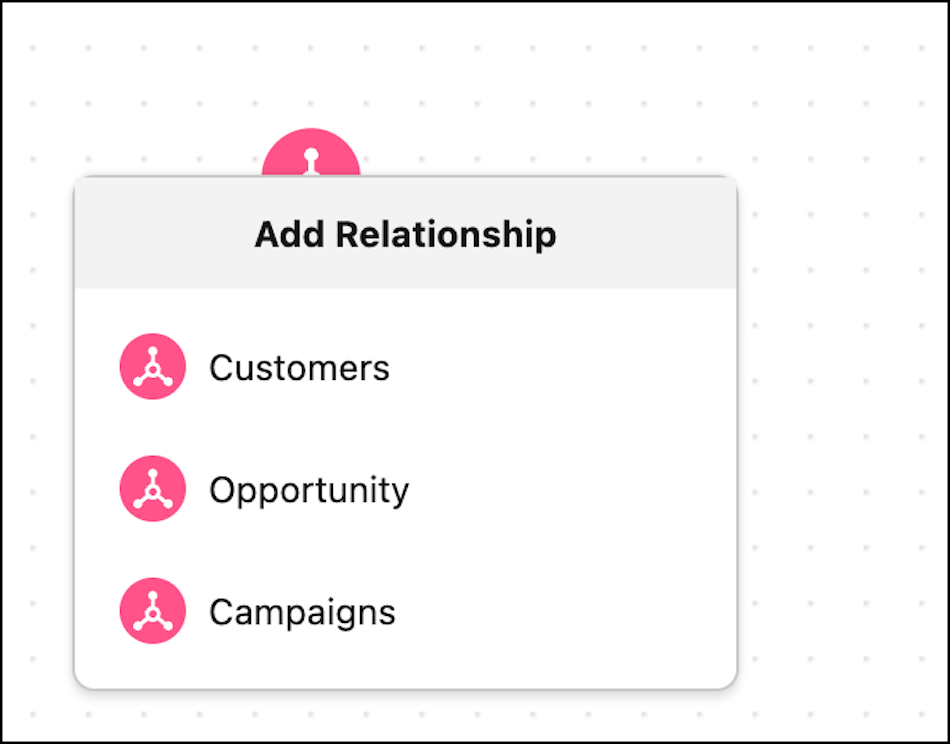
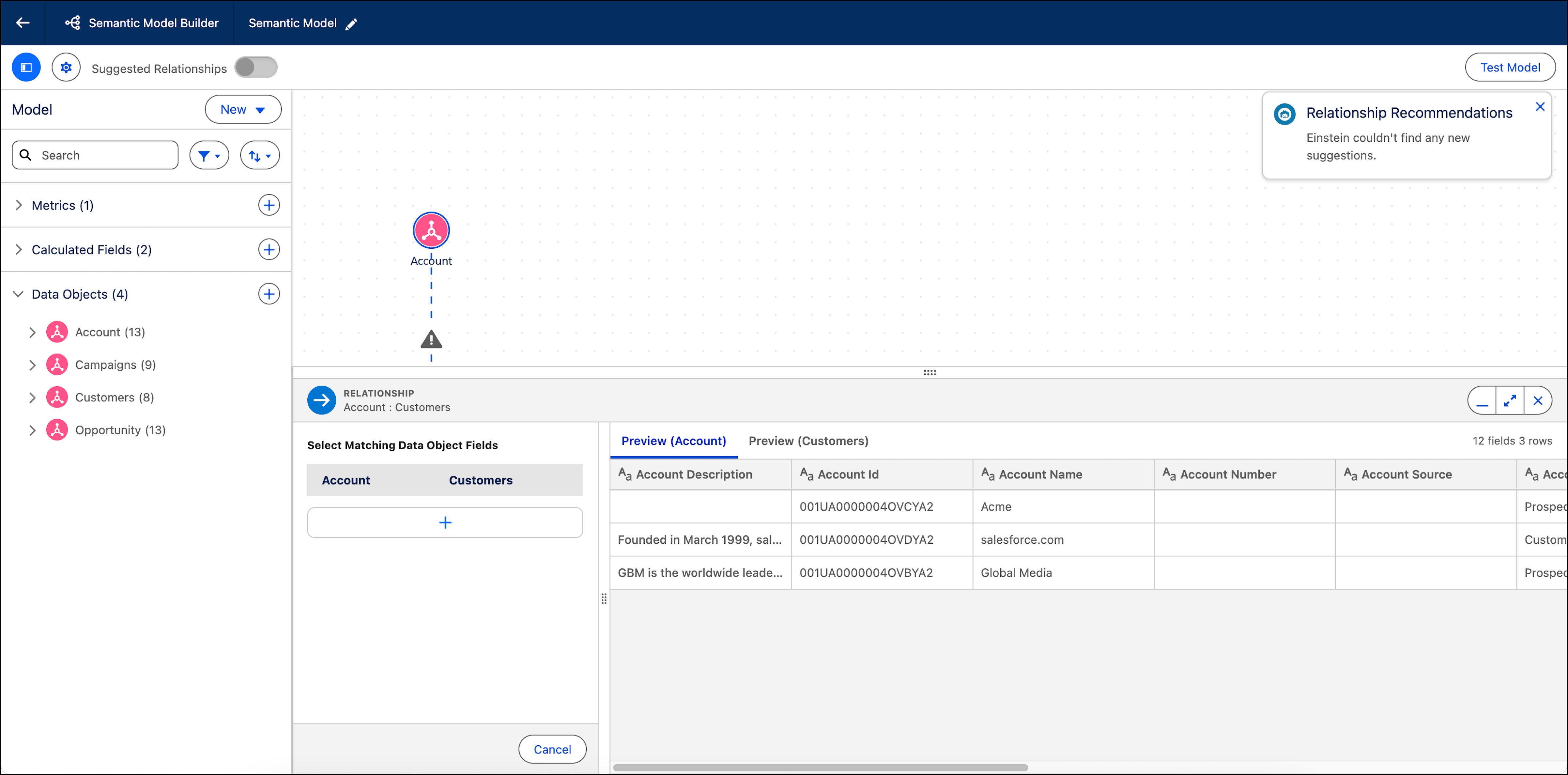
- To properly configure a relationship, you must select matching data object fields.
- In the bottom panel, select the plus icon under Select data object fields.
-
Select the matching data object fields for the objects.
The data object fields must be of the same type. You can search for fields by entering keywords in each box.
- Click Add.
-
Select the plus sign and repeat the process to add matching data object fields.
After the relationship is configured, you must save it to maintain its configuration.
-
Click Apply.
The bottom panel displays a preview of all the fields within both data cloud objects.
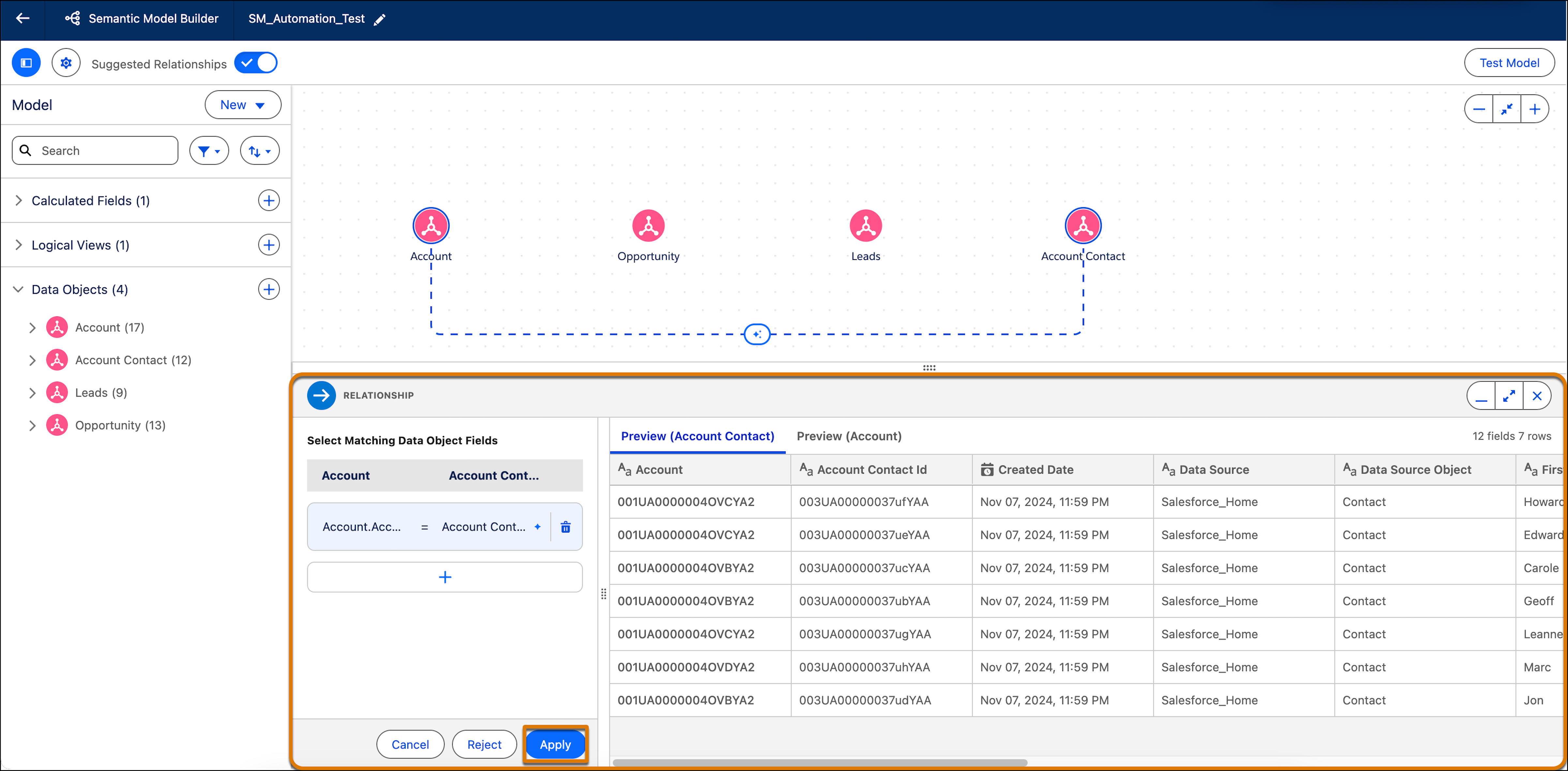 A black line indicates that the relationship is configured correctly.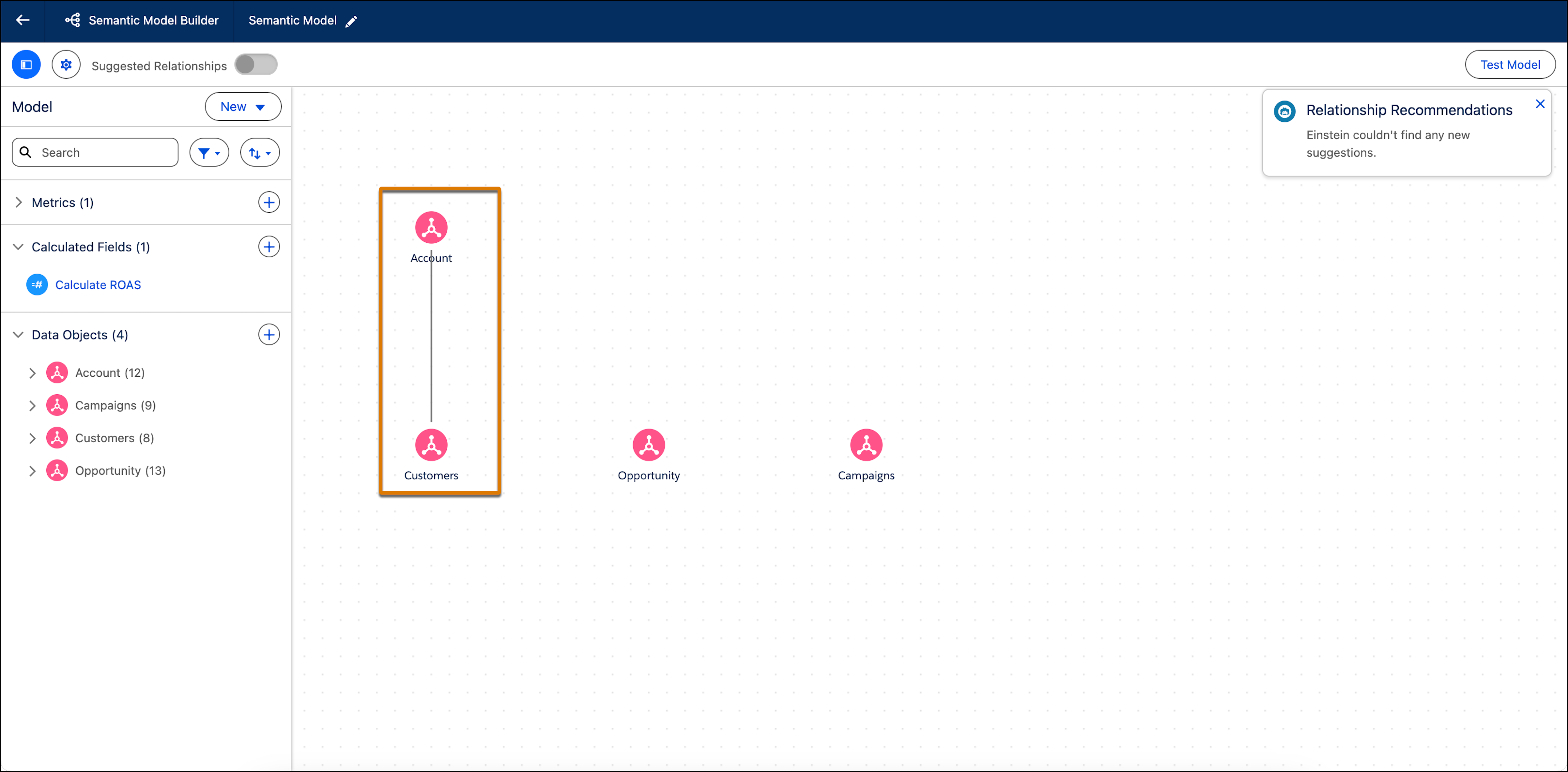
You can use a calculated field in a relationship, but only under specific conditions:
- The calculated field must reference only fields from the data object being connected, both in its formula and filters.
- If a calculated field references another calculated field, the referenced field must follow the same rule.
- If the calculated field is a measure, it can't include any aggregation methods.

Important When querying relationships, Tableau Semantics determines the join
type based on the relationship and context of the query. To configure the join type manually,
use logical views. See Logical
Views.
Did this article solve your issue?
Let us know so we can improve!
